¶ 1. About My Library
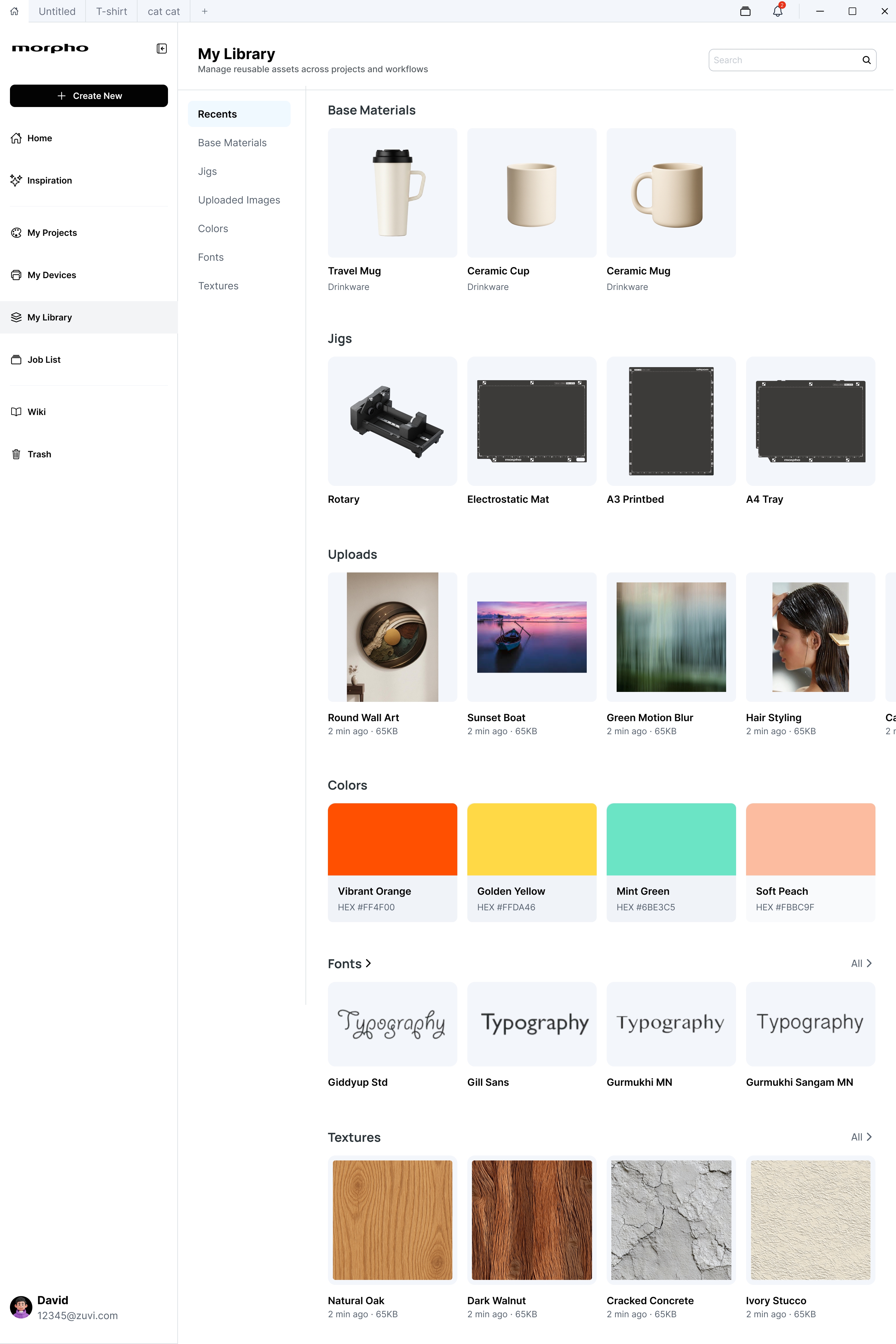
My Library provides a central place to save and manage reusable resources for design and printing, including base materials, jigs, images, colors, fonts, and textures.
In My Library, you can:
- Browse recently used resources.
- Search, favorite, and organize resources.
- Upload images and import fonts and textures.
- Create and manage base materials, jigs, color themes, and palettes.
- Sync personal resources to the current account.
- Use saved resources in design and printing workflows.
 |
 |
¶ 1.1 Page Layout
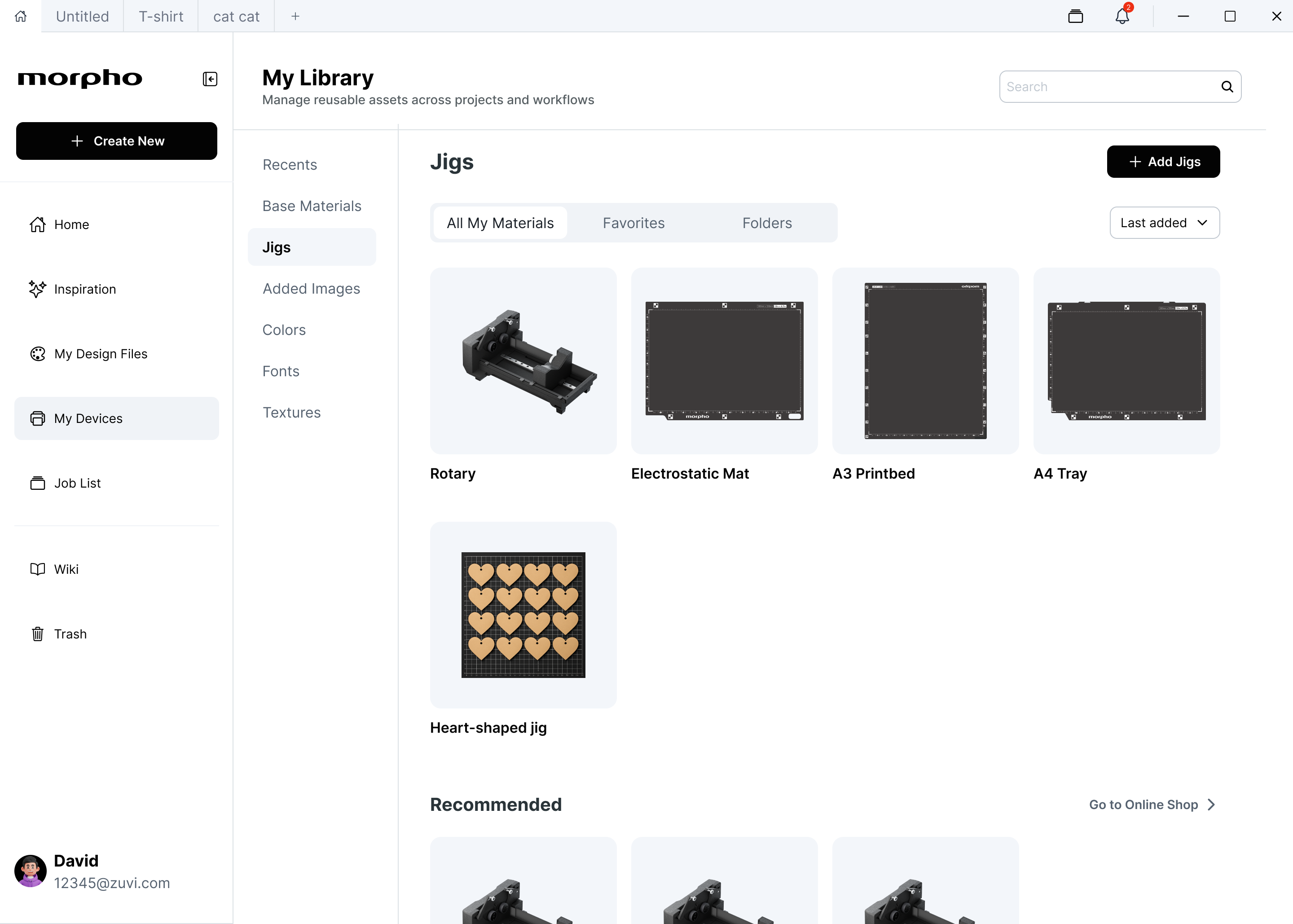
The My Library page includes:
- The page title, search field, and Cloud Sync control at the top.
- Resource categories in the left navigation.
- Filters, sorting controls, and a resource list for the selected category.
- A preview or details area for the selected resource.
A typical resource-management workflow is:
Sign in → Select a resource category → Upload or create a resource → Wait for processing → Add it to Favorites or a folder → Use it in a project
¶ 2. Sign-In and Cloud Sync
¶ 2.1 Sign-In Requirements
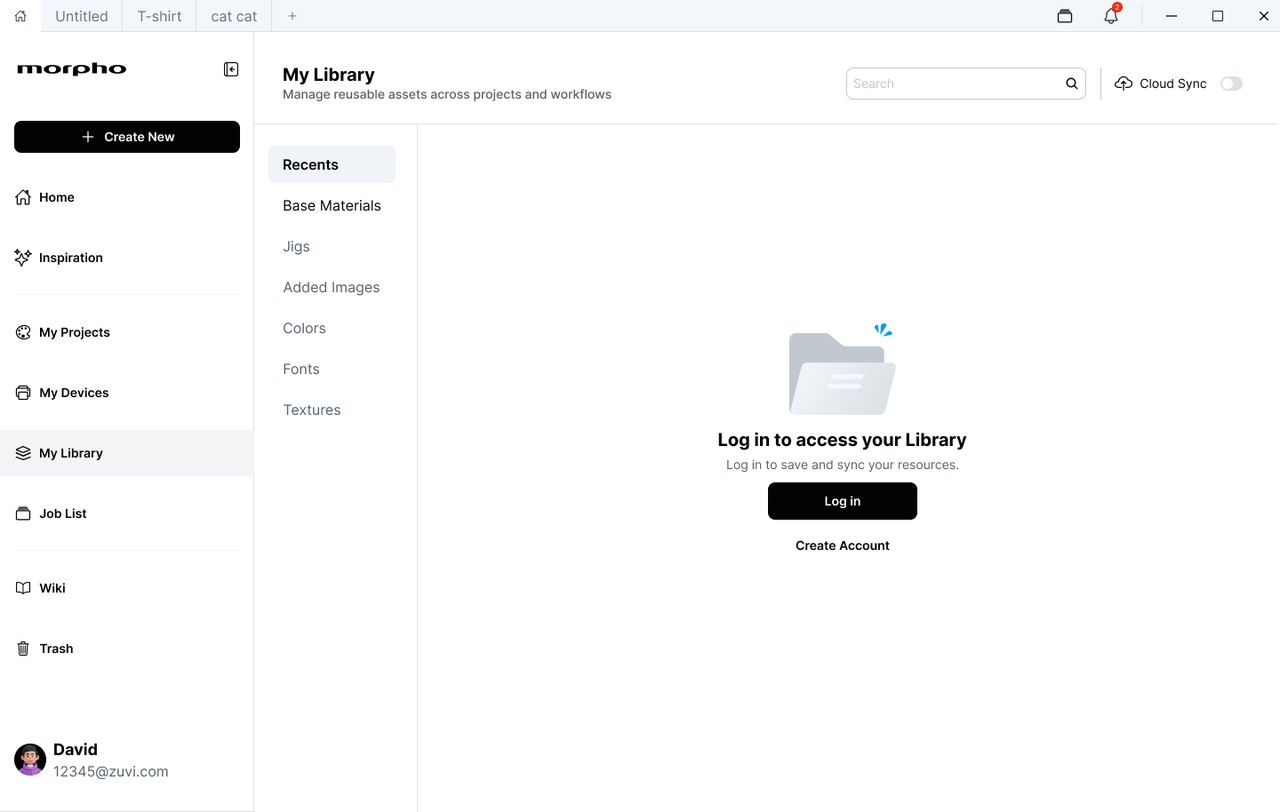
Sign in and maintain a network connection to use all resource-management and synchronization features, including creating, editing, favoriting, moving, and deleting account resources.
When offline, some previously cached resources may remain available to view or use. However, changes that require synchronization cannot be made.
Uploaded Images allows images to be saved to Local on the current device. Local images are not synchronized with the account and cannot be accessed from other devices.
¶ 2.2 Use Cloud Sync
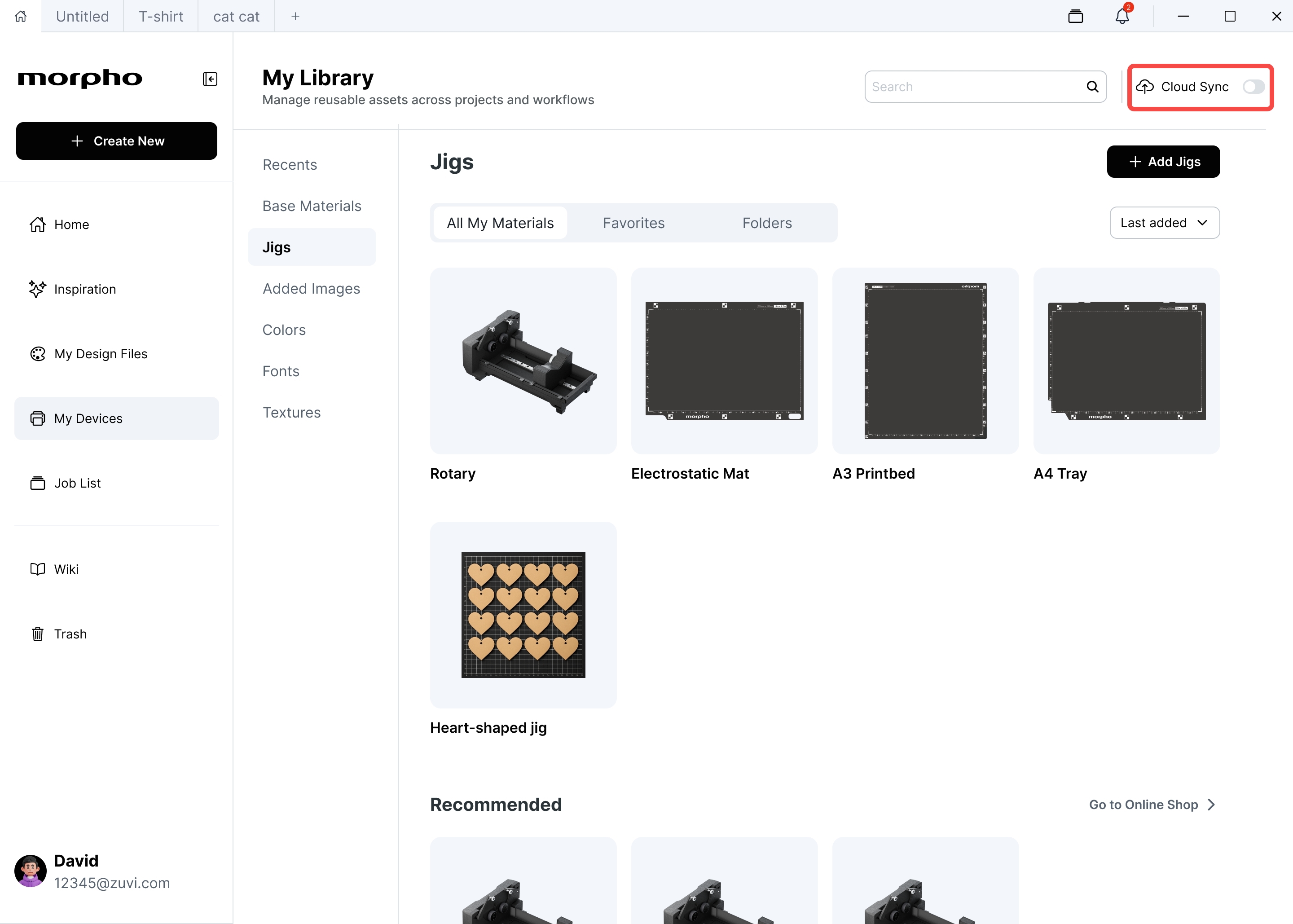
If Cloud Sync is available for the current account, use the control at the top of My Library to manage personal resource synchronization.
To enable Cloud Sync:
- Sign in and connect to the internet.
- Open My Library.
- Turn on Cloud Sync.
- Wait for supported account resources to finish updating.
After Cloud Sync is enabled, supported resource types are synchronized automatically.
After Cloud Sync is disabled:
- New resources may be stored only on the current device.
- Local images will not automatically become account resources.
- Resources that are no longer synchronized automatically may require manual synchronization as instructed on the page.
Note
Cloud Sync applies only to supported resource types. It does not automatically upload every local resource.
¶ 2.3 Synchronization Failure
If synchronization fails, local resources remain on the device.
Check the network connection and sign-in status, then try again.
Important
Do not repeatedly delete and re-upload resources to resolve a synchronization issue.
¶ 3. Manage Resource Types
All categories support search, favorites, sorting, and folders.
This section describes the features specific to each resource type.
¶ 3.1 Base Materials
Base Materials stores reusable material information and default configurations.
¶ 3.2 Jigs
Jigs provides a centralized place to manage your custom jigs.
Coming Soon
Creating and deleting custom jigs is not currently available. These features are under development and will be introduced in a future release.
The following guides describe the jigs currently supported by Morpho Studio.
Click the links below to learn more:
¶ 3.3 Uploaded Images
Uploaded Images stores images that can be reused across designs.
Supported formats include:
- PNG
- JPG
- JPEG
- GIF
- WebP
- BMP
- SVG
- AI
- PSD
Each file must be 100 MB or smaller.
When offline or when Cloud Sync is disabled, new images may be saved to Local.
After reconnecting, follow the resource status or instructions on the page to complete synchronization.
Note
Deleting an image folder does not delete the images inside it. They remain available in the main Uploaded Images list.
¶ 3.4 Colors
Colors contains color themes and palettes.
- Color themes organize related palettes.
- Palettes store reusable groups of colors.
When deleting a color theme, choose whether to:
- Delete only the theme and keep its colors.
- Delete the theme and all colors it contains.
Review the selected deletion scope before confirming.
¶ 3.5 Fonts
Fonts allows you to import and manage personal fonts.
Supported formats include:
- TTF
- OTF
- WOFF
- WOFF2
Personal fonts can be:
- Favorited
- Renamed
- Organized into folders
- Deleted
¶ 3.6 Textures
Textures allows you to import and manage textures for your designs.
Personal textures can be:
- Favorited
- Renamed
- Organized into folders
- Deleted
From a texture folder, you can:
- Upload a new texture.
- Select an existing personal texture.
¶ 4. Use Library Resources in a Project
¶ 4.1 Select a Resource from a Workflow
- Open the appropriate resource selector from a design or printing workflow.
- Select the Library resource you want to use.
- Apply the resource to the current task.
- Return to the task page and confirm the result.
After a resource is used successfully, it may appear in Recents.
¶ 4.2 Current Task Settings and Library Defaults
Changing Base Material or Jig settings in the current task does not automatically update the default configuration saved in My Library.
The saved default changes only when you explicitly select Save as Default (or an equivalent action).
Use or Apply to Current Task affects only the current task.
¶ 5. Frequently Asked Questions
¶ 5.1 Why does the page ask me to sign in?
Sign in and reopen the relevant category.
A network connection is required to create, edit, favorite, move, delete, or synchronize account resources.
If you only need to save an image temporarily, upload it to Local under Uploaded Images.
¶ 5.2 Why can I only view resources while offline?
This is expected behavior.
After the network connection is restored, wait for My Library to refresh before editing or synchronizing resources.
Do not delete offline cached resources to restore editing access.
¶ 5.3 Why can't I enable Cloud Sync?
Check that:
- Cloud Sync is supported by the current account.
- You are signed in.
- The network connection is working.
- No resource uploads are still in progress.
If the issue continues, keep the displayed error information and contact technical support.
¶ 5.4 Why can't I find a resource?
Check that:
- You are viewing the correct resource category.
- The search term is spelled correctly.
- A Favorites or Folder filter is not hiding the resource.
- The resource is not stored only in Local on another device.
¶ 5.5 Why did an image fail to upload?
Check that:
- The file format is supported.
- The file does not exceed 100 MB.
- The network connection is working.
- The file is not damaged.
Note
PDF, AI, and PSD files may require additional time to generate previews. Wait until processing is complete.
¶ 5.6 Why did a font or texture fail to import?
Make sure:
- The file format is supported.
- The file is not damaged.
- You are signed in.
- The network connection is available.
¶ 5.7 Why is the resource preview missing?
The resource may still be:
- Uploading
- Downloading
- Generating its preview
Wait until processing finishes or reopen the current category.
Do not immediately delete the original resource if its thumbnail is temporarily unavailable.
¶ 5.8 Why can't I edit a recommended resource?
Recommended resources cannot be edited directly.
Import the resource into your personal Library before renaming, moving, editing, or deleting it.
¶ 5.9 Why do resources remain after I delete their folder?
This is expected behavior.
Deleting a folder removes only the folder and its organizational relationships.
It does not delete the resources inside it.
¶ 6. Resource Management Notes
- Keep copies of important source files before uploading them.
- Before deleting a resource, confirm that it is no longer required by a project or workflow.
- Review the selected resources and total count before batch deletion.
- Favorites are intended for filtering and organization. They are not a backup.
- If synchronization fails, restore the network connection and verify synchronization before deleting local resources.
- When changing Base Material or Jig configurations, distinguish between current-task settings and Library defaults.
- Sign out after using My Library on a shared device.