¶ Device Center User Guide
¶ 1.Overview
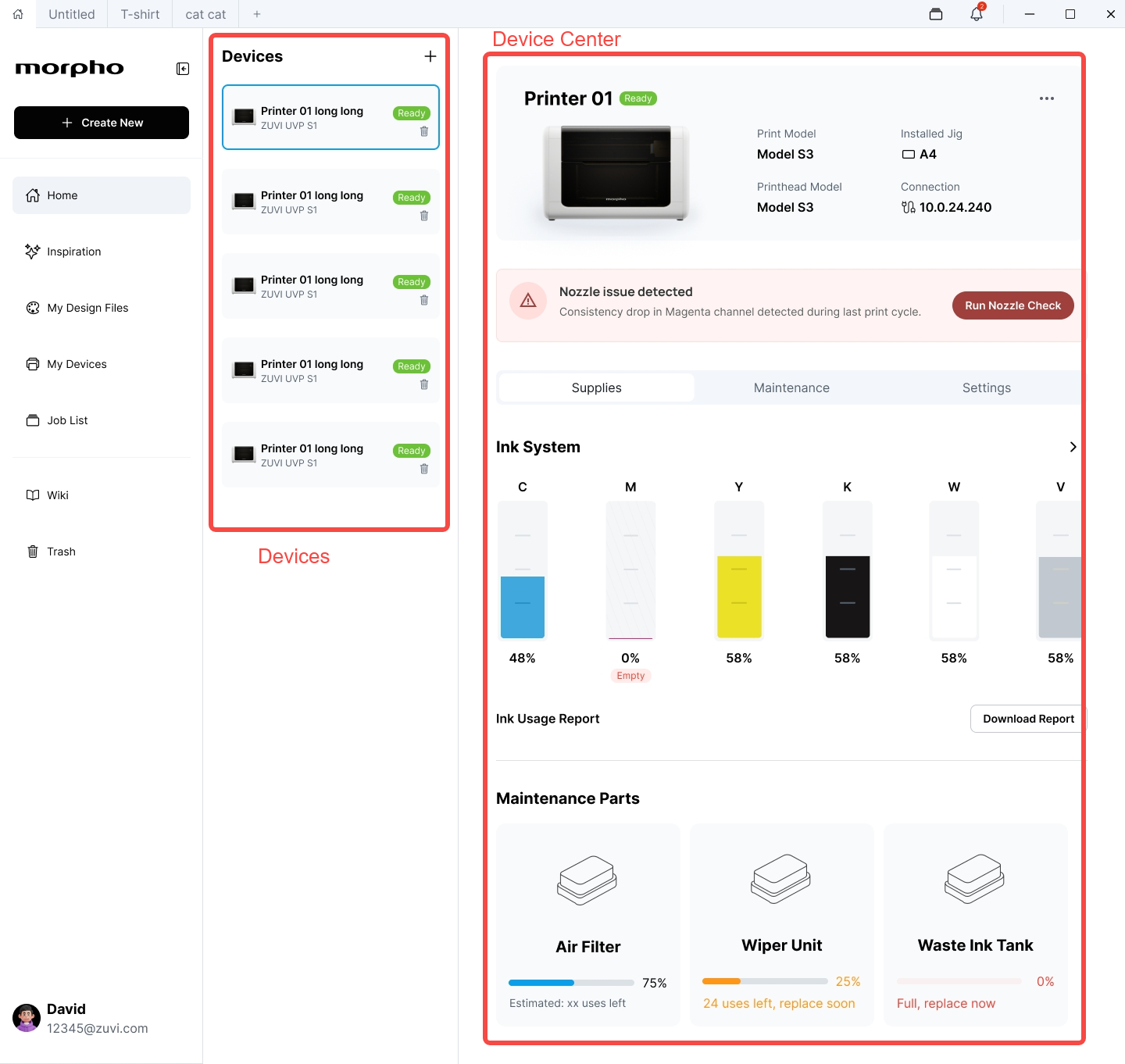
Devices is the printer list page. It allows you to view printers added to the current account, add new printers, and switch between multiple printers.
For instructions on adding a printer, refer to the Add Printer User Guide.
Device Center is the management page for an individual printer. From Device Center, you can:
- View printer status, connection status, and device information.
- Review device errors and maintenance reminders.
- Check ink and maintenance-part status.
- Perform printhead maintenance, position calibration, and device self-checks.
- Configure printing behavior, lighting, display, and sound.
- Upload device logs for troubleshooting and technical support.
¶ 2.View Printer Status and Information
¶ 2.1 Device Information
After selecting a printer, the device information area displays:
-
Printer name and current status.
-
Printer Model: The printer model.
-
Installed Fixture: The currently installed fixture and its setup status.
-
Printhead Model: The installed printhead model.
-
Connection: The current network connection type or connection status.
¶ 2.2 Printer Status
| Status | Description |
|---|---|
| Ready | The printer is online and available to start a task. |
| Printing | A print job is in progress. Some operations are temporarily unavailable. |
| Scanning | A scan is in progress. Some operations are temporarily unavailable. |
| Maintenance | A maintenance task is in progress. |
| Calibrating | A calibration task is in progress. |
| Updating | The printer firmware is being updated. Do not turn off the printer during the update. |
| Offline | The app cannot currently connect to the printer and cannot confirm its real-time status. |
| Error | The printer has an issue that requires attention. Select the issue notification to view the recommended action. |
| Setup Required | Printer setup must be completed before the printer can be used. |
| Ready to add | The printer has been discovered and can be added to the app. |
If the printer appears Offline after a task has already been sent successfully, the task may still be running on the printer. The app will not automatically mark it as failed, paused, or canceled.
Check the printer screen for the current task status. When the connection is restored, the app will synchronize with the printer again.
¶ 2.3 Errors and Maintenance Reminders
If the printer requires attention or maintenance, an issue card appears in the device information area.
- Select the action on the issue card.
- Review the issue description.
- Follow the instructions provided on the page.
¶ 2.4 Background Tasks
When maintenance or calibration is running in the background, use the task banner to view its current status or reopen the task details.
¶ 3.View and Manage Supplies
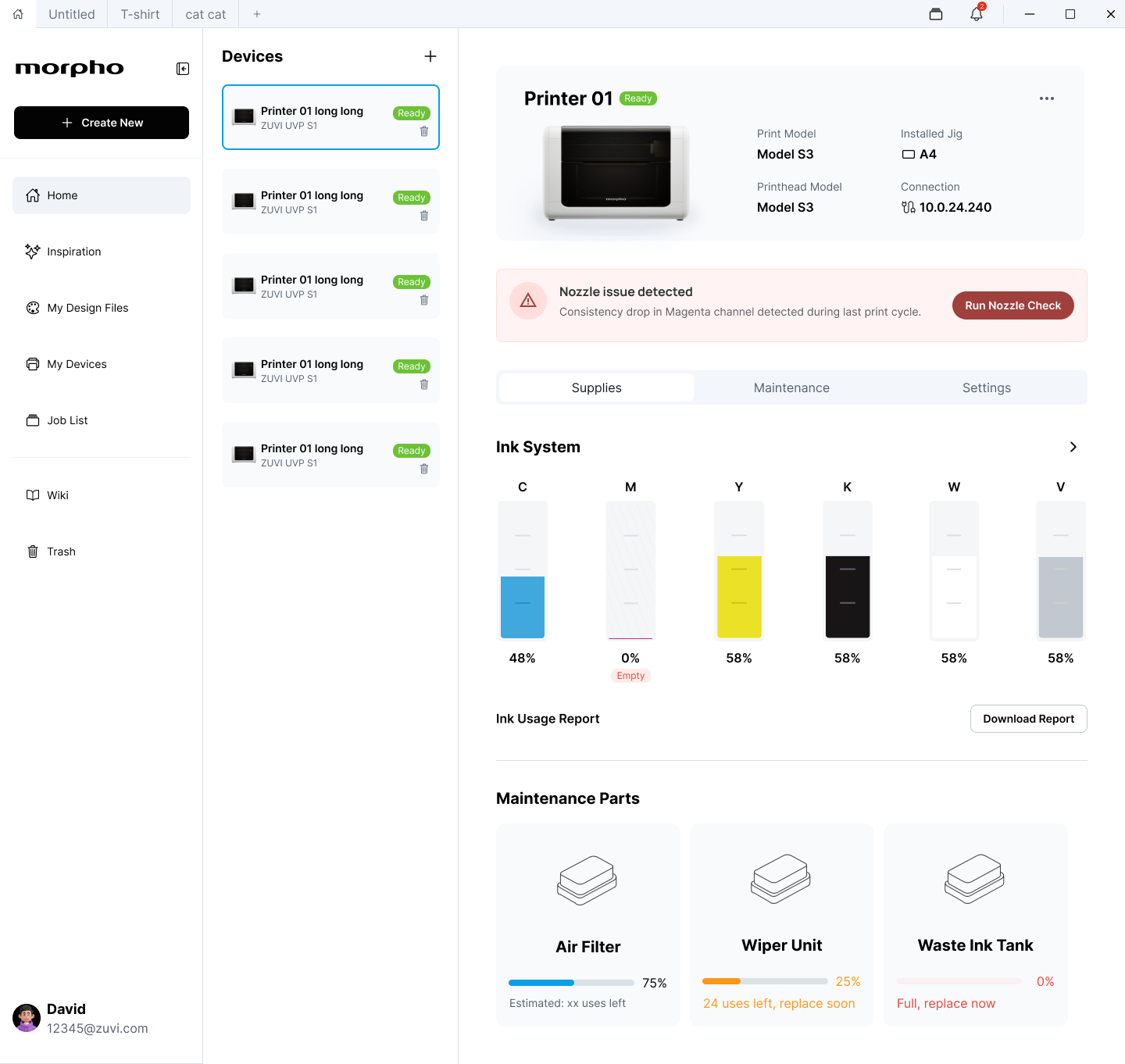
Open Supplies to check ink and maintenance-part status.
¶ 3.1 Check Ink Status
-
View the remaining ink level and current status of each cartridge under Ink System.
-
Select the details button to open Ink Cartridges.
-
Switch between cartridge tabs to view detailed information for each cartridge.
-
If a cartridge is low, empty, or in an abnormal state, follow the instructions on the page to inspect or replace it.
-
When replacement is required, open the Cartridge Replacement Guide and follow the provided steps.
¶ 3.2 Download an Ink Usage Report
-
Select Download Report under Ink Usage Report.
-
Choose a save location and complete the download.
If the page indicates that no ink usage data is available, the printer does not yet have valid records for generating a report. Try again after the printer has recorded additional ink usage.
¶ 3.3 Check Maintenance Parts
-
View the status of each component under Maintenance Parts.
-
Select a component card to view detailed status and replacement instructions.
-
Follow status messages such as Replace Soon, Replace Now, or Nearly Full to plan the required action.
Review both the status text and progress indicator, and follow the action recommended on the page.
¶ 4.Maintenance, Calibration, and Self-Check
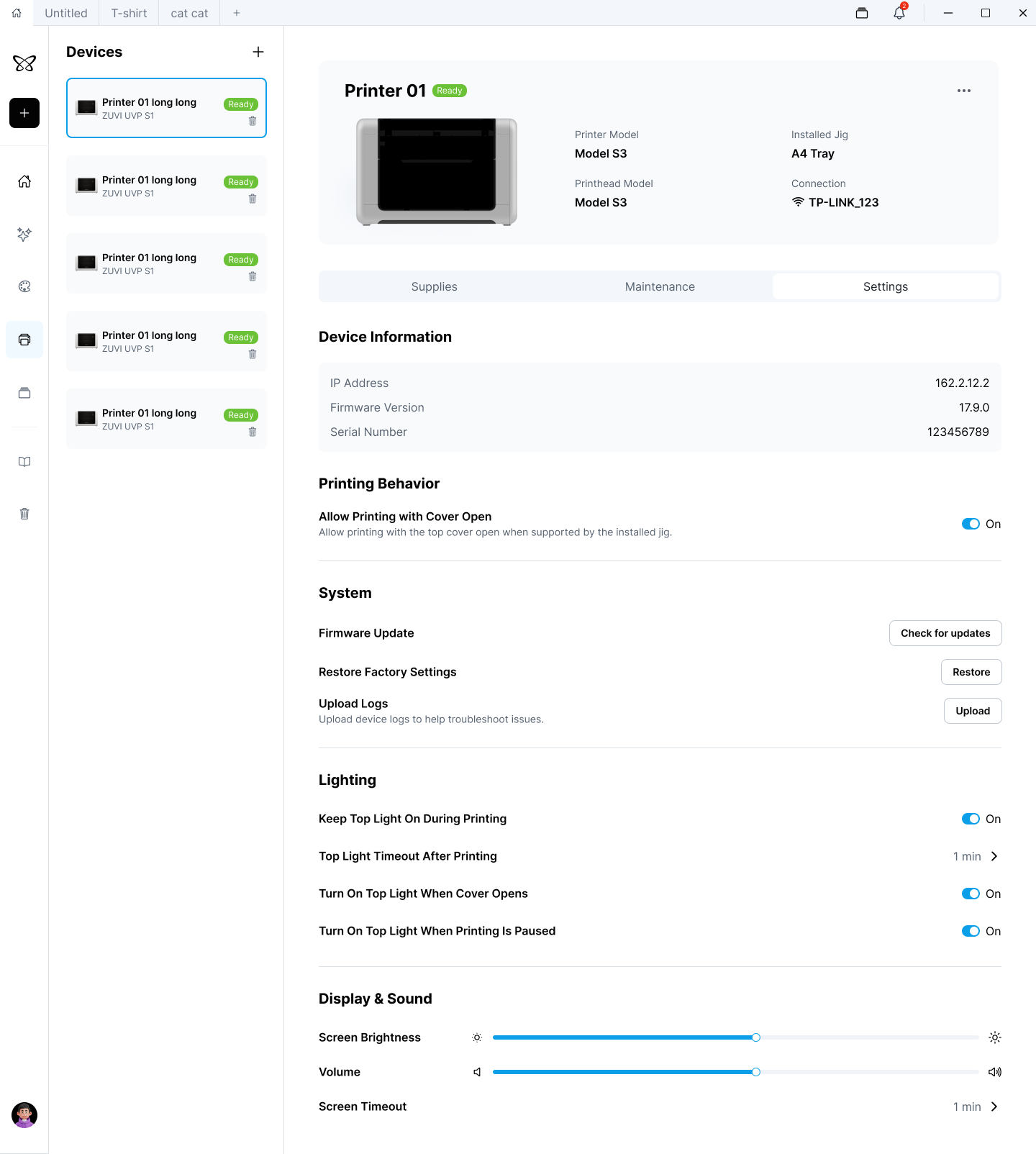
Open Maintenance to perform printhead maintenance, position calibration, or a device self-check.
¶ 4.1 When to Use Maintenance
Open Maintenance when:
- Printed colors appear faded or overall print quality has declined.
- Prints contain missing lines, broken lines, or missing nozzles.
- Colors appear mixed or contaminated.
- Print placement is shifted or misaligned.
- The printer has not been used for an extended period.
- The printer displays a maintenance reminder.
- You need to confirm printhead condition before printing.
- The app requires maintenance, calibration, or a device self-check before you can continue.
¶ 4.2 Before You Start
Before starting maintenance or calibration, make sure that:
-
The printer is in the Ready state.
-
The print area is clear of anything that could interfere with printer movement.
-
You have reviewed the preparation instructions for the selected function.
-
Test paper or other required material has been placed as instructed.
-
The printer cover is closed unless the page specifically instructs you to leave it open.
When test paper is required:
- Place one blank sheet of white A4 or Letter-size paper on the A4 Tray.
- Align the paper with the L-shaped mark at the bottom-left of the tray.
- Secure the paper flat with tape.
- Do not cover the QR Code on the tray.
¶ 4.3 When the Printer Is Busy
Maintenance is temporarily unavailable while the printer is printing, scanning, maintaining, calibrating, or performing another task.
Wait for the current task to finish before opening Maintenance. During a task, do not turn off the printer, move the base material, or open the cover unless instructed on the page.
¶ 4.4 When the Printer Shows Error
When the printer is in the Error state, most maintenance and calibration functions are unavailable. Only Device Self-Check can be run.
-
If the printer returns to Ready after the self-check, you can continue with printhead maintenance, position calibration, or printing.
-
If the printer remains in Error, follow the recommended action displayed on the page.
¶ 4.5 Choose a Printhead Maintenance Option
| Function | When to use it | Recommendation |
|---|---|---|
| Smart Maintenance | You are unsure of the cause or want the system to detect, clean, and verify the printhead automatically. | Recommended as the first option. |
| Color Mixing Recovery | Printed colors appear mixed or contaminated. | Use to improve color-mixing issues. |
| Clogged Nozzle Recovery | Missing lines or nozzles persist after standard maintenance. | Use for further improvement of missing-nozzle conditions. |
| Printhead Status Test Print | You want to inspect nozzle and color conditions using a test pattern. | Run before and after maintenance to compare the results. |
Maintenance results depend on the printhead condition and the severity of the issue. If the problem continues, follow the next-step recommendation shown on the result page.
¶ 4.6 Run a Maintenance Task
- Select the required maintenance function.
- Select Start.
- Review and complete the preparation requirements.
- Confirm to begin the task.
- Wait for maintenance and verification to finish.
- Review the result and follow any recommended next steps.
During maintenance, do not turn off the printer, open the cover, or forcefully move printer components unless instructed on the page.
¶ 4.7 Use Nozzle Compensation
Nozzle Compensation helps reduce the visible impact of a small number of nozzles that cannot be fully recovered.
- Complete the required printhead checks and preparation before enabling it.
- Printing may be slower while Nozzle Compensation is enabled.
- Nozzle Compensation does not replace necessary printhead maintenance or component replacement.
¶ 4.8 Run Position Calibration
- Select Position Calibration.
- Select Start.
- Follow the preparation and calibration instructions.
- If calibration runs in the background, use the task banner to view progress or reopen the task details.
- Confirm that calibration completed successfully before starting prints that require precise alignment.
¶ 4.9 Run Device Self-Check
-
Find Device Self-Check under Diagnostics.
-
Select Run.
-
Wait for the printer check to finish.
-
Follow the recommended action shown in the result.
If the printer returns to Ready, you can continue using it. If it remains in Error, follow the instructions on the page.
¶ Adjust Printer Settings
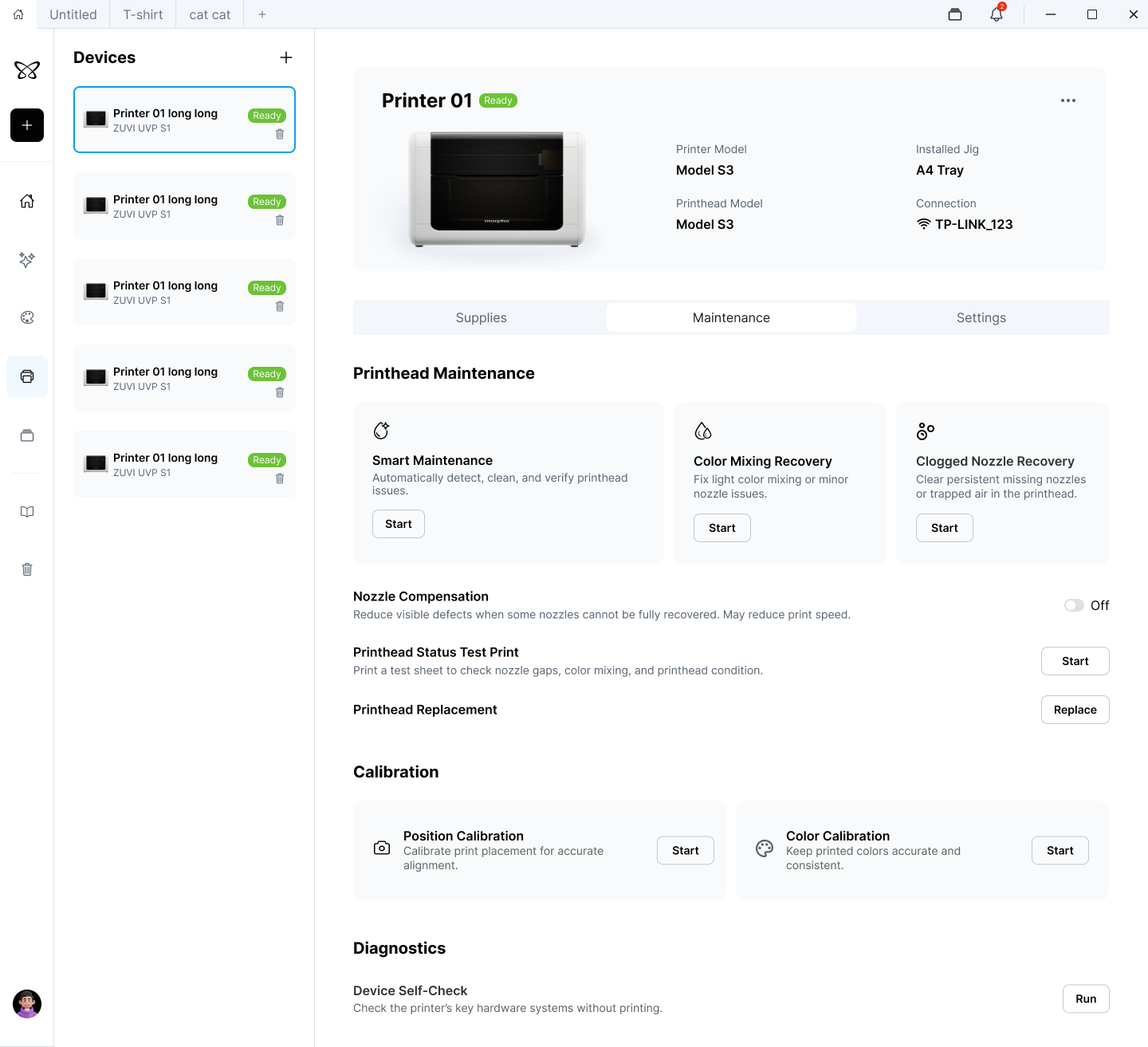
Open Settings to view printer information and configure device settings.
¶ 5.1 Device Information
The following information is available under Device Information:
- IP Address
- Firmware Version
- Serial Number
Use this information to identify the printer, check its connection, or provide device details to technical support.
¶ 5.2 Printing Behavior
Allow Printing with Cover Open: Allows printing while the top cover is open.
Enable this option only when the current printer and installed fixture explicitly support open-cover printing. Review the safety information before enabling it, and follow all printer and fixture requirements.
¶ 5.3 Lighting
-
Keep Top Light On During Printing: Keeps the top light on while printing.
-
Top Light Timeout After Printing: Sets how long the top light remains on after a task finishes.
-
Turn On Top Light When Door Opens: Turns on the top light automatically when the printer door is opened.
-
Turn On Top Light When Printing Is Paused: Turns on the top light automatically when printing is paused.
¶ 5.4 Display & Sound
-
Screen Brightness: Adjusts the brightness of the printer display.
-
Volume: Adjusts the volume of printer alerts.
-
Screen Timeout: Sets when the screen turns off automatically or keeps it on continuously.
¶ 5.5 System
-
Restore Factory Settings: Restores printer settings to their factory defaults. Review the scope and effects shown on the confirmation page before proceeding.
-
Upload Logs: Uploads device logs for troubleshooting or technical support.
¶ Frequently Asked Questions
¶ 6.1 Why can’t the app find my printer?
The printer may be turned off, not fully set up, or connected to a different local network from the computer.
-
Make sure the printer is turned on and has completed its initial setup.
-
Make sure the computer and printer are connected to the same local network.
-
Select Scan Again.
-
If the printer is still not found, try Add by IP Address.
¶ 6.2 Why can’t the app find the printer by IP address?
The IP address may be incorrect, the printer’s address may have changed, or the computer may be unable to access the printer’s network.
- Check the printer’s current IP Address on the printer.
- Make sure the complete address has been entered correctly.
- Check the network connections of both the computer and printer, then try again.
¶ 6.3 Why does the app show Offline while the printer is still running?
The connection between the app and printer may have been interrupted after the task was successfully sent to the printer.
- Check the printer screen for the current task status.
- Check the network connections of the computer and printer.
- Select Refresh Devices to retrieve the latest status.
- After the connection is restored, wait for the app to synchronize with the printer.
¶ 6.4 Why did the IP Address change after I selected Refresh?
The printer may receive a new IP Address after reconnecting to the network. The app identifies the printer by its Device ID and uses the new address to reconnect.
This normally does not affect printers that have already been added.
¶ 6.5 Why does a supply show Unknown or have no usage data?
- Refresh the printer status.
- Make sure the corresponding supply is installed correctly.
- If the printer has not generated valid ink usage records, wait and try downloading the report again later.
- If the status remains incorrect after refreshing, follow the instructions on the page.
¶ 6.6 Why are buttons unavailable in Maintenance or Settings?
Some functions are unavailable when the printer is:
- Offline
- Printing
- Scanning
- Performing maintenance
- Calibrating
- Busy with another task
- In an error state
Check the message on the page and wait for the current task to finish. If the printer shows Error, run Device Self-Check first.
¶ 6.7 What should I do if maintenance, calibration, or self-check fails?
- Review the specific cause and recommended action on the result page.
- Confirm that the printer status and preparation conditions are correct, then try again.
- Do not repeatedly restart the same failed task without addressing the reported issue.
- If the problem continues, use Upload Logs and contact technical support.
¶ 6.8 Does removing a printer cancel its current task?
No.
Removing a printer only removes it from the printer list. It does not turn off the printer or cancel a task that has already started on the printer.
Check the current task status on the printer screen before removing the device.
¶ Safety Information
- Review all on-screen instructions before performing maintenance, calibration, or component replacement.
- Do not place your hands inside the printer’s movement area while it is operating.
- Do not turn off the printer during printing, scanning, maintenance, calibration, or a firmware update.
- Do not move the base material or open the cover while a task is running unless instructed on the page.
- Enable open-cover printing only when both the printer and installed fixture explicitly support it.
- Before restoring factory settings, review the scope and effects shown on the confirmation page.