¶ Add Printer User Guide
¶ Add a Printer from Devices
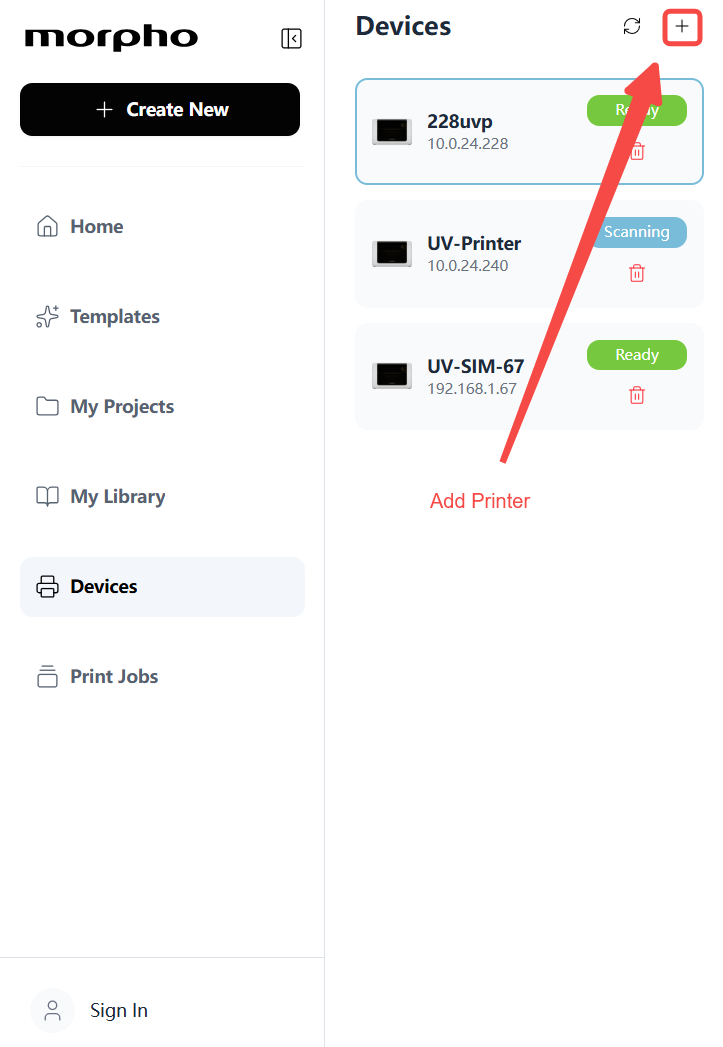
¶ Open Add Printer
Go to: Devices → Add Printer
¶ Before You Add a Printer
Make sure that:
- The printer is turned on.
- The printer has completed initialization and initial setup.
- The printer is connected to a network.
- The computer and printer are connected to the same local network.
- The printer status is Ready to Add.
A printer can be added to the App only when its status is Ready to Add. If the printer is initializing, updating, performing a task, or in an error state, complete the required action on the printer before returning to the App.
¶ Add the Printer
-
Open the App and go to Devices.
-
Select Add Printer.
-
The App searches for available printers on the same local network.
-
Choose an adding method:
-
Option 1: Select a printer on the same network
a. If the App discovers an available printer, it appears in the printer list. Select the printer you want to add.
-
Option 2: Enter the Printer IP Address manually
a. If the printer is not discovered automatically, select Add by IP Address and enter its Printer IP Address.
-
After you select or enter a printer, the App retrieves its information.
-
Confirm that the following information is correct:
- Printer Name
- Printer ID
- Model
- IP Address
- Serial Number
-
Select Add.
-
Wait for the App to connect to the printer.
¶ After the Printer Is Added
After the printer is added successfully, you can open its Device Center from the Devices page.
When the printer status changes to Ready, you can create print jobs, run maintenance, perform calibration, or start a scan.
For more information, refer to the Device Center User Guide.
¶ The Printer Cannot Be Found
If the printer does not appear on the Add Printer page, check that:
-
The printer is turned on.
-
The printer has completed its setup process.
-
The computer has a working network connection.
-
The computer and printer are connected to the same local network.
Try the following steps in order: -
Select Scan Again to search the local network again.
-
If the printer is still not found, check its Printer IP Address on the printer screen.
-
Return to the App and select Add by IP Address.
-
Enter the Printer IP Address.
-
Select Find Device.
-
If the App still cannot connect, restart the printer and repeat the steps above.
¶ The Printer Is Found but Cannot Be Added
If the printer appears in the App but selecting Add does not complete the connection—or the Add button is unavailable—check that:
-
The printer is still online.
-
The printer status is Ready to Add.
-
The entered Printer IP Address is correct.
-
The computer and printer are still connected to the same local network.
-
The printer has not recently restarted, changed networks, or started another task.
Try the following: -
Select Try Again.
-
If you are adding the printer manually, verify and re-enter the Printer IP Address.
-
If the printer still cannot be added, select Upload Logs.
-
After the logs are uploaded, contact the support team or follow the instructions on the page.
¶ An Added Printer Shows Error or Cannot Connect
If a printer has already been added but its device card shows Error, Offline, or another connection issue, refresh its status first.
-
Go to Devices.
-
Select Refresh next to Add Printer.
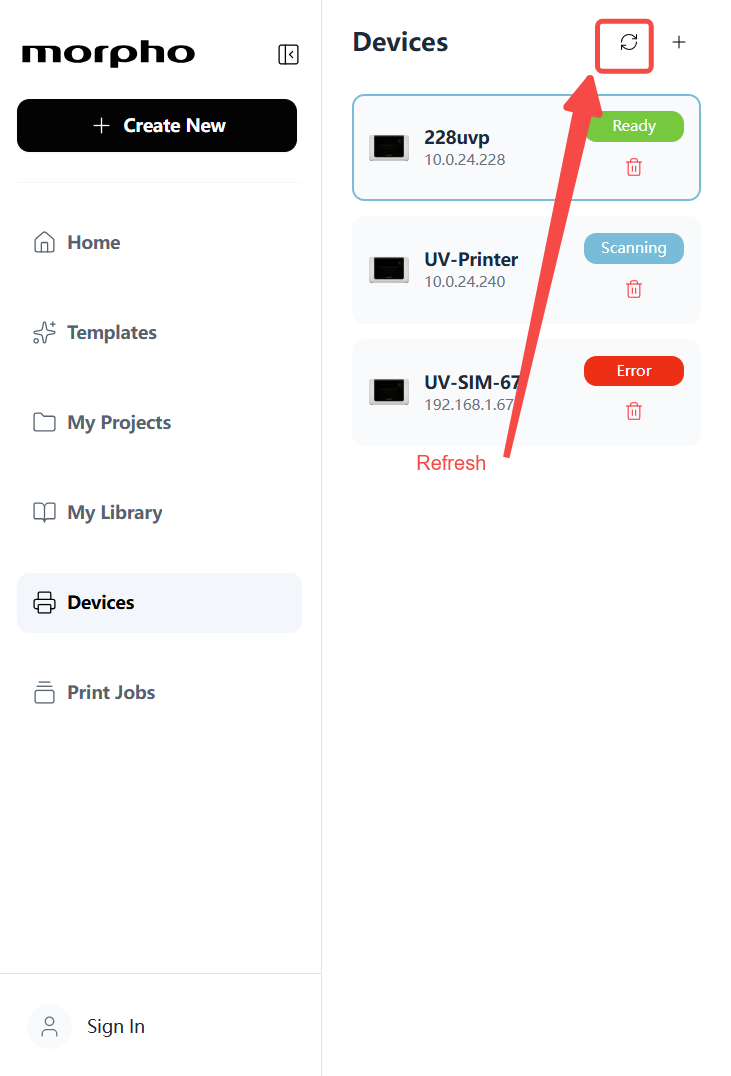
- The App retrieves the latest connection information using the printer’s Device ID.
- If the printer’s IP Address has changed, the App reconnects using the new address.
- If the IP Address has not changed, the existing connection information remains unchanged.
- If the issue continues after refreshing, select Upload Logs.
¶ When to Upload Logs
Upload logs in any of the following situations:
-
The App cannot connect after the correct Printer IP Address has been entered.
-
The printer still shows Error or Offline after being refreshed.
-
The printer repeatedly switches between Ready, Offline, and Error.
-
Multiple attempts to add the printer have failed.
-
The App reports a connection issue while the printer screen shows normal operation.
-
The support team requests device logs.
When logs are uploaded, the App collects information related to printer connections, network discovery, and connection diagnostics. This information helps the support team investigate the issue.
¶ Frequently Asked Questions
¶ Why must the computer and printer be on the same network?
The App uses the local network to discover and connect to the printer. If the computer and printer are on different networks, the App may be unable to find the printer or establish a stable connection.
¶ What does Ready to Add mean?
Ready to Add means that the printer has completed initialization and is available to be added to the App.
If the printer is not Ready to Add, check the printer screen and complete any required setup, update, or error-recovery steps before trying again.
¶ Why can I add the printer by IP Address when automatic discovery does not work?
Automatic discovery depends on the current network configuration. If network discovery is restricted, the printer may not appear in the list.
Entering the Printer IP Address allows the App to attempt a direct connection to the printer.
¶ Why does a previously connected printer now show Error?
Possible causes include:
- The printer’s IP Address has changed.
- The network connection is unstable.
- The printer recently restarted and is reconnecting.
- The connection information stored by the App is no longer current.
- The printer is in an error state or busy with another task.
Select Refresh first. If the printer’s IP Address has changed, the App will attempt to reconnect using the new address.
¶ What should I do if refreshing does not resolve the issue?
Select Upload Logs if the printer still cannot connect after being refreshed. The logs can help the support team identify the cause of the connection failure.