¶ Waste Ink Tank
The Waste Ink Tank is a replaceable maintenance part located behind the printer’s right-side cover. It collects waste ink generated during initial ink filling and printhead maintenance.
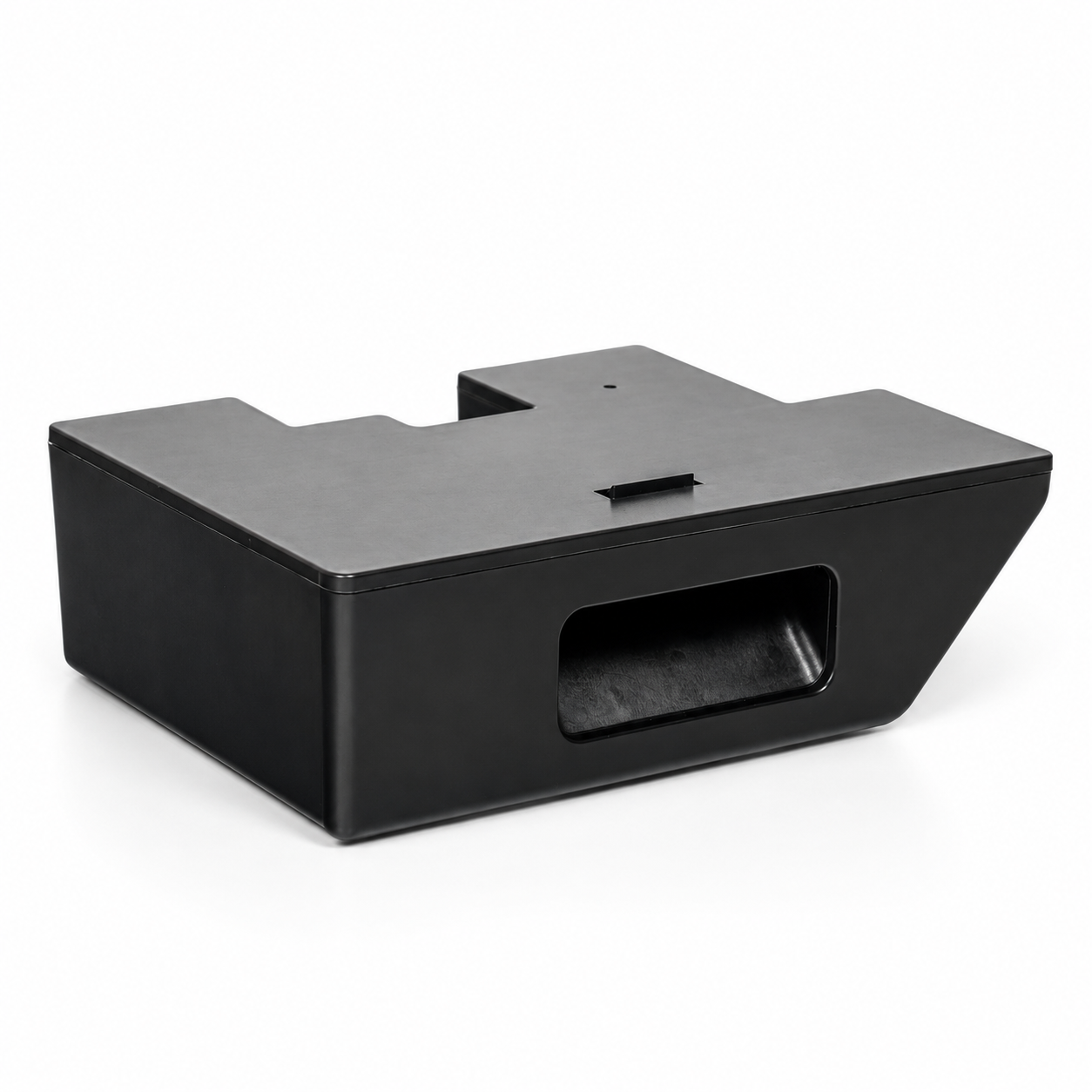
¶ When to Replace
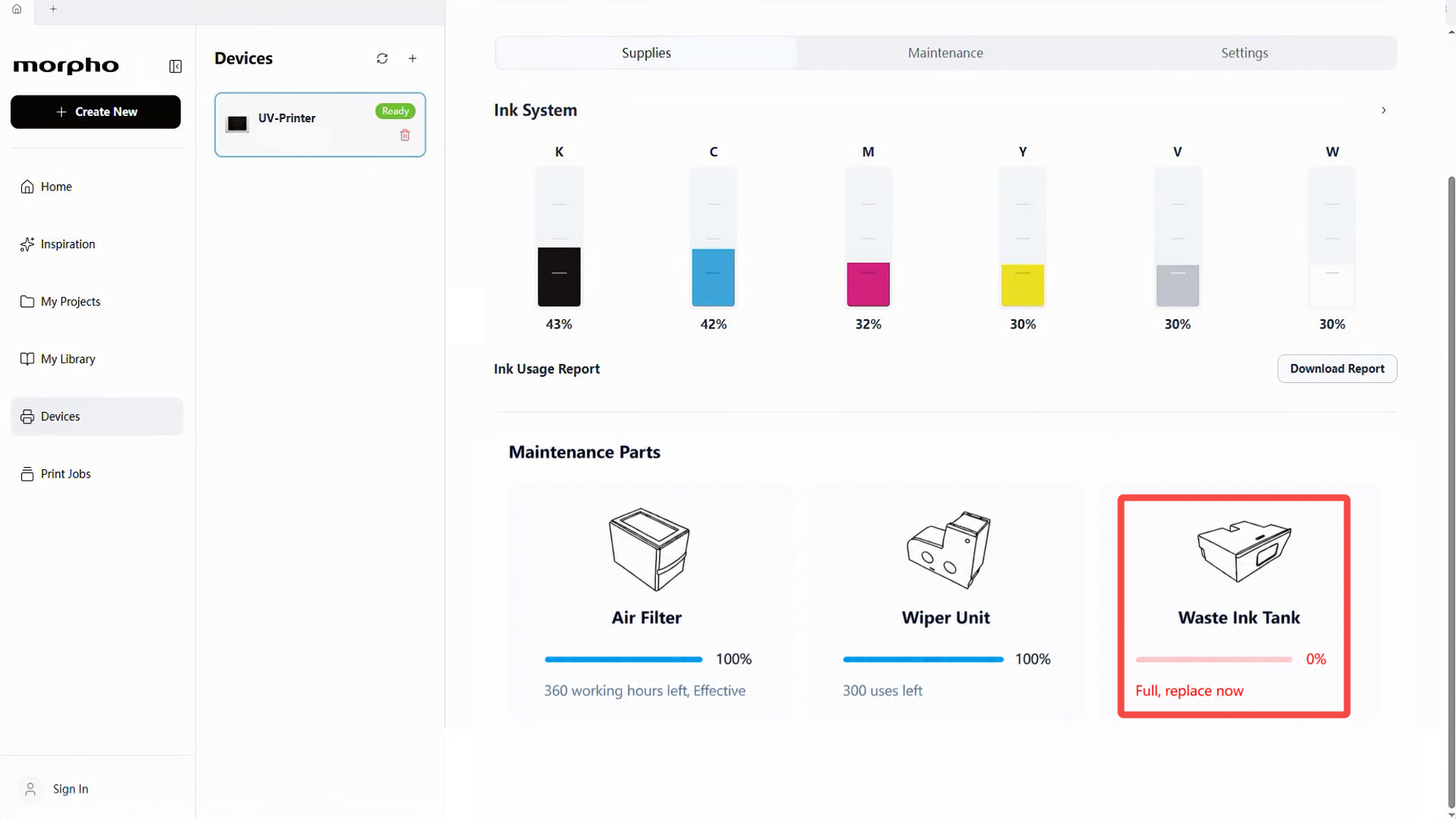
Replace the Waste Ink Tank when Morpho Studio shows 0%(Full,replace now).
¶ Tools and Materials Required
- New Waste Ink Tank
- Disposable Nitrile Gloves

¶ Safety Precautions for Operation
Caution
- Wear disposable nitrile gloves to keep waste ink off your hands.
- Keep the expired cartridge level as you remove it. Do not tilt or shake the cartridge to prevent spills.
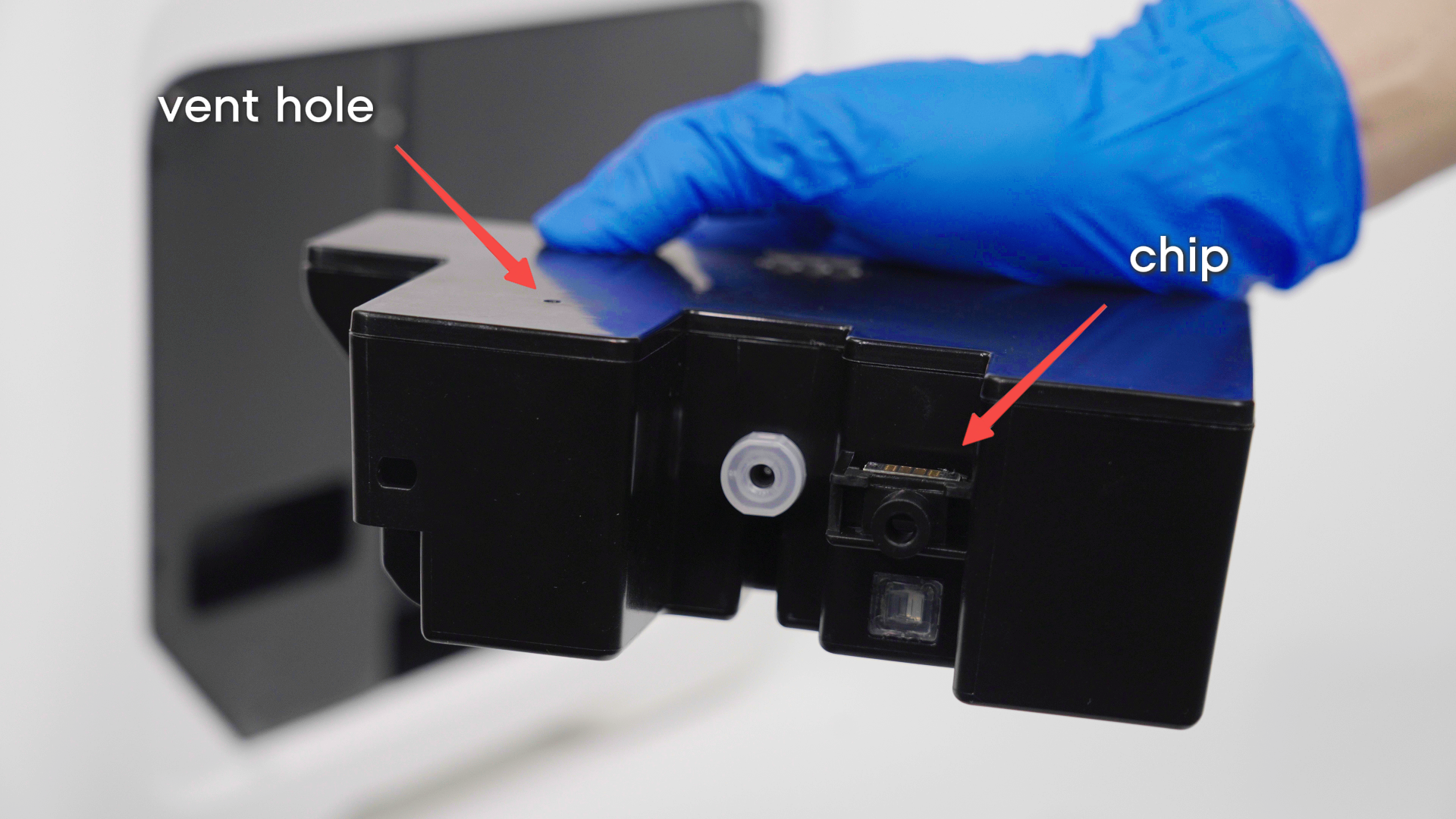
- Keep the identification chip clean and the air vent unobstructed.
¶ Video Guide
¶ Operation Guide
¶ Step 1: Check the Waste Ink Tank Status
- In Morpho Studio,find the Waste Ink Tank under Maintenance Parts.
- Confirm that the Waste Ink Tank shows
0%(Full,replace now).
¶ Step 2: Remove the Expired Waste Ink Tank
-
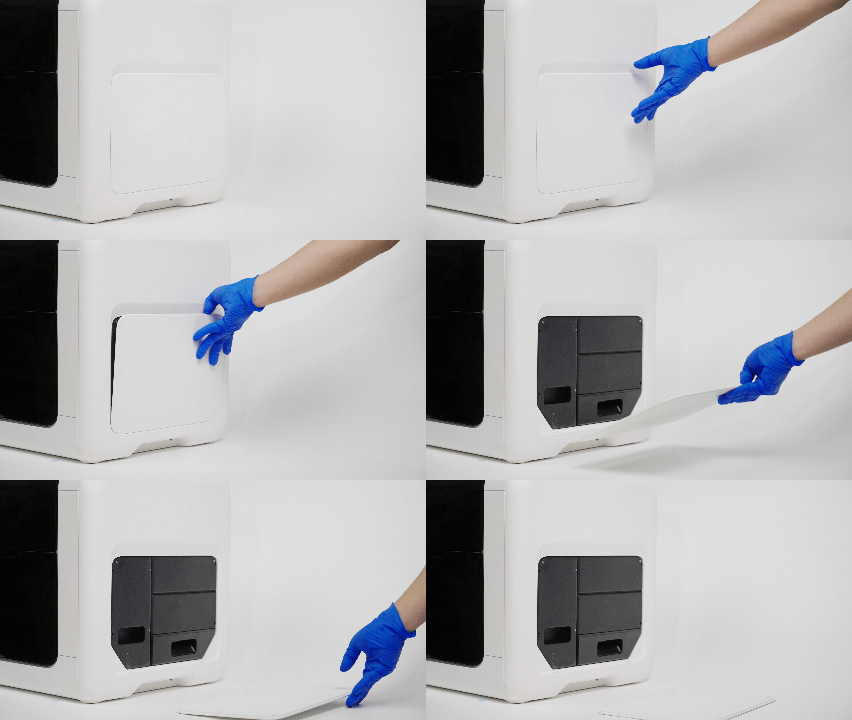
Put on disposable nitrile gloves, then remove the right-side cover.
-
Press the release latch, then carefully remove the expired cartridge while keeping it level.
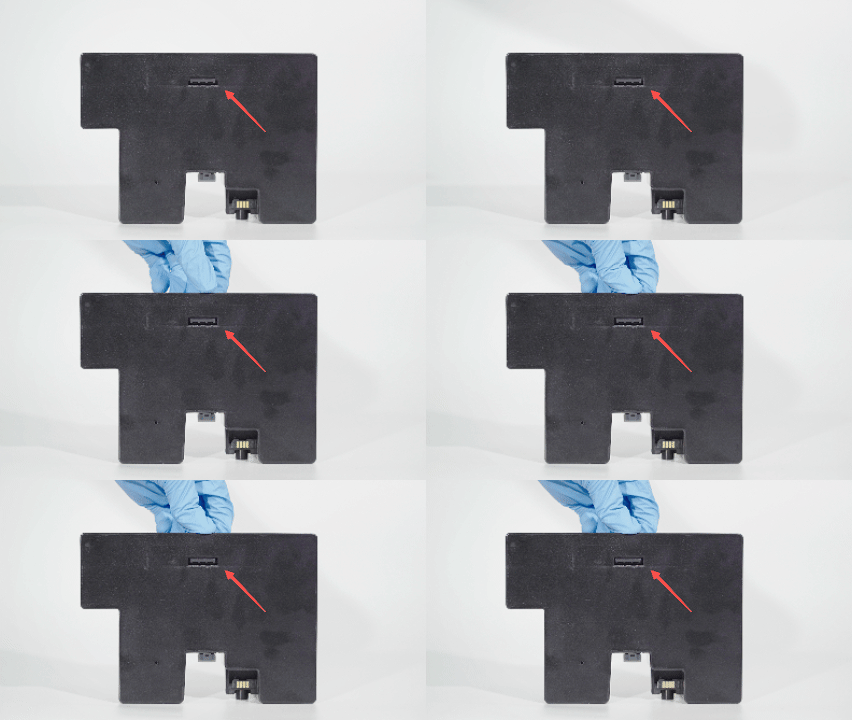
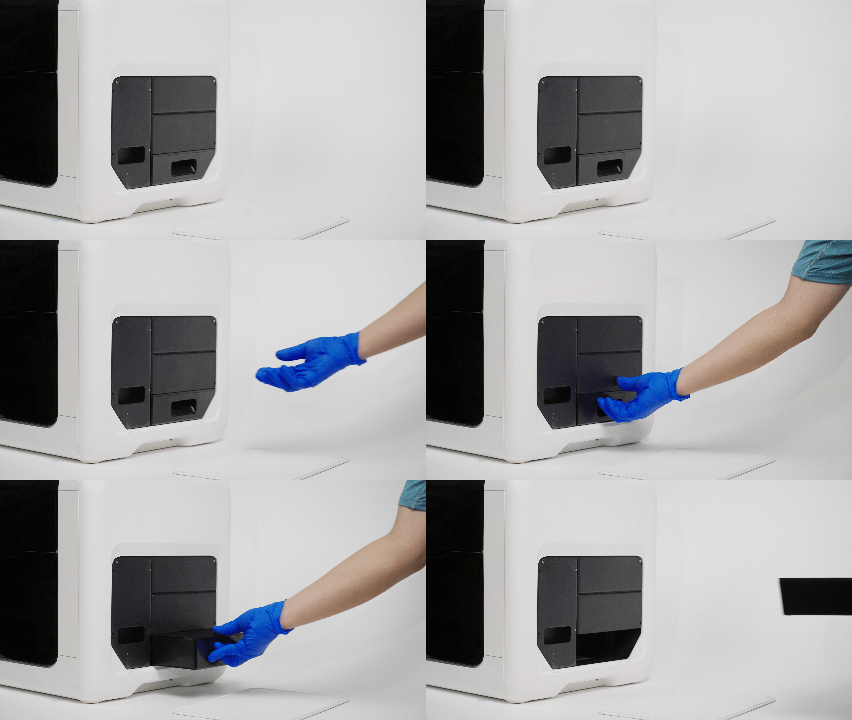
After removal: Keep the expired cartridge level in a rigid, leak-resistant container. Store the cartridge in a cool, dry place, secure it during transport, and dispose of it in accordance with local laws and regulations.
¶ Step 3: Inspect the Replacement Waste Ink Tank
- Ensure the identification chip is clean for proper detection and the air vent is clear to prevent pressure buildup and overflow.
¶ Step 4: Install the Replacement Waste Ink Tank
-
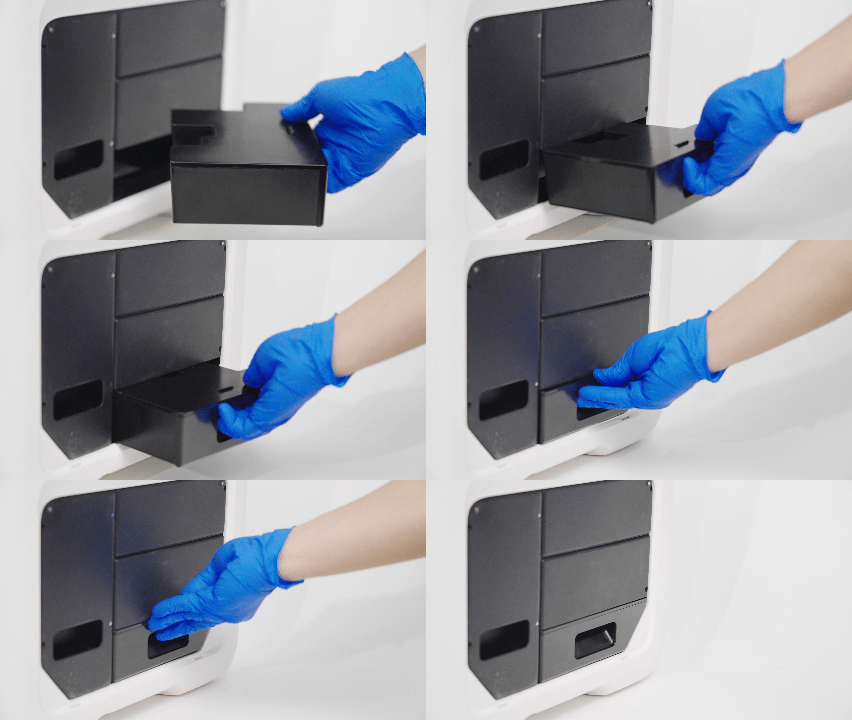
Align the replacement Waste Ink Tank with the the slot,then insert it until it clicks into place
-
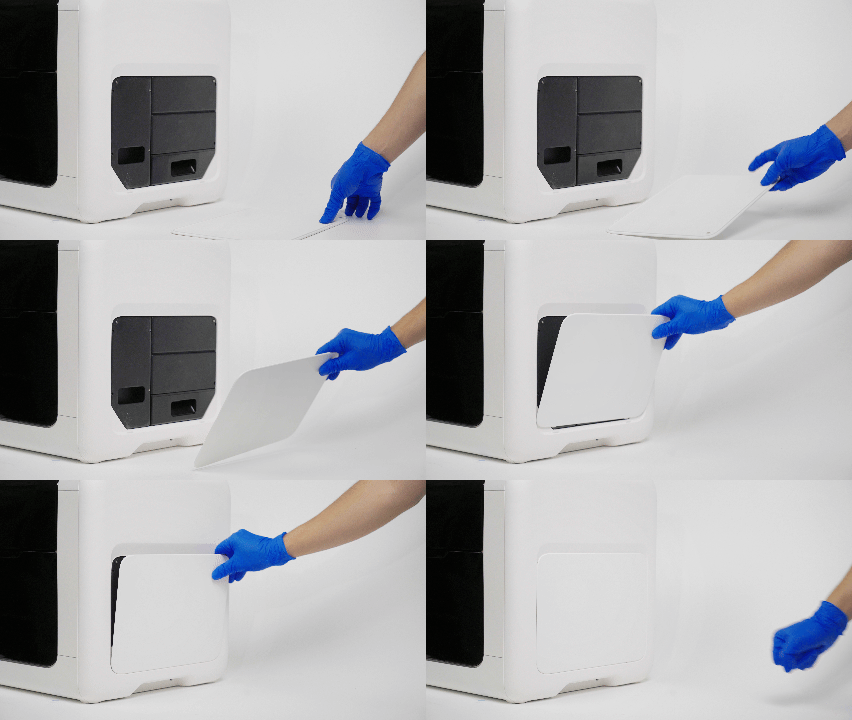
Reinstall the right-side cover.
¶ Functional Testing
After installation, the printer automatically detects the Waste Ink Tank. Wait for the process to finish before verification.
- Return to Maintenance Parts in Morpho Studio.
- Confirm that the replacement Waste Ink Tank is recognized and its usage count has been updated.
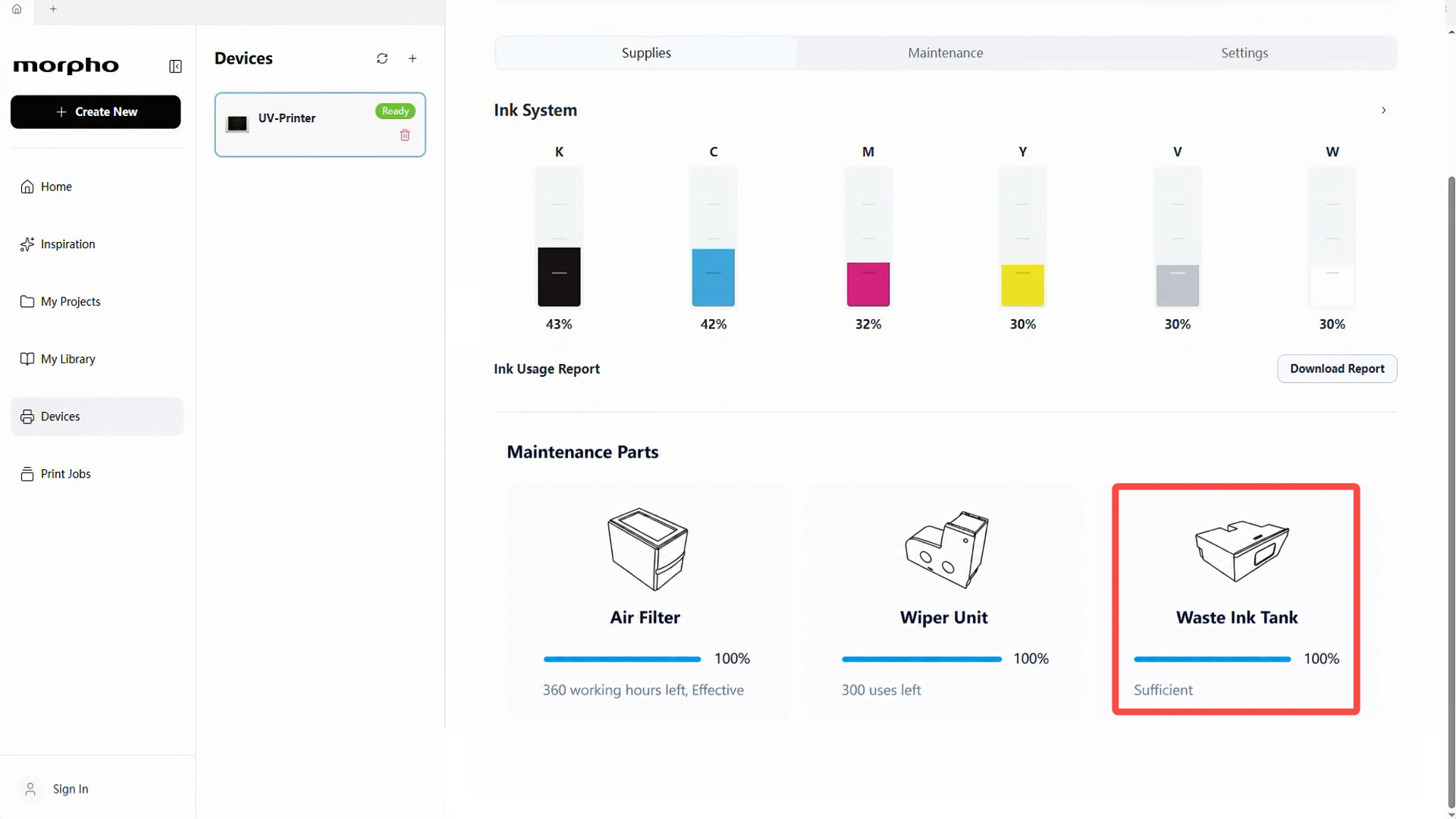
If the status updates, the replacement is complete. If not, remove and reinsert the cartridge, then wait for detection. Repeat if necessary. If the issue persists, contact Morpho Support.