¶ Ink Cartridges
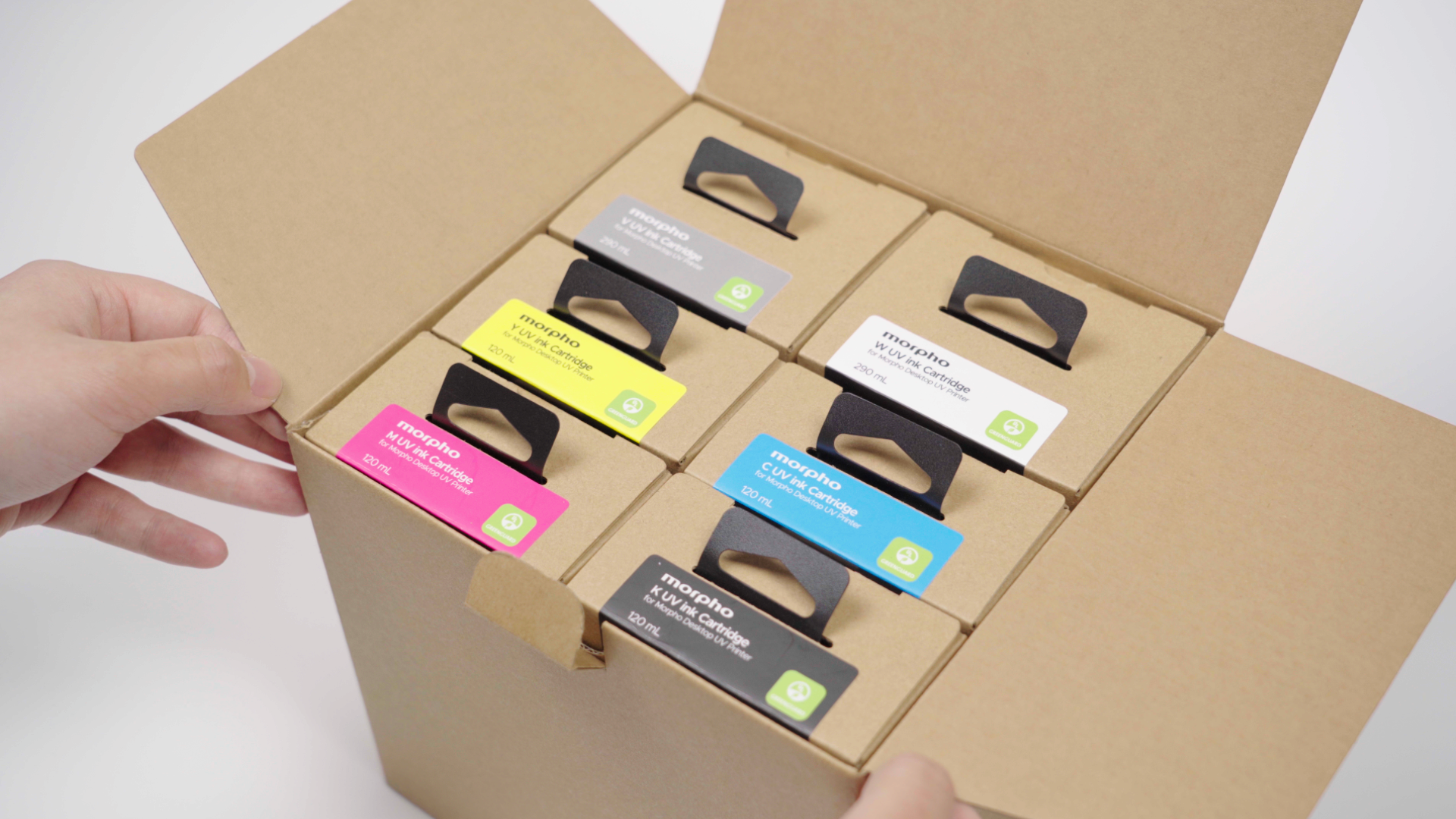
Ink cartridges typically fall into six categories: black, cyan, magenta, yellow, varnish (gloss), and white(rigid or flexible white). In special cases, other types of cartridges may also be used as alternatives.
Near-Zero Odor EcoInk™
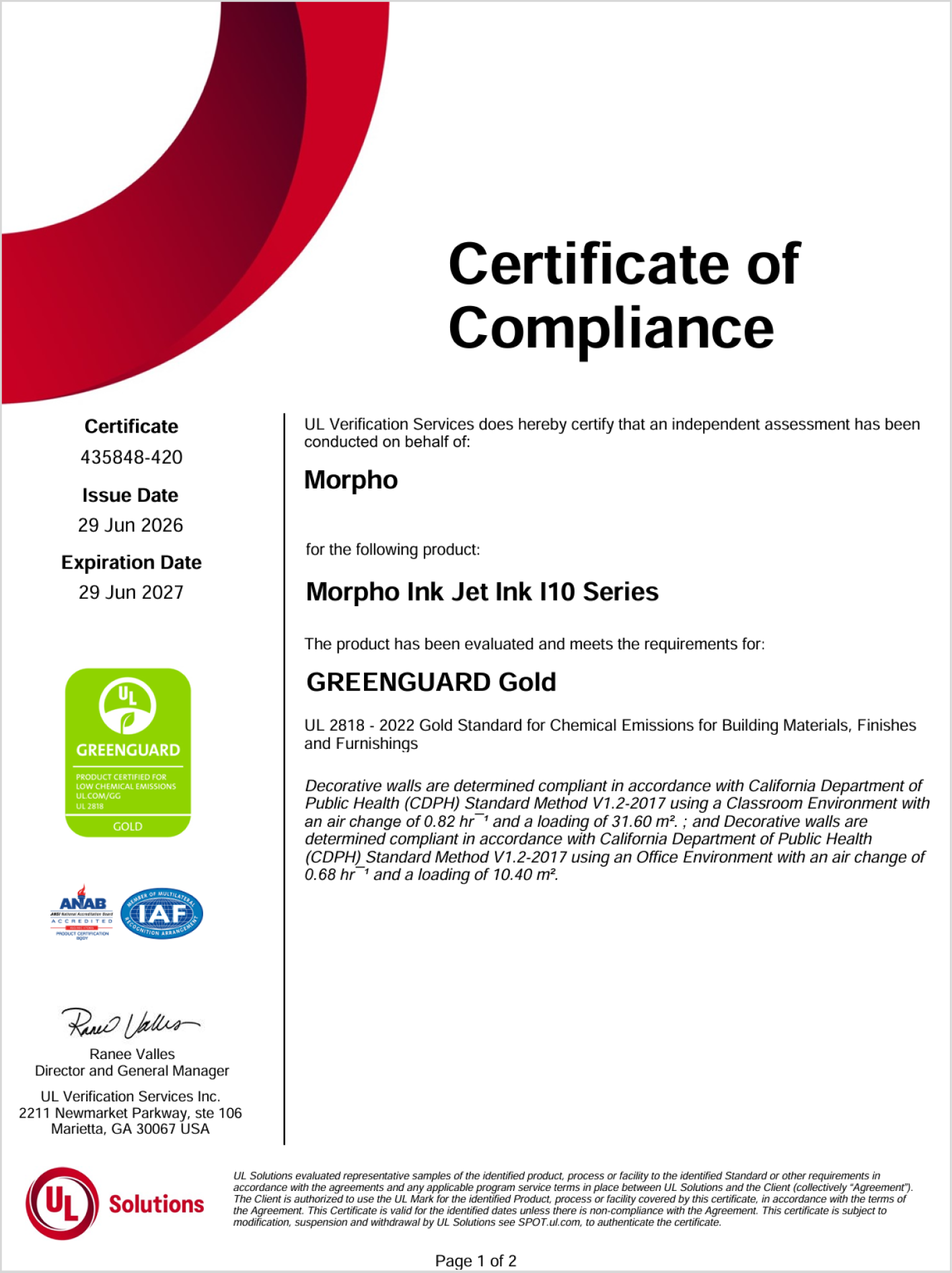
GREENGUARD Gold certified and TÜV tested, Morpho EcoInk™ emits only 10 - 25% of the VOCs of comparable desktop UV printers - with significantly less odor
(GREENGUARD Gold Certification)
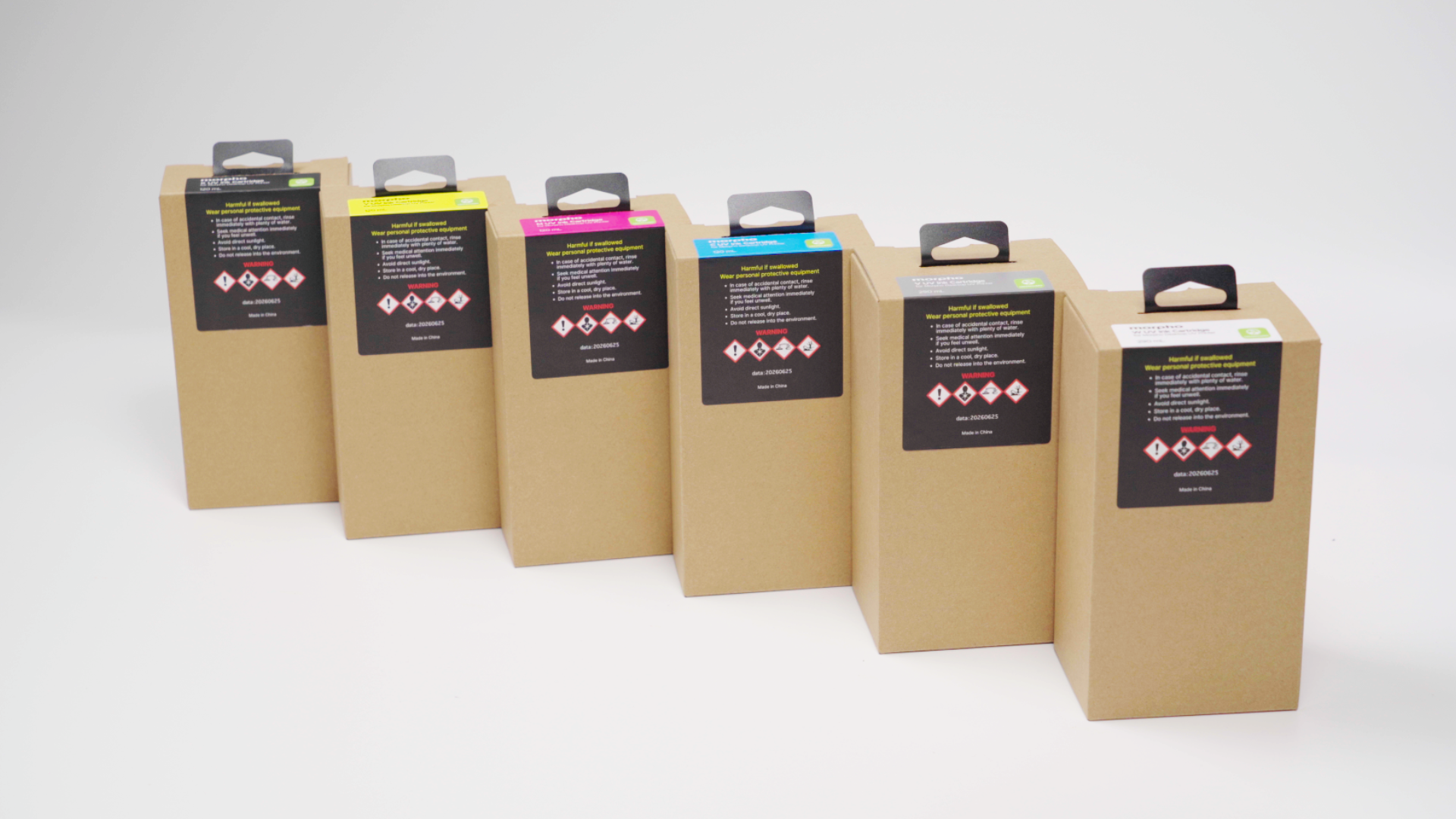
Note: We recommend using Morpho official ink cartridges. Compatibility issues or printhead damage resulting from third-party ink are not covered by the product warranty.
¶ When to Replace
Replace an ink cartridge when it is empty or its ink level is low.
¶ Tools and Materials Required
- New Ink cartridges
- Disposable Nitrile Gloves

¶ Safety Precautions for Operation
Caution
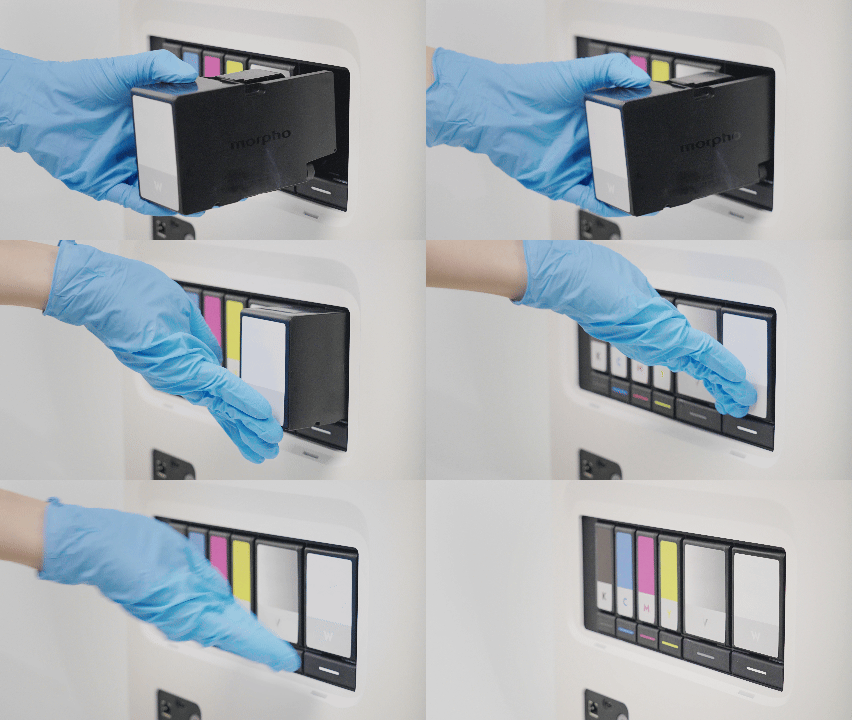
- Keep the cartridge level and aligned with the slot, then insert it straight to avoid damaging the connector.
- Do not touch the electrical contacts with your fingers; contamination may prevent a reliable connection.
- Handle the cartridge gently to avoid damaging its connectors or the printer.
¶ Video Guide
¶ Operation Guide
¶ Step 1: Locate the Empty/Low Ink Cartridge
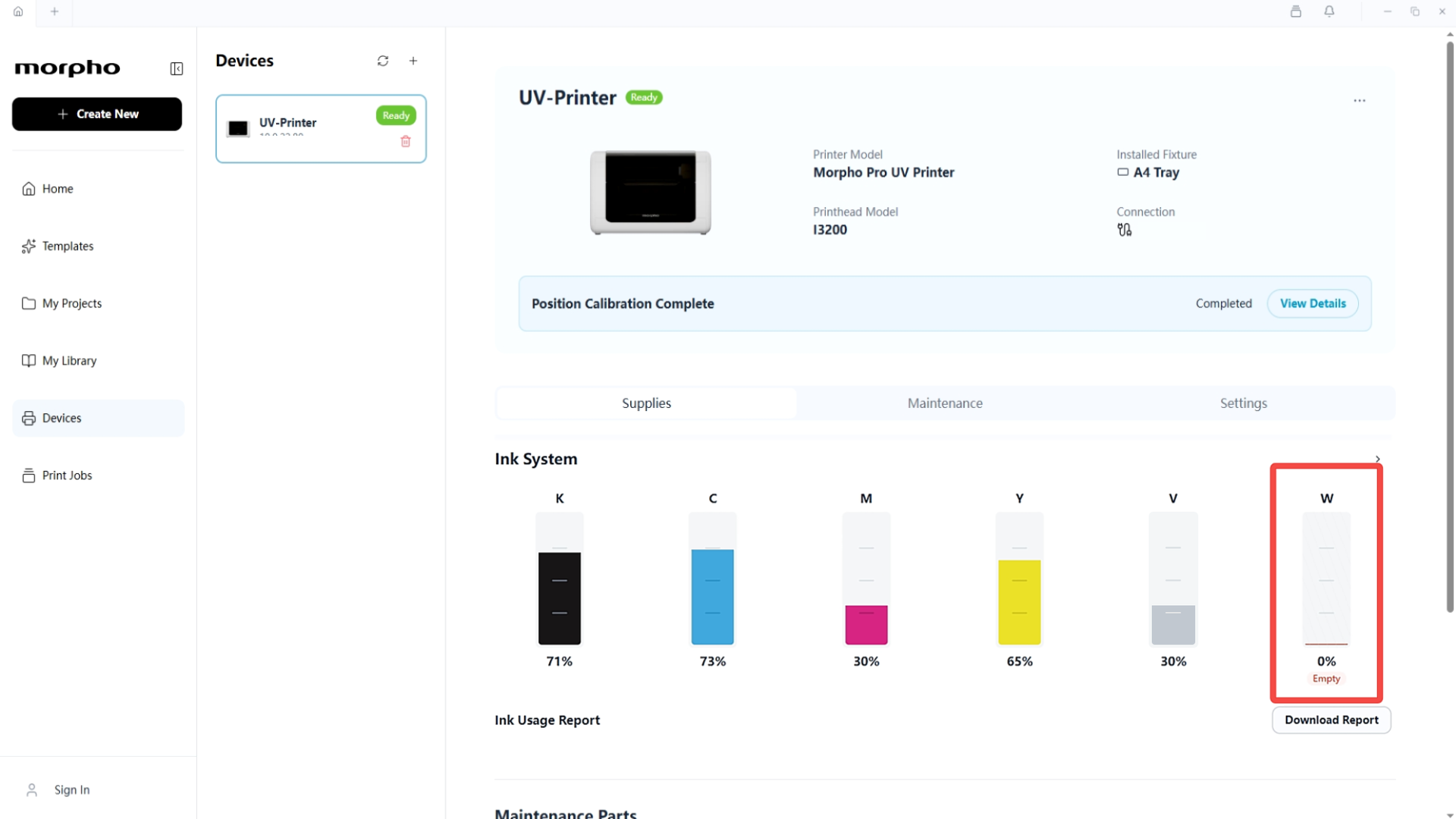
- Find Ink System in Morpho Studio.
- Identify any channel showing
0%(Empty) or aLowstatus.
¶ Step 2: Remove the Empty/Low Ink Cartridge
-
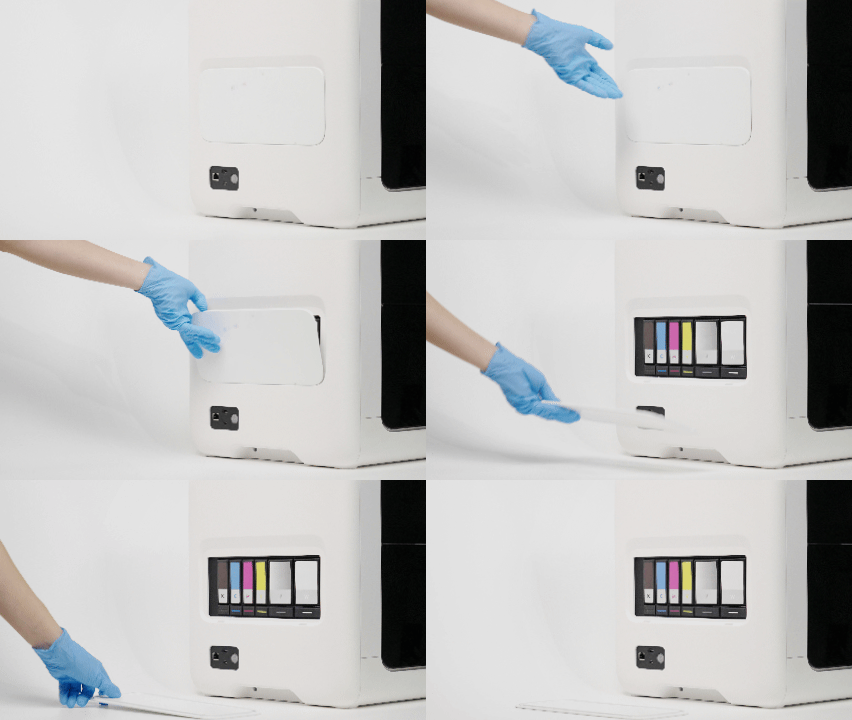
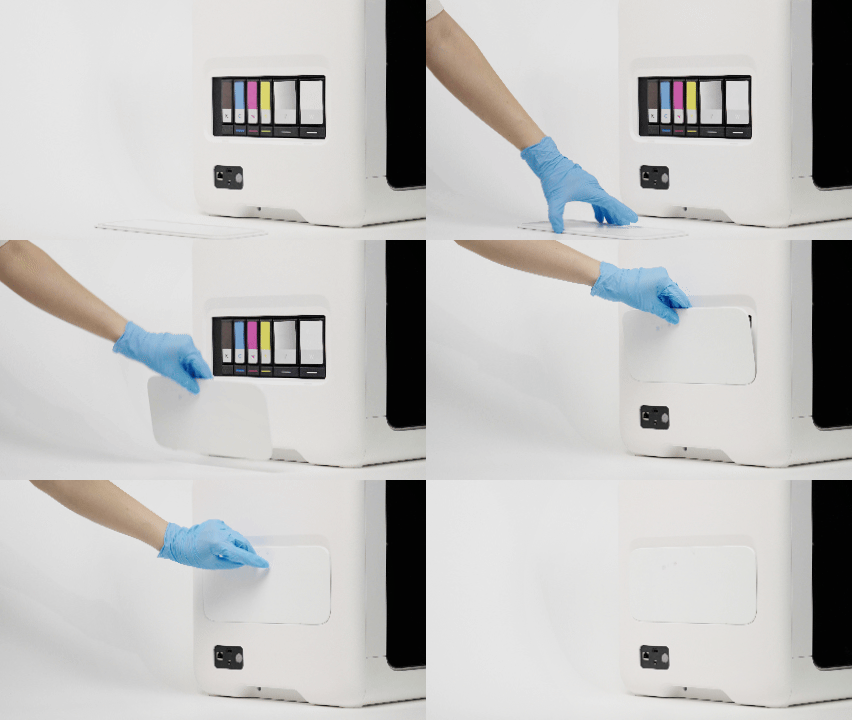
Put on disposable nitrile gloves, then remove the Ink Cartridges Cover.
-
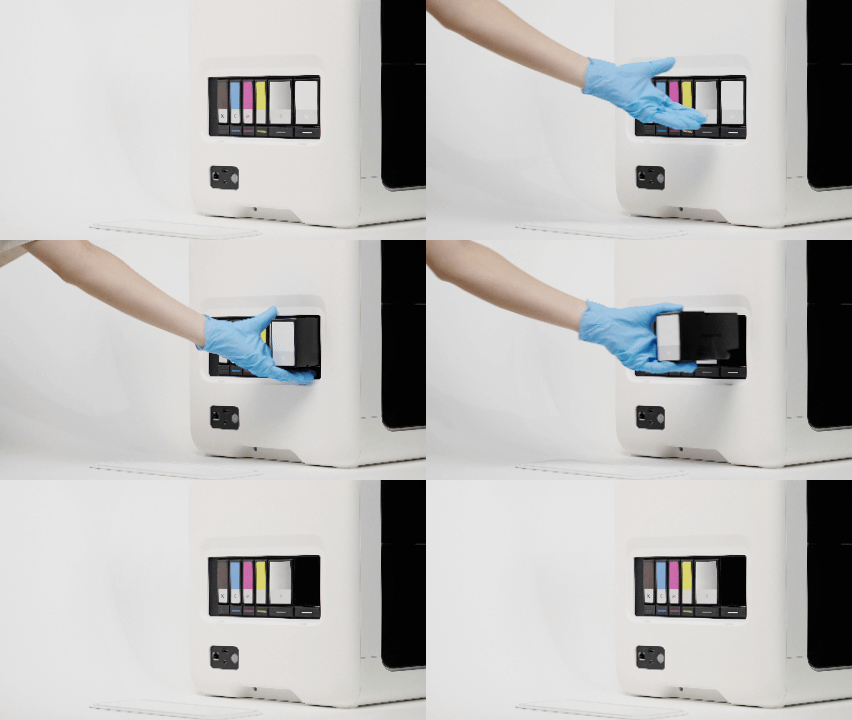
Press the button below the identified cartridge, then remove the cartridge.
-
Place the removed cartridge flat on a stable surface.
¶ Step 3: Prepare the Replacement Ink Cartridge
-
Open the outer carton and remove the inner box.
-
Check the ink cartridge label.
¶ Step 4: Install the Replacement Ink Cartridge
-
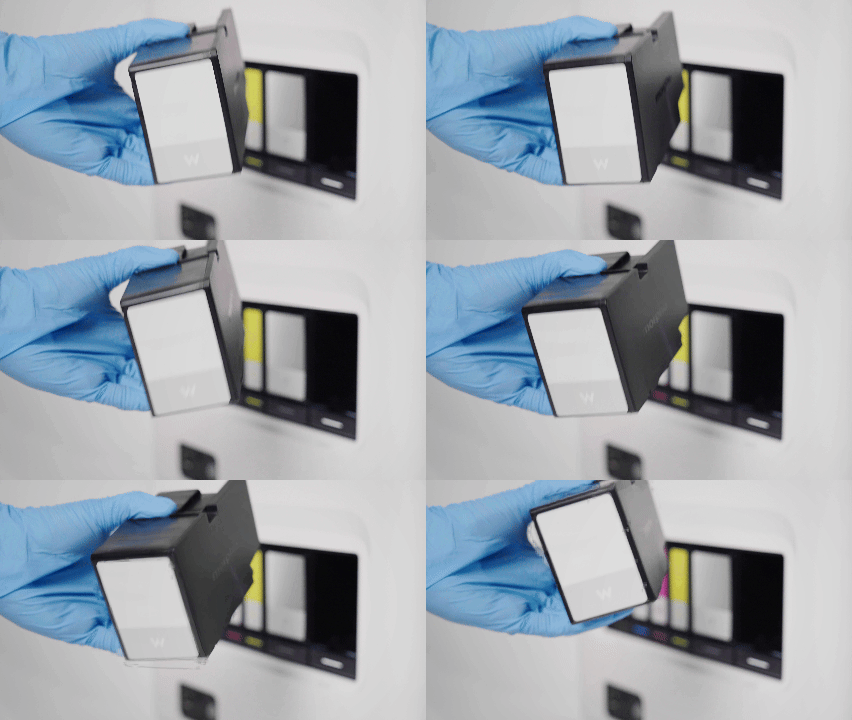
Gently shake the replacement ink cartridge for about 15 seconds.
-
Insert the replacement cartridge into the matching Ink Cartridge Slot until fully seated.
-
Reinstall the Ink Cartridges Cover.
¶ Functional Testing
After installation, the printer automatically performs ink filling and detection. Wait for the process to finish before verification.
- Return to Ink System after the replacement process is complete.
- Confirm that the replacement ink cartridge is recognized and its ink level has updated.
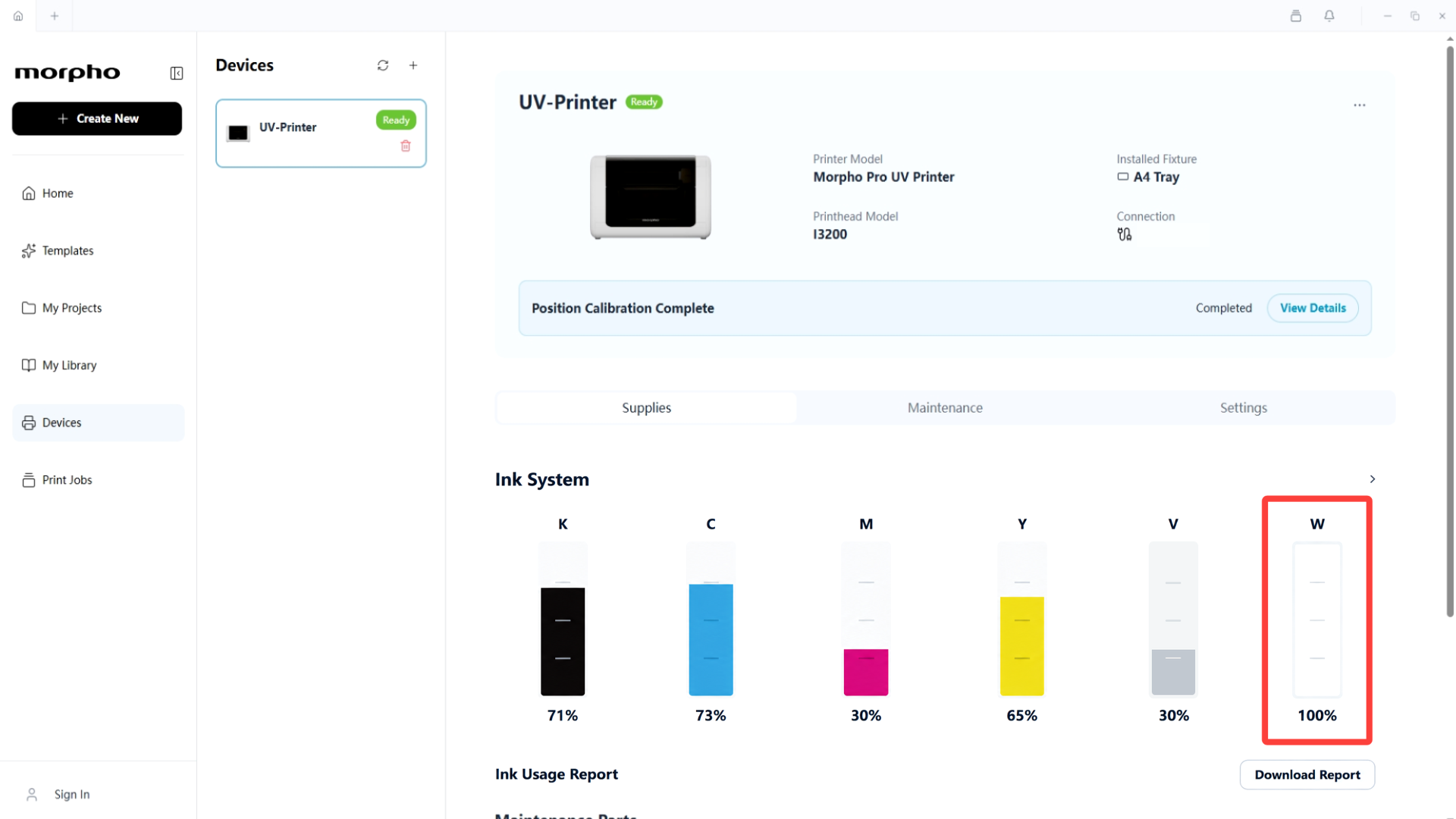
If the ink status updates successfully, the replacement has been completed. If it does not, please remove and reinsert the ink cartridge, then wait for the printer to detect it. If the error persists, contact our technical support team for further assistance.