¶ Overview
My Library is the central location for saving and managing reusable resources in Morpho Studio. Use My Library to find materials, jigs, images, colors, fonts, and textures for design and printing workflows, and to keep supported resources synchronized across devices.
¶ Before You Use My Library
- Sign in to create, edit, favorite, move, delete, or synchronize account resources.
- Keep an internet connection while you make changes that need to sync.
- Confirm whether Cloud Sync is available for the current account.
- Keep important source files in a separate location before you upload or delete resources.
- Sign out after using My Library on a shared device.
Some previously cached resources may remain available to view or use while you are offline. Changes that require synchronization are unavailable until the connection and sign-in status are restored.
¶ Find Your Way Around My Library
The My Library page contains the following areas:
- The page title, search field, and Cloud Sync control at the top.
- Resource categories in the left navigation.
- Search, filter, sort, and folder controls above the resource list.
- A resource list, preview, or details area for the selected category.
A typical resource workflow is:
- Sign in.
- Select a resource category.
- Upload, create, or import a resource.
- Wait for processing to finish.
- Add the resource to Favorites or a folder.
- Use the resource in a project.
¶ Sign In and Manage Cloud Sync
¶ Step 1: Sign In and Open My Library
- Sign in to Morpho Studio.
- Select My Library in the left navigation.
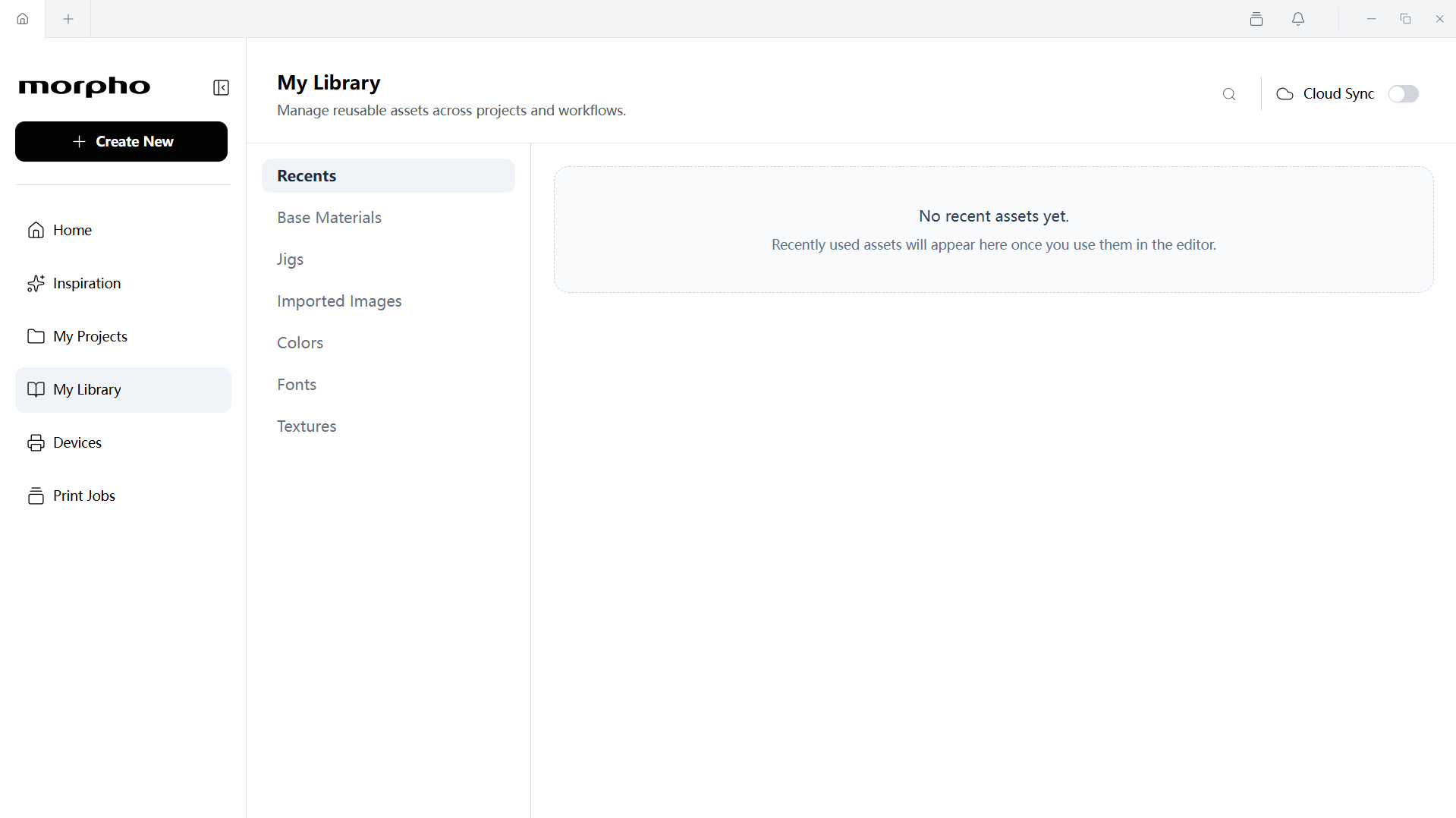
- Confirm that the sign-in prompt is no longer shown and the My Library page is available.
The page is ready for account-resource management when you are signed in and the My Library page is available.
If Cloud Sync is available for the current account, continue with Step 2.
¶ Step 2: Turn On Cloud Sync
- Sign in and connect to the internet.
- Open My Library.
- At the top of My Library, turn on Cloud Sync.
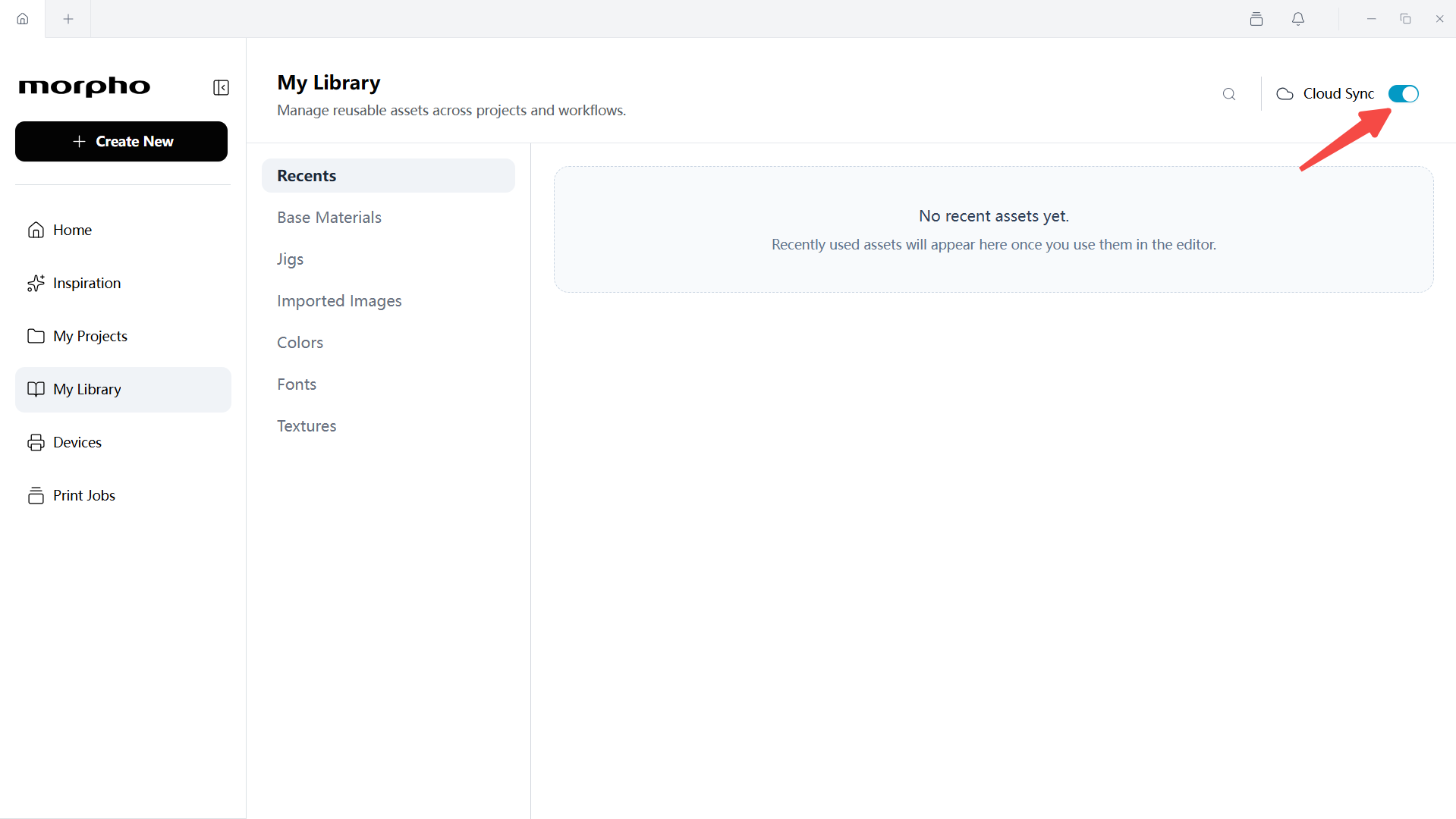
- Wait for supported account resources to finish updating.
After Cloud Sync is enabled, supported resource types synchronize automatically.
Cloud Sync applies only to supported resource types. Cloud Sync does not automatically upload every local resource.
¶ Step 3: Review the Synchronization Result
Confirm that the resources that require synchronization are available in the expected Library category. A local image remains local unless a supported synchronization workflow handles the local image.
If synchronization fails, keep the local resources on the device. Check the network connection and sign-in status, then try again before you make additional changes.
Do not repeatedly delete and re-upload resources to resolve a synchronization issue.
¶ Understand Account and Local Resources
| Resource state | What to expect |
|---|---|
| Account resource | Account resources require sign-in for resource-management and synchronization actions. Supported resources can synchronize across devices when Cloud Sync is enabled. |
| Local image | A local image is stored on the current device. Local images are not synchronized with the account and cannot be accessed from other devices. |
| Cached resource | Some previously cached resources may remain available to view or use while offline. Changes that require synchronization are unavailable. |
When Cloud Sync is disabled:
- New resources may be stored only on the current device.
- Local images do not automatically become account resources.
- Resources that are no longer synchronized automatically may require manual synchronization as instructed on the page.
¶ Find and Organize Resources
All resource categories support search, favorites, sorting, and folders.
- Use the Search field to find a resource in the selected category.
- Use the filter controls to switch between all resources, Favorites, and folders.
- Use the sort control to change the resource order.
- Use Favorites for quick filtering and organization. Favorites are not a backup.
- Use folders to group account resources. Deleting a folder removes the folder and the folder's organizational relationships. Deleting a folder does not delete the resources inside the folder.
Recommended resources cannot be edited directly. Import a recommended resource into your personal Library before you rename, move, edit, or delete the resource.
¶ Manage Resource Types
¶ Base Materials
Base Materials stores reusable material information and default configurations. Use the Base Materials category to find saved materials for design and printing tasks.
¶ Jigs
Jigs provides a central location for managing custom jigs. Creating and deleting custom jigs is not currently available.
Review Note — Jig availability
The current My Library source states that creating and deleting custom jigs is not currently available. The supplied Jigs screenshot shows an Add Jigs action. Do not publish a final availability statement until the production behavior is confirmed.
For supported jig workflows, see Morpho Studio Alignment and Jigs User Guide.
¶ Imported Images
Imported Images stores images that can be reused across designs.
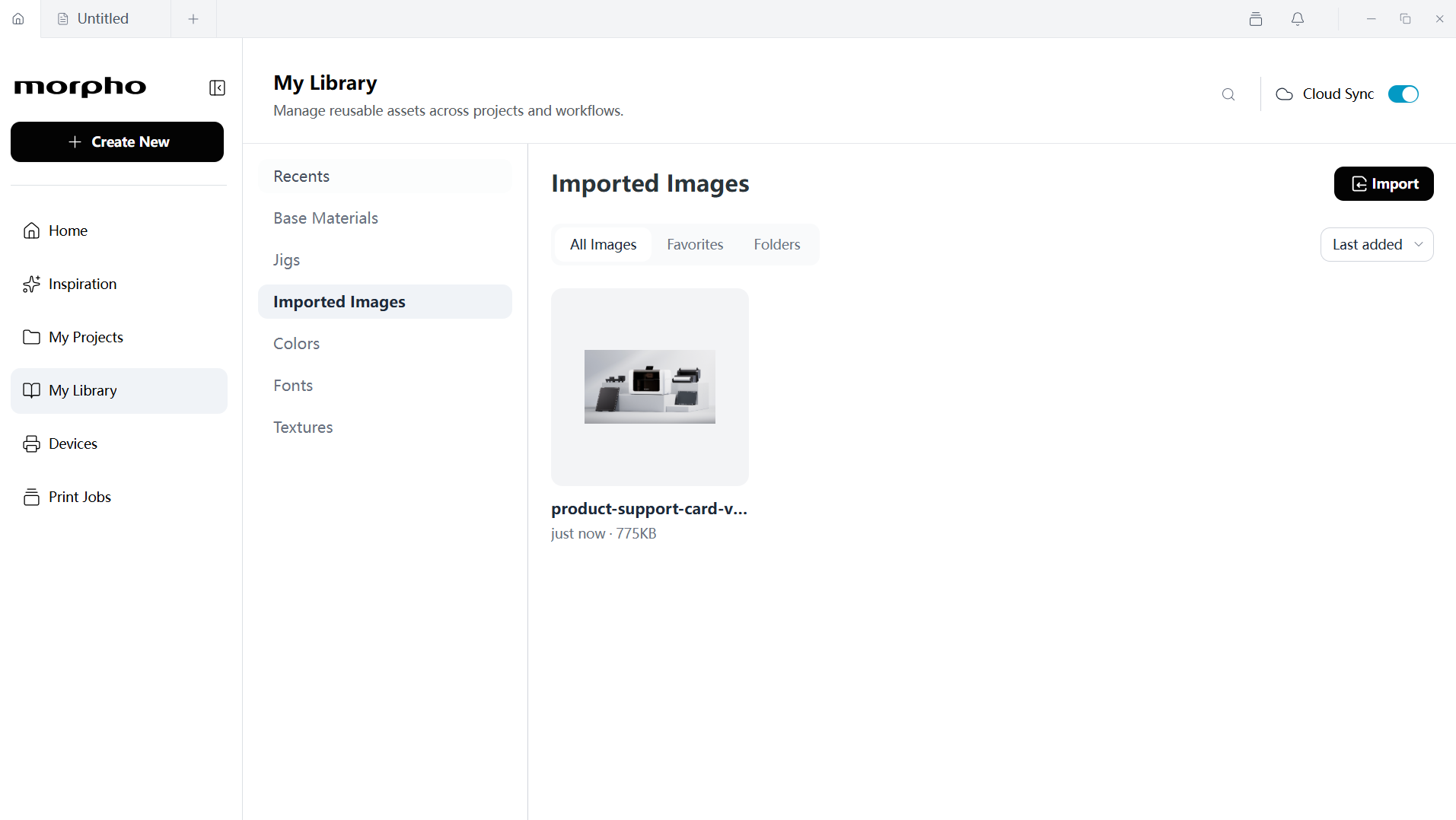
Supported image formats are:
- PNG
- JPG
- JPEG
- GIF
- WebP
- BMP
- SVG
- AI
- PSD
Each file must be 100 MB or smaller.
When you are offline or Cloud Sync is disabled, new images may be saved to Local. After you reconnect, follow the resource status or instructions shown on the page to complete synchronization.
PDF, AI, and PSD files may take longer to generate previews. Wait for processing to finish before you decide that a file is unavailable.
¶ Colors
Colors contains color themes and palettes.
- A color theme organizes related palettes.
- A palette stores a reusable group of colors.
When you delete a color theme, review the selected deletion scope before you confirm. You can delete only the theme and keep its colors, or delete the theme and all colors that the theme contains.
¶ Fonts
Fonts contains personal fonts that you import into My Library. Supported font formats are:
- TTF
- OTF
- WOFF
- WOFF2
You can favorite, rename, organize, and delete personal fonts.
¶ Textures
Textures contains reusable textures for design workflows. From a texture folder, you can upload a new texture or select an existing personal texture.
You can favorite, rename, organize, and delete personal textures.
¶ Use a Library Resource in a Project
¶ Step 1: Open the Resource Selector
Open the appropriate resource selector from a design or printing workflow.
¶ Step 2: Select a Library Resource
Select the resource that you want to use in the current task.
¶ Step 3: Apply the Resource
Apply the selected resource to the task, then return to the task page.
¶ Step 4: Confirm the Result
Confirm that the selected resource appears in the current task and that the task uses the intended resource. A resource that you use successfully may appear in Recents.
¶ Current Task Settings and Library Defaults
Changing Base Material or Jig settings in the current task does not automatically update the default configuration saved in My Library.
- Use or Apply to Current Task affects only the current task.
- The saved default changes only when you explicitly select Save as Default or an equivalent action.
Review the selected action before you continue so that a task-level change does not unintentionally replace a Library default.
¶ FAQ
¶ Why Does the Page Ask Me to Sign In?
Sign in and reopen the relevant resource category. A network connection is required to create, edit, favorite, move, delete, or synchronize account resources.
If you only need to save an image temporarily, use Local under Imported Images.
¶ Why Can I Only View Resources While Offline?
Some previously cached resources may remain available to view or use while you are offline. Editing and synchronization actions require a network connection.
After the network connection is restored, wait for My Library to refresh before editing or synchronizing resources. Do not delete offline cached resources to restore editing access.
¶ Why Can't I Enable Cloud Sync?
Check the following conditions:
- Cloud Sync is supported by the current account.
- You are signed in.
- The network connection is working.
- Resource uploads are not still processing.
If Cloud Sync still does not turn on, keep the displayed error information and contact technical support.
¶ Why Can't I Find a Resource?
Check the following conditions:
- You are viewing the correct resource category.
- The search term is spelled correctly.
- A Favorites or folder filter is not hiding the resource.
- The resource is not stored only in Local on another device.
¶ Why Did an Image Fail to Upload?
Check the following conditions:
- The image uses a supported format.
- The file is 100 MB or smaller.
- The network connection is working.
- The file is not damaged.
PDF, AI, and PSD files may require additional processing time before a preview appears.
If the image still does not upload, keep any displayed error information and contact technical support.
¶ Why Did a Font or Texture Fail to Import?
Confirm that the file uses a supported format, the file is not damaged, you are signed in, and the network connection is available.
If the import still fails, keep any displayed error information and contact technical support.
¶ Why Is the Resource Preview Missing?
The resource may still be uploading, downloading, or generating a preview. Wait for processing to finish or reopen the current category.
Do not immediately delete the original resource if the thumbnail is temporarily unavailable.
¶ Why Can't I Edit a Recommended Resource?
Recommended resources cannot be edited directly. Import the resource into your personal Library before renaming, moving, editing, or deleting the resource.
¶ Why Do Resources Remain After I Delete Their Folder?
Deleting a folder removes only the folder and the folder's organizational relationships. The resources inside the folder remain available in the main resource list.
¶ Protect Your Resources
- Keep copies of important source files before you upload them.
- Review the selected resources and total count before batch deletion.
- Confirm that a resource is no longer required by a project or workflow before you delete the resource.
- Restore the network connection and verify synchronization before you delete local resources.
- Distinguish between current-task settings and Library defaults.
- Sign out after using My Library on a shared device.
¶ Need More Help?
We hope this guide has been helpful. If you have any questions or need further assistance, our support team is here to help.