¶ Overview
This guide will help you download and install Morpho Studio before you connect a printer.
When the application opens without an error message, continue with Getting Started with Morpho Studio.
¶ Before You Start
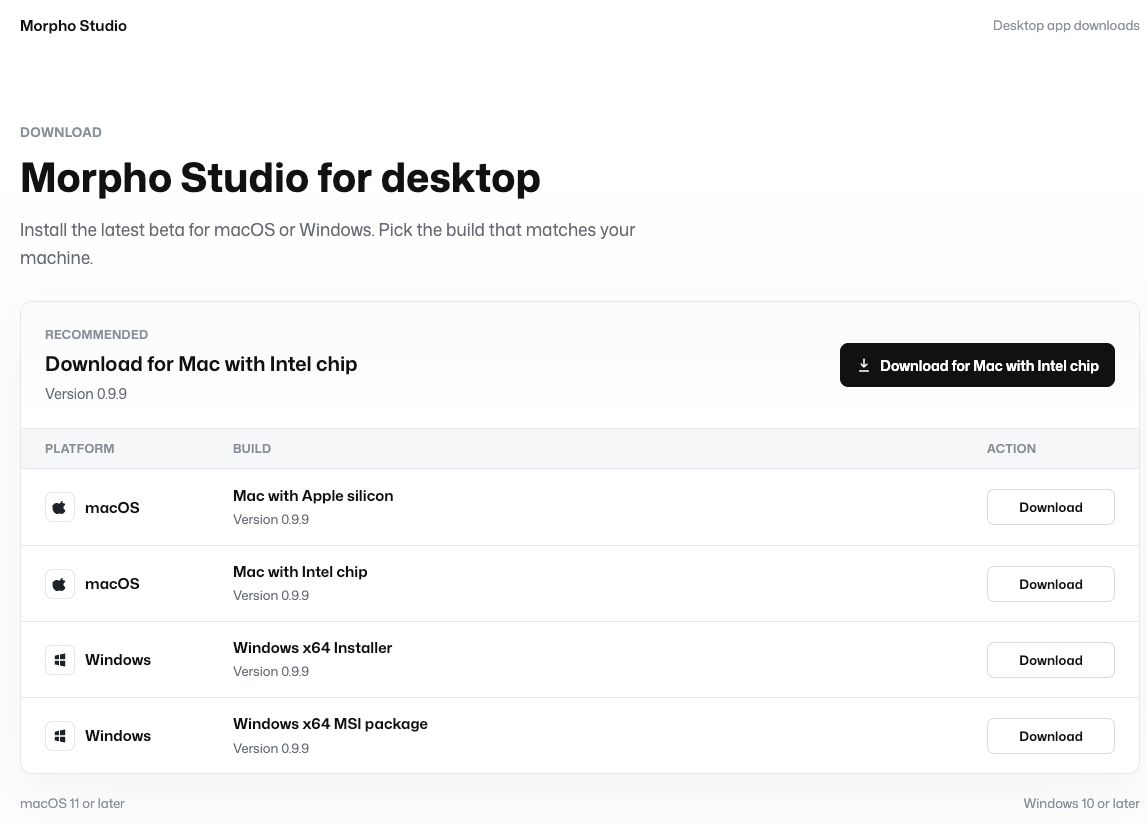
Open the official download page and check the operating-system note shown there:
- macOS 11 or later
- Windows 10 or later
The download page provides these builds:
- Mac with Apple silicon
- Mac with Intel chip
- Windows x64 Installer
- Windows x64 MSI package
Choose the build that matches your computer. Use only the installer downloaded from the official Morpho download page.
¶ Download Morpho Studio
¶ Step 1: Open the Official Download Page
Go to the official Morpho download page:
The page title is Morpho Studio for desktop.
¶ Step 2: Download the Matching Build
- Find the build that matches your computer.
- Click Download in that build's row.
- Wait until the download finishes.
The page may also show one build as RECOMMENDED with its own download button. Use the row for your computer if the recommended build does not match it.
¶ Install Morpho Studio
¶ Step 3: Open the Installer
Open the installer after the download finishes.
On Windows, Microsoft Defender SmartScreen may show Can't access >SmartScreen before the installer opens. The warning in the supplied screenshot also shows Publisher: Unknown publisher, Run, and Don't run.
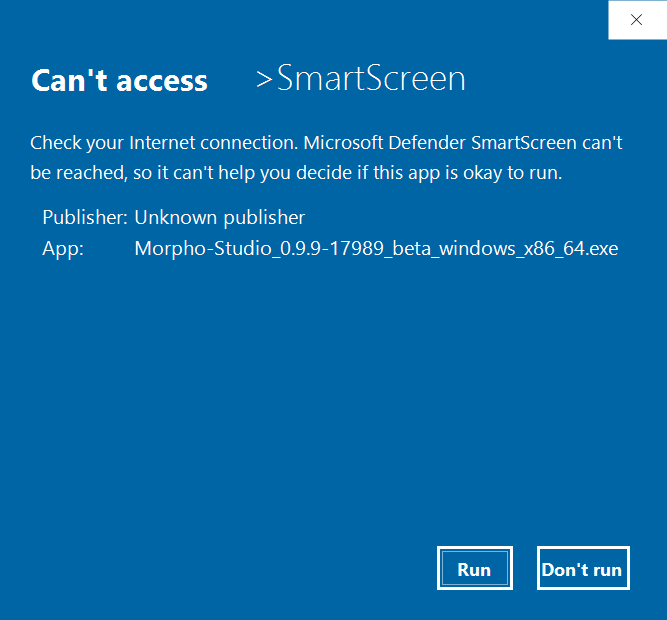
If this warning appears, first confirm that the installer came from https://download.morpho.inc/. The approved response to Run or Don't run is listed in Blocking Questions and should be confirmed before publication.
¶ Step 4: Complete the Installation
- Follow the installation prompts shown on your screen.
- Wait until installation finishes.
- Open Morpho Studio only after the installer closes.
The individual Windows and macOS installer prompts are not shown in the supplied screenshots.
¶ Check the First Launch
¶ Step 5: Open Morpho Studio
Open Morpho Studio and wait for the application window to appear.
The first launch is complete when Morpho Studio opens without an error message. You can then continue with Getting Started with Morpho Studio to connect the printer.
If an error message appears or Morpho Studio does not open, contact the technical support team and include the operating system and the installer name.
¶ Need More Help?
We hope this guide has been helpful. If you have any questions or need further assistance, our support team is here to help.