¶ 1. Overview
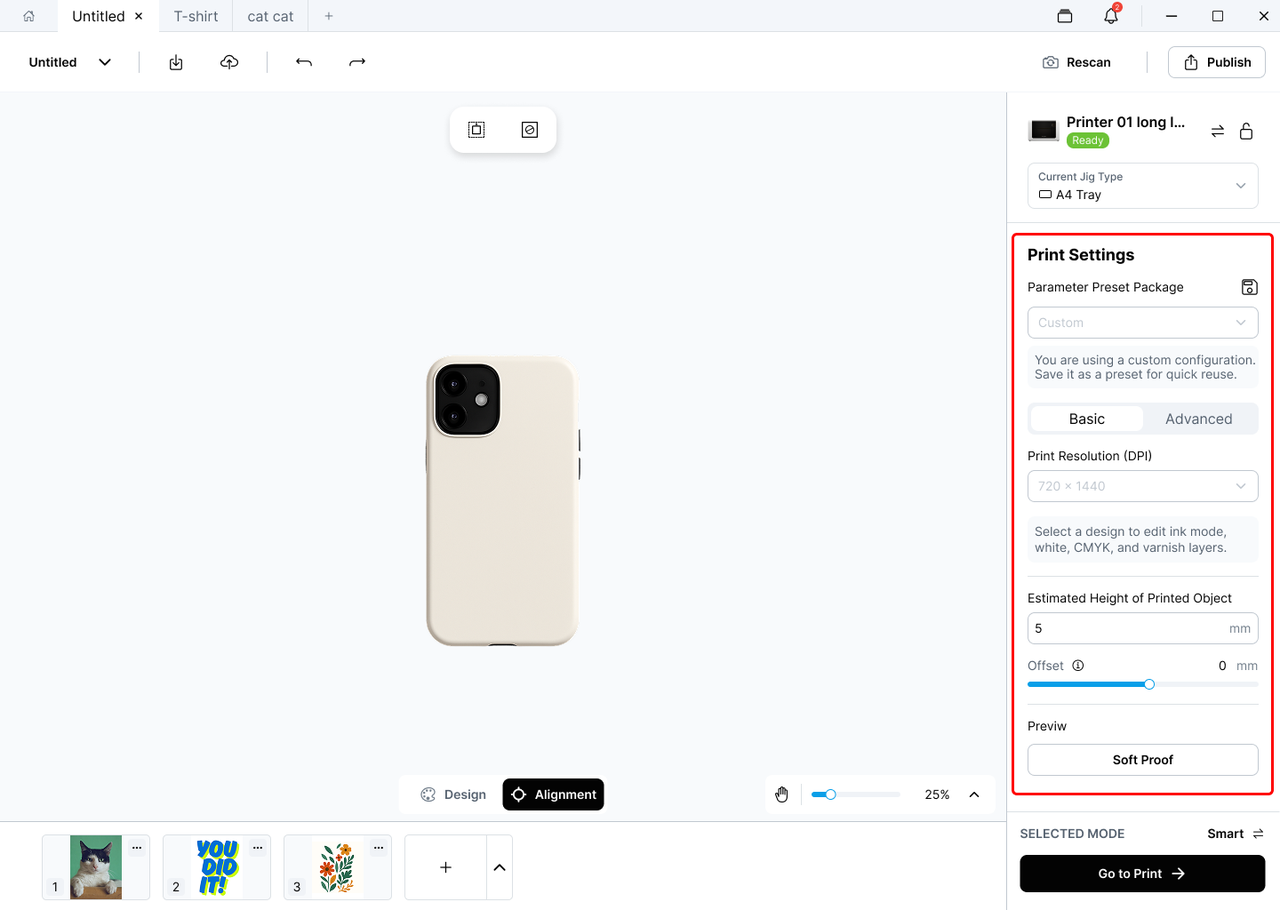
Print Settings lets you configure the parameters for the current print job.
Here, you can select the print resolution, ink mode, varnish settings, UV curing intensity, and other parameters. You can also view the detected height of the current print object.
If you are unsure which settings to use, keep the default settings or select a recommended preset. If you change any recommended parameters, the settings will be marked as Custom, indicating that the current configuration has been modified.
¶ 2. Print Settings Page
The Print Settings page includes the following sections:
¶ Preset
Select an official material preset or a custom material preset you have saved.
¶ Basic
Configure frequently used settings, including:
- DPI
- Ink Mode
- Varnish
- Estimated Object Height
- Offset
¶ Advanced
Configure advanced settings, including:
- First Layer Enhancement
- UV Curing Intensity
¶ Save as Custom Base Material
Save the current settings as a custom base material for future use.
¶ 3. Basic Settings
¶ 3.1 DPI
¶ What it does
DPI determines the print resolution for the current job. It can affect print detail, printing time, ink usage, and the Soft Proof preview.
Higher DPI settings generally produce finer details but may require more time and ink, depending on the selected print mode and design.
The available DPI options are determined automatically by the printhead installed in the current printer.
¶ Printers with XP600 printheads
Flat Printing
- 720 × 720
- 720 × 1440
Relief Printing
- 720 × 1440
¶ Printers with i3200 printheads
Flat Printing
- 720 × 1200
- 1440 × 1800
- 1440 × 2400
Relief Printing
- 720 × 1200
¶ Recommendations
Use a lower DPI for quick test prints.
For final output, photographs, illustrations, or designs with fine details, use a higher DPI.
¶ 3.2 Ink Mode
¶ What it does
Ink Mode determines which ink layers are printed and the order in which they are applied.
The selected mode can affect color appearance, layer structure, and the final print effect.
The following Ink Modes are available:
- White
- CMYK
- White → CMYK
- CMYK → White
- CMYK → White → CMYK
¶ White
Prints with white ink only.
Use this mode when printing white content or a standalone white ink layer.
¶ CMYK
Prints with color ink only.
Suitable for standard color images, illustrations, text, and graphics.
¶ White → CMYK
Prints white ink first, followed by color ink.
This mode is suitable for designs that require a white underbase. When printing on dark or transparent materials, the white layer helps the colors appear clearer and more opaque.
¶ CMYK → White
Prints color ink first, followed by white ink.
This mode is suitable for certain specialty applications or designs intended to be viewed through a transparent material.
¶ CMYK → White → CMYK
Prints one color layer, followed by white ink, and then a second color layer.
This mode is suitable for prints that require a more complex layer structure or a specialty visual effect.
¶ Varnish
Varnish determines whether varnish is printed and how many varnish layers are applied.
Varnish can add surface gloss or create a more noticeable tactile effect in selected areas.
Note
If you change the Ink Mode while using an official or saved custom material preset, the current settings will be marked as Custom.
¶ 3.3 Estimated Object Height
¶ What it does
Estimated Object Height shows the height of the current print object as detected by the printer.
This value is measured automatically and cannot be edited manually.
Note
Estimated Object Height is a device measurement and is not part of the material preset.
¶ 3.4 Offset
¶ What it does
Offset compensates for small differences between the detected object height and its actual height.
Adjusting the Offset allows the printer to use a more accurate working height.
¶ Recommendations
- If you are unsure which value to use, keep the default setting.
- Avoid entering an excessively large Offset. An incorrect value may affect print clearance, printing safety, or output quality.
¶ 4. Advanced Settings
Advanced contains parameters intended for more specific printing requirements.
¶ First Layer Enhancement
Controls whether the first printed layer is enhanced.
When enabled, the printer reinforces the first layer to help improve base-layer coverage and printing stability.
¶ UV Curing Intensity
Controls the UV intensity used to cure the ink.
This setting can affect ink curing, surface appearance, and adhesion.
If you are unsure which value to use, keep the recommended setting for the selected material.
¶ 5. Settings for Multiple Objects
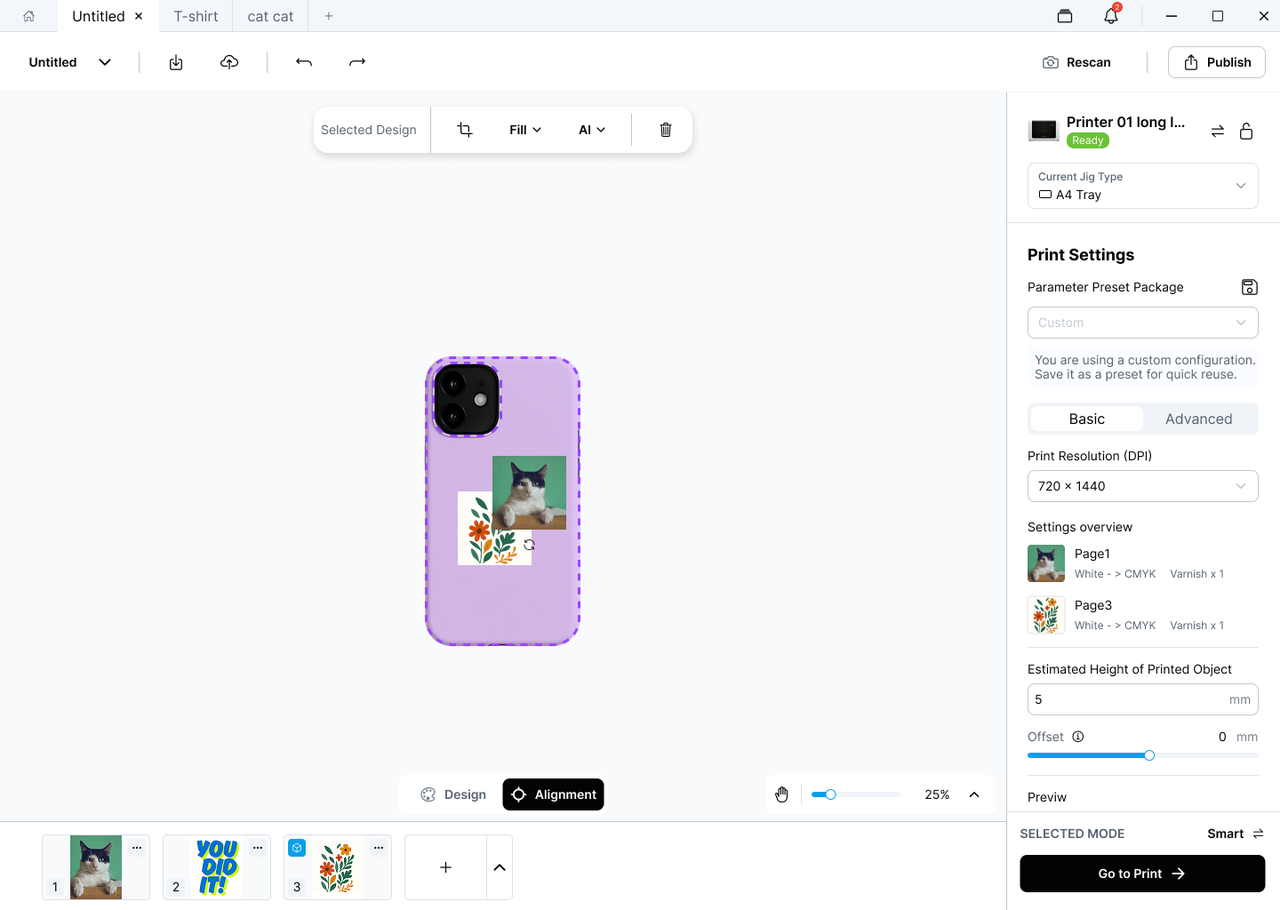
When a project contains multiple design objects, some settings apply to the entire print job, while others can be adjusted for individual objects.
¶ 5.1 Global Settings
Global settings apply to the entire print job and cannot be configured separately for individual objects.
Examples include:
- Print Quality
- Advanced settings
Changing a global setting affects every object in the project.
¶ 5.2 Object-Level Settings
Object-level settings apply only to the selected design objects.
For example:
- Ink Mode
If one object is selected, changes apply only to that object.
If multiple objects are selected, changes apply to all selected objects.
¶ 6. Frequently Asked Questions
¶ Can I overwrite an official material preset?
No.
Official material presets cannot be overwritten.
If you modify the settings of an official material, you can save the modified configuration as a new Custom Base Material.
¶ Why can't I edit Estimated Object Height?
Estimated Object Height is measured automatically by the printer and is used to determine whether the object is within the printable height range.
If the detected height exceeds the supported range, the system will prevent the print job from starting.
¶ Why are the available DPI options different on another printer?
The available DPI options depend on the printer's printhead model.
Because different printheads support different resolutions, the displayed options may vary between printers.
¶ Will existing projects update when I edit a Custom Base Material?
No.
Changes to a Custom Base Material apply only to projects created afterward.
Existing projects and historical print jobs will not update automatically.
To apply the latest material settings to the current project, select the updated Custom Base Material again.