¶ Left Menu Bar
In a project , you may see 5 left Toolbar items.
| Left Toolbar Item | Description |
|---|---|
| Upload | Opens the upload and asset browsing panel |
| Templates | Opens template options |
| Assets | Opens built-in or saved design assets |
| Text | Opens text tools |
| Effect | Opens effect tools |
| Projects | Opens project-related navigation |
¶ Upload
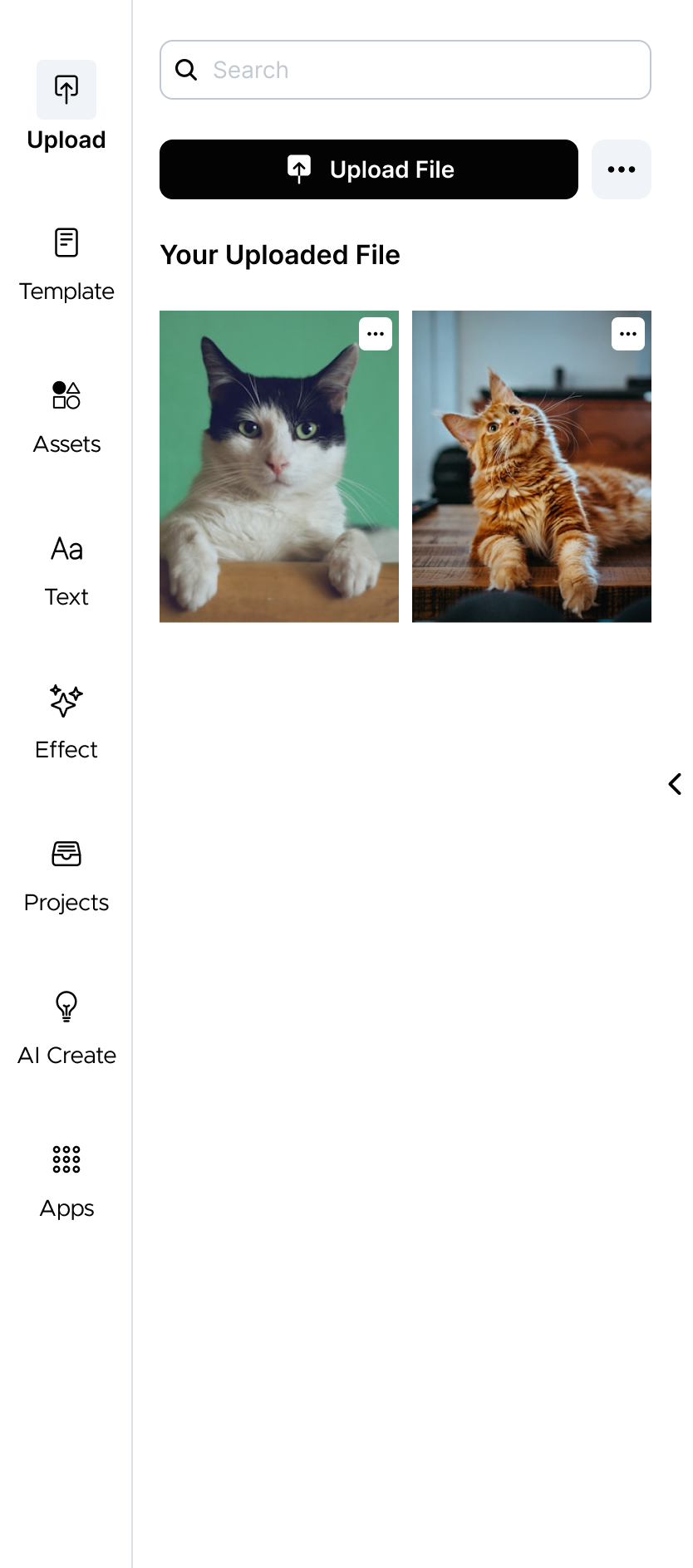
The Upload panel lets you add image files to the current project and manage uploaded assets.Where you can browse, search, and reuse them in your design.
-
Add a new image file to the canvas
- Support svg/pdf/psd /png/jpg and other image formats.
-
Browse previously uploaded assets
-
Search for an asset
-
View all assets or only favorite assets
-
Add an uploaded image to the canvas
-
Manage individual assets through the asset menu
-
Select multiple uploaded files to delete them in bulk
-
Click the heart at the top-right of the image to add to Favorites and save it to your account
¶ Templates
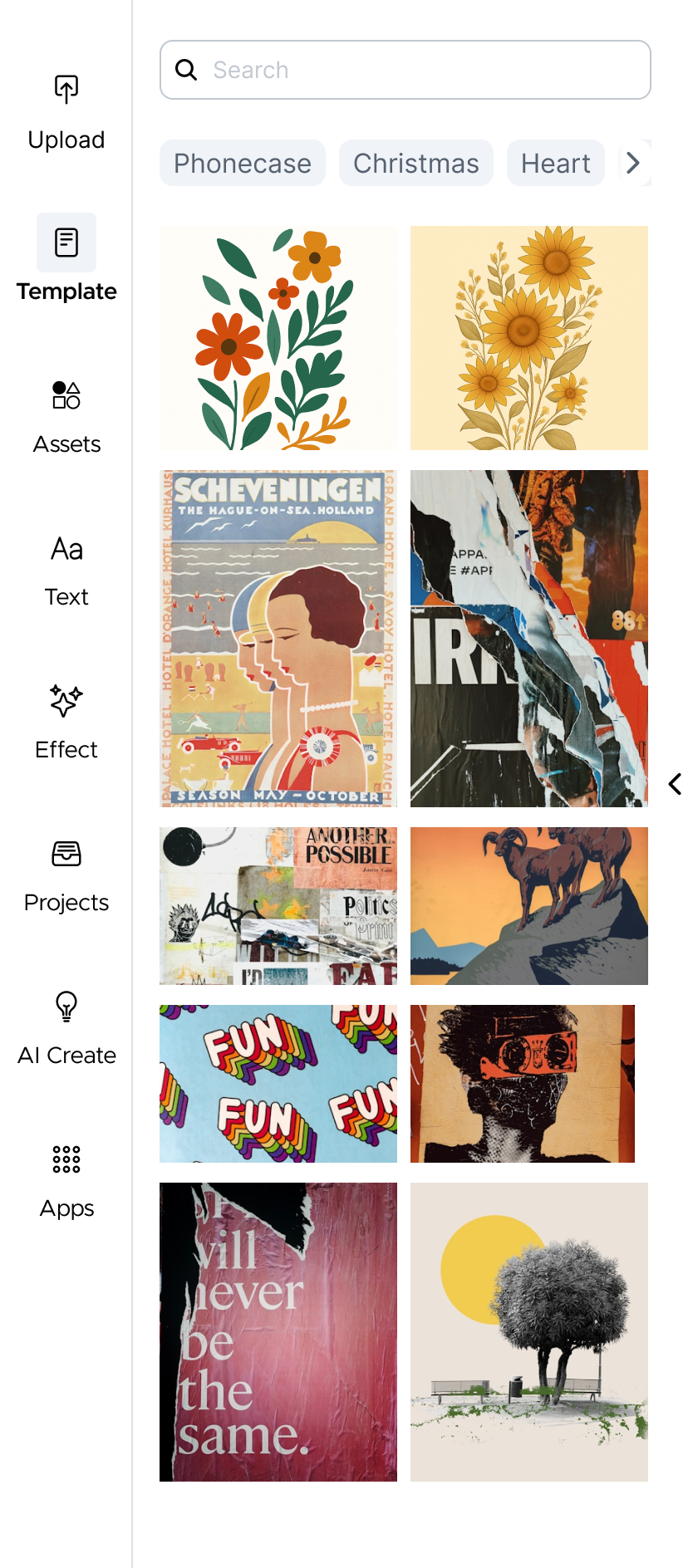
The Templates panel lets you browse and apply ready-made design templates to your project. Templates help you start faster by providing prepared layouts, visual styles, and design structures that can be customized on the canvas.
Use Templates to:
-
Start from a preset layout
-
Create a design faster without building from scratch
-
Browse templates by keyword or category
-
Apply a business card or other available template to the current project
¶ Assets
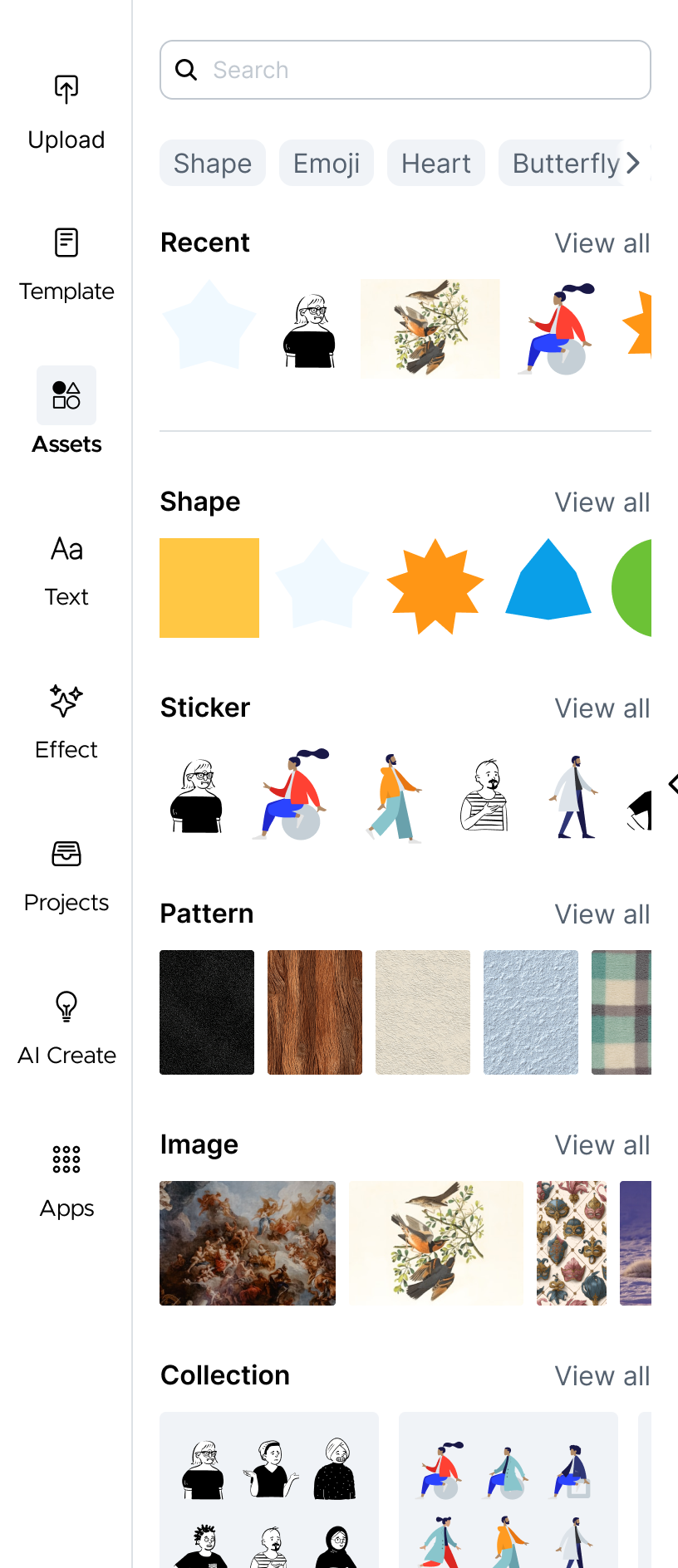
The Assets panel provides ready-to-use design elements that can be added to your project.
Use Assets when you want to:
-
Add decorative elements to the canvas
-
Reuse recently used assets
-
Insert basic shapes or lines
-
Add stickers or illustrations
-
Apply patterns or texture-like visual elements
-
Browse image assets
-
Use grouped asset collections
-
Search for assets by keyword
¶ Text
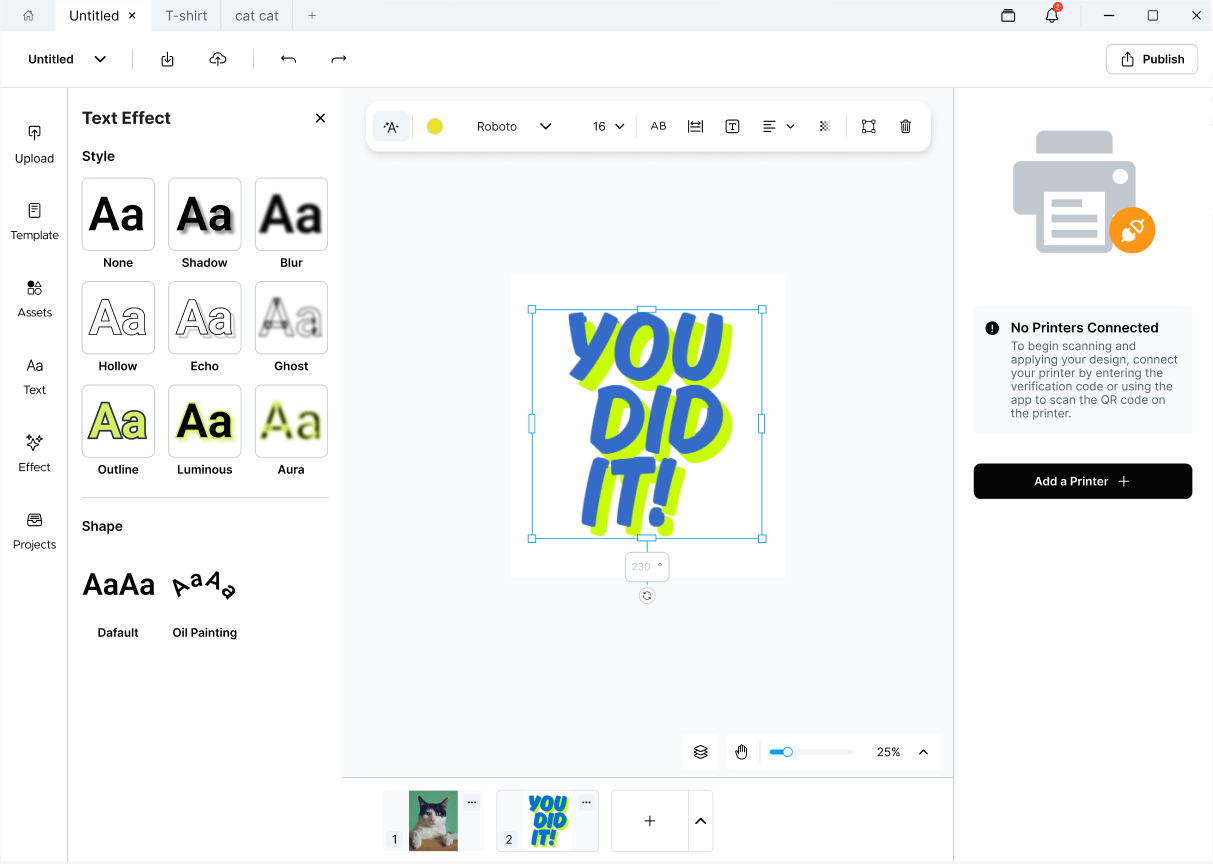
The Text panel lets you add text elements to the current project.
Adding text to the canvas you can:
-
Add a shadow, blur, outline, glow, or other visual style to text
-
Remove an existing text effect
-
Adjust effect-specific settings such as glow color or blur amount
-
Change text shape from a default straight style to a curved style
¶ Projects
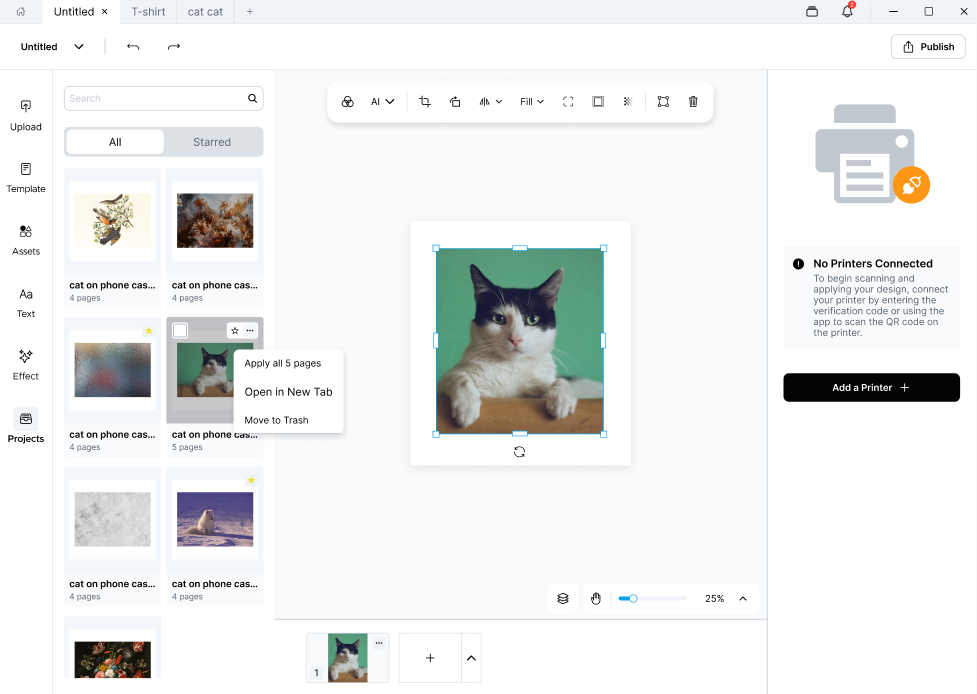
The Projects panel lets you browse and reuse existing projects from inside the editor.
Use the Projects panel when you want to:
-
Browse saved projects without leaving the editor
-
Search for an existing project
-
Reuse pages from another project
-
Apply all pages from a selected project
-
Open a project in a new tab
-
Move a project to Trash
-
Make a project as favorites
-
Add project pages as new pages or replace the current project
Use the All and Favorites tabs to switch between project views.