When you contact Support about a printer or Maker Studio issue, logs help us identify the cause faster. Follow the two sections below to collect the device logs and upload the app logs.
Before you start:
- Keep Maker Studio open.
- Make sure your computer is connected to the internet.
- Keep the affected device powered on and connected.
- If possible, note the approximate time when the issue occurred.
¶ 1. Collect the Device Logs
¶ Step 1: Open the device settings
In Maker Studio:
- Select Devices from the left sidebar.
- Select the affected device.
- Open the Settings tab.
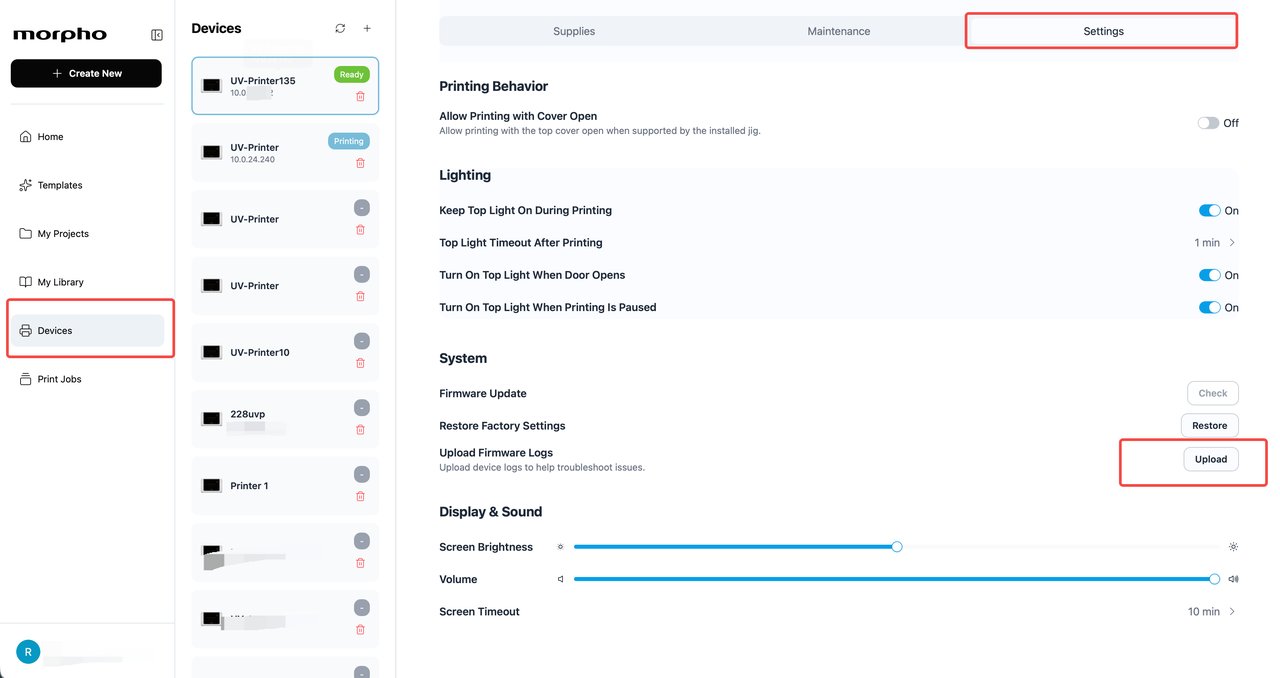
Open Devices, select the affected printer, and go to Settings.
¶ Step 2: Fetch the logs
- Scroll to System.
- Next to Upload Firmware Logs, click Upload.
- Maker Studio will collect the logs from the device and save them on your computer.
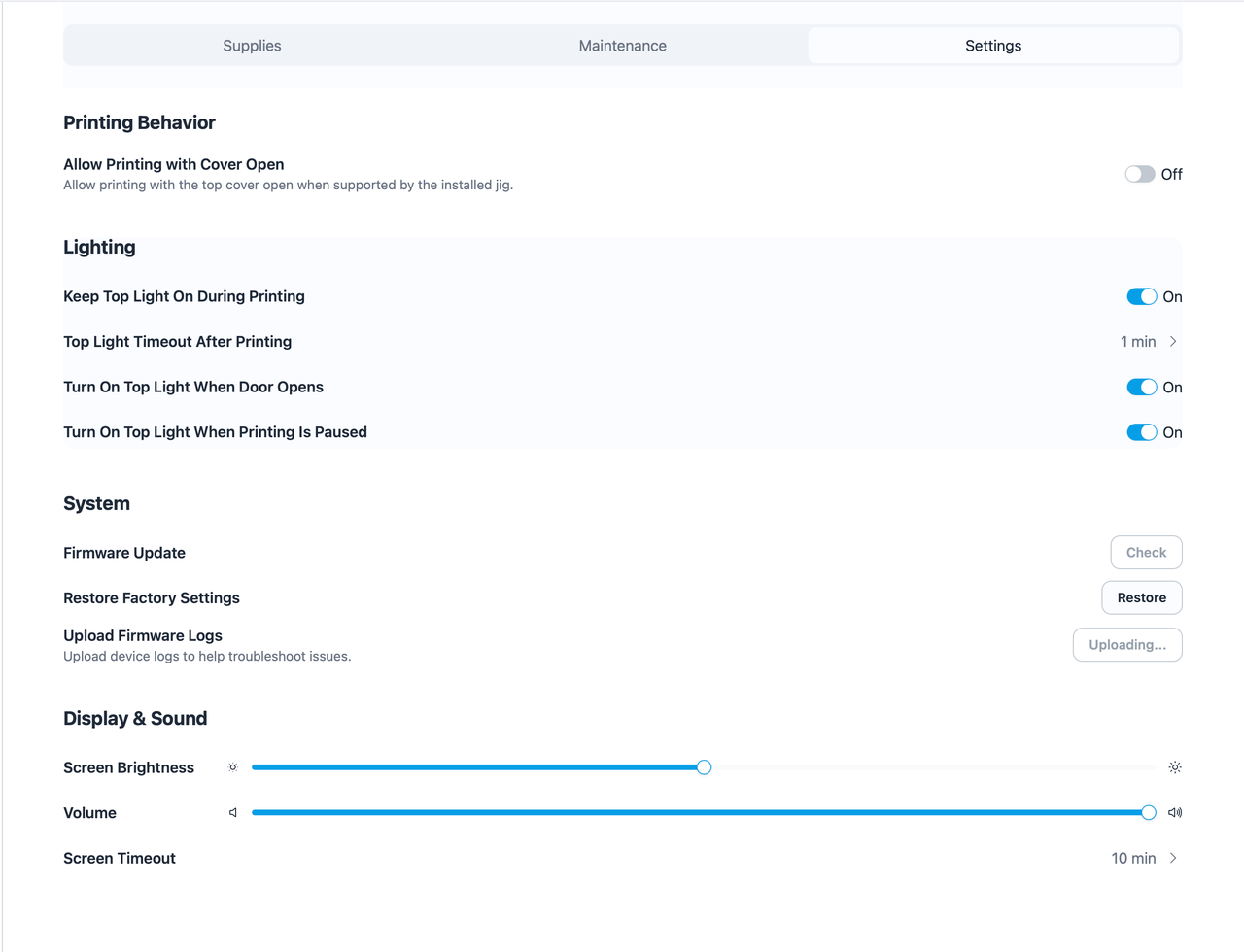
Under System, click Upload next to Upload Firmware Logs.
¶ Step 3: Confirm the save location
- Wait until the Device logs saved message appears.
- The message shows the full path to the saved
.tar.gzarchive. - Click OK.
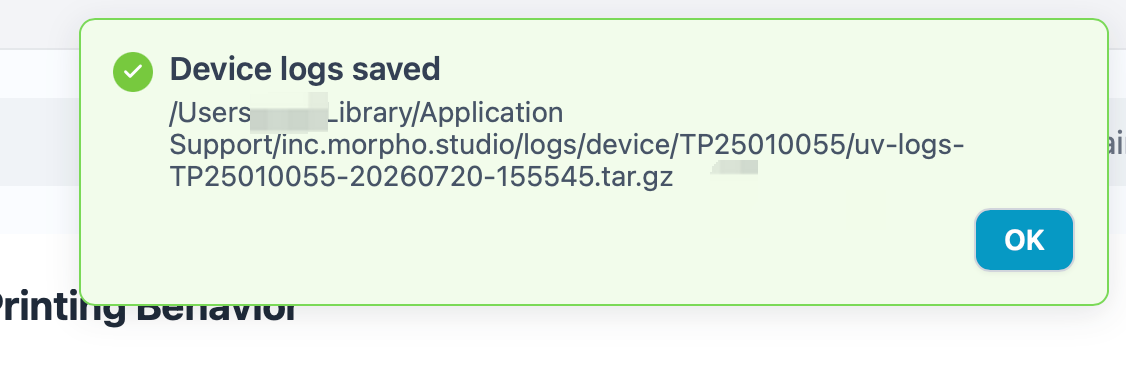
The confirmation message shows where the device-log archive was saved.
¶ Step 4: Send the archive to Support
- Open the folder shown in the confirmation message.
- Attach the saved
.tar.gzfile to your Support conversation or ticket.
¶ 2. Upload the App Logs
¶ Step 1: Open the log upload page
- Click your profile avatar in the lower-left corner.
- Select Upload APP Logs.
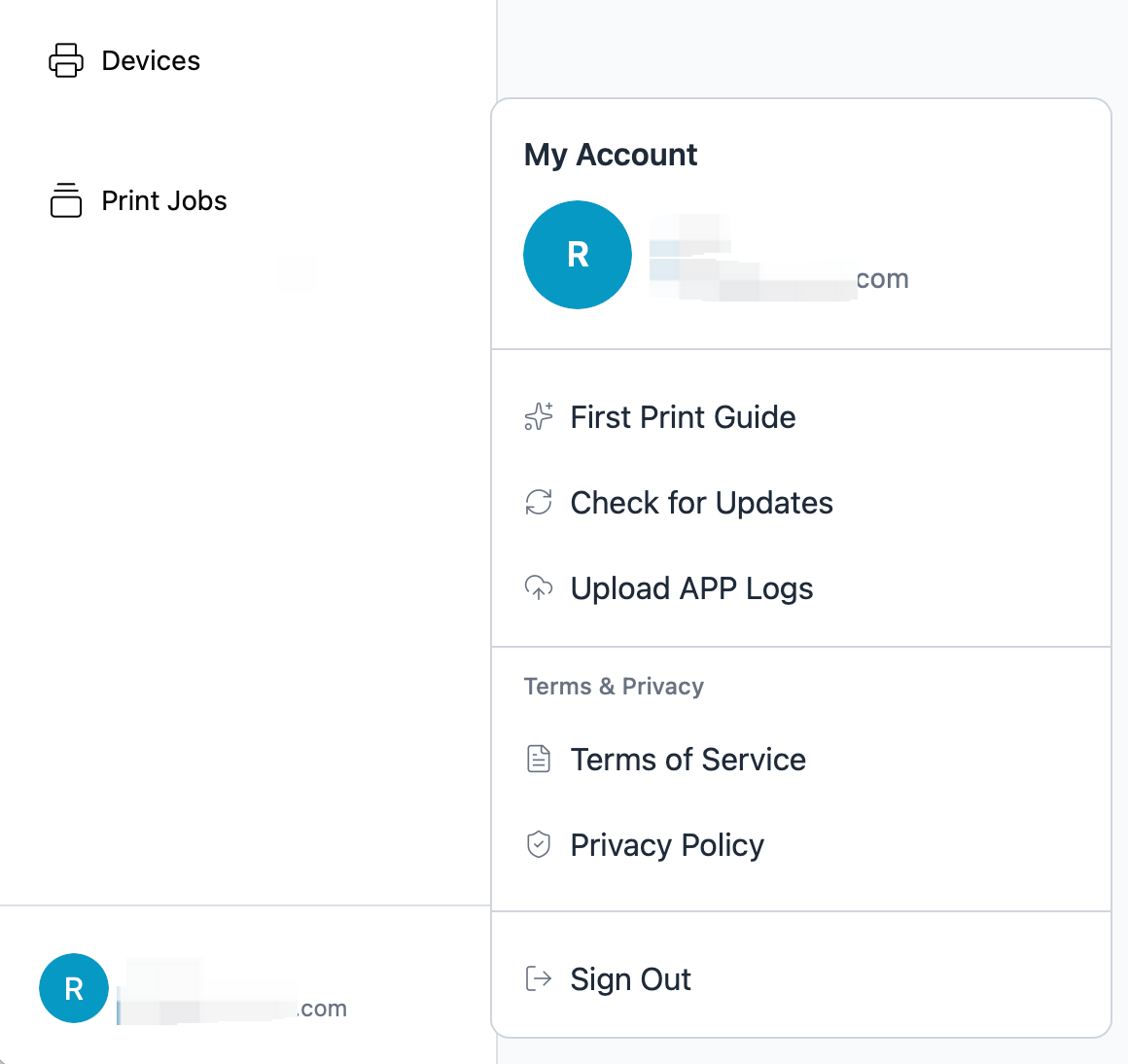
¶ Step 2: Choose the report settings
- Select a Time range that includes when the issue occurred.
- Choose the report type:
- Concise: Recommended for most support cases.
- Complete: Use only when Support requests a deeper diagnostic report.
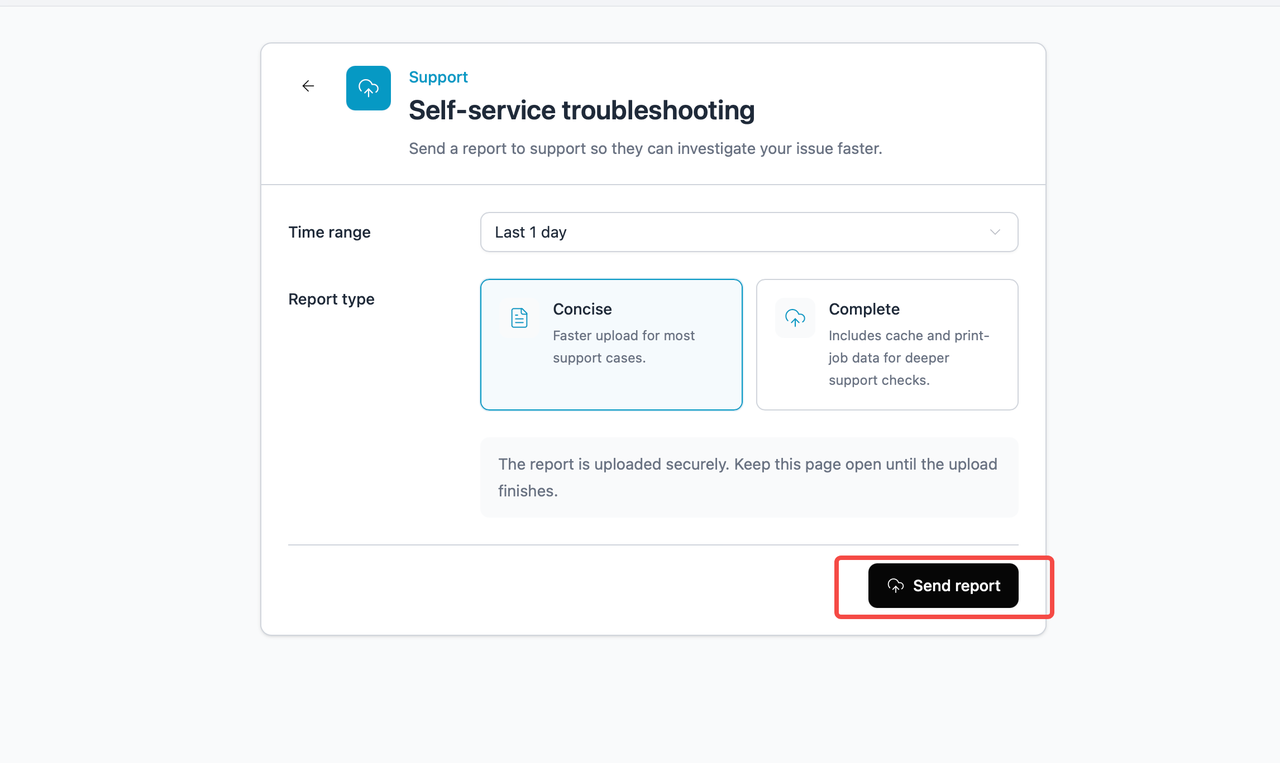
Choose the time range and report type, then click Send report. |
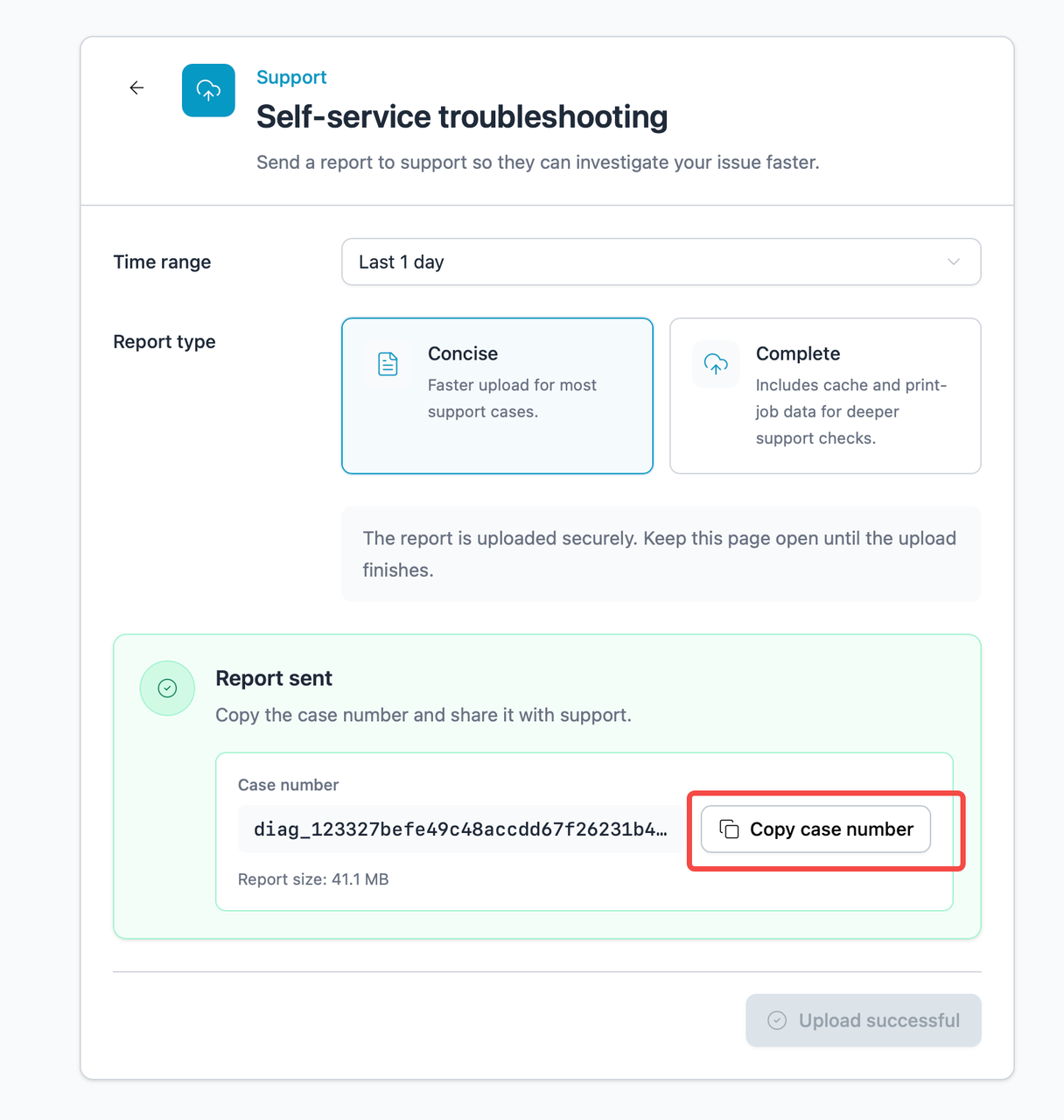
After the report is sent, copy the case number and share it with Support. |
¶ Step 3: Send the report
- Click Send report.
- Keep this page open until the upload finishes.
¶ Step 4: Copy and share the case number
- After the upload succeeds, wait until the Report sent message appears.
- Click Copy case number.
- Send the copied case number to the Support team so they can locate your uploaded report.
¶ 3. Tell Support What You Sent
After completing the steps, provide the following information to Support:
- Affected device name or serial number (SN)
- Approximate time when the issue occurred
- Your time zone
- App-log upload time
- Device-log archive (
.tar.gz) if requested
Done
Support can now use both the device logs and the app report to investigate the issue.