¶ Step 1. Download Morpho Studio
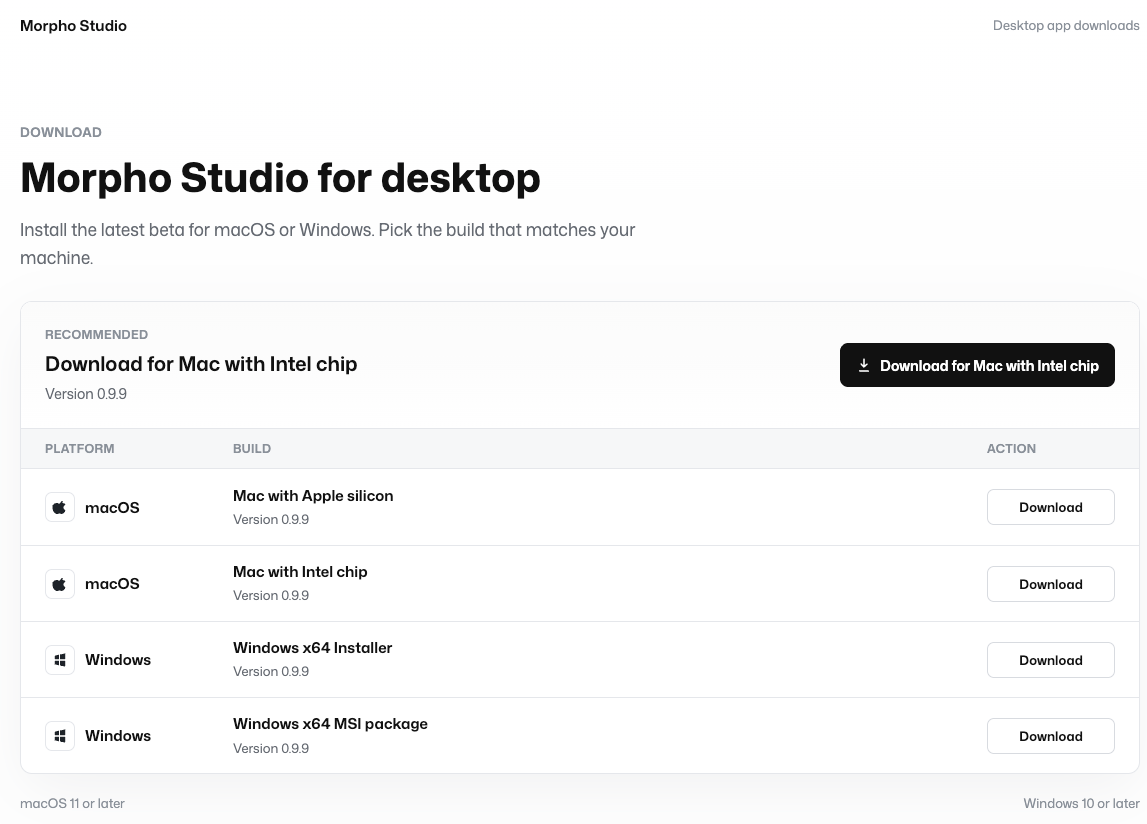
Download the version of Morpho Studio that matches your operating system from the link below:
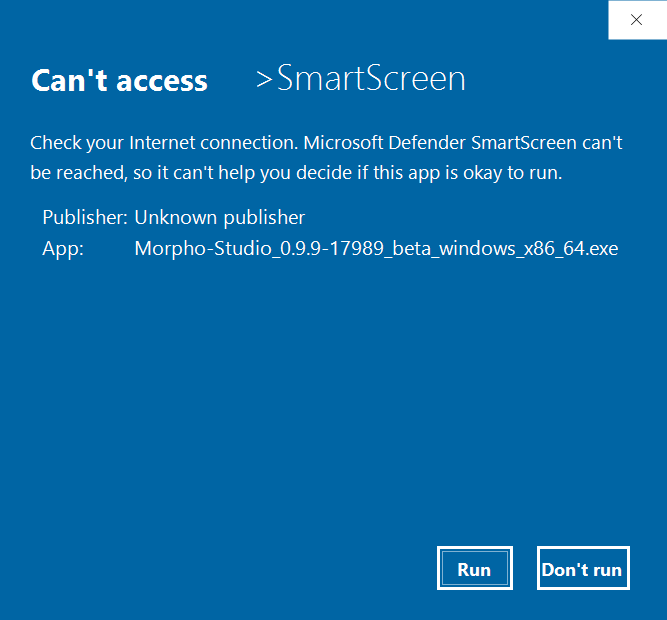
Note: If Windows displays a security warning when launching the installer, click Run to continue.
¶ Step 2. Power On the UV Printer and Connect It to the Network
- Connect the UV printer to your network using either Wi-Fi or Ethernet (LAN).
- Make sure both the UV printer and the PC running Morpho Studio are connected to the same local area network (LAN).
- Remote control over the public internet is not yet supported. This feature is currently under development and will be available in a future release.
¶ Step 3. Find the Printer's IP Address
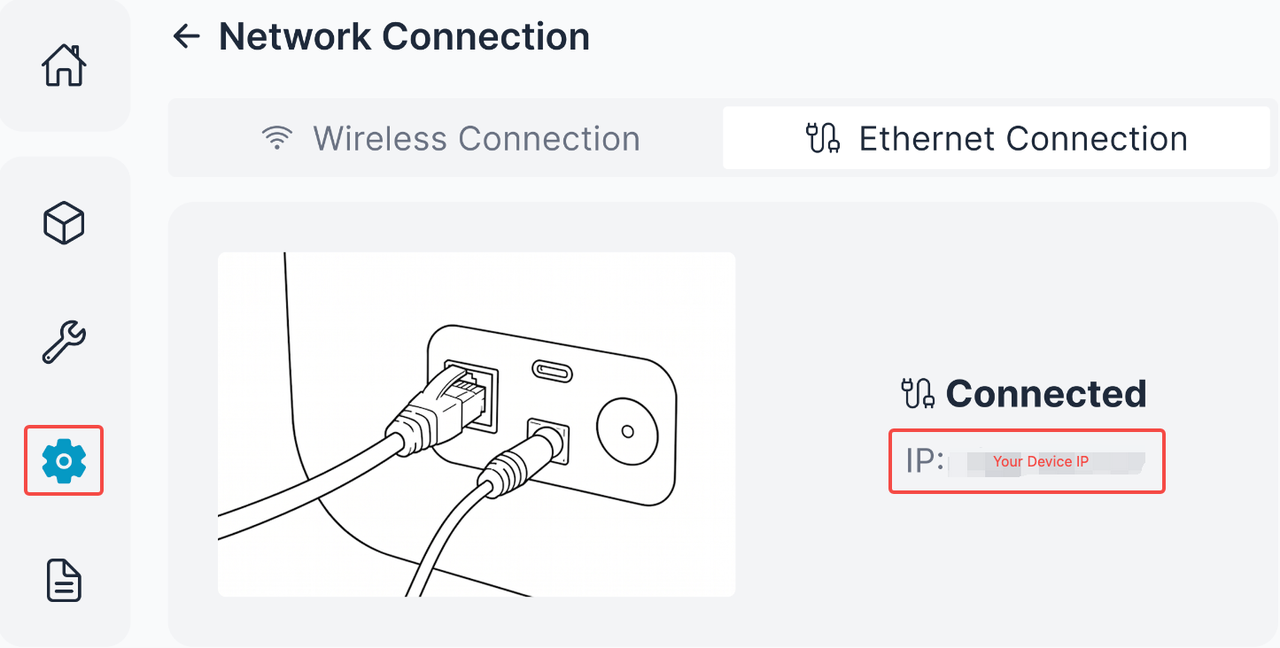
On the printer's touchscreen, locate and note the device's IP Address.
¶ Step 4. Add the Printer in Morpho Studio
Open Morpho Studio and go to the Devices tab.
Click the "+" button in the upper-right corner to add a new device.
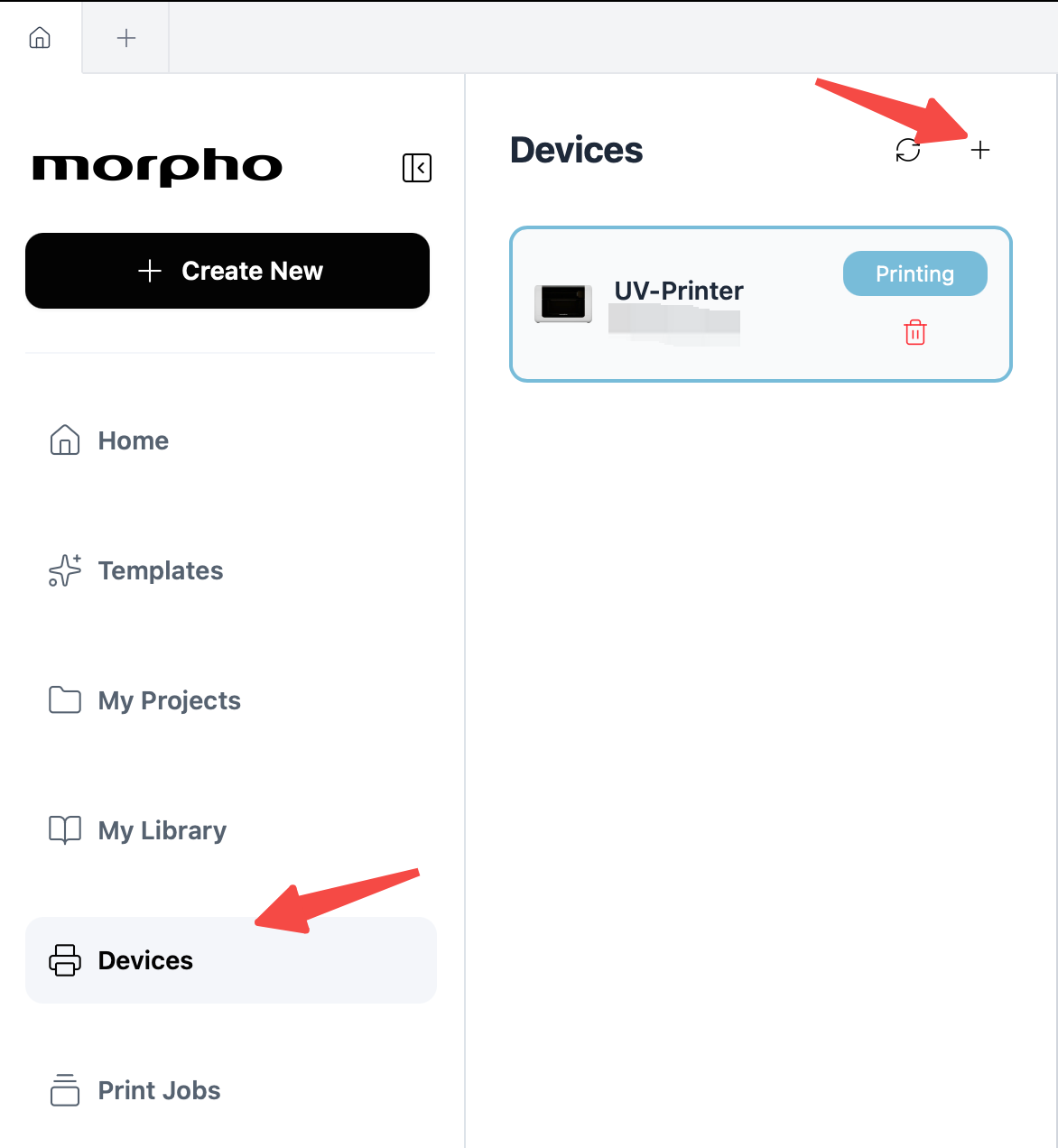
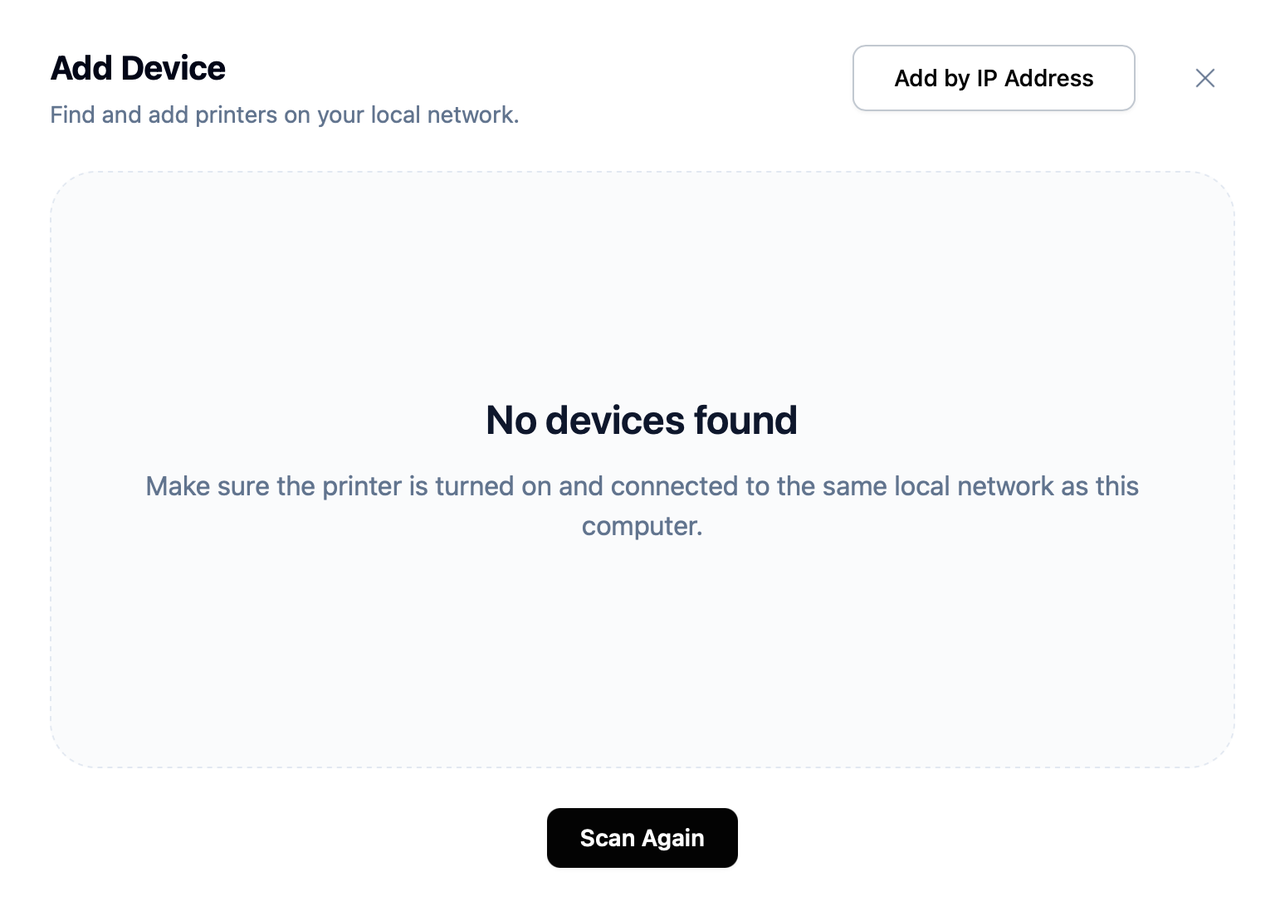
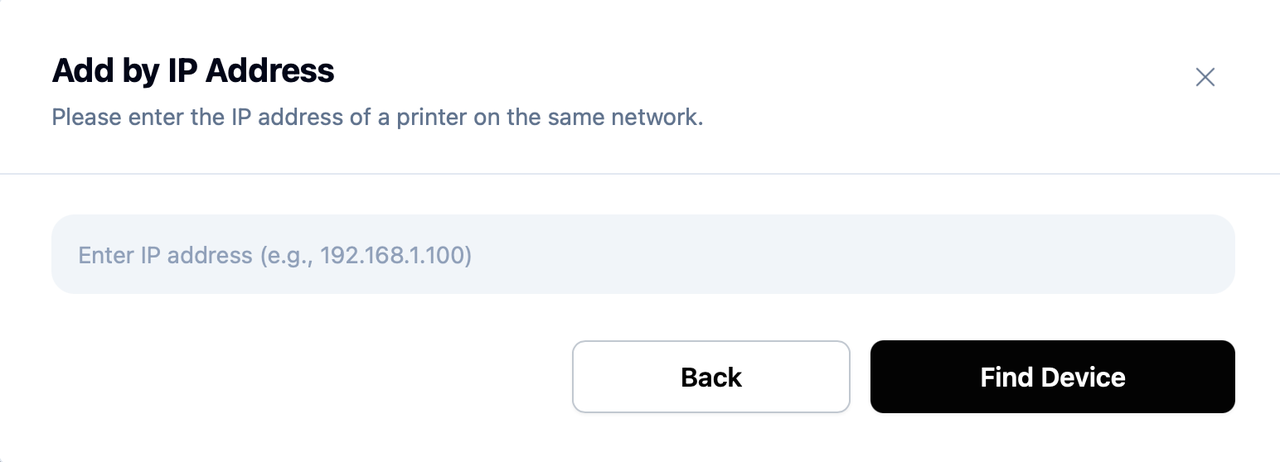
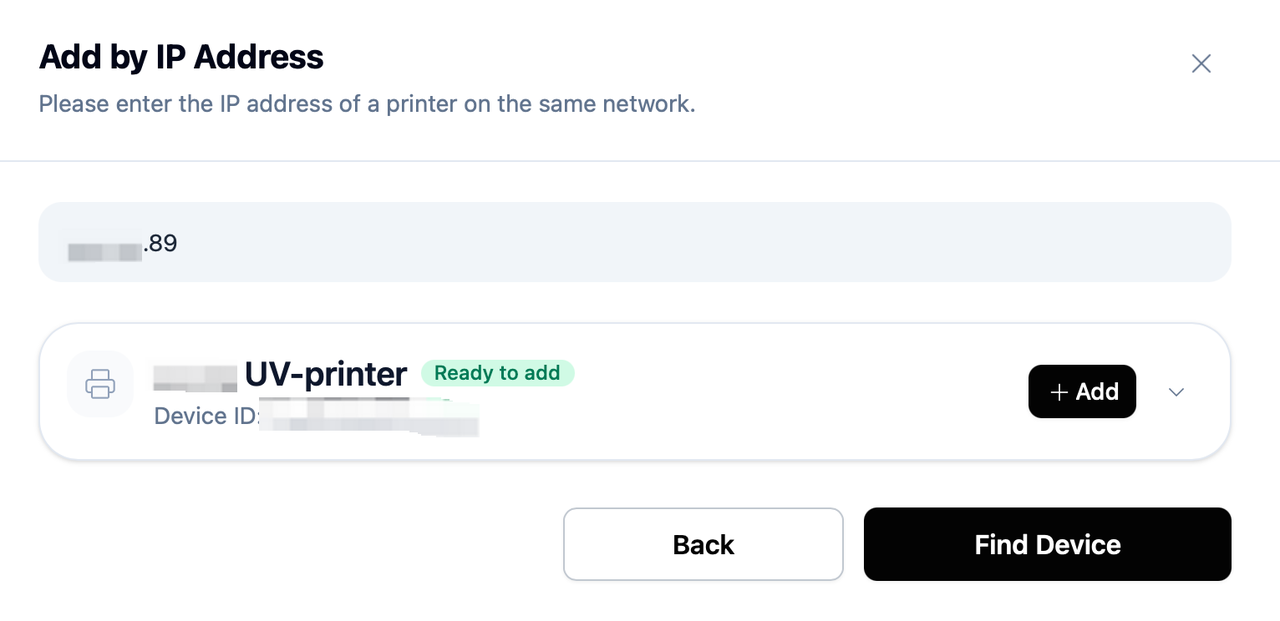
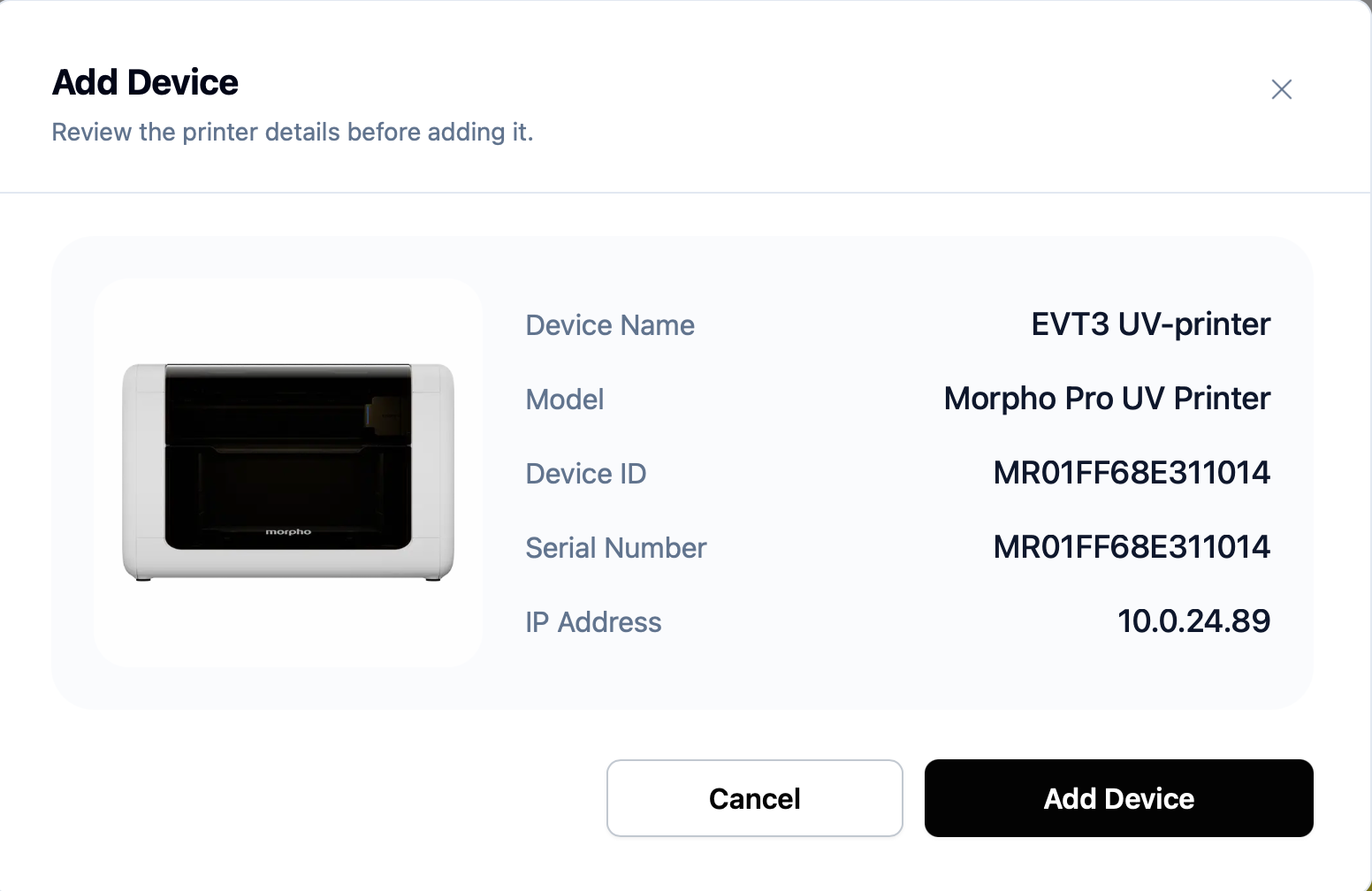
In the dialog that appears, select Add by IP Address, then enter the printer's IP address to complete the connection.
|
|
¶ Step 5. You're All Set!
Your printer has been successfully configured.
Continue with the Create Your First UV Print guide to start your first print using Morpho Studio.
Notes
- You can add your Morpho UV printer at any time from any feature in Morpho Studio that requires a connected device.
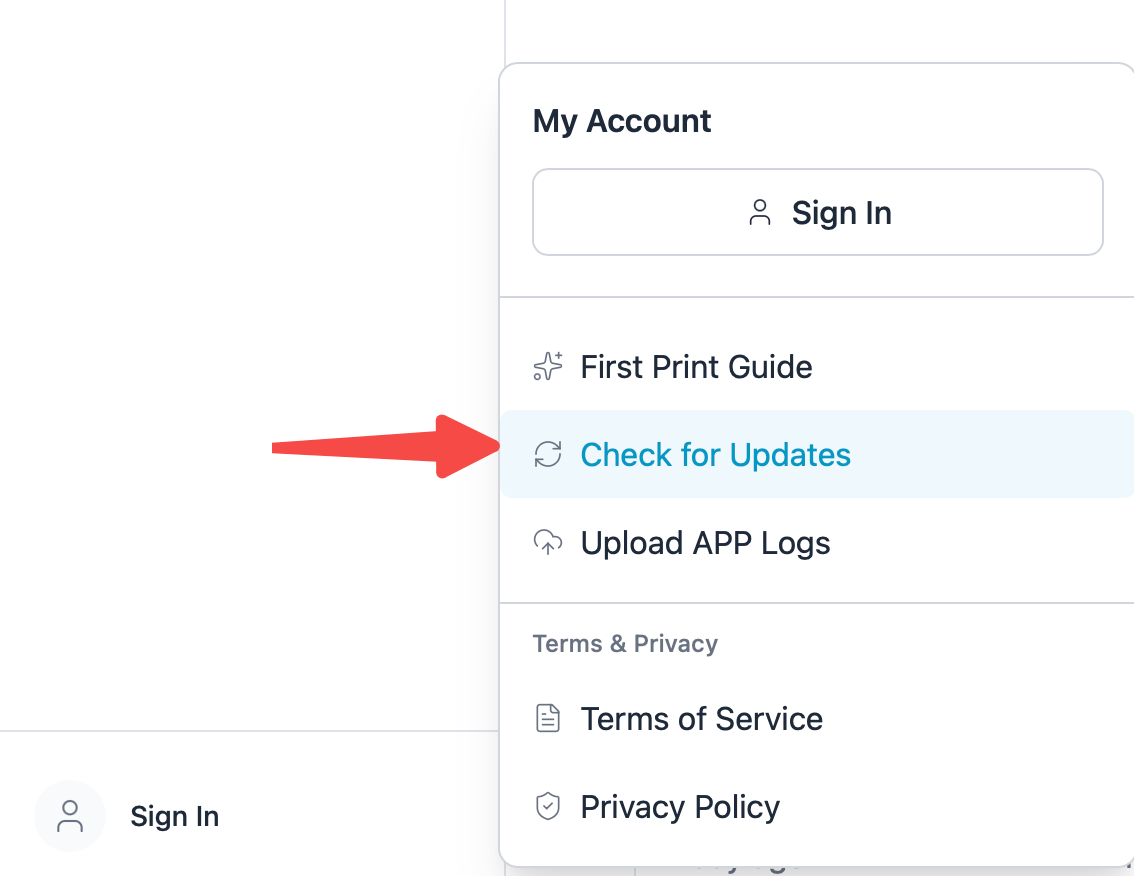
- We're continuously releasing new features and improvements. Select Check for Updates to install the latest preview version and try out new capabilities as they become available.