¶ Canvas Editor Overview
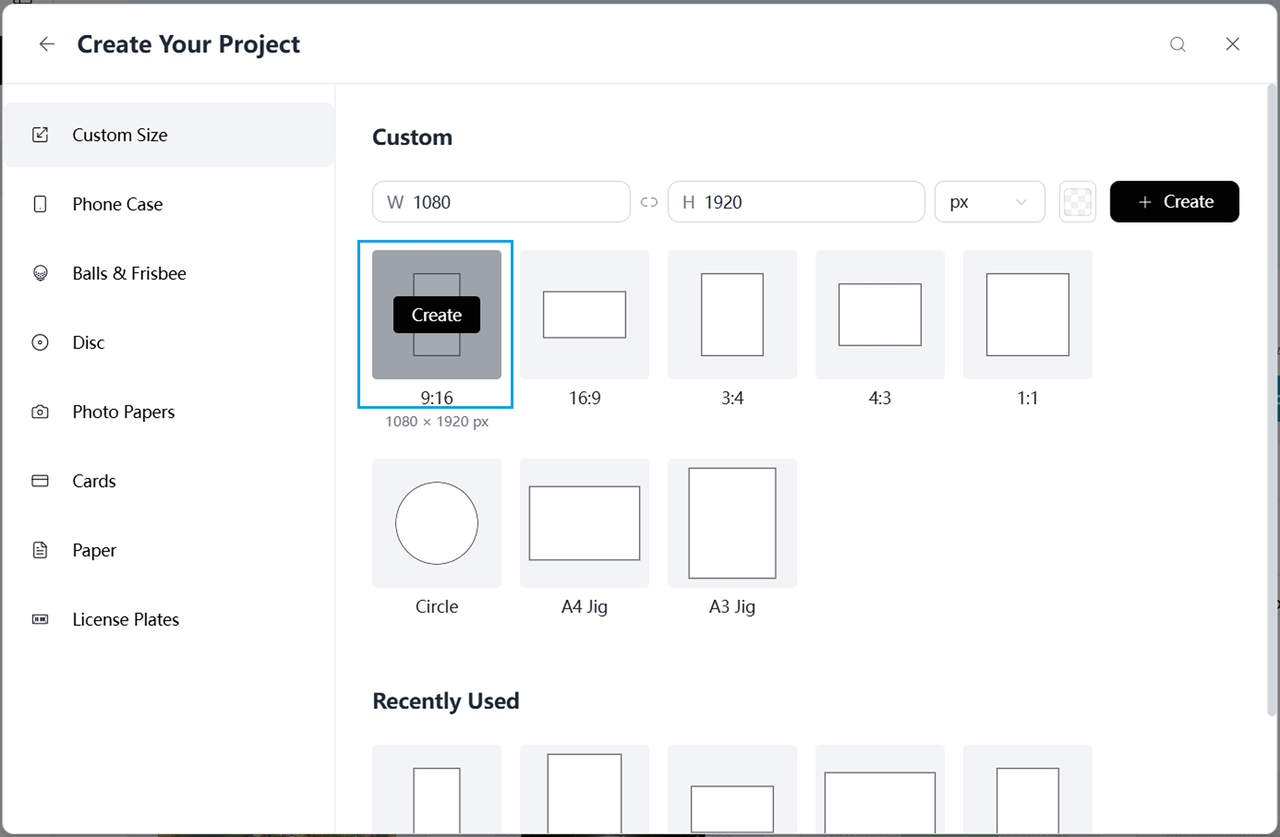
Canvas Editing is where you set up the base of your design. From this page, you can choose a preset canvas shape and size to enter the canvas editing workspace, then fine-tune the canvas to match your project before adding images or text.
¶ Canvas Setup
¶ Selecting a Canvas
Choose from preset canvas shapes or customize from the canvas editing page. This is the starting point for any new designs.
¶ Adjusting a Canvas
-
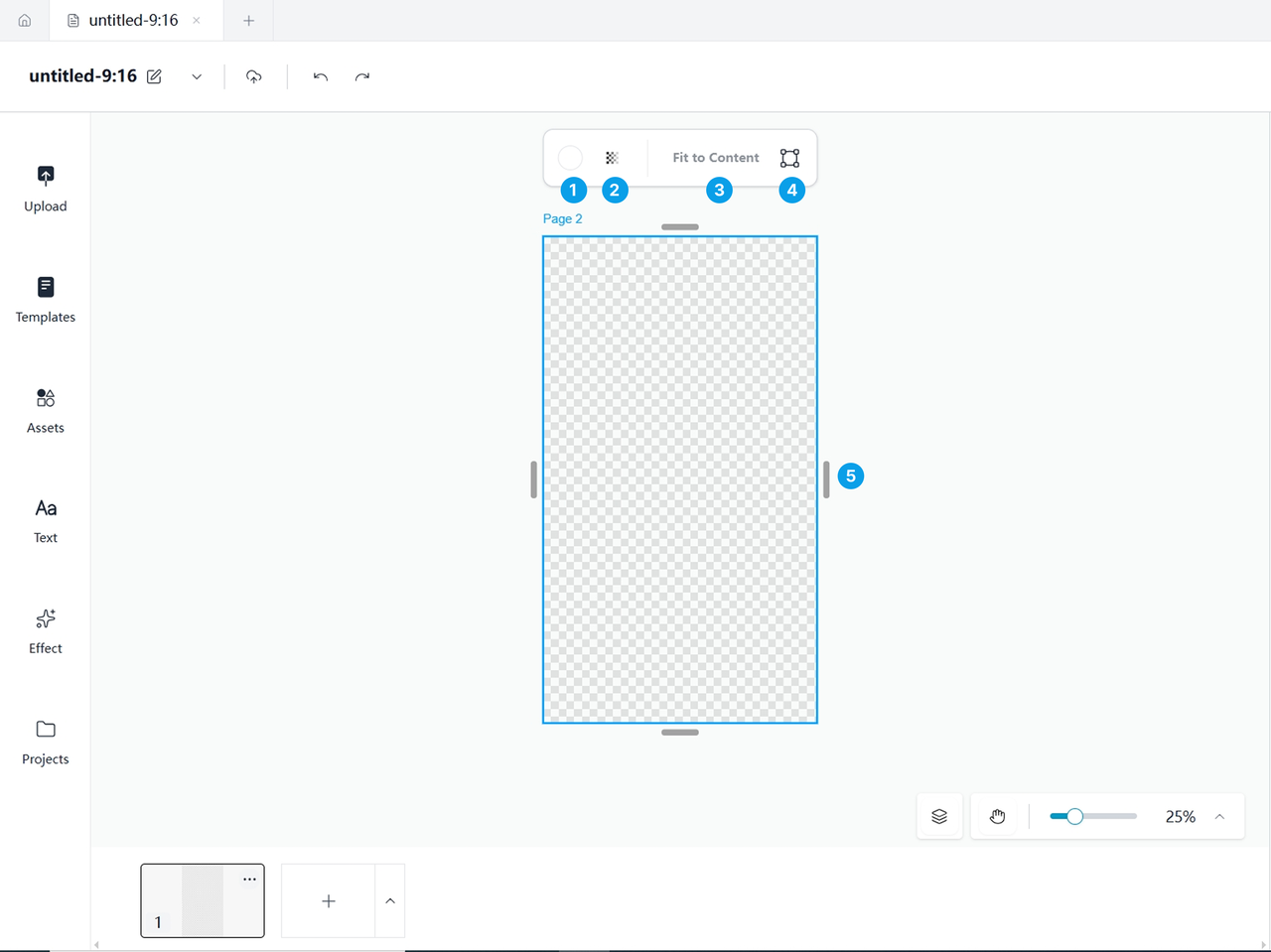
Adjusting canvas color.
-
Adjusting canvas transparency.
-
Fit to content.
-
Changing canvas shape or size.
-
Resizing the canvas.
¶ Image Editing
Image Editing tools let you refine, transform, and style images placed on your canvas.
-
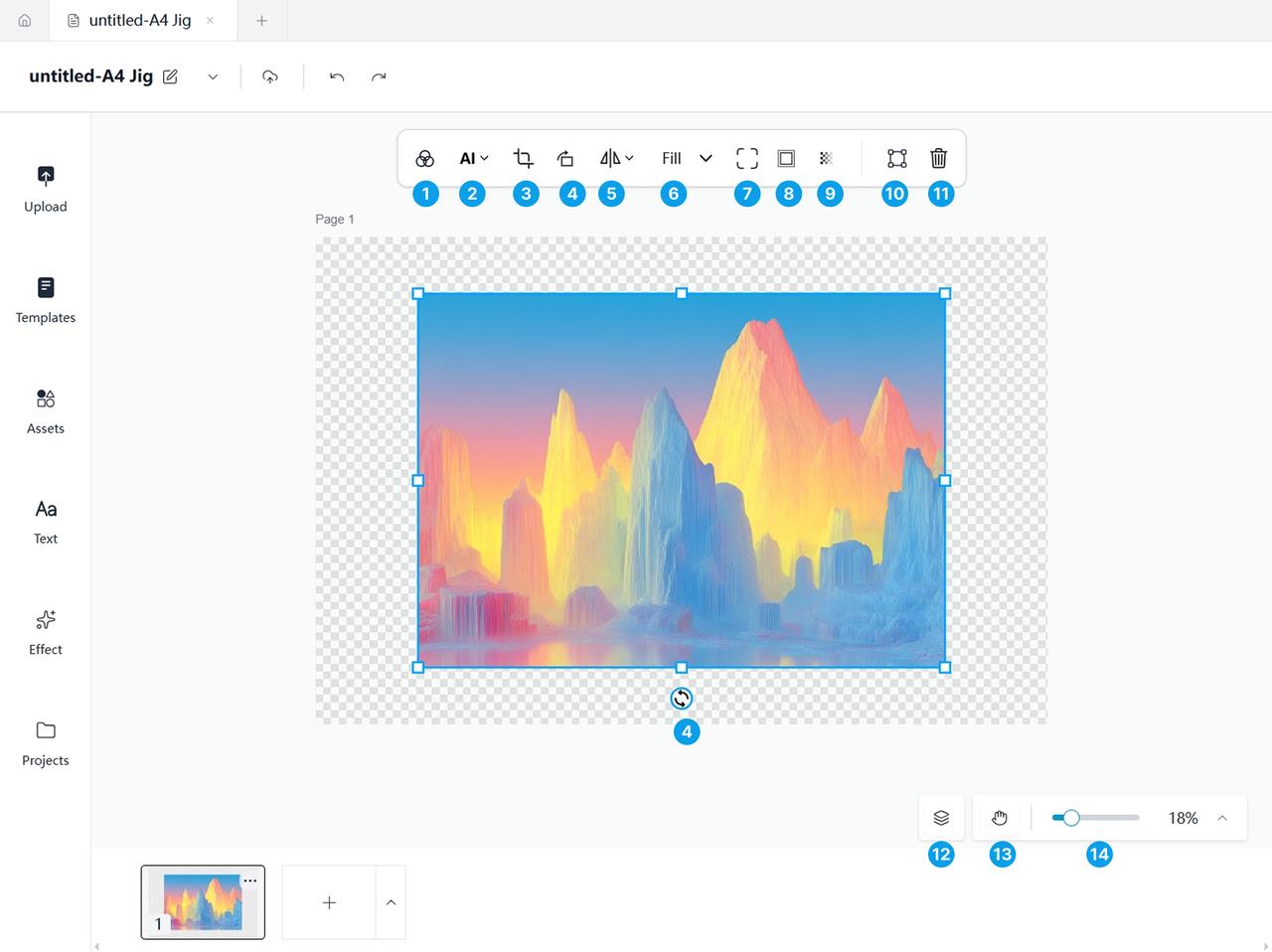
Filters: Apply image filters to change the overall look and mood of your image. You can also fine-tune the result by adjusting parameters such as brightness, contrast, and temperature.
-
AI Tools:
| Tool | Description |
|---|---|
| Remove Background | Automatically detects and removes the background from an image |
| Upscale | Improves image resolution and clarity using AI |
-
Crop: Crop lets you trim an image using various preset shapes and aspect ratios.
-
Rotate: Rotate an image to any angle.
-
Flip: Flip an image horizontally or vertically.
-
Fill, Fit, and Tile.
| Option | Description |
|---|---|
| Fill | Scales the image so it completely covers the available area. |
| Fit | Scales the image so it fits within the available area. |
| Tile | Repeats the image across the canvas |
-
Corner Radius: Adjust the corner radius to round the corners of an image.
-
Border: Adjust the border to add a frame around the image, with different border styles available.
-
Opacity: Adjust the image's opacity to make it more or less transparent.
-
Position: Adjust the image's position on the canvas, or use automatic alignment to snap it to common reference points on the canvas.
-
Delete: Delete the selected image from the canvas.
-
Layers: View all layers on the canvas, lock, unlock, show, or hide individual layers.
-
Pan: Drag to move around the canvas view.
-
Zoom: Zoom in or out to change the current page view.
¶ Text Editing
Text Editing tools let you style, format, and position text on your canvas.
-
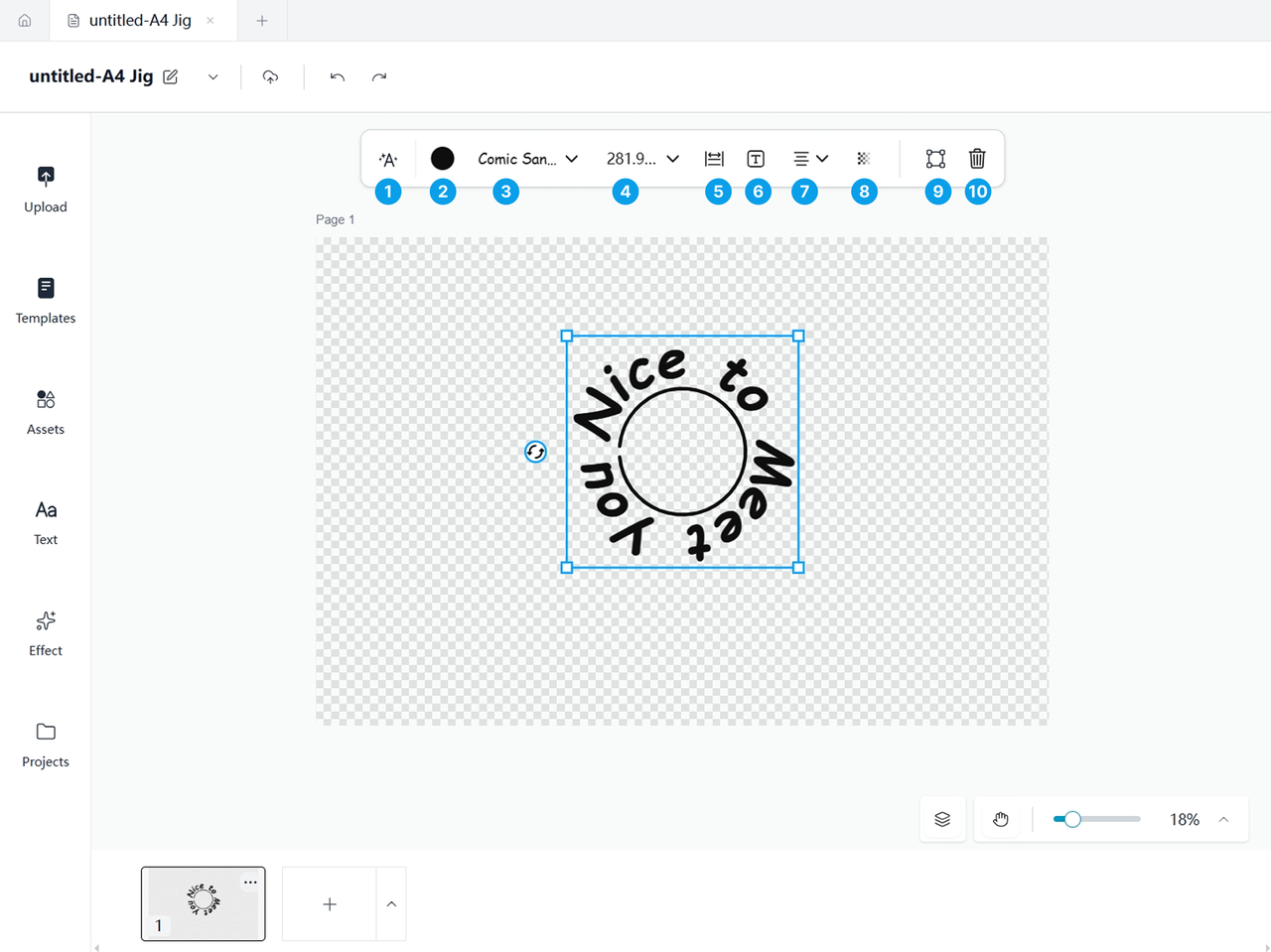
Text Effects: Apply effects such as shadow, blur, glow, outline, and curve to the text.
-
Text Color: Adjust the text color.
-
Font: Adjust the text font.
-
Font Size: Adjust the text size.
-
Spacing: Adjust the line height and letter spacing.
-
Text Decoration: Apply decorations such as bold, italic, underline, and strikethrough to the text.
-
Text Alignment: Align text left, center, or right within the text box.
-
Opacity: Adjust the text opacity.
-
Position: Adjust the text position on the canvas, or automatically align it to common reference points.
-
Delete: Delete the selected text from the canvas.
¶ Other tools
-
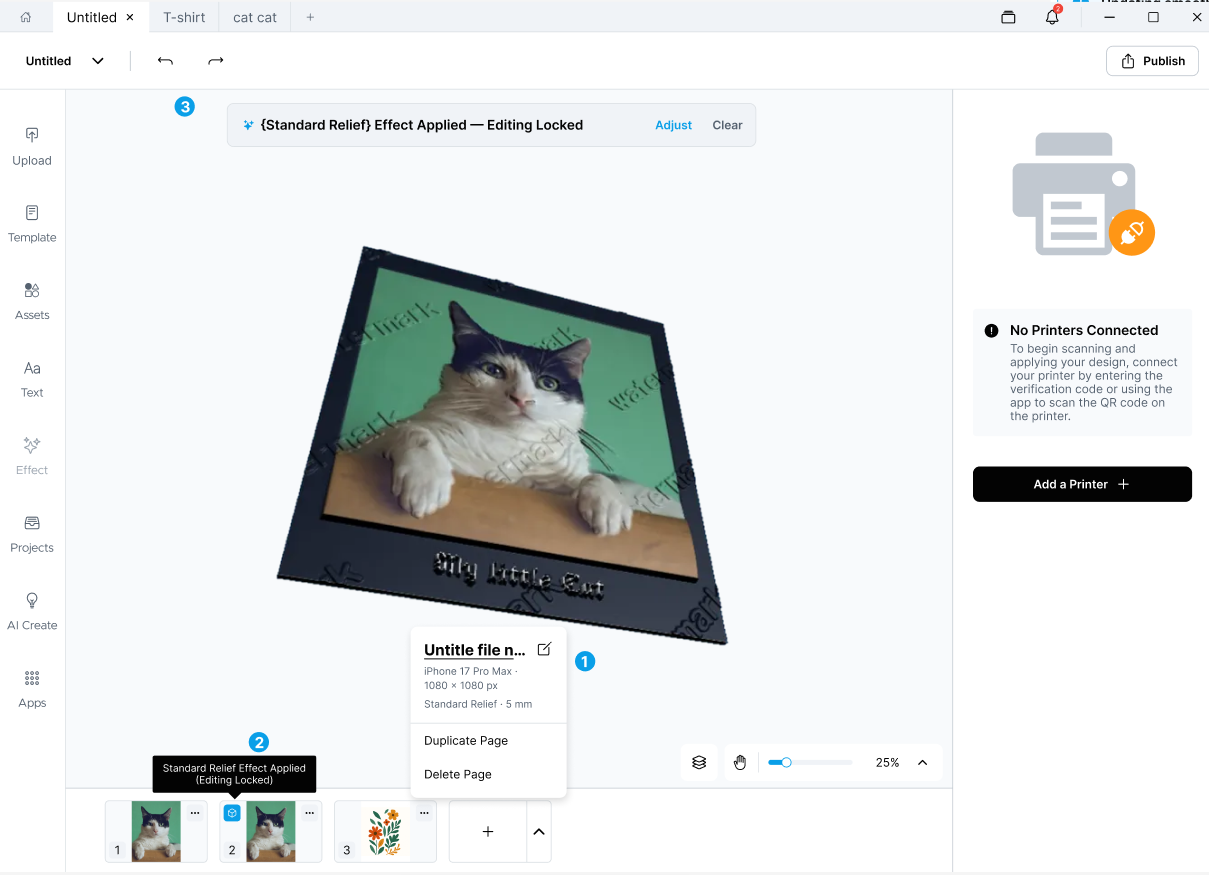
Page Management: Pages appear as thumbnails along the bottom of the editor, allowing you to move between different pages in the same project.
-
Switch between pages in a multi-page project
-
Duplicate an existing page
-
Delete a page
-
Add a new page
-
Rename or edit page information
-
Double-click to open the page
-
-
The Page Effect Status indicator helps you identify pages that have a special effect applied, such as a standard relief effect.
-
The Undo and Redo controls let you reverse or restore recent editing actions in the project.