¶ 1. Overview
Batch Fill allows you to quickly apply the same design to multiple printable areas, reducing the need to duplicate and align each design individually.
Batch Fill provides two methods:
- Batch Apply – Automatically adds the design to every printable area.
- Batch Fill (Smart Alignment only) – Copies the design's position, size, and rotation from one printable area to other areas.
¶ 2. Batch Apply
Batch Apply adds a copy of the selected design to each printable area and automatically adjusts it based on the size of the area.
¶ How to Use
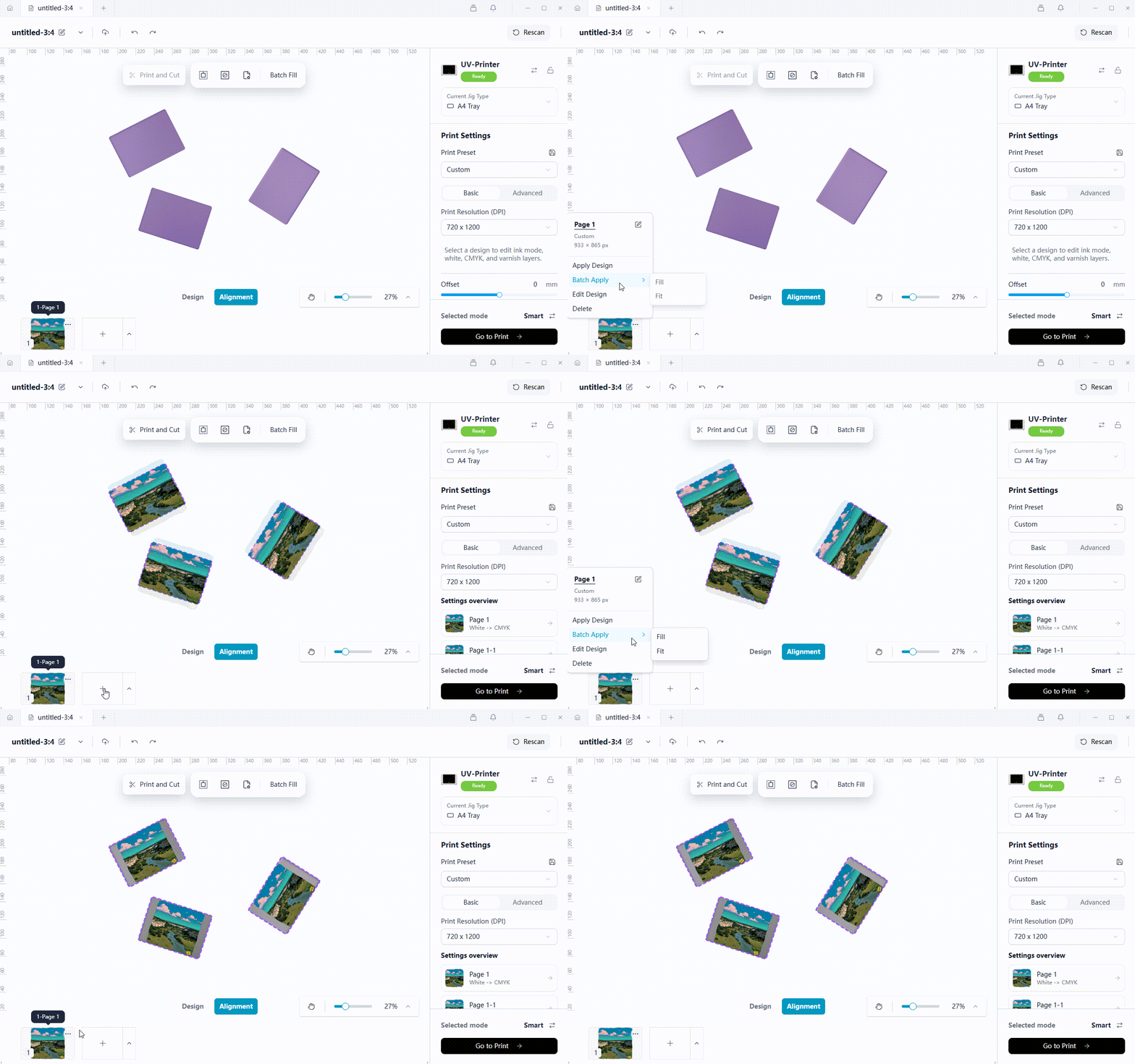
- On the Alignment page, select the design you want to apply.
- Click Batch Apply.
- Select Fill or Fit.
- Confirm to apply the design to all printable areas.
After the design is applied, you can continue adjusting each design individually.
¶ Fill and Fit

- Fill scales the design to completely fill the printable area. Parts of the design may be cropped.
- Fit scales the design to fit entirely within the printable area. Empty margins may remain around the edges.
Note
When using Fill, make sure that important design content is not cropped by the edges of the printable area.
¶ 3. Batch Fill (Smart Alignment Only)
Batch Fill copies an adjusted design layout from one printable area to other areas.
It is best suited for printing multiple objects with similar sizes, shapes, and orientations.
¶ How to Use
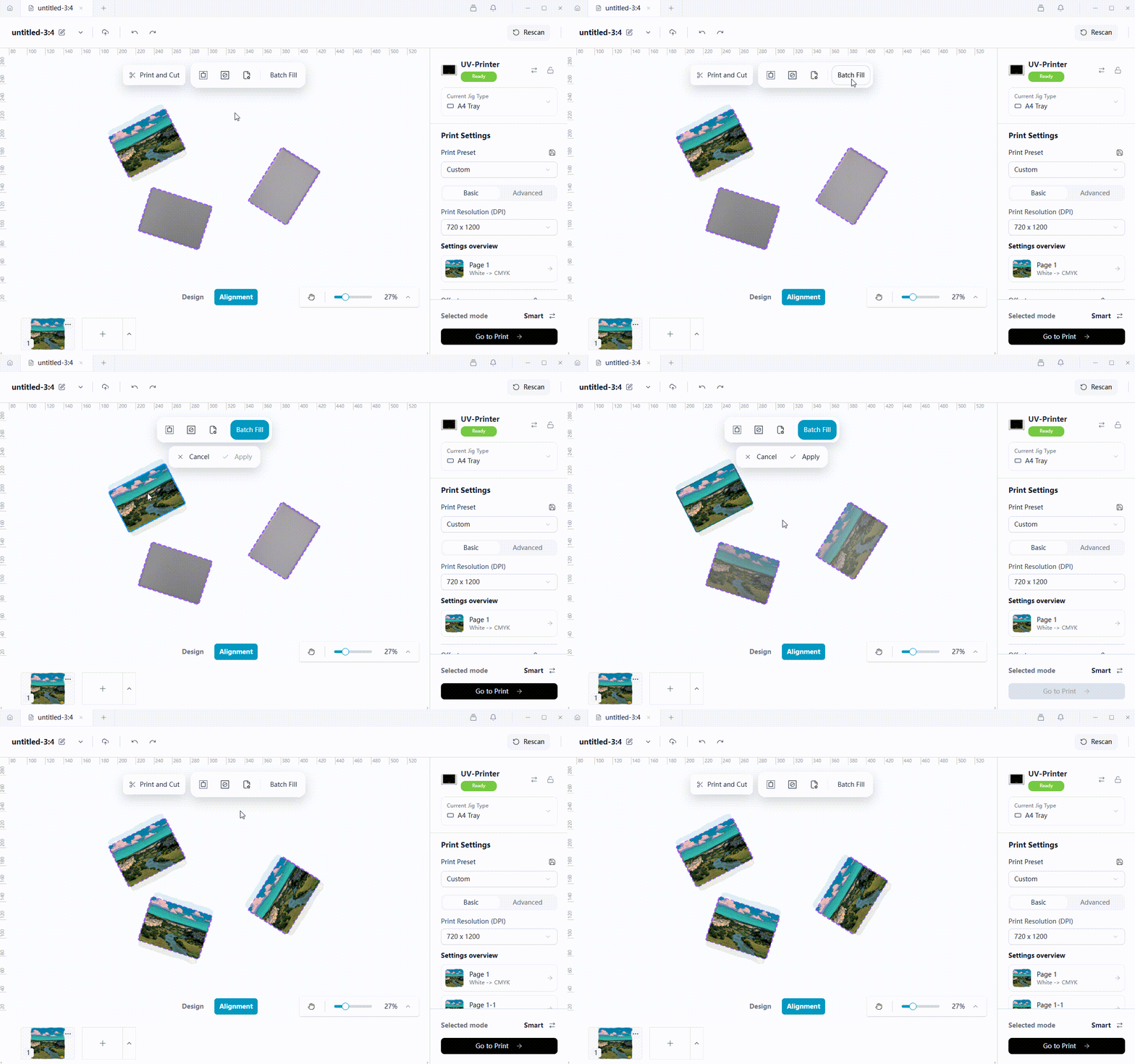
- Place the design in one of the printable areas.
- Click Batch Fill.
- Select the target areas and confirm.
The system applies the same layout to each target area based on the design's relative relationship to the source area.
¶ What Is Copied
Batch Fill copies:
- The design's relative position within the printable area
- The design's size relative to the printable area
- The design's rotation angle
The design in the source area remains unchanged.
¶ 4. How Different Objects Are Handled
¶ Identical or Similar Objects
When multiple objects have similar shapes, sizes, and orientations, Batch Fill generally produces more consistent results.
¶ Different Sizes or Shapes
The system recalculates the design's position and size based on each target area.
As a result, the visual appearance may differ from the source area.
For objects with significant differences, use Batch Apply, select Fill or Fit, and then adjust each design individually.
¶ Circular and Oval Objects
Circular and oval printable areas usually do not provide a clear indication of the object's orientation.
Batch Fill copies the rotation angle of the design itself, but it does not automatically identify or correct the front-facing direction of each object.
After applying Batch Fill, check the orientation of every design.
Important Notes
- Batch Fill uses the printable areas already present on the canvas. It does not create or correct printable areas.
- Batch Fill is unavailable when the canvas contains only one printable area.
- Fill may crop parts of the design, while Fit may leave empty space around the edges.
- Batch Fill works best with objects that have similar shapes, sizes, and orientations.
- The system cannot automatically determine the orientation of circular, oval, or other objects without a clear front-facing direction.
- Before printing, check the position, size, cropping, and rotation of every design.