¶ Basic Printing Workflow
¶ 1. Overview
The basic printing workflow consists of four stages: Design, Alignment, Print Settings, and Printing.
You can create a new design or open an existing project, align the design with the physical object, confirm the printing parameters, and then send the print job to the printer.
¶ 2. Before You Start
Before printing, make sure that:
- The printer is connected and in the Ready state.
- The required print bed or jig is correctly installed and has completed Setup.
- There is sufficient ink, and the printer has no unresolved errors.
- The surface of the object is flat, clean, and suitable for UV printing.
- The object is placed within the printer's valid printing area.
Important
When using the printer for the first time, complete the initial device Setup and any required calibrations before printing.
¶ 3. Printing Workflow
¶ 3.1 Create or Open a Project
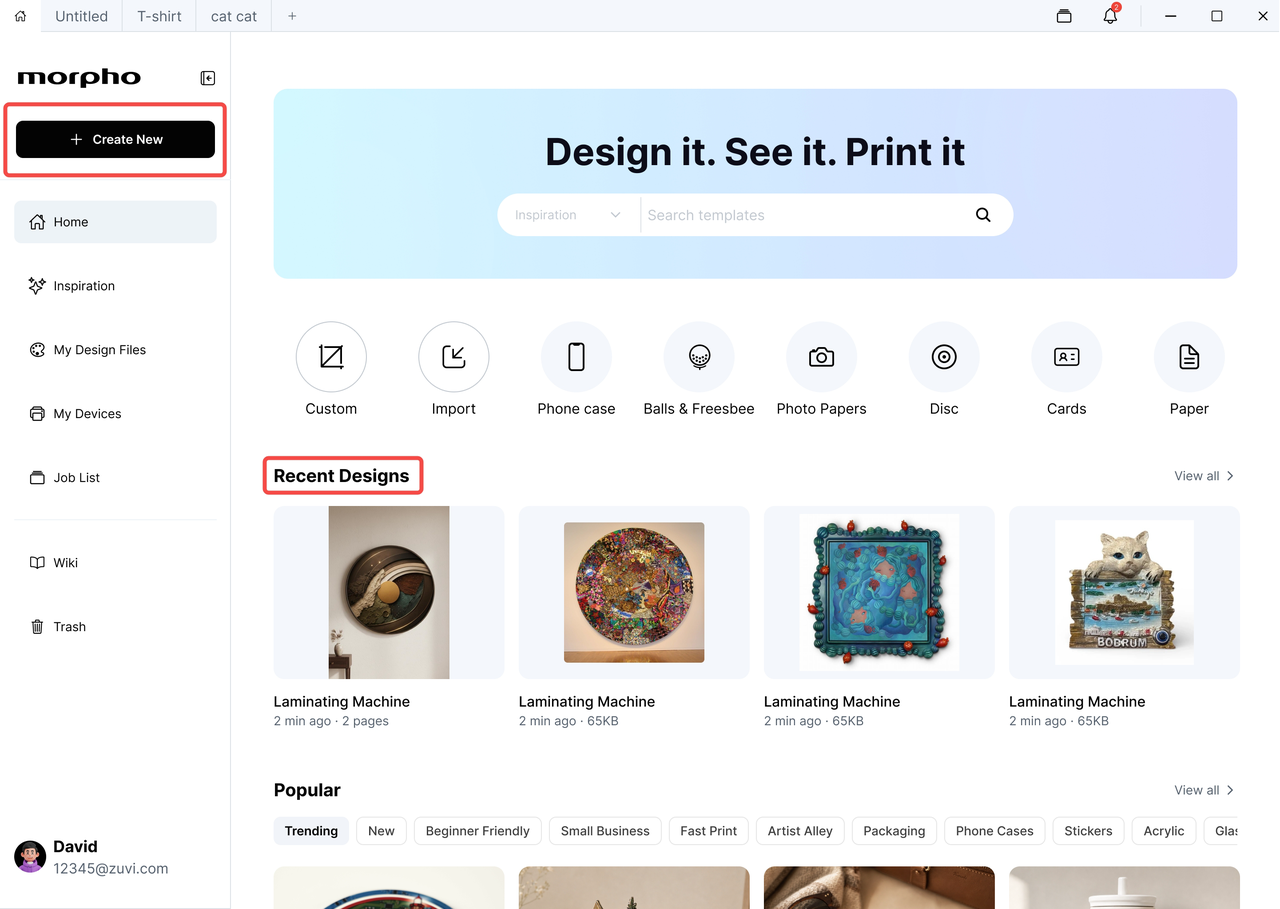
Create a new project in the App, or open an existing project from Recent Designs.
You can add design content in the following ways:
- Upload an image or design file.
- Select an asset from Library.
- Create text, shapes, or other design elements.
- Open a previously saved project.
¶ 3.2 Edit the Design
On the Design page, adjust the design as needed, including:
- Design size and proportions
- Layer position and order
- Colors and effects
- Ink Mode and other design-related settings
When the design is ready, proceed to Alignment.
¶ 3.3 Place the Object
Follow the on-screen instructions to place the object inside the printer.
Make sure that:
- The object is within the valid printing area.
- The object is stable and will not move during printing.
- There is sufficient space between multiple objects.
- There are no unrelated objects or tools inside the printing area.
After placing the object, select an Alignment method.
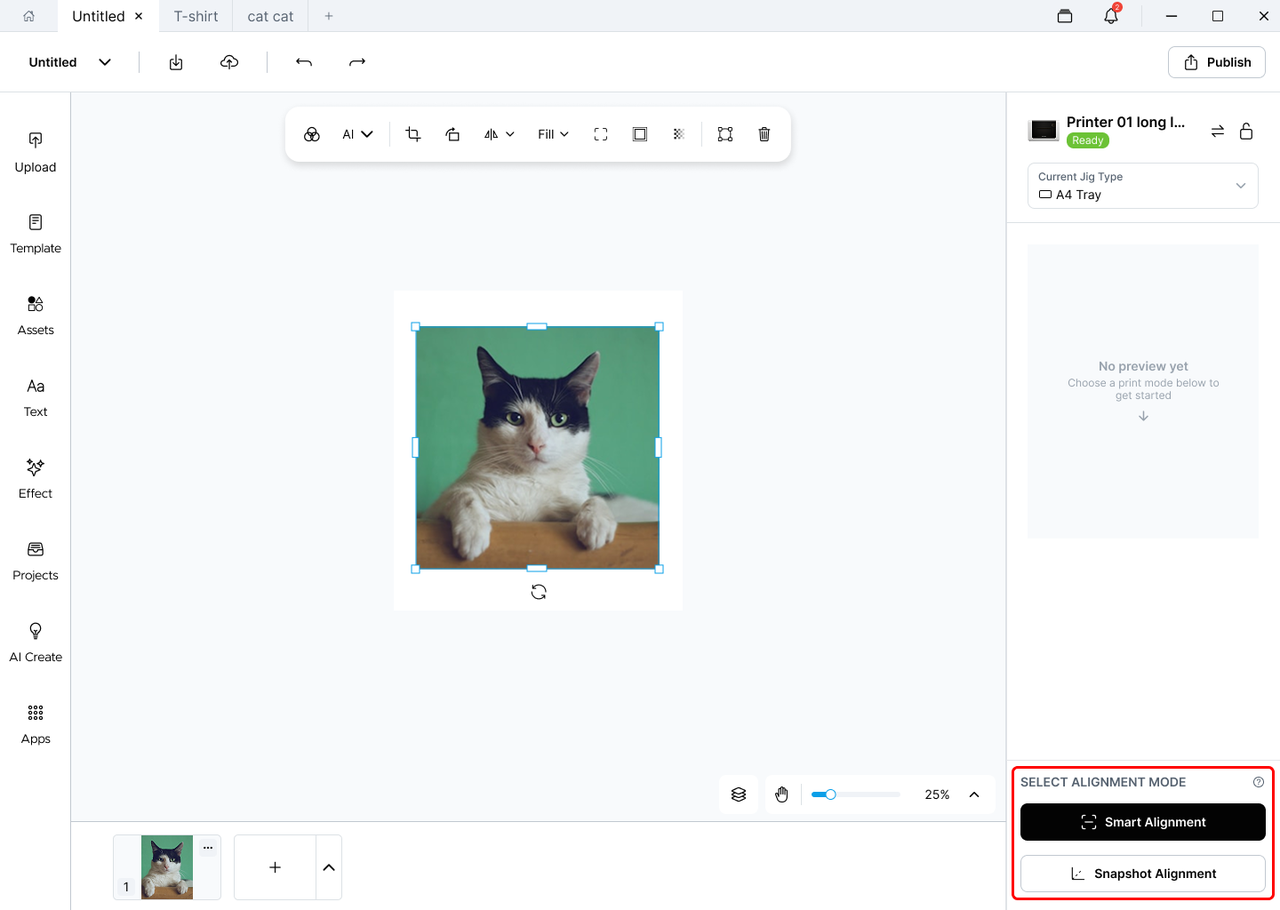
¶ 3.4 Align the Design
Alignment determines where the design will be printed on the physical object.
After completing Alignment, check that:
- The design is fully within the printable area.
- The design position, size, and rotation are correct.
- Important content is not too close to or beyond the edge of the object.
- Designs on all objects have been correctly aligned.
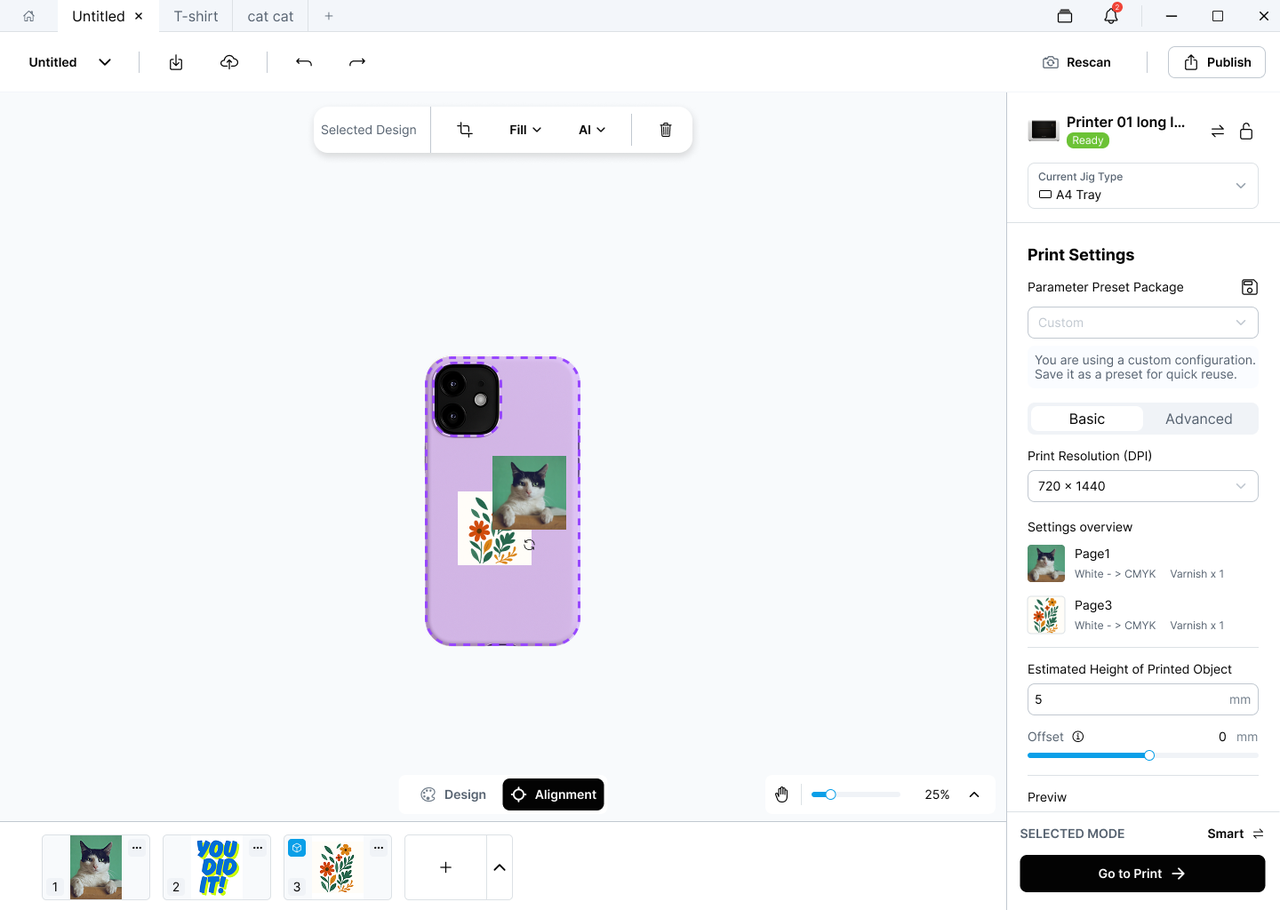
¶ 3.5 Configure Print Settings
Open Print Settings and select the appropriate material and printing parameters.
The main settings include:
- Material Preset
- Print Quality
- DPI
- Ink Mode
- White, Color, and Varnish settings
- Object Height
- Other advanced printing parameters
If the project contains multiple designs or layers, check the printing parameters assigned to each design.
You can also use Soft Proof to review the expected printing result.
¶ 3.6 Perform the Final Check
Before sending the print job, confirm that:
- The printer and the currently installed jig are operating normally.
- The object has not been moved since Alignment.
- All designs are within the printable area.
- The printing parameters match the selected material.
- There are no unrelated objects inside the printer.
- The printer lid is closed.
After confirming everything is ready, click Print.
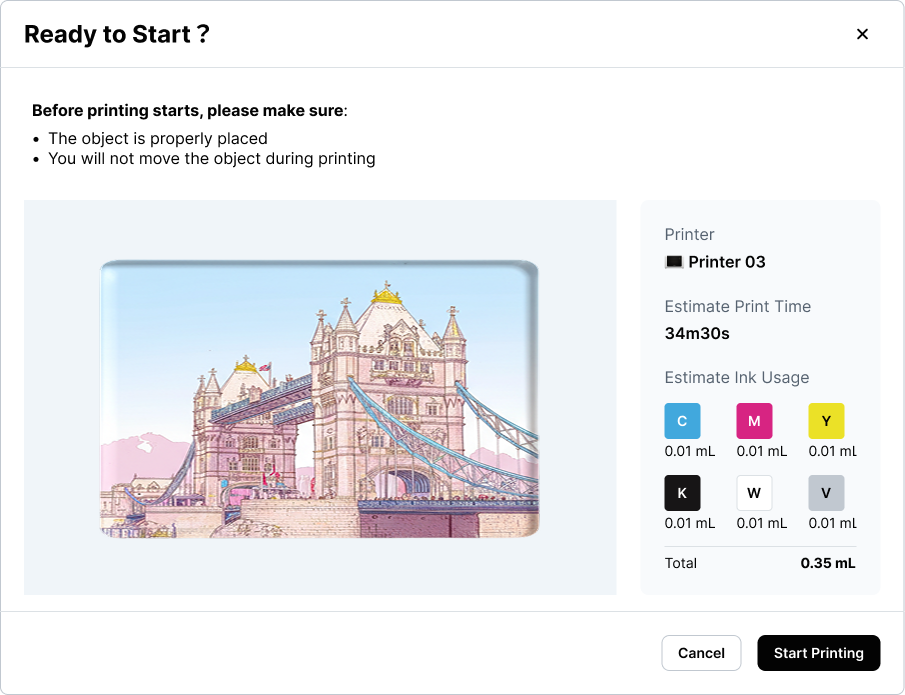
¶ 3.7 Start Printing
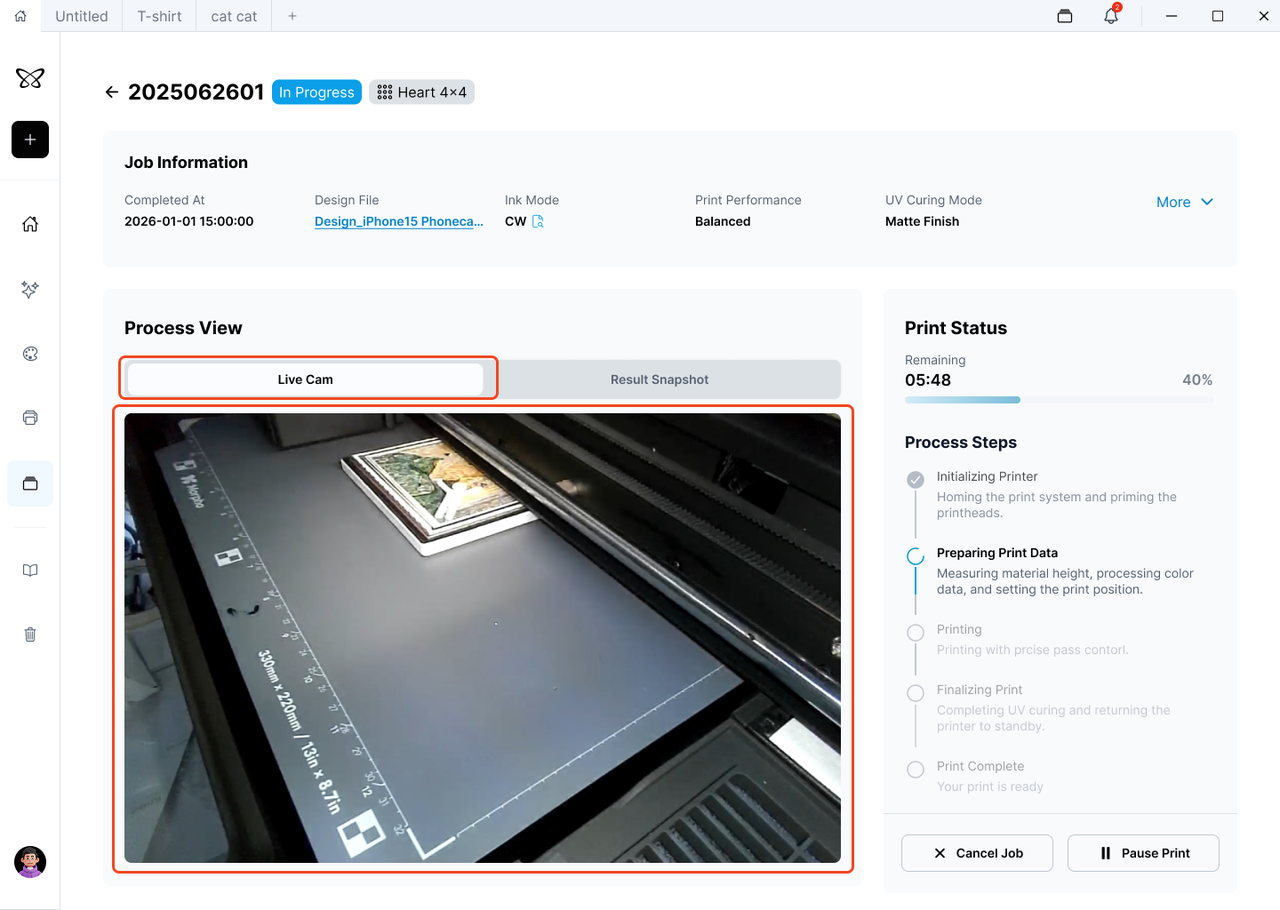
The App sends the print job to the printer.
During printing, you can view:
- Current printing status
- Printing progress
- Estimated time remaining
- Printer or consumable notifications
When you do not need to remain on the progress page, select Run in Background. The print job will continue, and the App will notify you when printing is complete or when an issue requires attention.
Important
Do not open the printer, move the object, or touch any moving components during printing.
¶ 3.8 Complete the Print
After printing is complete and the printer has stopped moving, open the printer and remove the object.
Check the printed result for the following:
- The design is printed in the correct position.
- The colors and surface finish match the expected result.
- There are no missing lines, color mixing issues, or other print-quality problems.
- Varnish or relief effects are complete and consistent.
If the printed position is noticeably misaligned, run Print-to-Camera Calibration.
If you experience print-quality issues, open Smart Maintenance to check the printhead condition.
Important Notes
- Different materials may require different printing parameters. Use a matching Material Preset whenever possible.
- Moving the object after Alignment may cause the printed position to differ from the preview.
- Any part of the design outside the printable area will not be printed.
- Do not cancel the print job or turn off the printer during printing.
- UV ink may not be suitable for every material. Perform a small test print before starting a full print job.