¶ 1. About 2.5D Scan
2.5D Scan captures an object's surface image, physical dimensions, and height information to create a relief that can be used for design and printing.
| Mode | Best for | Description |
|---|---|---|
| Fast Scan | Common objects, textures, and surfaces | Quickly creates a printable 2.5D relief. |
| Oil Painting Scan (Coming soon) | Original oil paintings and surfaces with visible brushstrokes | Captures more brushstroke and surface-height detail. A scan typically takes more than 30 minutes. |
¶ 2. Before You Start
¶ 2.1 Check the Printer
Make sure that:
- The printer is connected and available.
- The A4 Tray is installed.
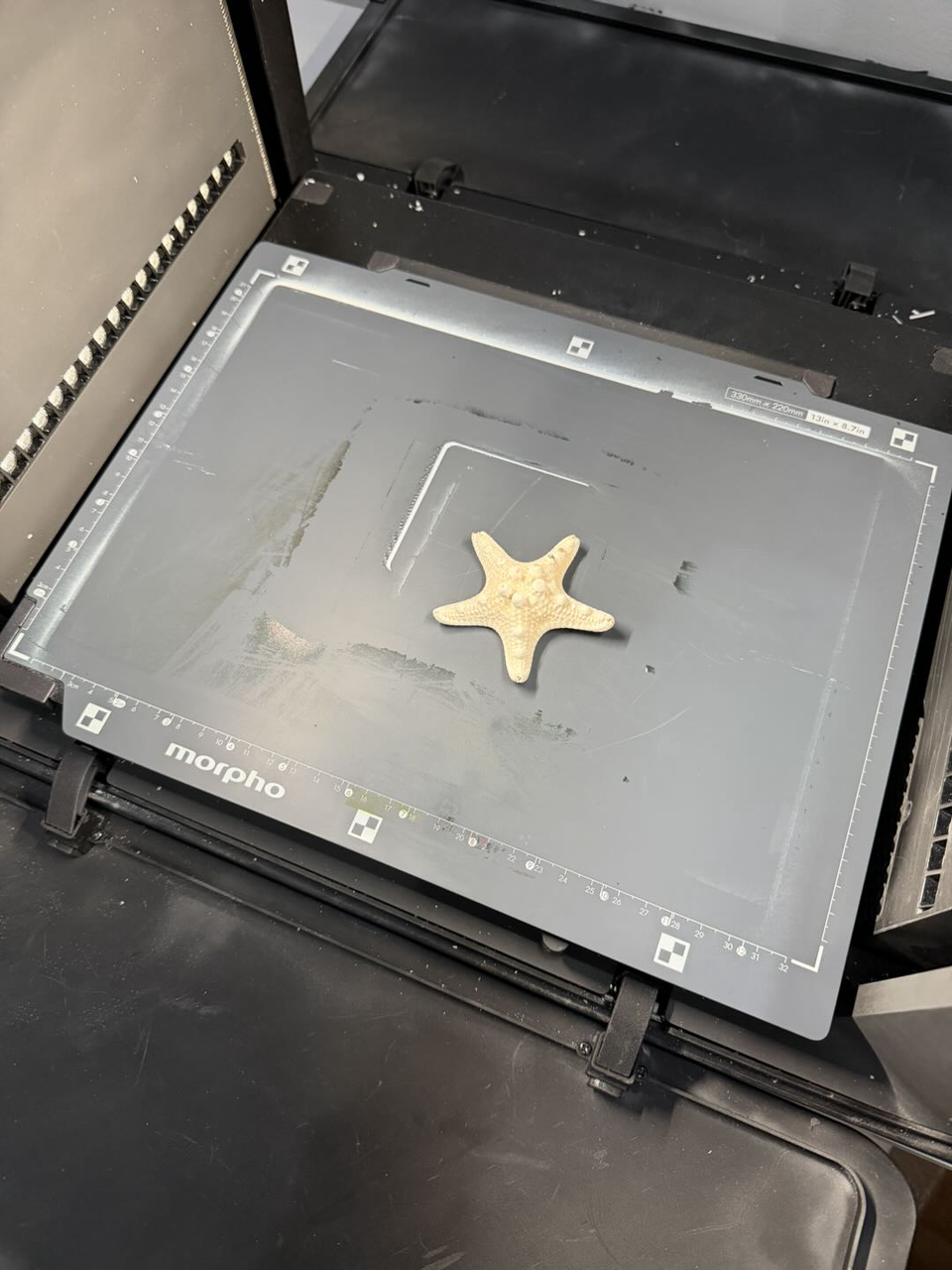
- The A4 Tray is clean and all four L-shaped marks are clearly visible.
- The printer lid can close properly.
Important
2.5D Scan currently supports only the A4 Tray.
¶ 2.2 Place the Object
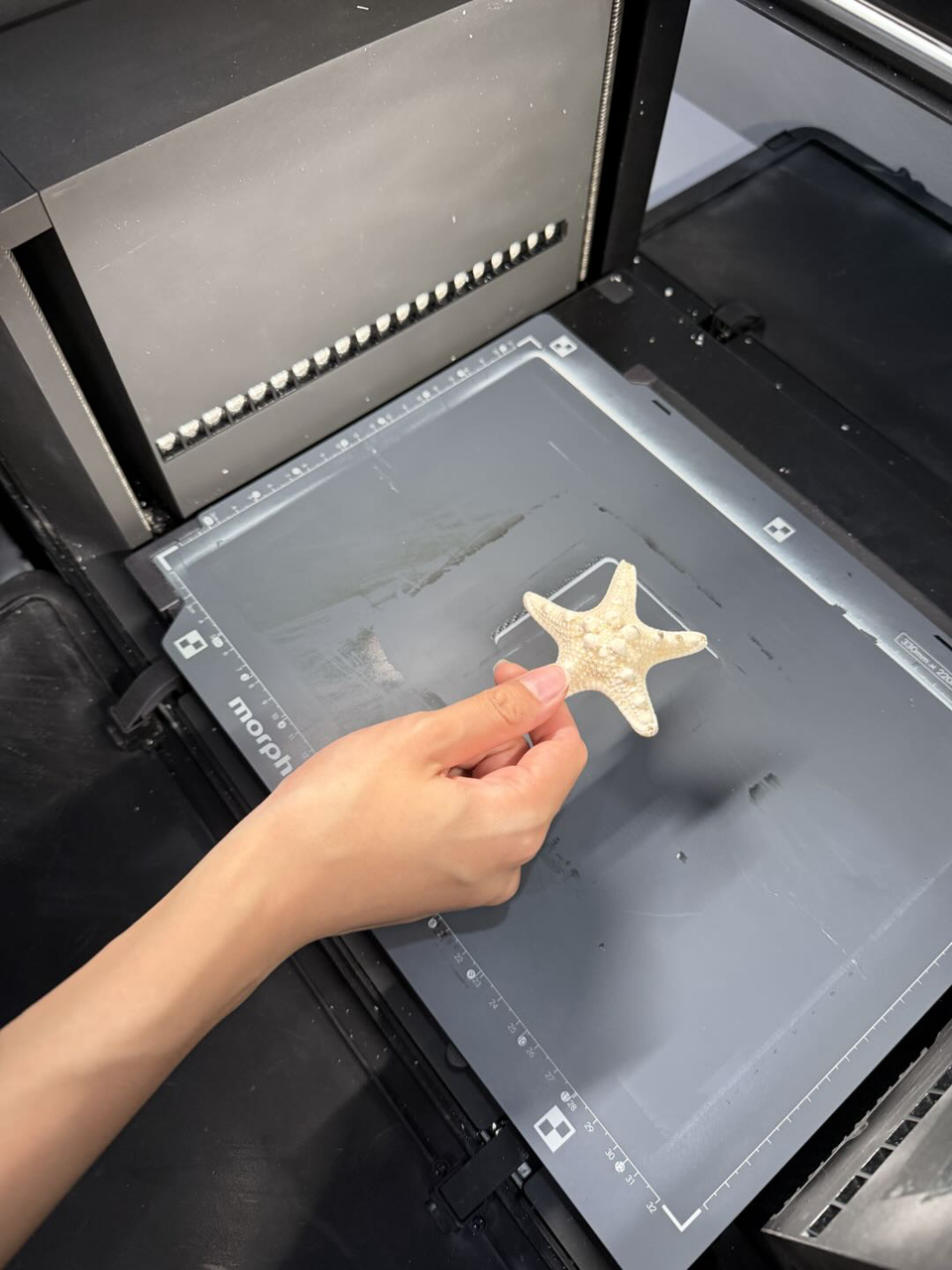
- Place one object directly on the A4 Tray.
- Keep the entire object inside the four L-shaped marks.
- Make sure the object is stable and will not move during scanning.
- Close the printer lid.
Important
The overall object height must be less than 60 mm. Do not scan objects that exceed this limit.
For more reliable results, avoid scanning:
- Transparent or translucent objects.
- Highly reflective, mirrored, or metallic surfaces.
- Objects with boundaries that are difficult to distinguish.
- Objects with extremely complex surface structures.
 |
 |
¶ 3. Review the Scan Result
When scanning is complete, the result page displays a 2.5D relief preview and the measured information.
Check that:
- The object outline is complete.
- The surface texture appears as expected.
- The measured width and length are reasonable.
- The highest point, lowest point, and height range are reasonable.
- The color preview is complete.
If the object is incomplete, its boundary is missing, or the measurements appear significantly incorrect, select Scan Again, reposition the object, and repeat the scan.
¶ 4. When Surface Height Cannot Be Measured Reliably
The system may be unable to measure every surface detail reliably on transparent, reflective, highly textured, or structurally complex objects, including some oil paintings.
When this happens, it creates an estimated relief using the detected object outline, surface image, and available measurement data. The result can still be previewed, adjusted, and printed.
Before using an estimated result, check that:
- The object outline is reasonable.
- The measured dimensions are reasonable.
You can still adjust Relief Height and Relief Smoothness. However, these adjustments cannot recover physical surface details that were not captured reliably during scanning.
¶ 5. Fit Results to the Printable Height
The maximum printable relief height is 5 mm.
¶ Measured Relief Height of 5 mm or Less
The original width, length, and relief height are retained.
No additional adjustment is required.
¶ Measured Relief Height Above 5 mm
Select one of the following fitting options.
¶ Keep Original Size
This is the default option.
- Keeps the original width and length.
- Compresses the relief height to the printable range.
- Preserves the print size, but the surface relief may appear flatter than the original object.
¶ Scale Entire Scan
- Reduces the width, length, and relief height proportionally.
- Preserves the overall proportions of the scanned object.
- Produces a final print smaller than the original object.
After selecting an option, review the preview and final dimensions again.
¶ 6. Edit the Scan Result
After scanning, you can edit the surface image and adjust the final Relief Height and Relief Smoothness.
¶ 6.1 Edit the Surface Image
Select Edit Color to modify the scanned surface image.
When editing is complete, return to the result page and check that:
- The image content is complete.
- The colors and visible surface details appear as expected.
- The image remains aligned with the relief outline.
Note
Editing the surface image primarily affects the visible design. It does not automatically change the measured dimensions or relief structure.
¶ 6.2 Adjust Relief Height
Use Relief Height to set the height of the final printed relief.
- Increase the value to create stronger, more noticeable surface depth.
- Decrease the value to produce a flatter relief.
- The available range is 0–5 mm.
Note
Changing Relief Height does not affect the width or length of the result. The maximum printable relief height is 5 mm.
¶ 6.3 Adjust Relief Smoothness
Use Noise Reduction Level to control how much fine surface variation is retained.
The current value is displayed as a percentage.
- Decrease the value to retain more fine texture and local height variation. This may also preserve small irregularities introduced during scanning.
- Increase the value to create a smoother, more even surface. Excessive smoothing may remove important texture details.
Note
Relief Smoothness affects local surface detail, not the overall relief height. To change the overall depth of the relief, adjust Relief Height.
For content such as oil paintings, begin with the original scanned detail and increase smoothness gradually to avoid removing visible brushstrokes.
¶ 6.4 Confirm the Result
Before continuing, check that:
- The surface image is complete.
- The final dimensions meet the printing requirements.
- The Relief Height does not exceed 5 mm.
- The surface detail and smoothness appear as expected.
¶ 7. Frequently Asked Questions
¶ 7.1 Why can't I start a scan?
The printer may be offline, busy, or in an error state. The lid may also be open, or the wrong tray may be installed.
Make sure the A4 Tray is installed, close the lid, and try again when the printer is available.
Note
2.5D Scan currently supports only the A4 Tray.
¶ 7.2 Why can't the printer detect my object?
The object may extend beyond the L-shaped marks, its boundary may be unclear, or part of the A4 Tray may be obstructed.
Reposition the object, clean the A4 Tray, and make sure all four L-shaped marks are clearly visible.
¶ 7.3 Why does the app say the object is placed incorrectly?
The object may be too tall, unstable, or outside the scanning area.
Place only one object on the tray. Make sure it is stable, less than 60 mm tall, and completely inside the four L-shaped marks.
¶ 7.4 Why is the scan result incomplete?
The object may have moved, extended beyond the scanning area, or have a surface that is difficult to detect.
Secure and reposition the object, then select Scan Again.
¶ 7.5 What should I do if the app disconnects during scanning?
Do not move the object or open the printer lid. The scan may still be running on the printer.
Check the printer screen for the current status. After the connection is restored, the app will retrieve the latest scan status.