¶ Overview
This guide applies to Morpho Standard and Morpho Pro. Adjust maintenance frequency based on how often you use the printer.
| Schedule | Maintenance tasks |
|---|---|
| Daily | Clean the A4 Tray, printer interior, and ink tank |
| Weekly | Clean the printhead, Printhead Station, and UV Lamp Cover Glass |
| Monthly | Lubricate the X-axis and Z-axis |
¶ Start Conditions
- Keep the printer powered on throughout maintenance.
- Make sure no print job or maintenance function is running.
- Wear Protective Gloves during all cleaning operations.
- Use only the official Ink Cleaning Solution and Lubricating Grease specified for the printer.
¶ Access Motion Control
Some maintenance procedures require Motion Control to move the printhead or Base Plate.
- On the printer touchscreen, press and hold for 8–10 seconds to enter Developer Mode.
- Open Settings.
- Select Motion Control.
¶ Motion Control Functions
- Maintenance Position: Moves the printhead to the maintenance position. Use this button before cleaning the printhead or UV Lamp Cover Glass.
- X / -X: Moves the printhead carriage along the X-axis.
- Y / -Y: Moves the printhead along the Y-axis.
- Up / Down: Moves the Base Plate along the Z-axis.
- Step Size (mm): Sets the movement distance for each button press.
- Current Position: Displays the current X, Y, and Z coordinates.
¶ Daily Maintenance
¶ Clean the A4 Tray
Ink can cure on the A4 Tray during printing. Keeping the tray clean helps maintain a flat printing surface.
Tools and materials
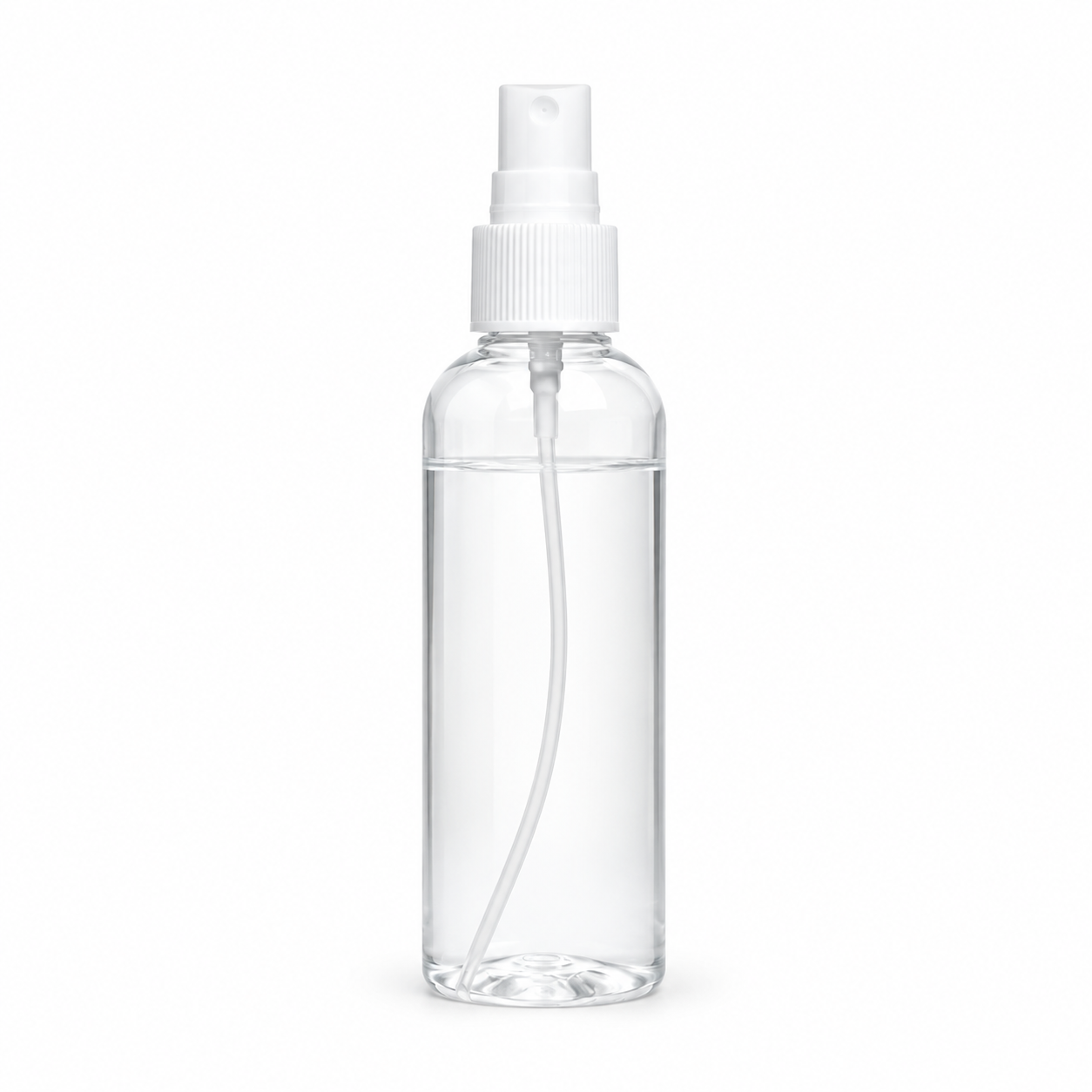
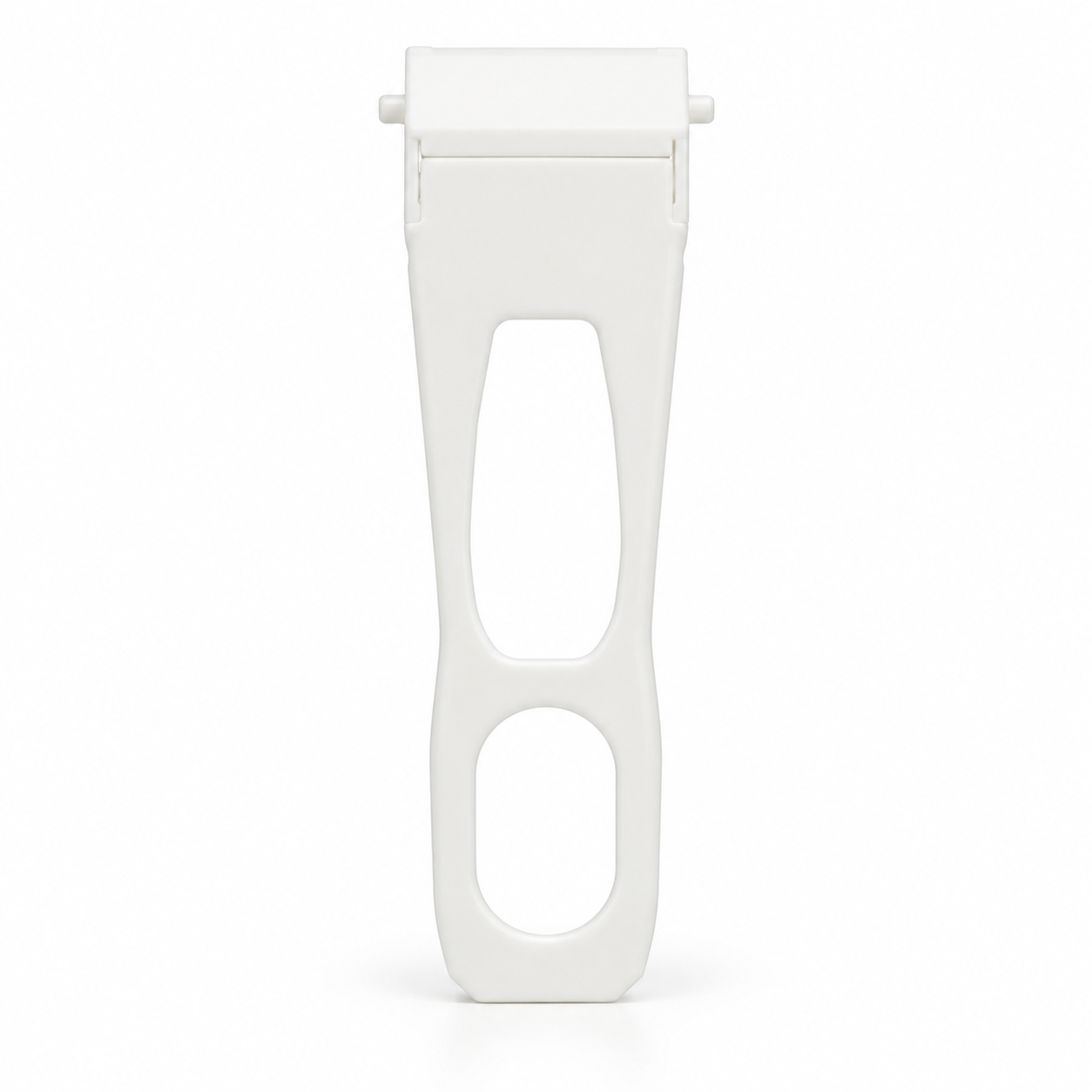
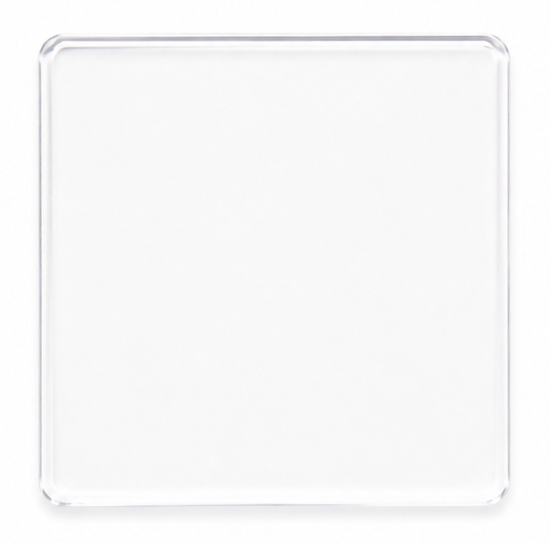
| 75% Ethanol | Cleaning Cloth | Plastic Scraper | Acrylic Sheet | Protective Gloves |
|---|---|---|---|---|
 |
 |
 |
 |
 |
Tip: Download the scraper model file to 3D-print a scraper. PETG is recommended. If you don't have a printed scraper, use an Acrylic Sheet.
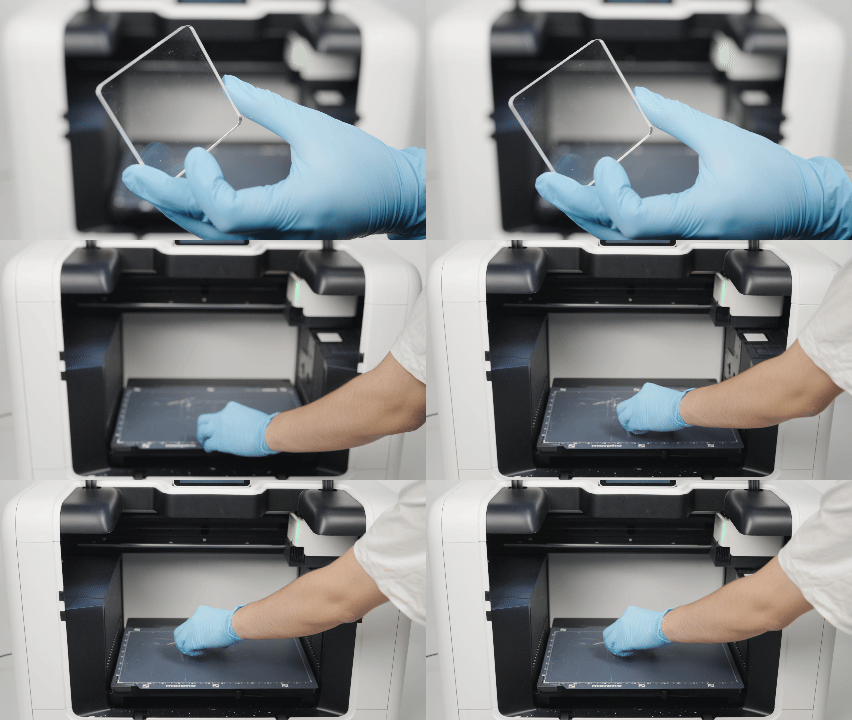
- Remove the A4 Tray and place it on a flat, stable table.
- Spray 75% Ethanol onto a Cleaning Cloth and wipe the tray.
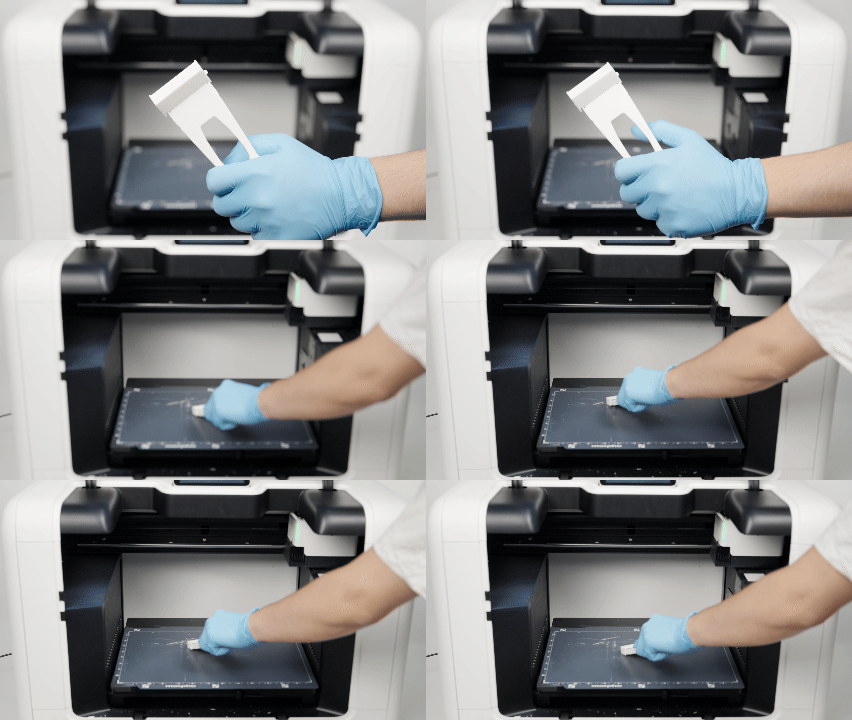
- Use a Plastic Scraper or Acrylic Sheet to remove any remaining cured UV ink. Use only a non-sharp, non-metal tool.
- Wipe the tray dry with a clean Cleaning Cloth.
- Confirmed that no visible cured ink remains on the A4 Tray.
Caution: An uneven surface under the tray may damage its coating during scraping.
| Plastic Scraper | Acrylic Sheet |
|---|---|
 |
 |
¶ Clean the Printer Interior
Dust and debris can build up beneath the platform and interfere with its movement.
Tools and materials
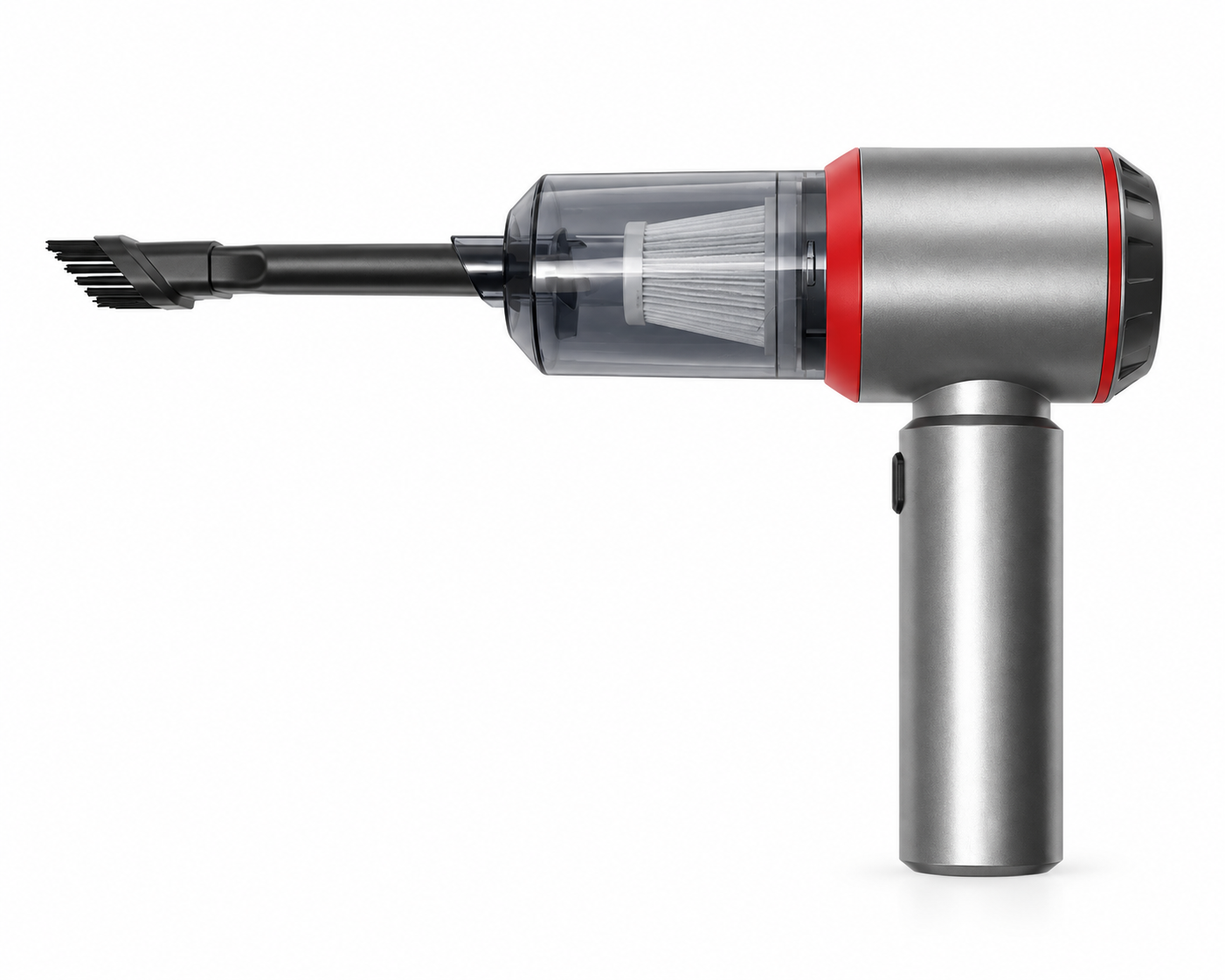
| Handheld Vacuum Cleaner (Optional) | Cleaning Cloth | Protective Gloves |
|---|---|---|
 |
|
|
- Use Motion Control to move the Base Plate to expose the interior area for cleaning.
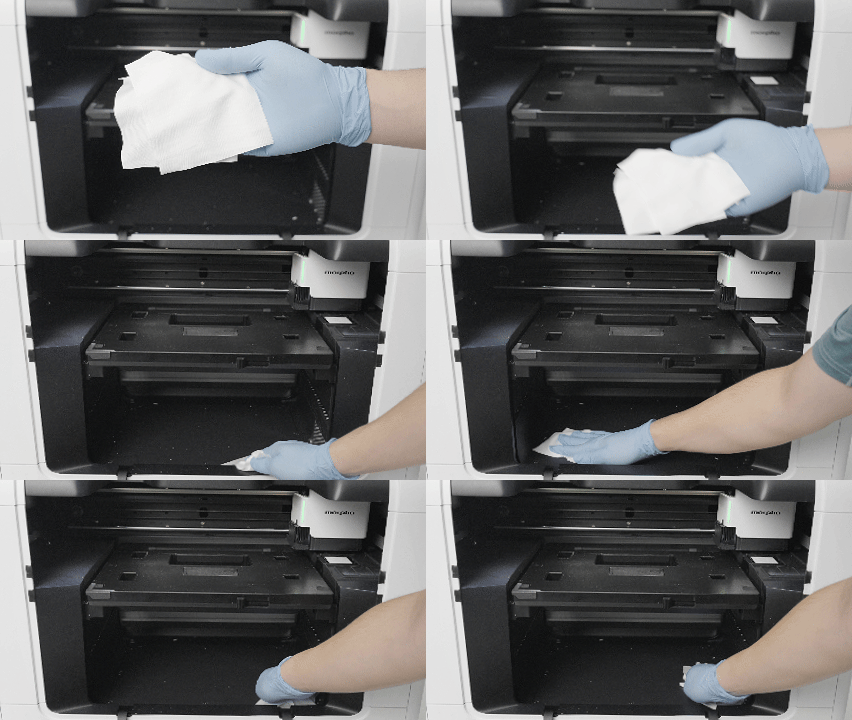
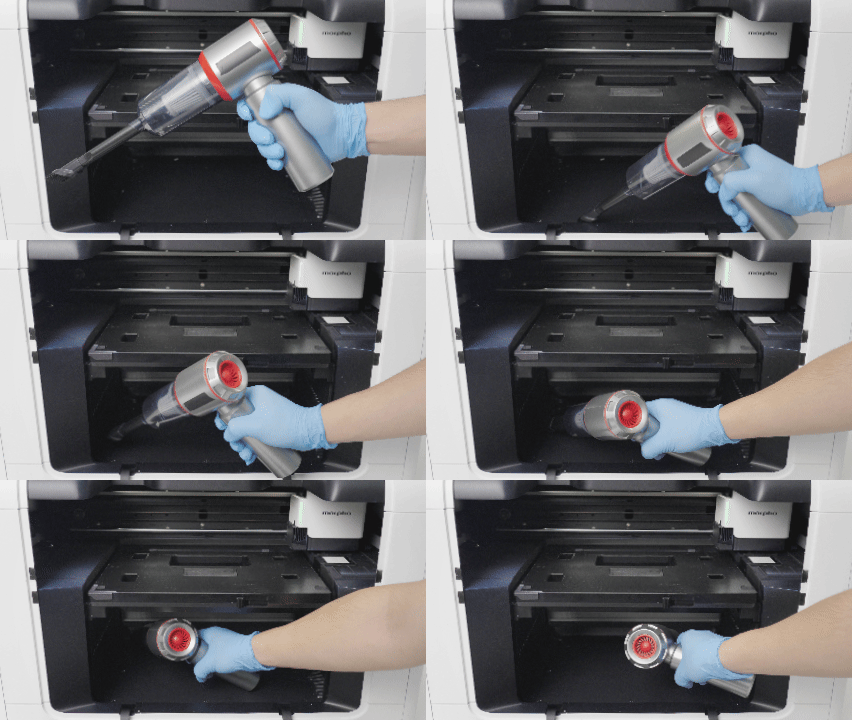
- Use a handheld vacuum cleaner or a non-woven cloth to remove any visible dirt in the area highlighted in red.
- Use Motion Control to return the Base Plate to its normal position.
| Wipe with a Cleaning Cloth | Vacuum the Interior |
|---|---|
 |
 |
¶ Clean the Ink tank
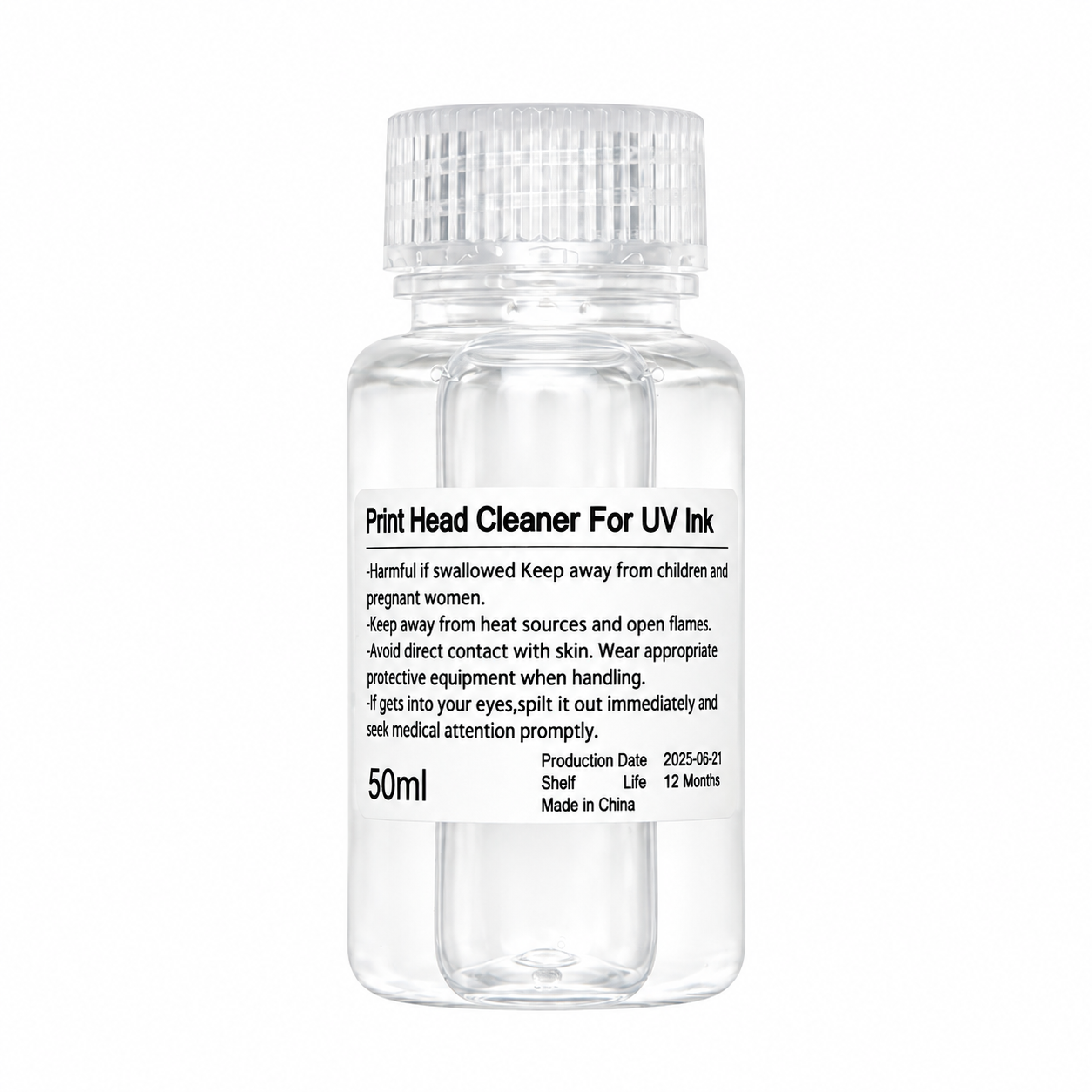
Check the ink tank for leaked ink and clean it when necessary.
Tools and materials
| Protective Gloves | Cleaning Cloth | Ink Cleaning Solution |
|---|---|---|
|
|
 |
- Remove the left side door.
- Remove the ink cartridges form the ink tank.
- Spray Ink Cleaning Solution onto a Cleaning Cloth and wipe away any leaked ink.
- Check whether any residual ink remains inside the ink tank.
¶ Weekly Maintenance
¶ Clean the Printhead
Ink residue can collect around the printhead.
Tools and materials
| Protective Gloves | Cleaning Swab | Cleaning Cloth | Ink Cleaning Solution |
|---|---|---|---|
|
 |
|
|
Before you begin:
Do not use alcohol, acidic or alkaline substances, or commercially available printhead cleaning solutions on the printhead.
Do not touch the printhead directly.
Do not reuse a Cleaning Swab after it becomes dirty.
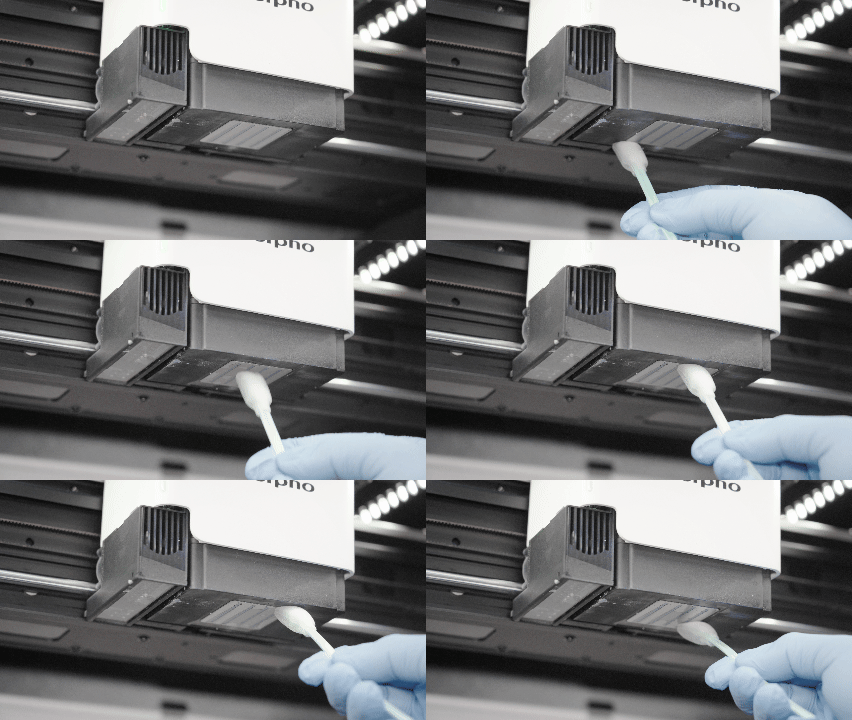
- Use Motion Control to move the printhead to the maintenance position.
- Dip a clean Cleaning Swab in the official Ink Cleaning Solution.
- Wipe the printhead, including the nozzle area and the area around it, in one direction.
- Use a dry Cleaning Cloth to wipe the printhead dry.
¶ Clean the Printhead Station
Ink residue can collect on the black rubber seal and exposed ink pad of the Printhead Station.
Tools and materials
| Protective Gloves | Cleaning Swab | Ink Cleaning Solution |
|---|---|---|
|
|
|
Before you begin:
Do not reuse a Cleaning Swab after it becomes dirty.
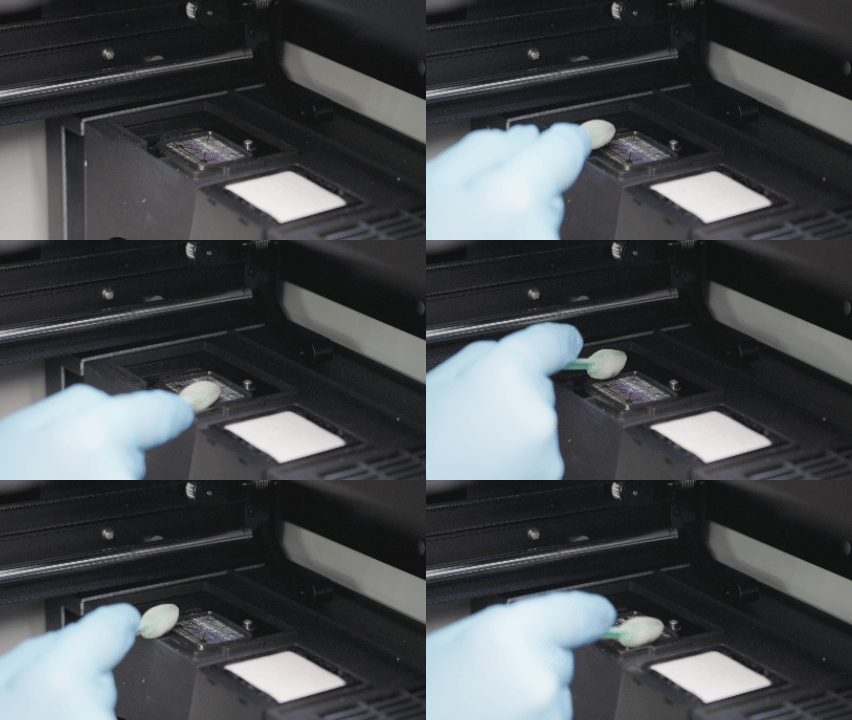
- Use Motion Control to move the printhead to the recommended position (X: 200 mm, Y: 200 mm), exposing the Printhead Station for cleaning.
- Dampen a clean Cleaning Swab with Ink Cleaning Solution. Wipe residual ink from the surface of the seal.
- Use a clean Cleaning Swab to remove residual ink and debris from the exposed ink pad.
- Confirm that the Printhead Station is clean and no cleaning solution has pooled. Then use Motion Control to return the printhead to its home position.
¶ Clean the UV Lamp Cover Glass
Ink residue or cured ink buildup on the UV Lamp Cover Glass may affect UV curing.
Tools and materials
| Protective Gloves | Cleaning Swab | Cleaning Cloth | Ink Cleaning Solution |
|---|---|---|---|
|
|
|
|
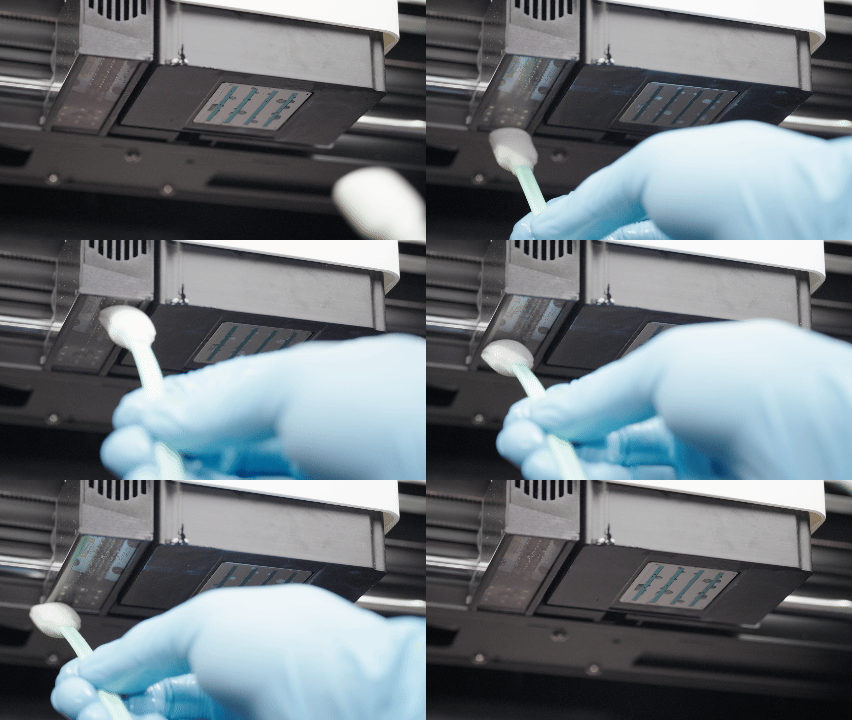
- Use Motion Control to move the printhead to the maintenance position.
- Dampen a clean Cleaning Swab or Cleaning Cloth with the official Ink Cleaning Solution.
- Wipe the UV Lamp Cover Glass.
- Wipe the glass dry with a clean Cleaning Cloth.
¶ Monthly Maintenance
¶ Lubricate the X-axis
Tools and materials
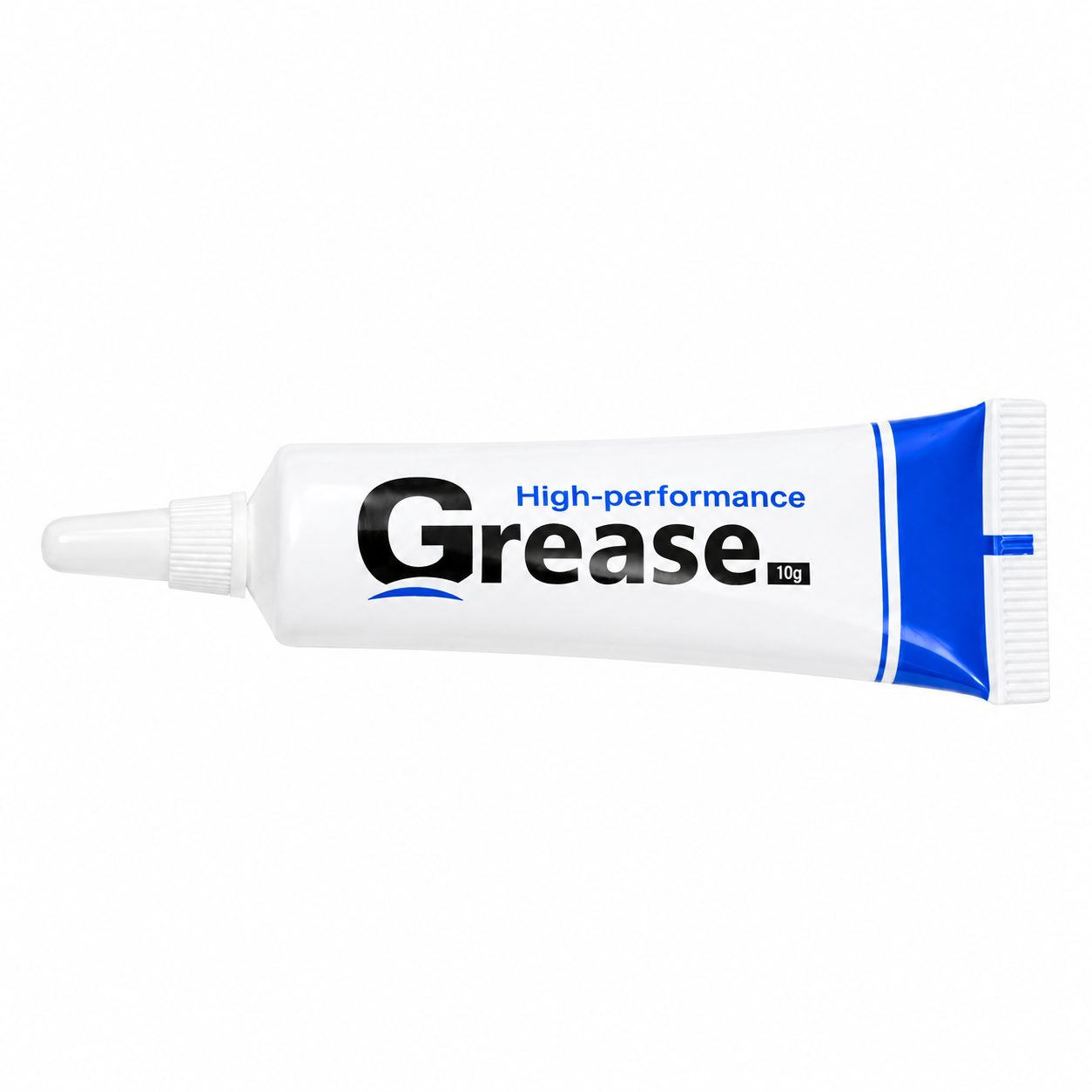
| Protective Gloves | 75% Ethanol | Cleaning Cloth | Cleaning Swab | Lubricating Grease |
|---|---|---|---|---|
|
|
|
|
 |
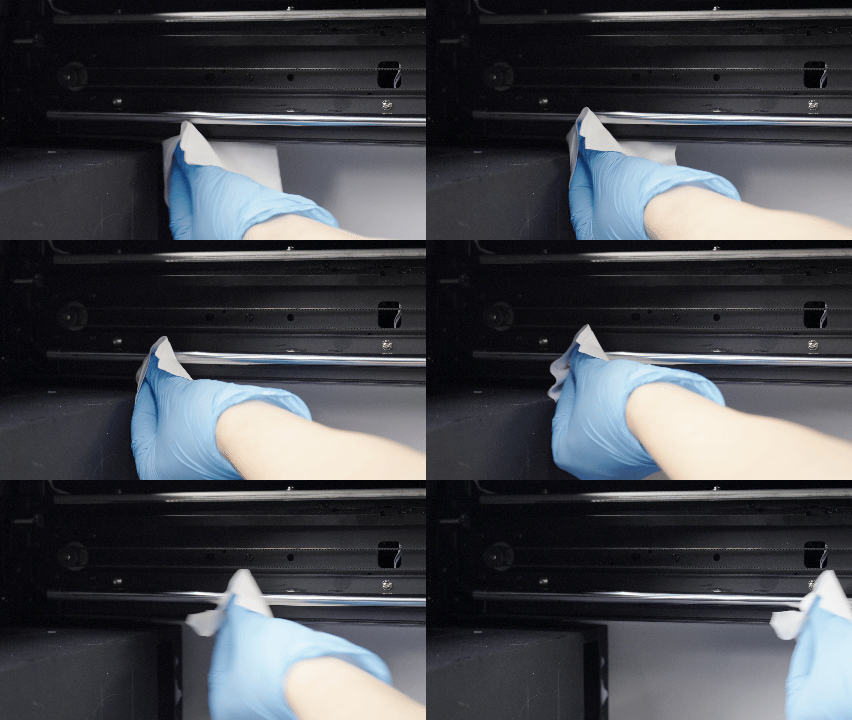
- Spray 75% Ethanol onto a Cleaning Cloth and wipe dust from the X-Axis Shaft and X-Axis Beam.
- Apply Lubricating Grease to the Cleaning Cloth and wipe it along the X-Axis Shaft and the surface of the X-Axis Beam.
- Apply Lubricating Grease to a clean Cleaning Swab and spread it into the groove of the X-Axis Beam.
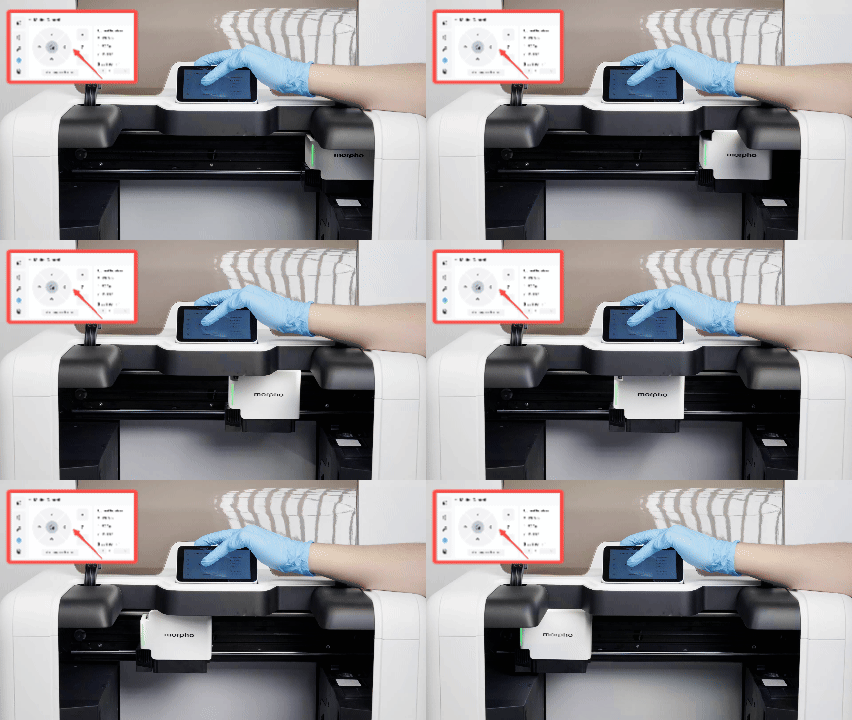
- Use Motion Control to move the printhead carriage back and forth to distribute the grease evenly.
| Clean the X-axis rod | Move the printhead carriage |
|---|---|
 |
 |
¶ Lubricate the Z-axis
Tools and materials
| Protective Gloves | Cleaning Swab | Lubricating Grease |
|---|---|---|
|
|
|
- Apply Lubricating Grease to a clean Cleaning Swab.
- Use the swab to spread the grease along the Z-axis rail.
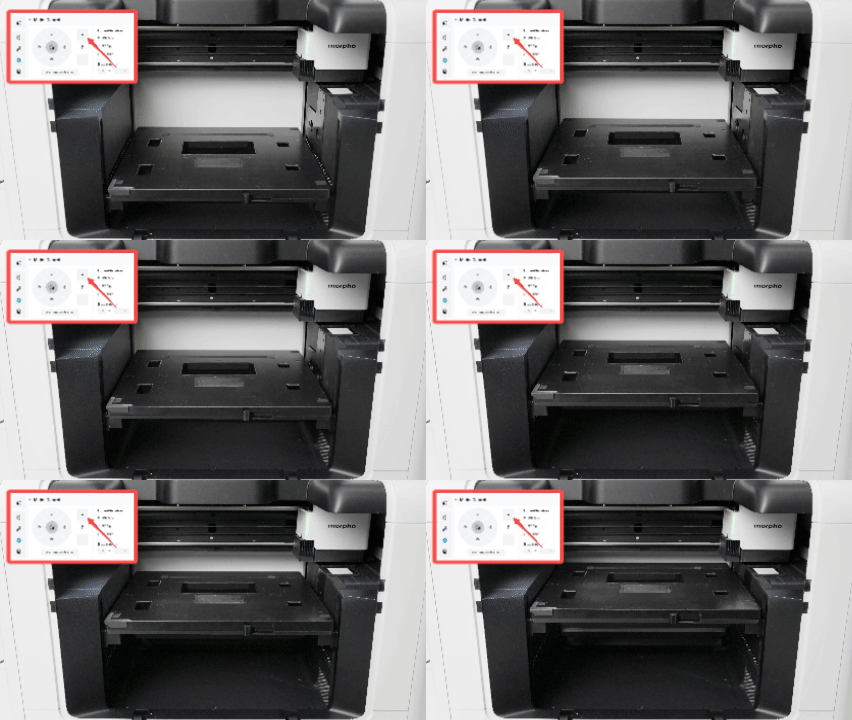
- Use Motion Control to move the Base Plate up and down to distribute the grease evenly.
¶ Need More Help?
If you still have questions after following this guide, or if the issue persists, our technical support team can help.
When contacting support, include any relevant photos, videos, or error messages to help us understand the situation.