¶ Overview
Morpho UV Printers run automatic maintenance routines to help maintain the ink system and related components. You can also start Smart Maintenance, Color Mixing Recovery, and Clogged Nozzle Recovery from the software or printer screen to care for the printhead. This guide applies to Morpho Standard and Morpho Pro.
Before You Begin
We recommend keeping the printer powered on for extended periods, including when it is not printing, so automatic maintenance can run and printhead maintenance functions are available when needed.
Before starting maintenance, make sure there are no foreign objects inside the printer. Follow the specified procedure and any on-screen prompts.
Keep the printer lid closed while Smart Maintenance or Printhead Status Test Print is running.
Do Not Interrupt Maintenance
Maintenance may involve ink suction, ink discharge, printhead cleaning, or ink path switching. Once maintenance starts, do not cancel it or suddenly turn off the printer. Interrupting maintenance may leave the process incomplete and increase the risk of printhead damage.
¶ Automatic Maintenance
¶ White Ink Stirring and Circulation
| Routine | Function |
|---|---|
| White Ink Stirring | Moves ink inside the cartridge to help keep white pigment suspended. |
| White Ink Circulation | Moves ink through the supply path toward the damper or printhead inlet. |
Both routines run simultaneously once a day while the printer is idle.
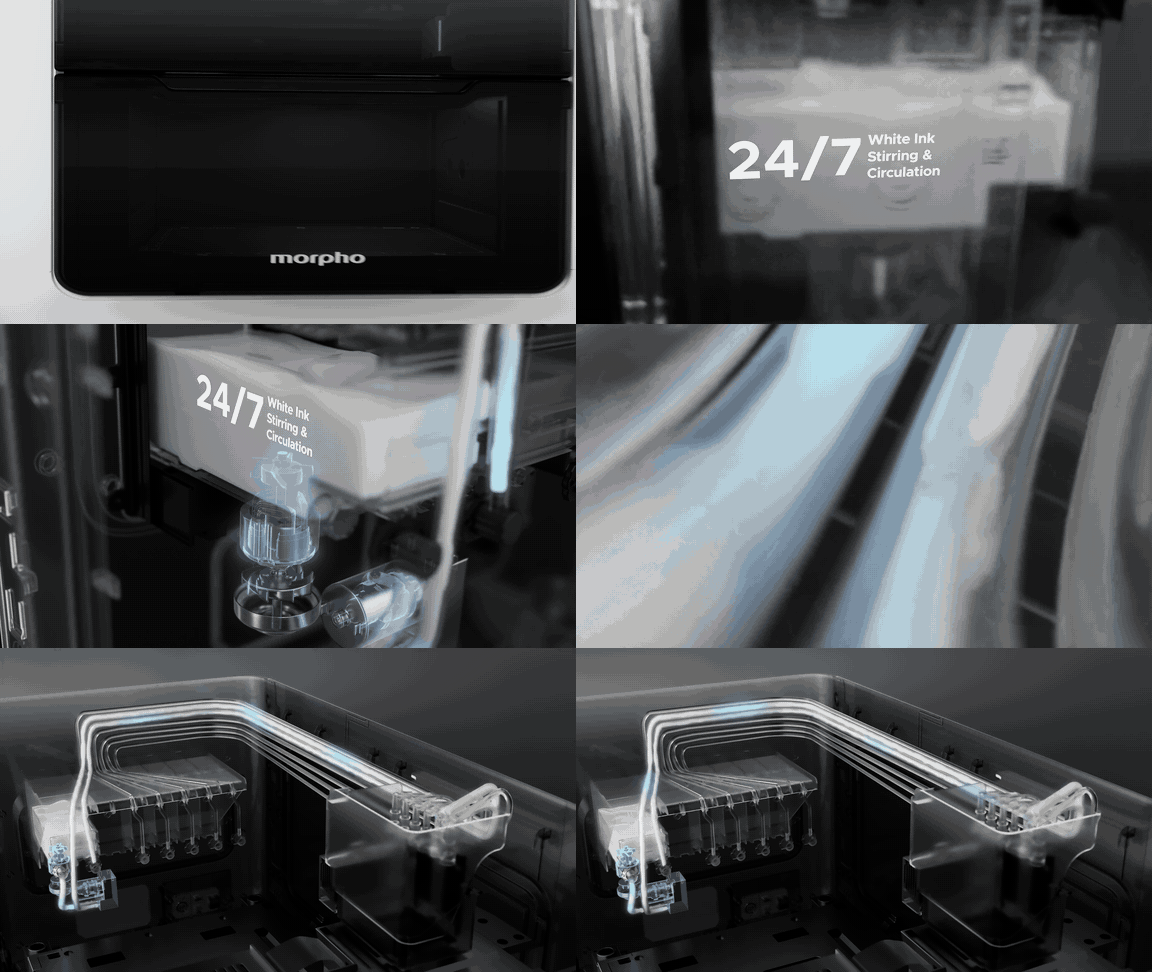
Do not remove the ink cartridges while these routines are running.
¶ Printhead Flash Firing
Flash firing sends a very small amount of ink through the printhead to refresh ink near the nozzles. It helps prevent ink from drying or settling and clogging the nozzles. It does not print an image.
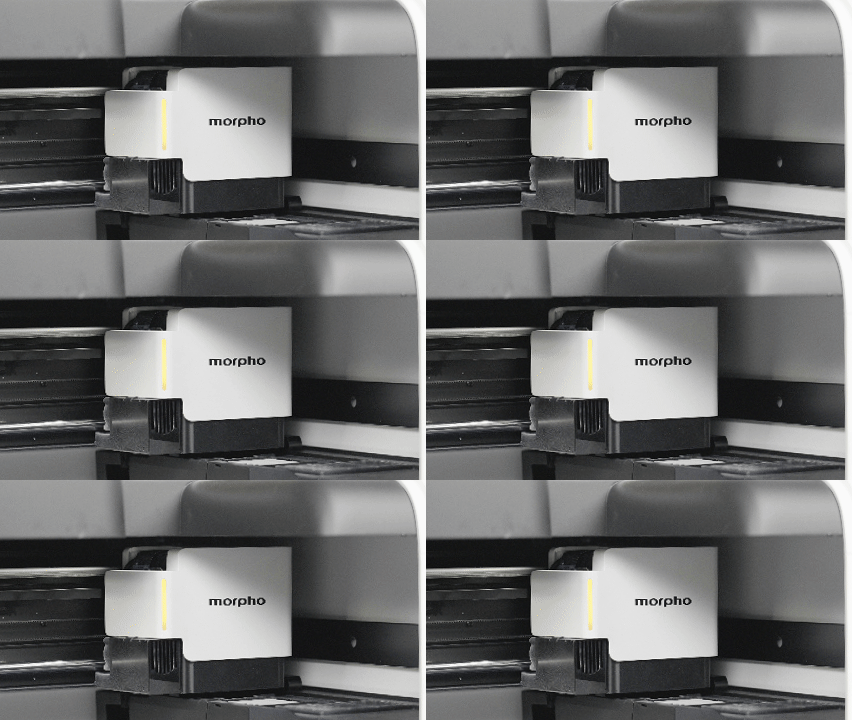
The printhead movement during flash firing is very subtle and may be difficult to see in the animation. The audio below is an example of the sound produced during flash firing. The video was recorded with the printer lid open, and the audio was recorded from approximately 50 cm away.
The printer performs flash firing while idle to help maintain the printhead condition.
¶ Wiper Cloth Cleaning
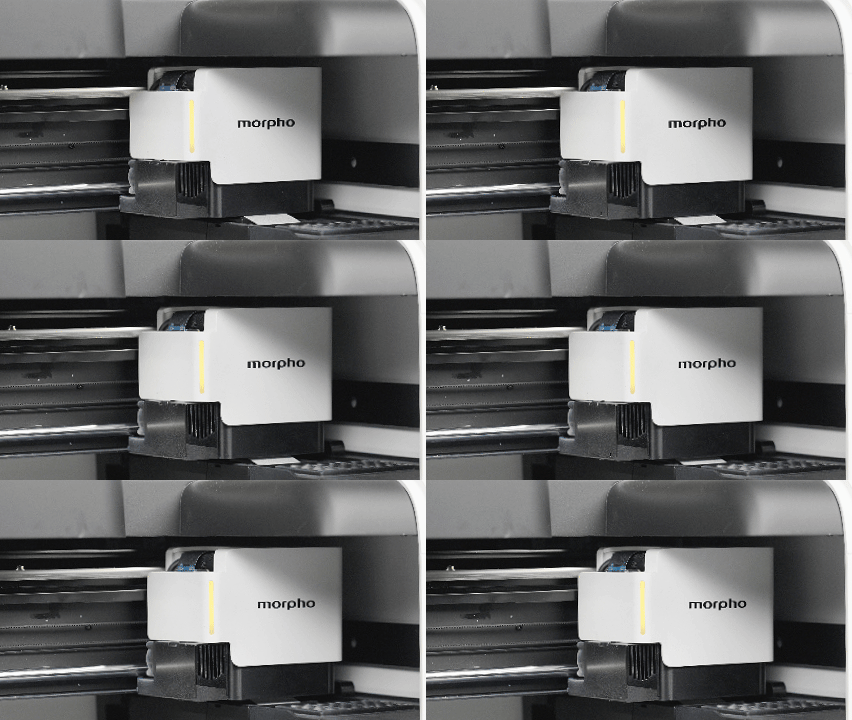
The printhead moves along the Y-axis across the fixed wiper cloth to clean its surface.
¶ How It Cleans
| Cleaning action | How it works |
|---|---|
| Physical wiping | The wiper edge uses mechanical force to remove liquid ink from the printhead surface. |
| Absorbent wiping | The cloth fibers use capillary action and surface-energy differences to absorb remaining ink droplets, ink mist, and debris. |
This cleaning method helps keep the printhead surface clear and reduces the risk of waste ink collecting and curing on the printhead.
¶ When It Runs
| Trigger group | When it runs |
|---|---|
| Startup | During initial ink filling; before the first print job after startup |
| Printing | After 2 hours of accumulated printing |
| Maintenance and testing | When starting Smart Maintenance, Color Mixing Recovery, or Clogged Nozzle Recovery; when printing a Printhead Status Test Print |
Each wipe resets the accumulated printing-time counter. The next automatic wipe runs after another 2 hours of accumulated printing.
Tip: If Morpho Studio shows
0% (Expired, replace now)for the Wiper Unit, see Replace the Wiper Unit.
¶ Ink Suction
Ink suction uses the capping station and peristaltic pump to draw air bubbles and stale ink out through the nozzles as fresh ink refills the printhead.
The animation below shows the ink suction process. The inset in the upper-left corner shows the capping station rising into position beneath the printhead.
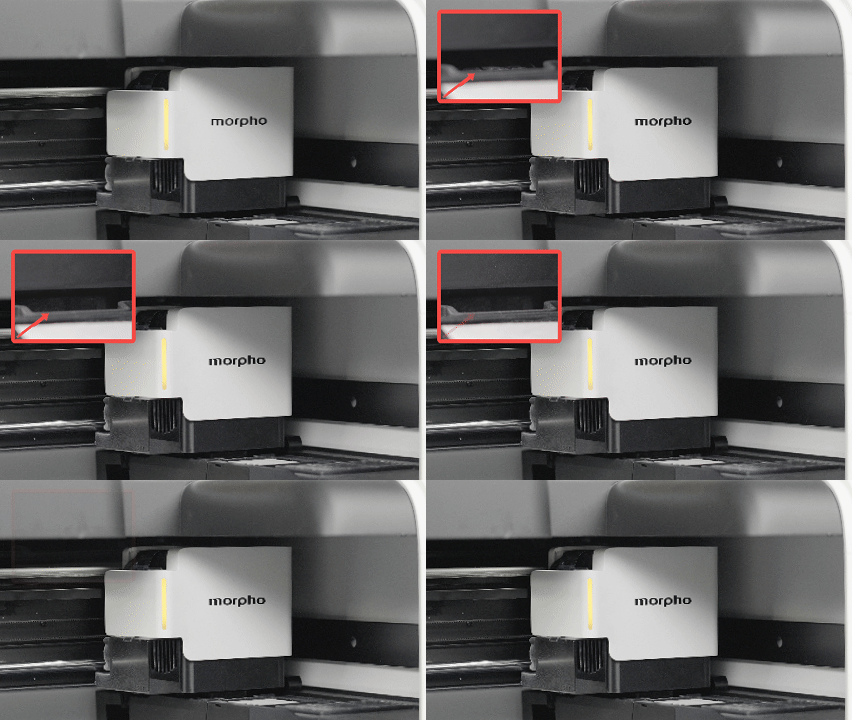
The audio below is the sound of the capping station rising into position. Ink suction itself is quieter.
| Trigger | When ink suction runs |
|---|---|
| Initial ink filling | During ink filling |
| Printhead maintenance | When you start Smart Maintenance, Color Mixing Recovery, or Clogged Nozzle Recovery |
| Printhead status test | When you start Printhead Status Test Print |
¶ Printhead Maintenance Functions
The printer provides three printhead maintenance functions: Smart Maintenance, Color Mixing Recovery, and Clogged Nozzle Recovery.
Use Printhead Status Test Print below to check the printhead and help identify the issue. If you are unsure what the issue is or cannot interpret the test result, you can use Smart Maintenance.
¶ Printhead Status Test Print
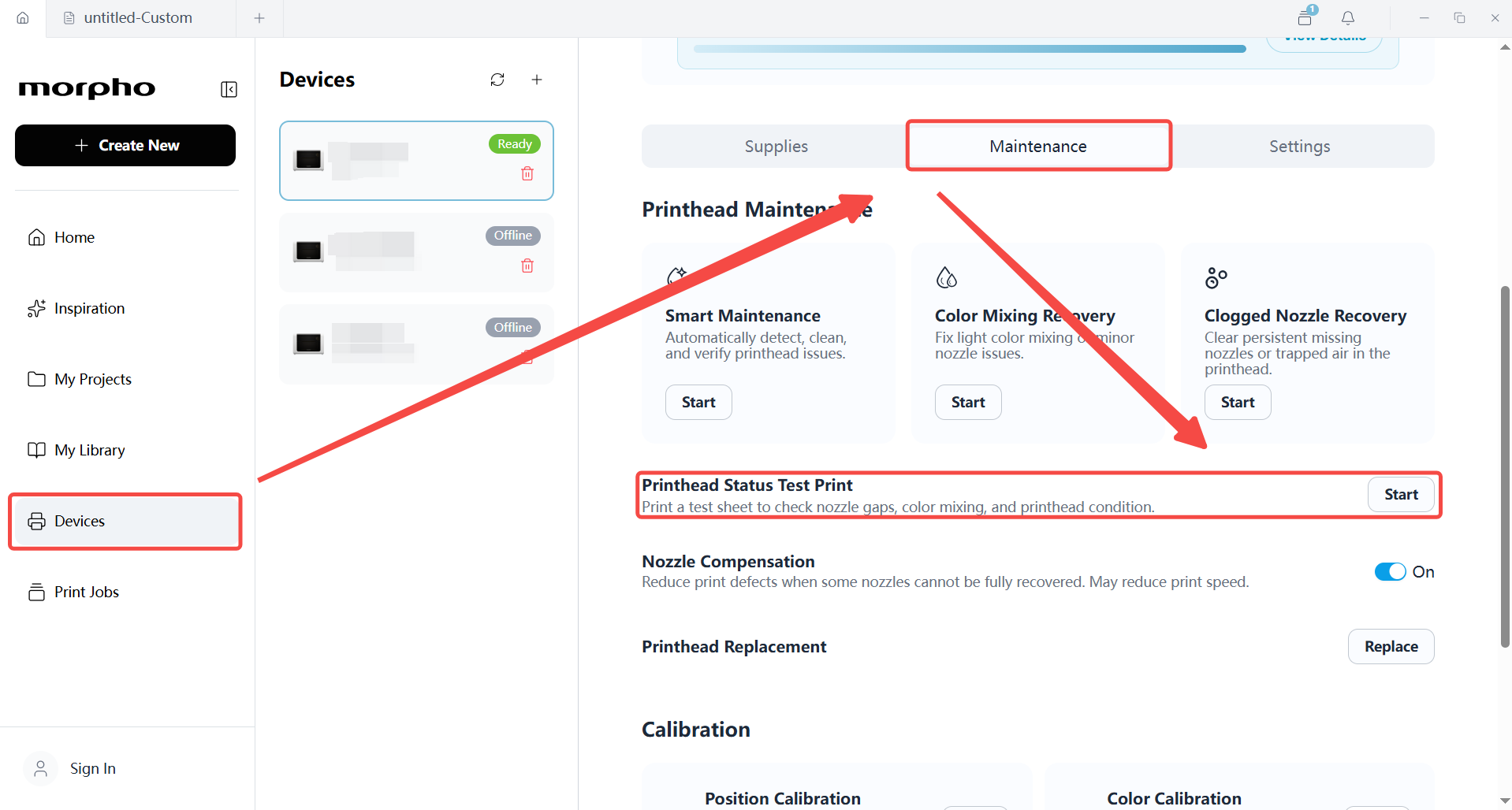
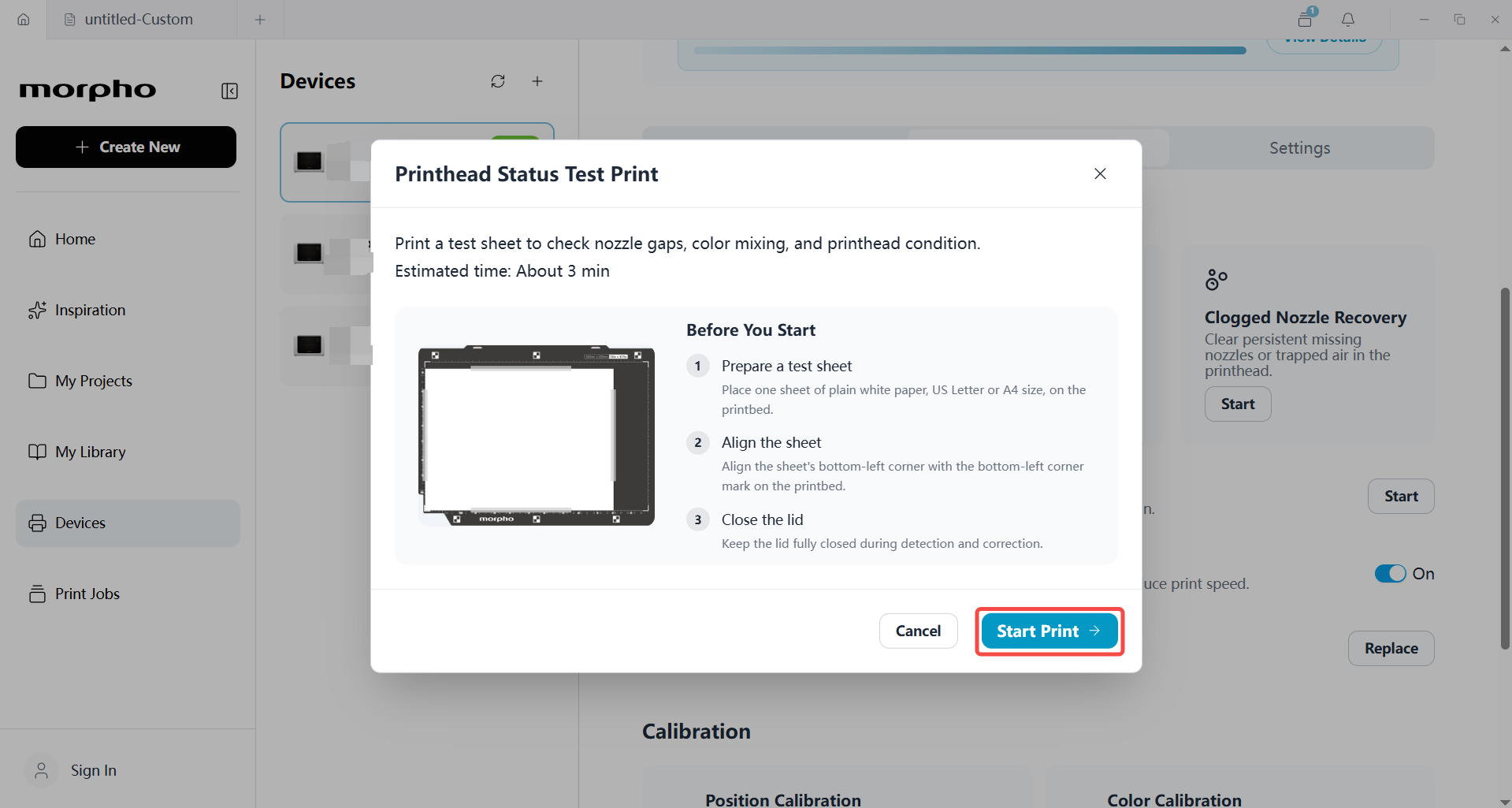
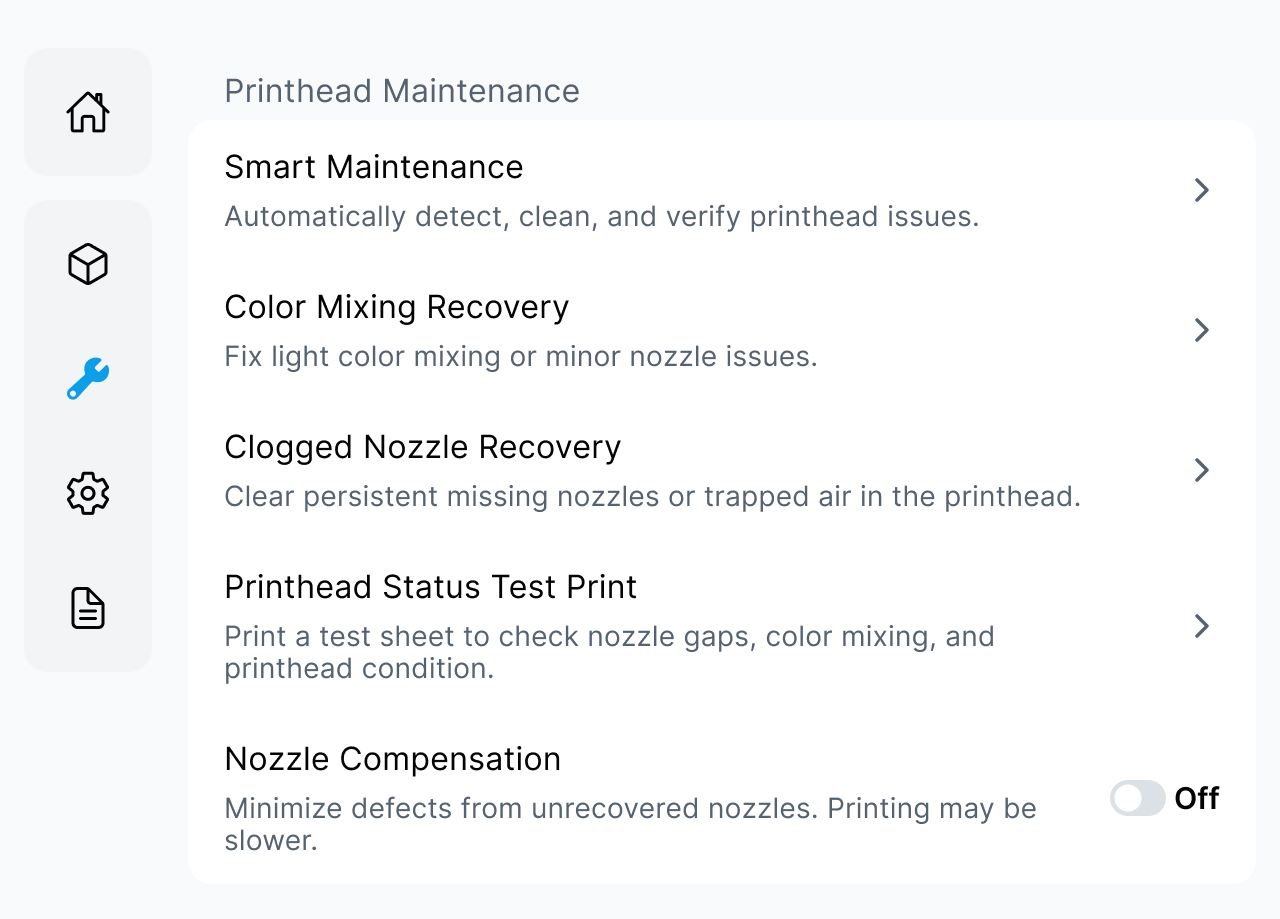
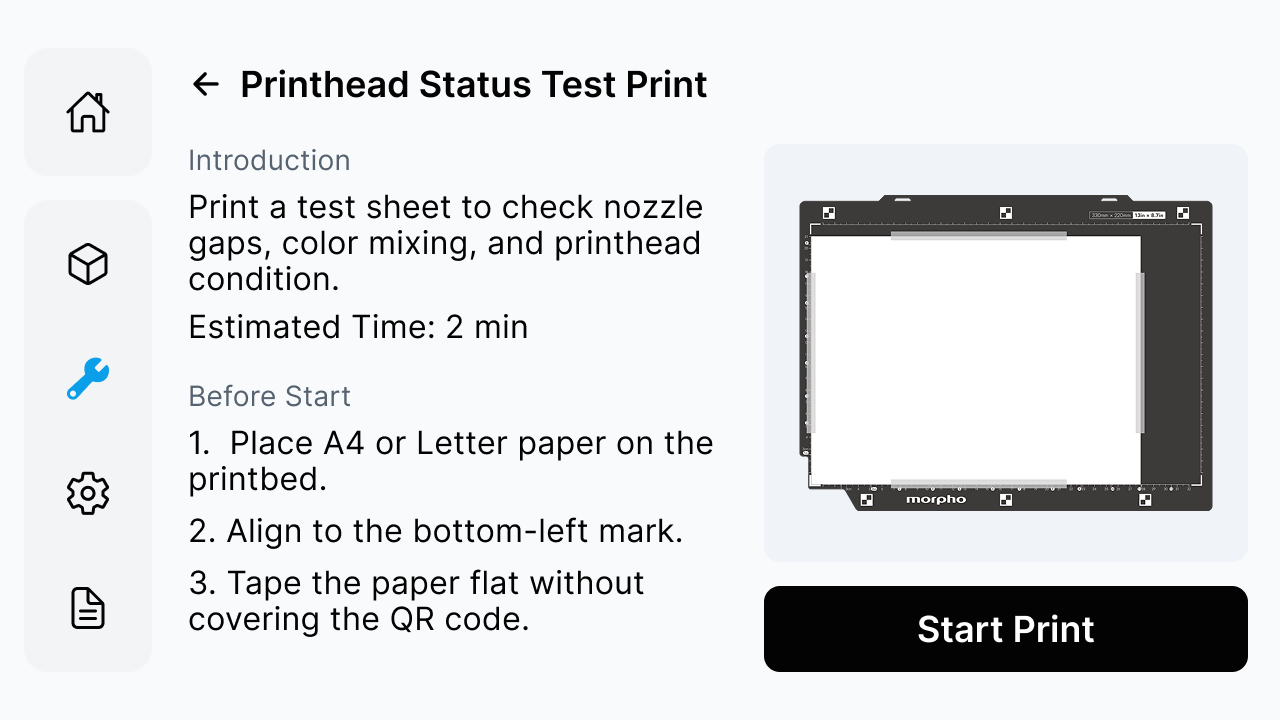
You can start Printhead Status Test Print from Morpho Studio or the printer screen. Follow the steps for your preferred interface.
| Morpho Studio: Open Maintenance | Morpho Studio: Open Printhead Status Test Print | Printer screen: Open Maintenance | Printer screen: Select Printhead Status Test Print |
|---|---|---|---|
 |
 |
 |
 |
¶ Before You Start
- Place one sheet of plain white paper (A4 or US Letter) on the printbed.
- Align the paper’s bottom-left corner with the bottom-left mark on the printbed.
- Tape the paper flat without covering the QR code, then close the lid.
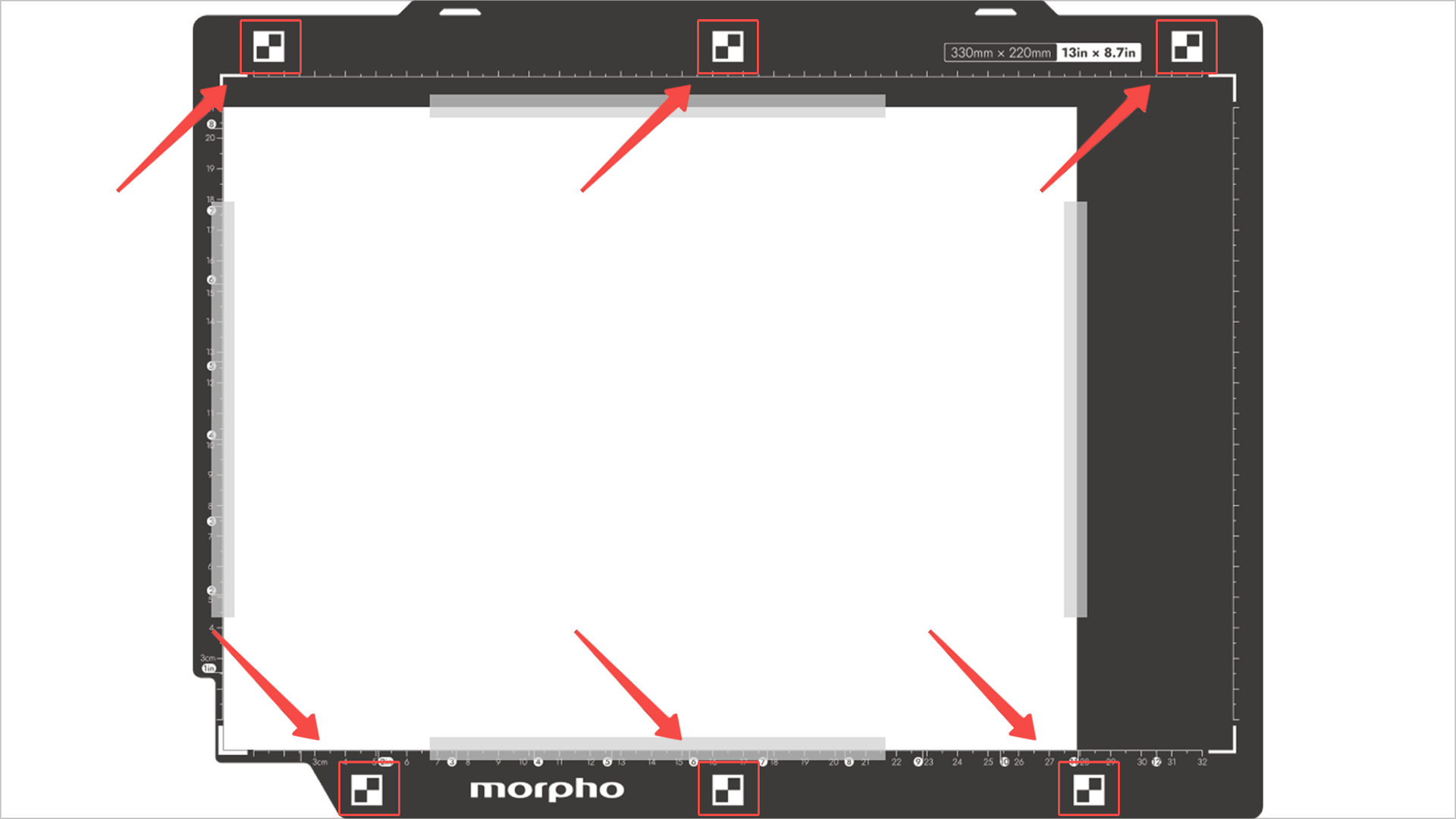
Tip: Keep the QR code clear. Covering it may interfere with scanning and positioning.
¶ Run the Test
Start Printhead Status Test Print and wait for the test sheet to print.
¶ Check the Test Results
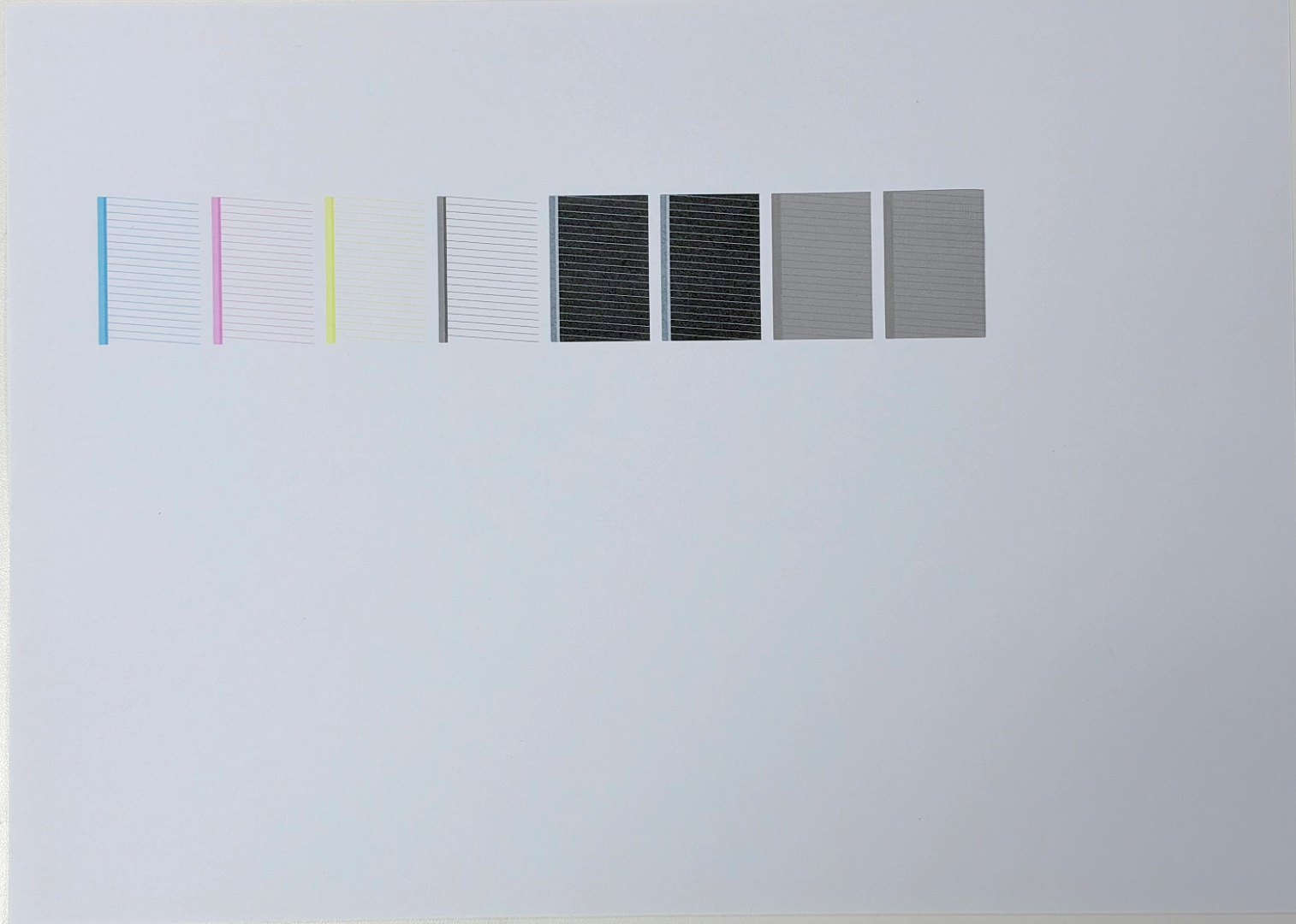
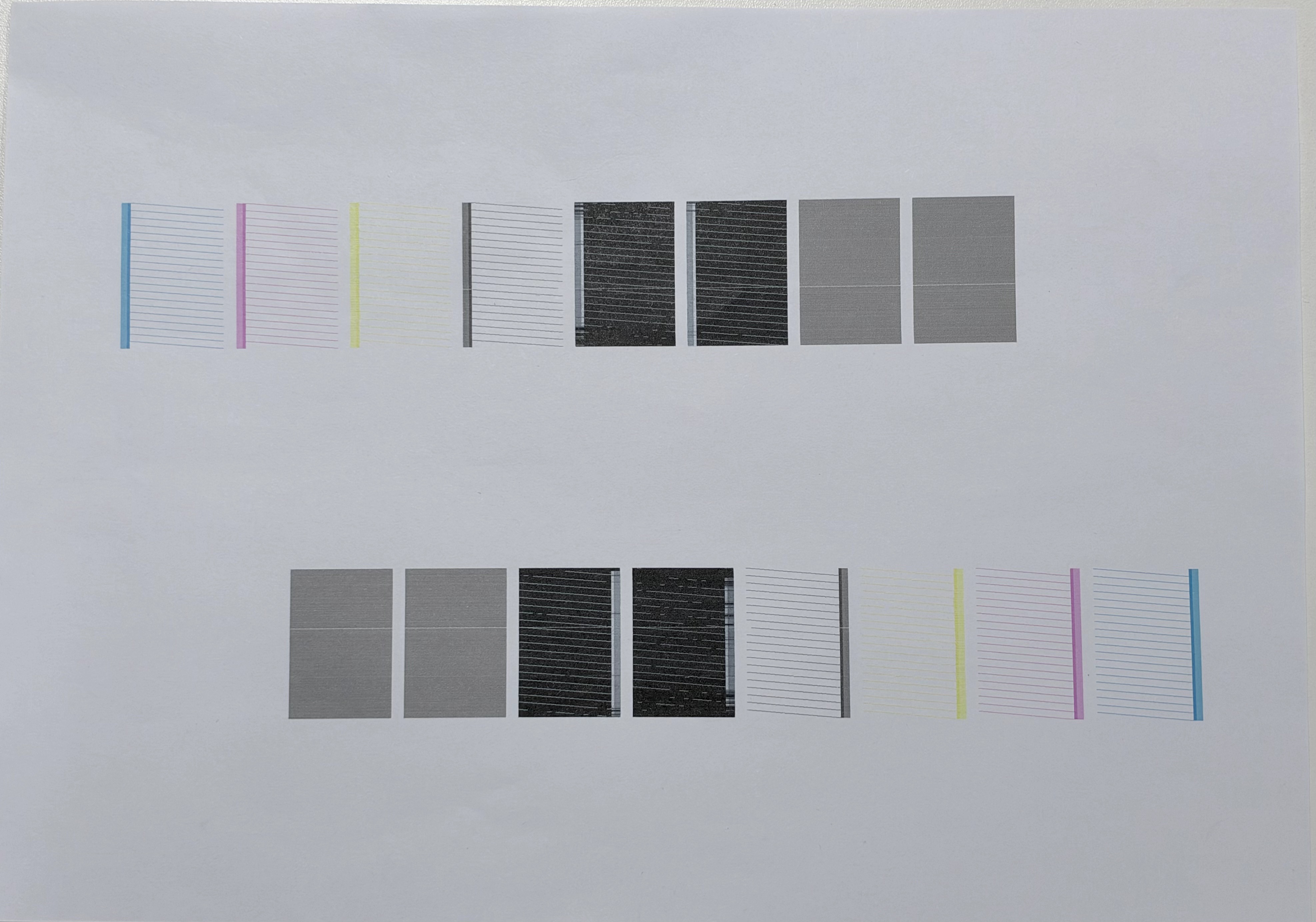
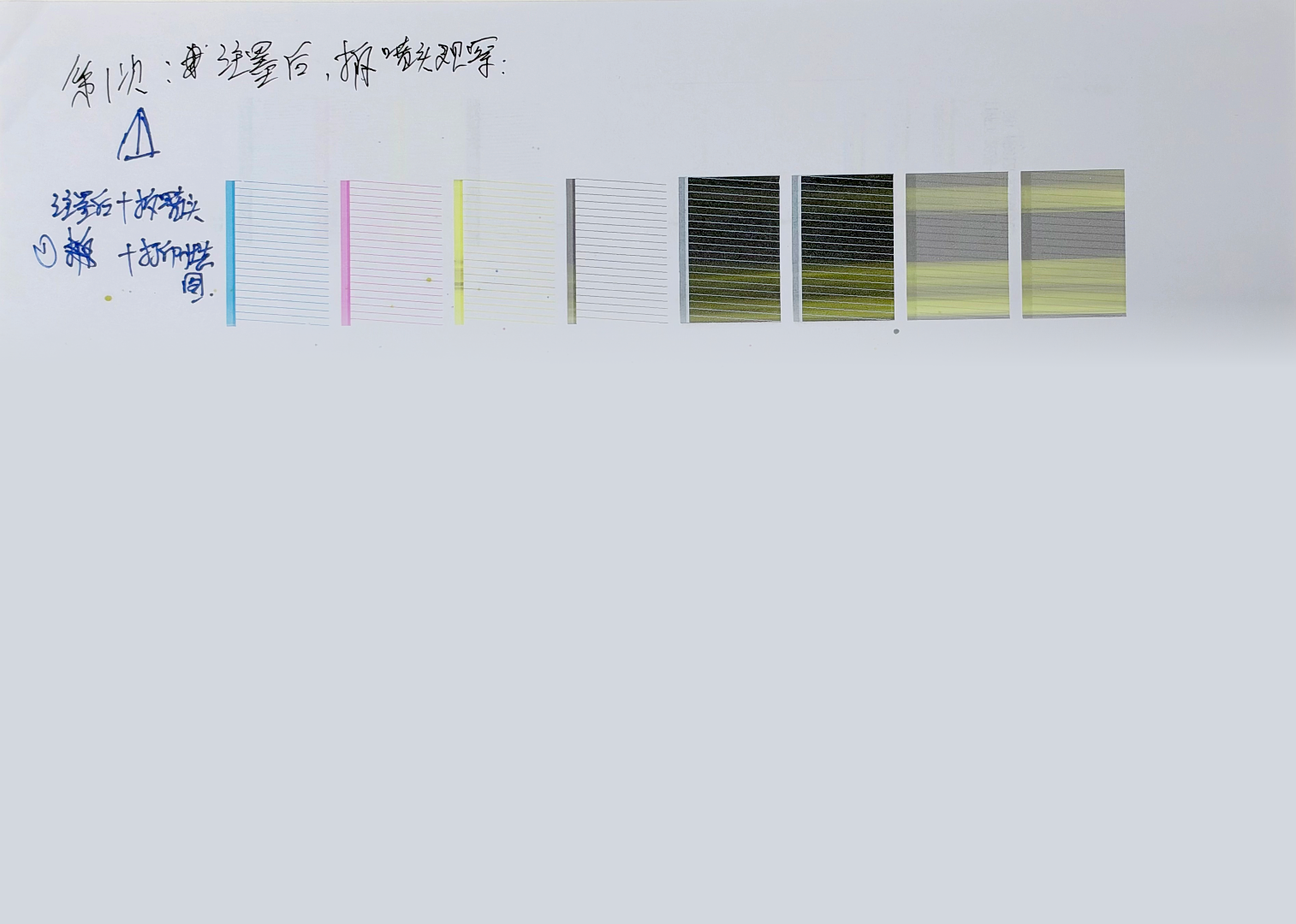
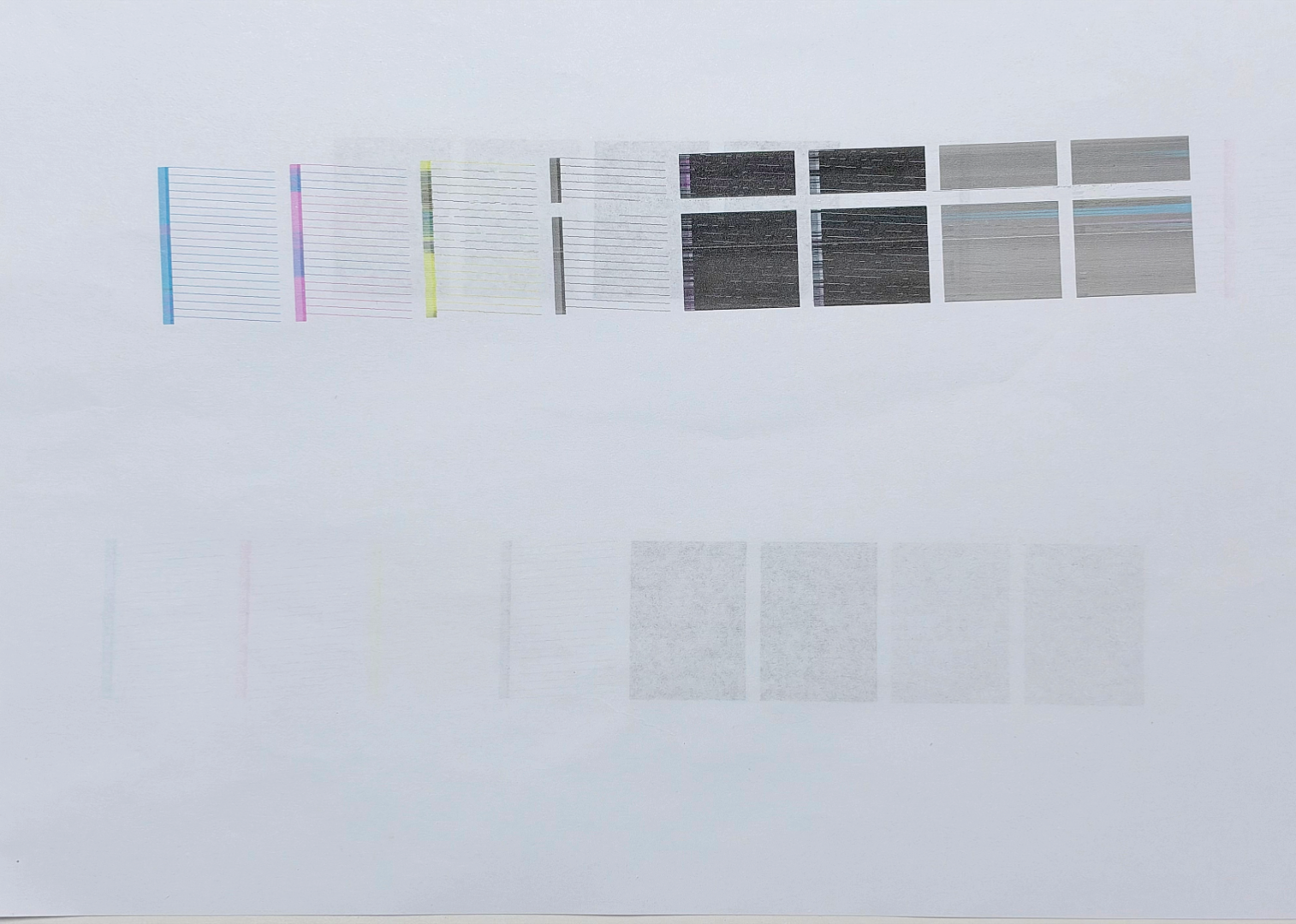
Compare your test sheet with the examples below, then follow the recommended action.
| Printhead in good condition | Missing nozzles | Color mixing | Missing nozzles and color mixing | Deflected spray |
|---|---|---|---|---|
 |
 |
 |
 |
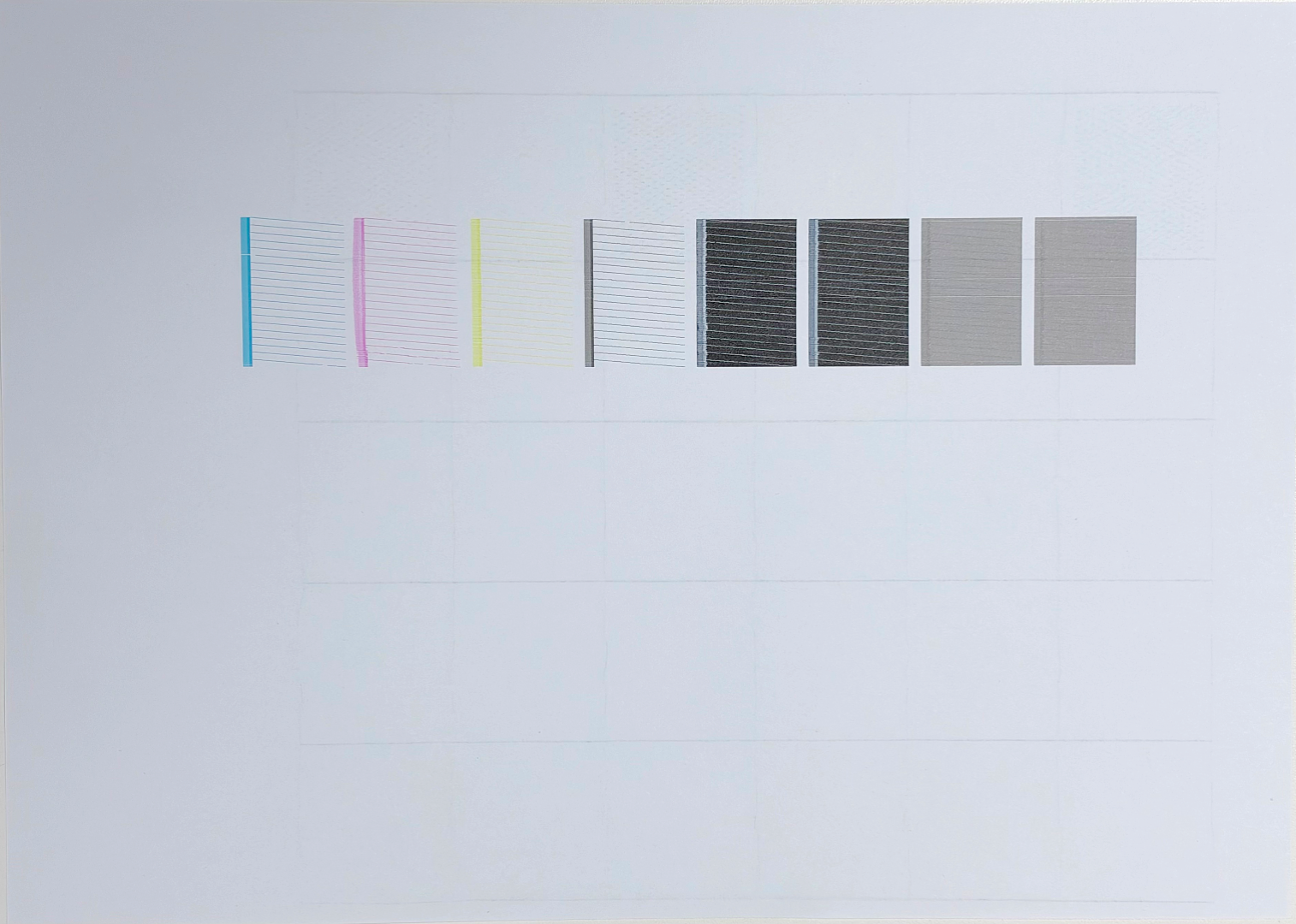 |
| No action is required. | Use Clogged Nozzle Recovery. | Use Color Mixing Recovery. | Use Clogged Nozzle Recovery first. | Contact Technical Support. |
¶ Smart Maintenance
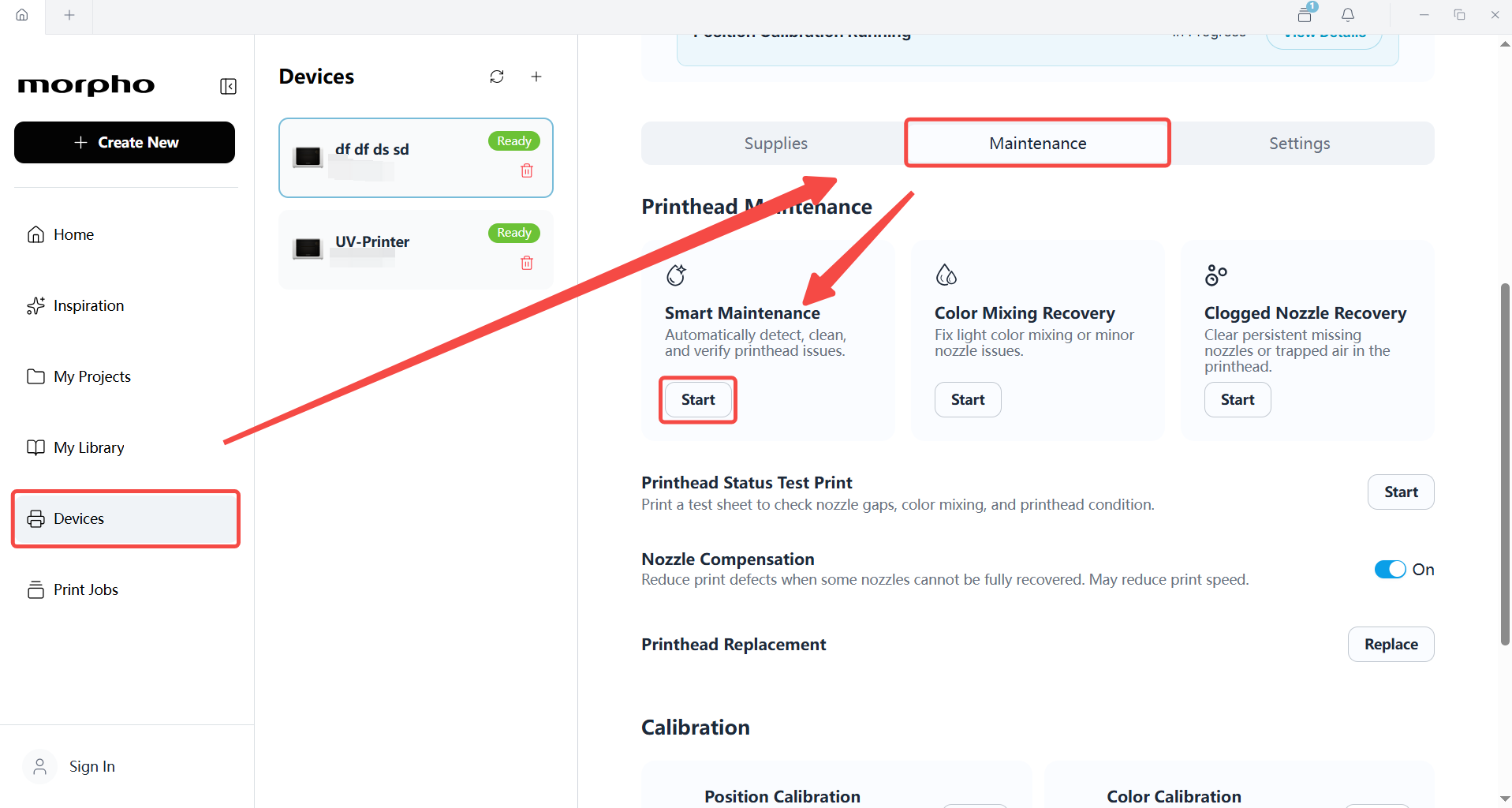
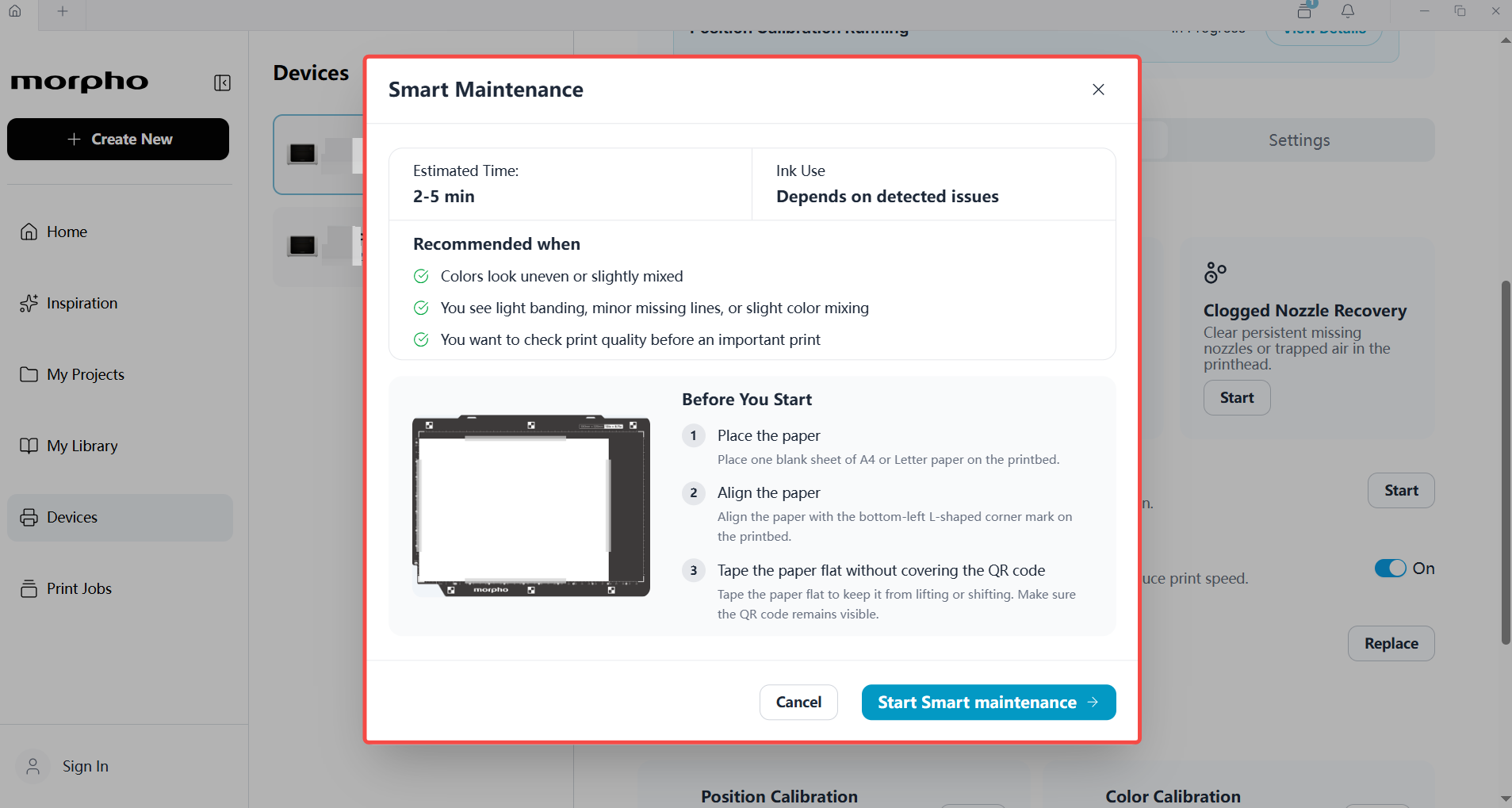
You can start Smart Maintenance from Morpho Studio or the printer screen. Follow the steps for your preferred interface.
| Morpho Studio: Open Maintenance | Morpho Studio: Start Smart Maintenance | Printer screen: Open Maintenance | Printer screen: Select Smart Maintenance |
|---|---|---|---|
 |
 |
|
 |
¶ Before You Start
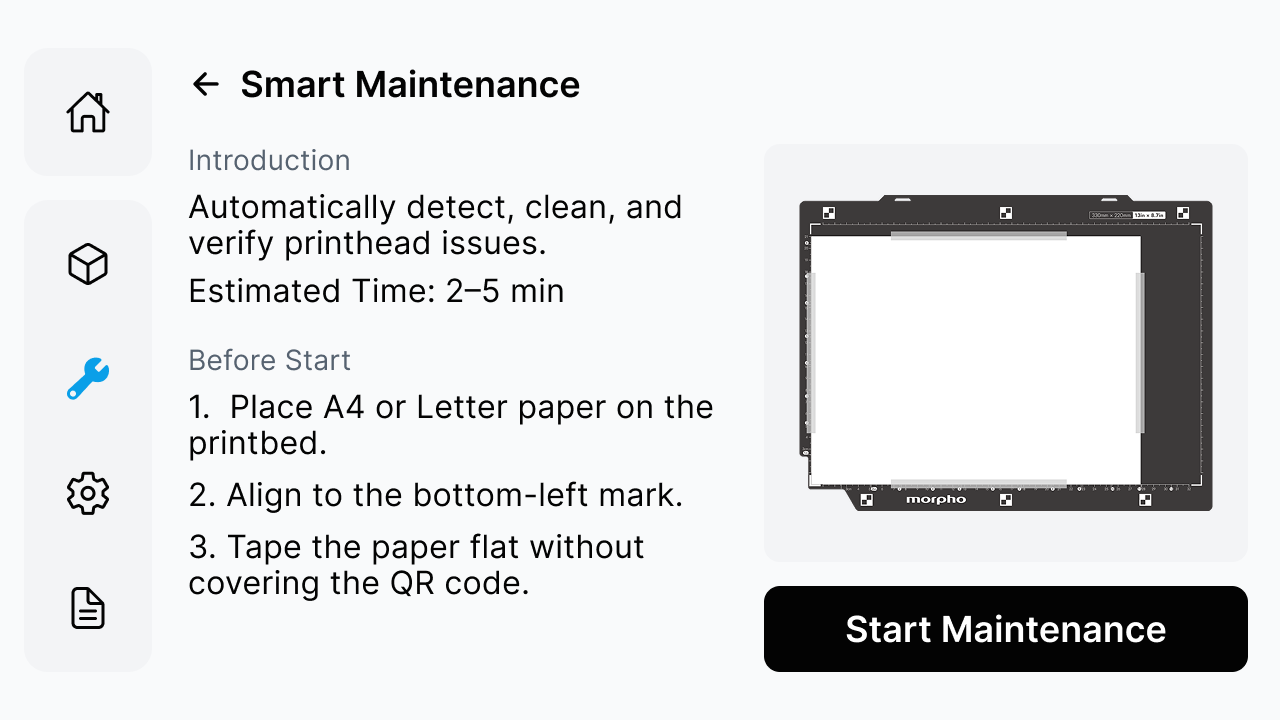
- Place one sheet of plain white paper (A4 or US Letter) on the printbed.
- Align the paper’s bottom-left corner with the bottom-left mark on the printbed.
- Tape the paper flat without covering the QR code, then close the lid.
¶ Smart Maintenance Workflow
Smart Maintenance checks the printhead and determines the next step based on the test result:
- The printer prints a Test Print.
- The camera captures and analyzes each ink channel.
- If the test result meets the inspection criteria, the screen displays
Printhead Restored. - If the test detects color mixing or clogged or missing nozzles, Smart Maintenance starts the corresponding recovery function.
Test criteria by printhead model:
I3200 (8 channels): Up to 160 clogged nozzles and 1,600 color-mixing counts.
F1080 (6 channels): Up to 120 clogged nozzles and 1,200 color-mixing counts.
¶ Printhead Restored
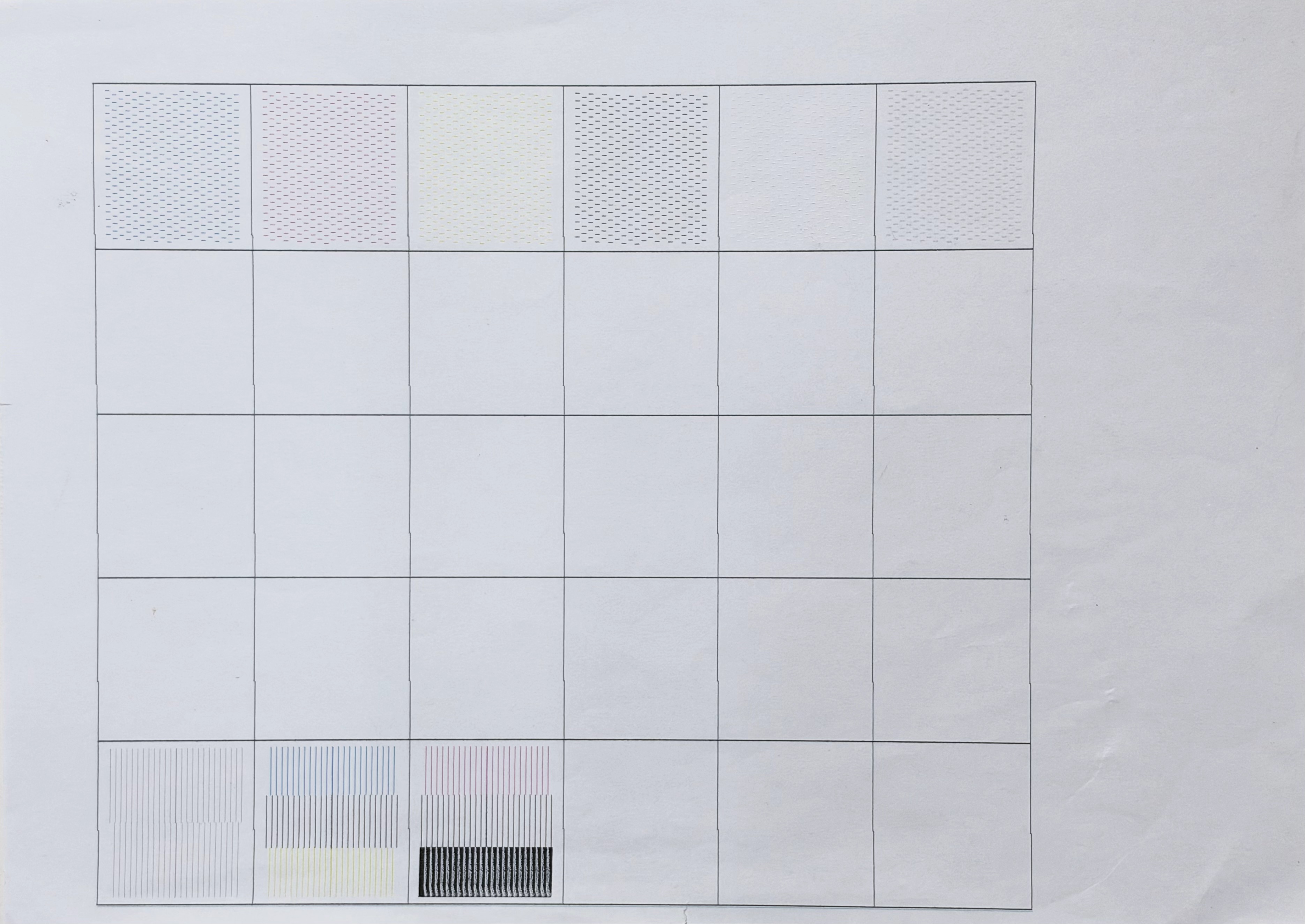
When the Test Print meets the inspection criteria, Smart Maintenance displays Printhead Restored.
| Test print | Smart Maintenance result |
|---|---|
 |
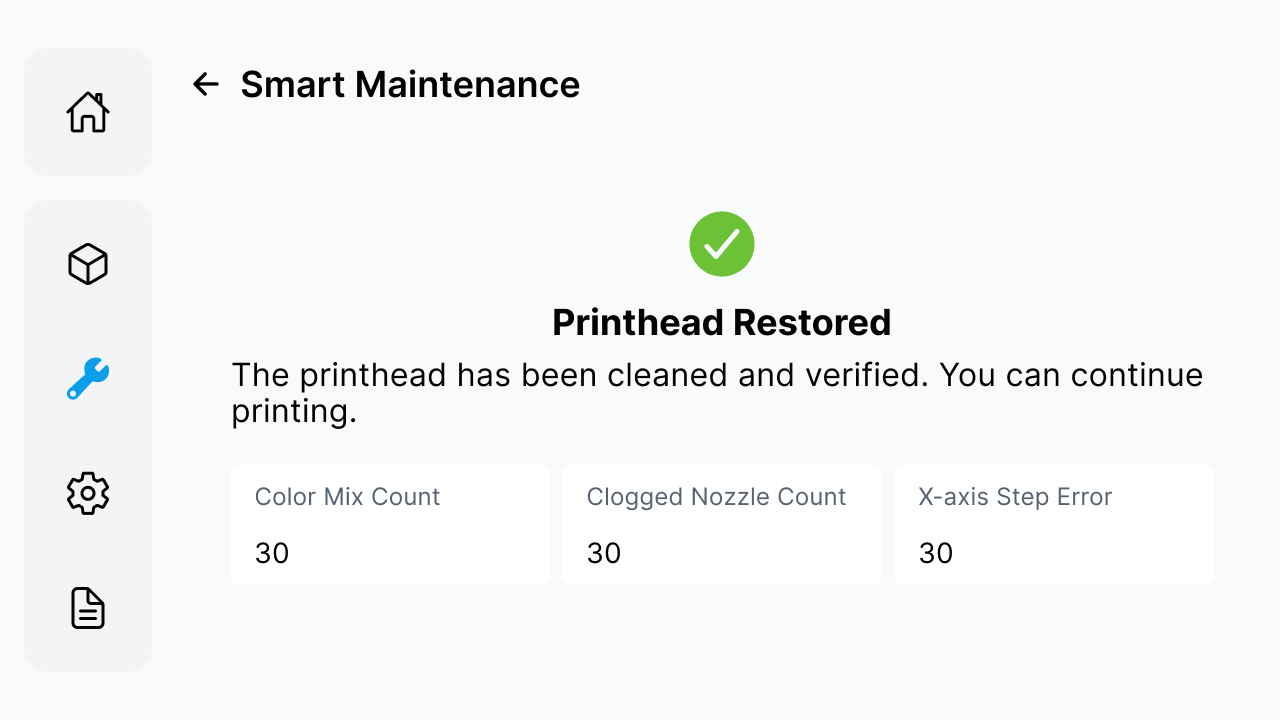 |
You can continue printing. The result screen also shows the Color Mix Count, Clogged Nozzle Count, and X-axis Step Error.
¶ Color Mixing or Clogged Nozzles Detected
Smart Maintenance runs the recovery function for the detected issue:
- For color mixing, it runs Color Mixing Recovery.
- For clogged or missing nozzles, it runs Clogged Nozzle Recovery.
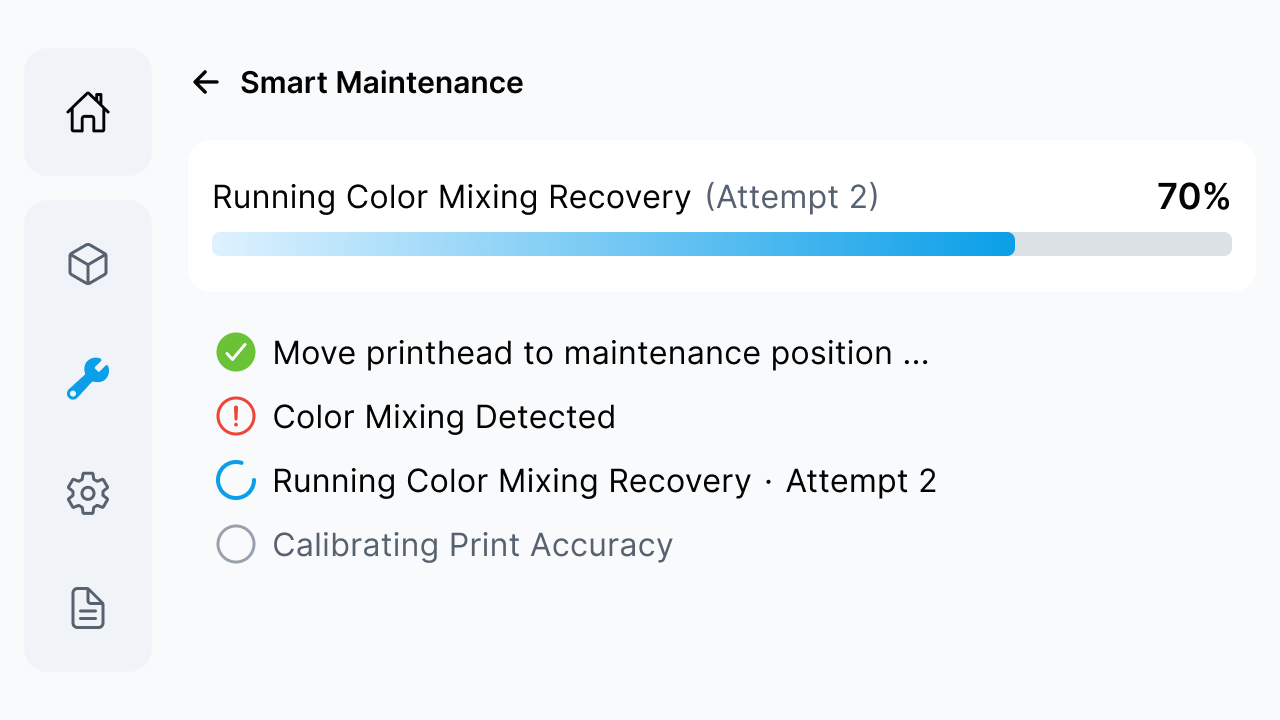
After each recovery, the printer prints a new Test Print, which the camera captures and analyzes. If the issue remains, Smart Maintenance repeats the same recovery and test cycle, for up to four attempts.
| Recovery in progress | Printhead restored |
|---|---|
 |
|
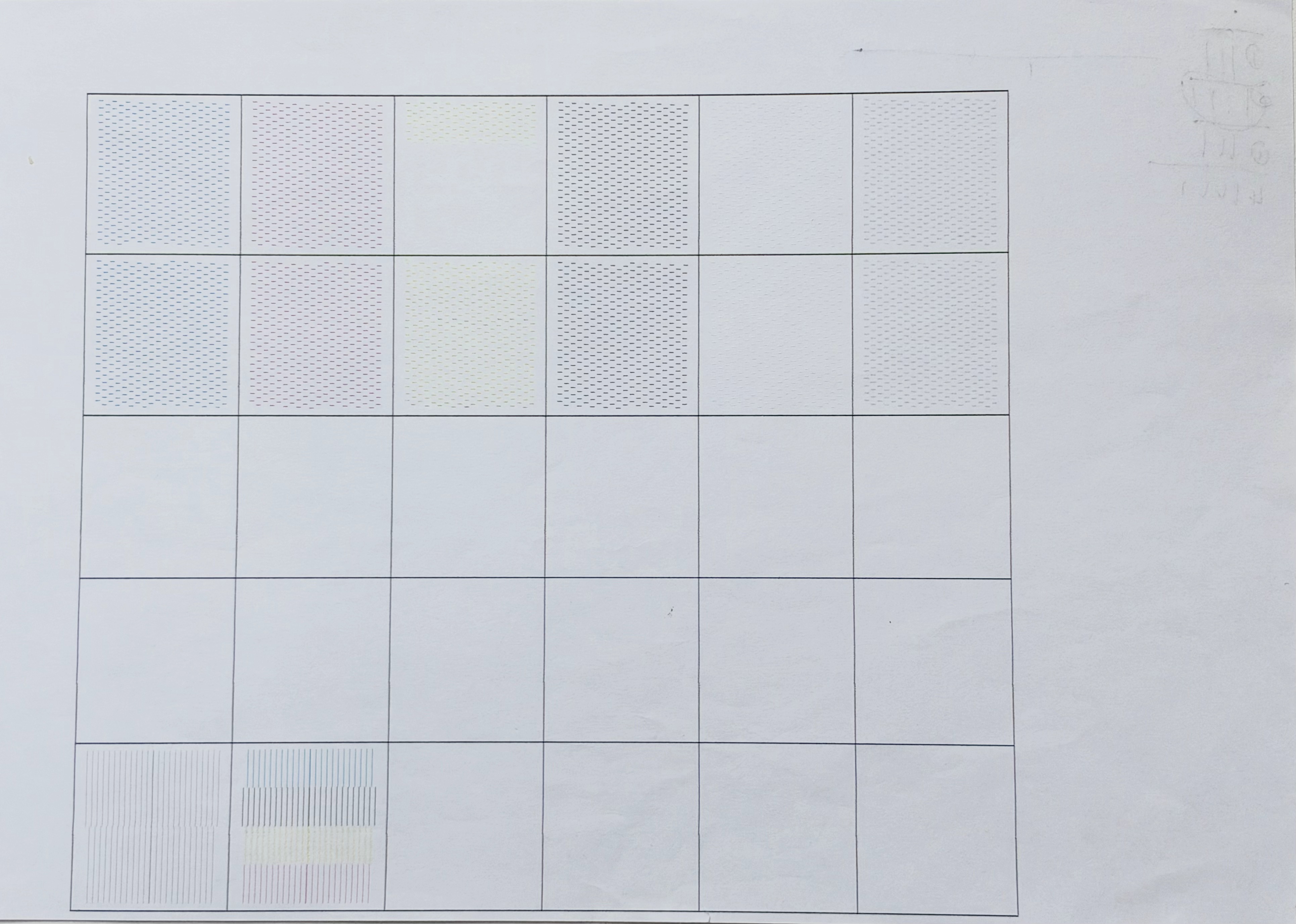
The examples below show test prints where Smart Maintenance detected missing nozzles or color mixing and resolved the issue within four recovery attempts.
| Missing nozzles detected | Color mixing detected |
|---|---|
 |
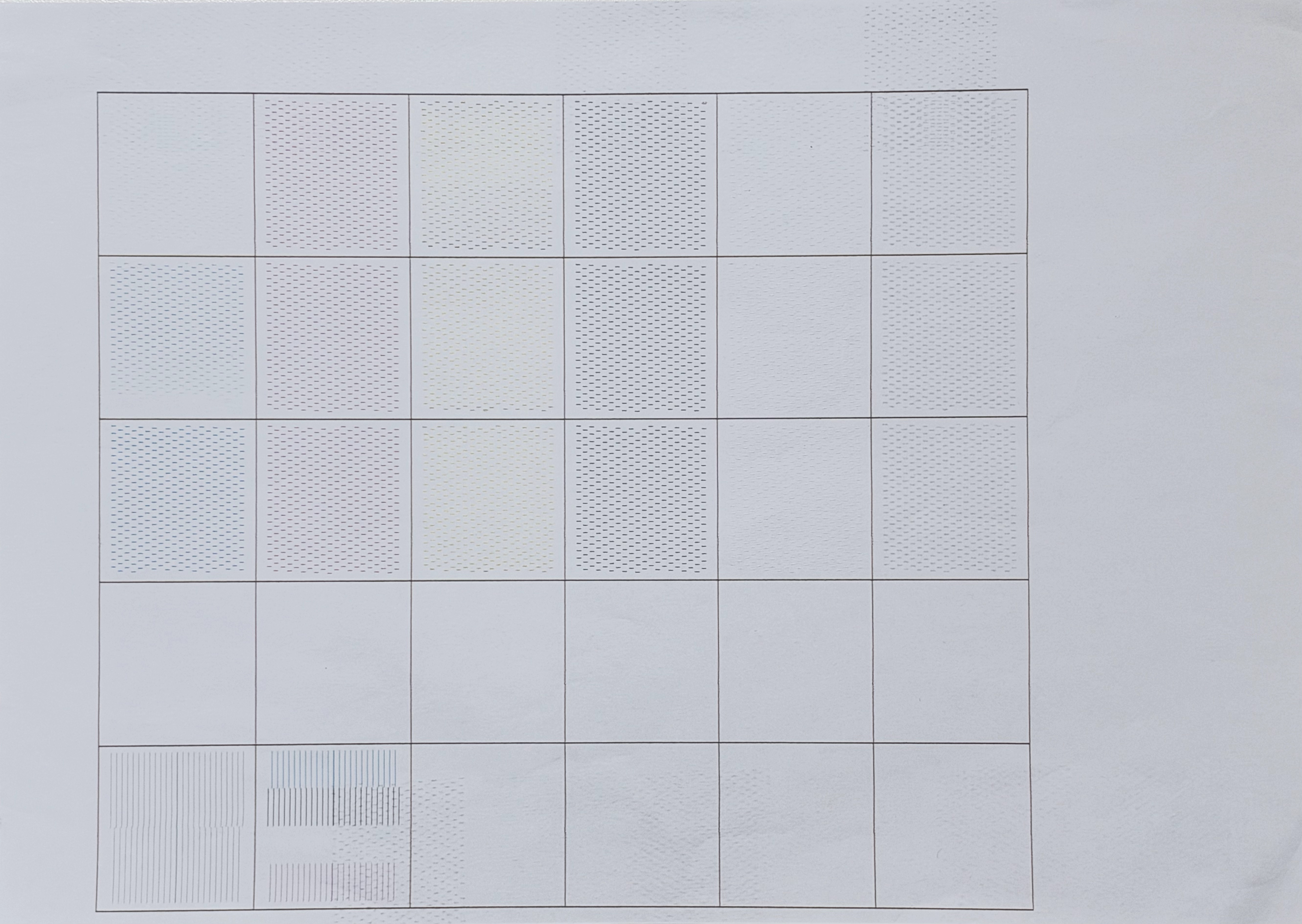 |
If the issue is resolved within four attempts, the screen displays Printhead Restored. If it remains after four attempts, the screen displays Printhead Needs Further Cleaning.
¶ If Further Cleaning Is Needed
Choose an option on the screen:
- Run Deep Cleaning: Start Deep Cleaning.
- Not Now: Skip Deep Cleaning.
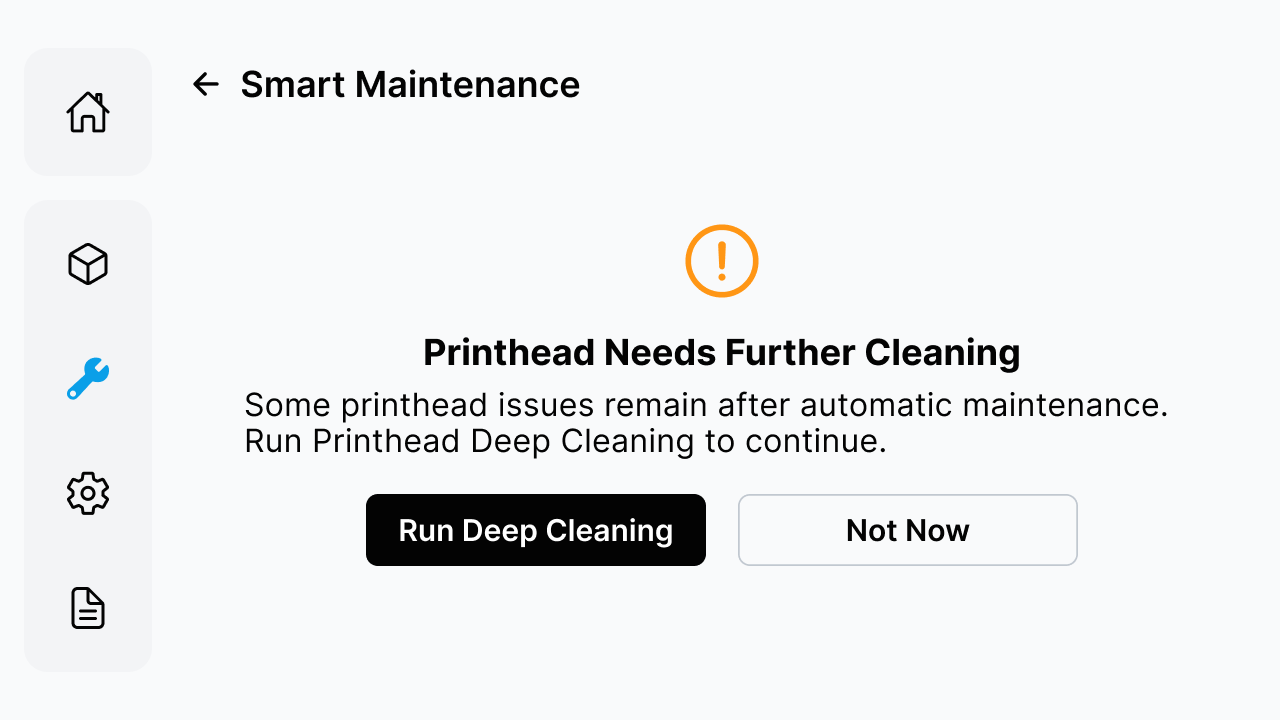
If you choose Run Deep Cleaning, wait for it to finish. After Deep Cleaning, select Start Test Print when Deep Cleaning Complete appears. Smart Maintenance analyzes the result and displays one of the outcomes below.
| Test Print Looks Good! | Your Printhead May Need Attention |
|---|---|
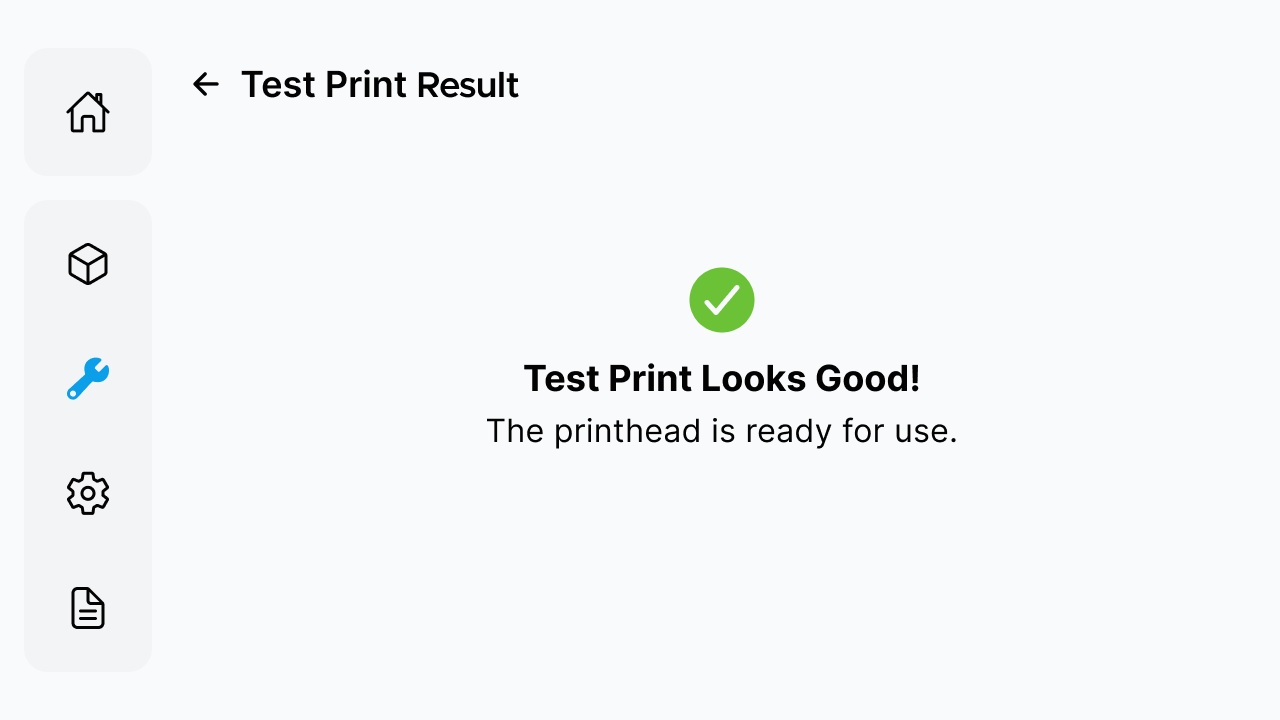 Ready for use. |
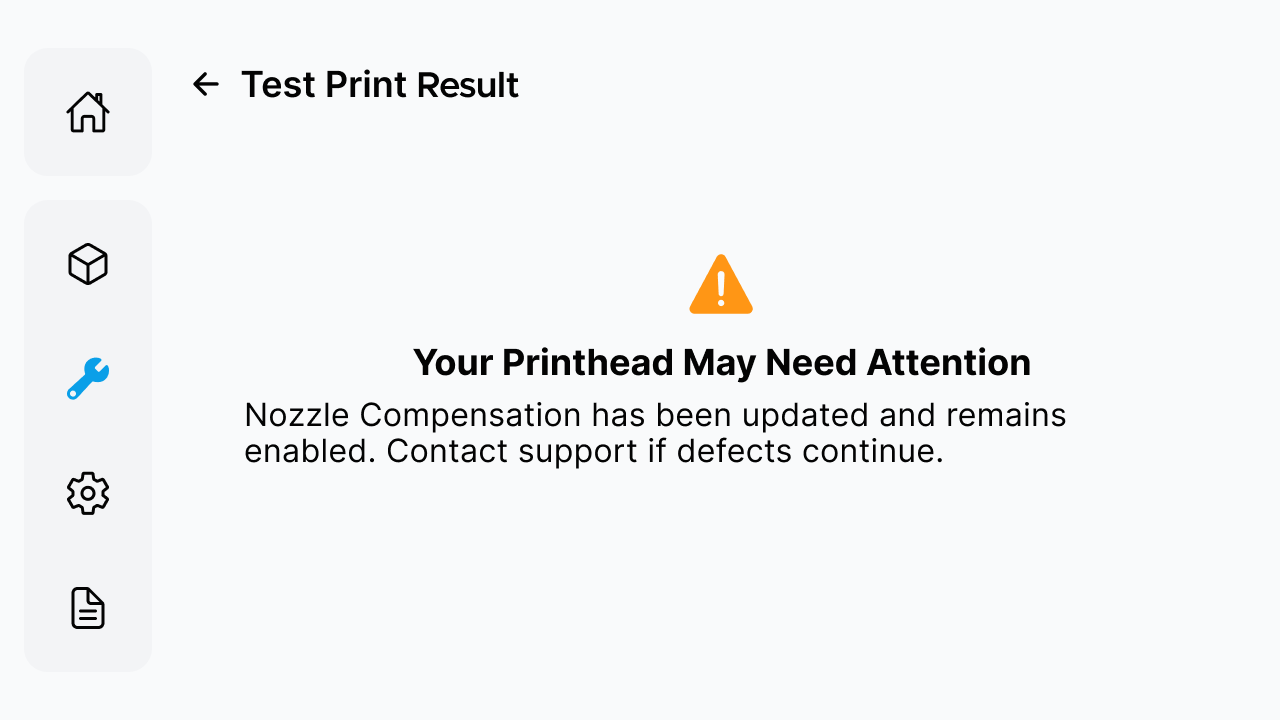 A few nozzles remain missing; compensation was already on. |
Enable Compensation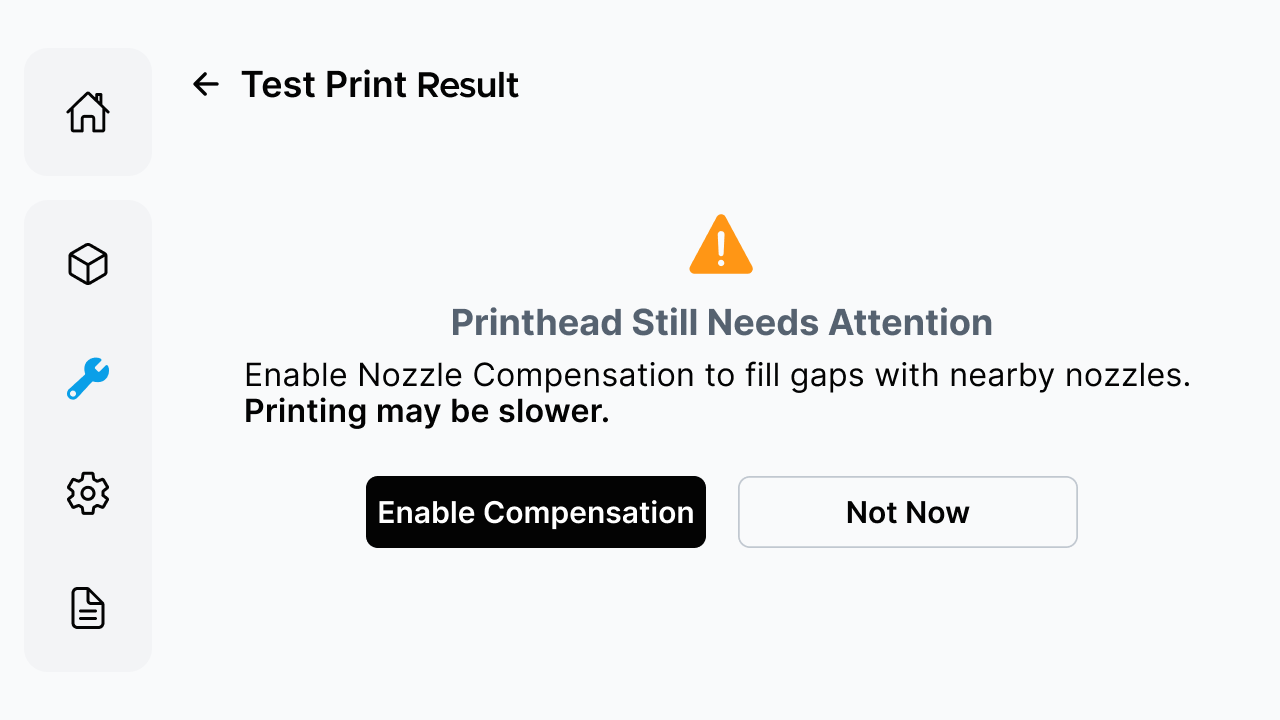 A few nozzles remain missing; compensation was off. Enabling it may slightly reduce print speed. |
Printhead Issues Persist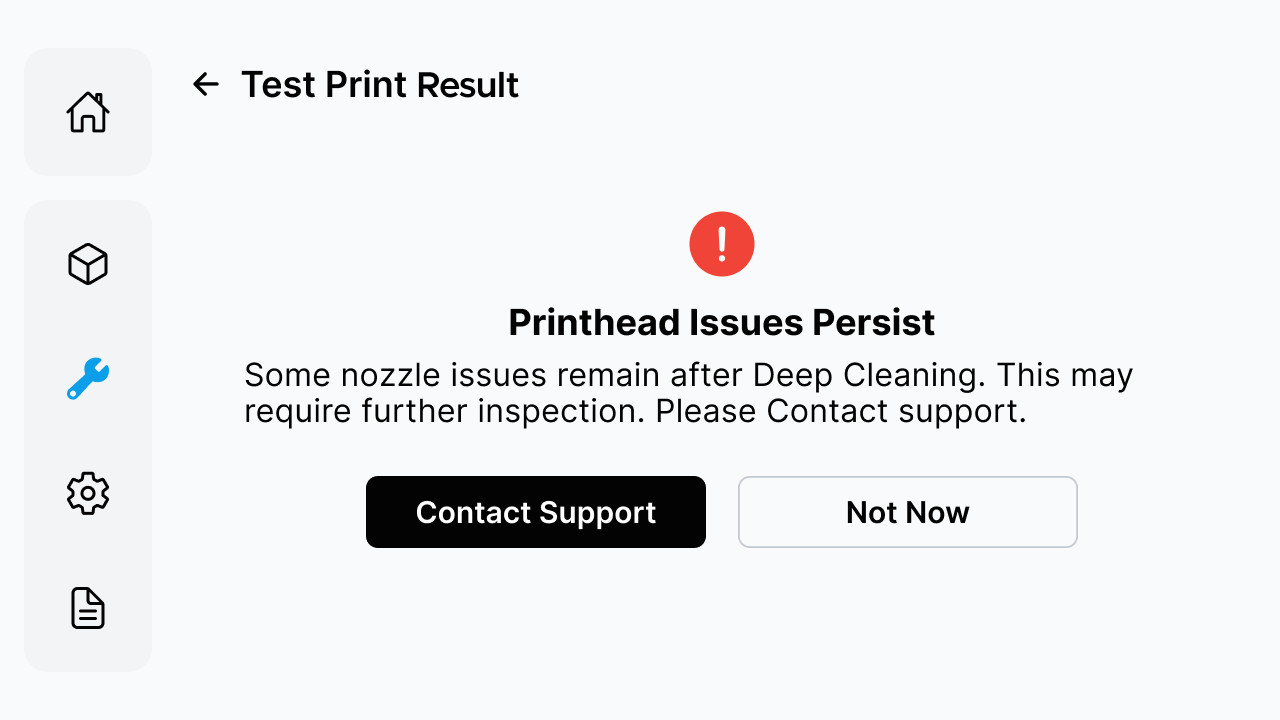 Contact Technical Support promptly. |
¶ Color Mixing Recovery
Color Mixing Recovery addresses color contamination between ink channels.
¶ When It Runs
- During Smart Maintenance: If Smart Maintenance detects color mixing, it starts Color Mixing Recovery automatically.
- During daily use: If a Printhead Status Test Print shows color mixing, start Color Mixing Recovery from Morpho Studio or the printer screen.
¶ Start Color Mixing Recovery
Start Color Mixing Recovery from Morpho Studio or the printer screen.
| Morpho Studio | Printer screen |
|---|---|
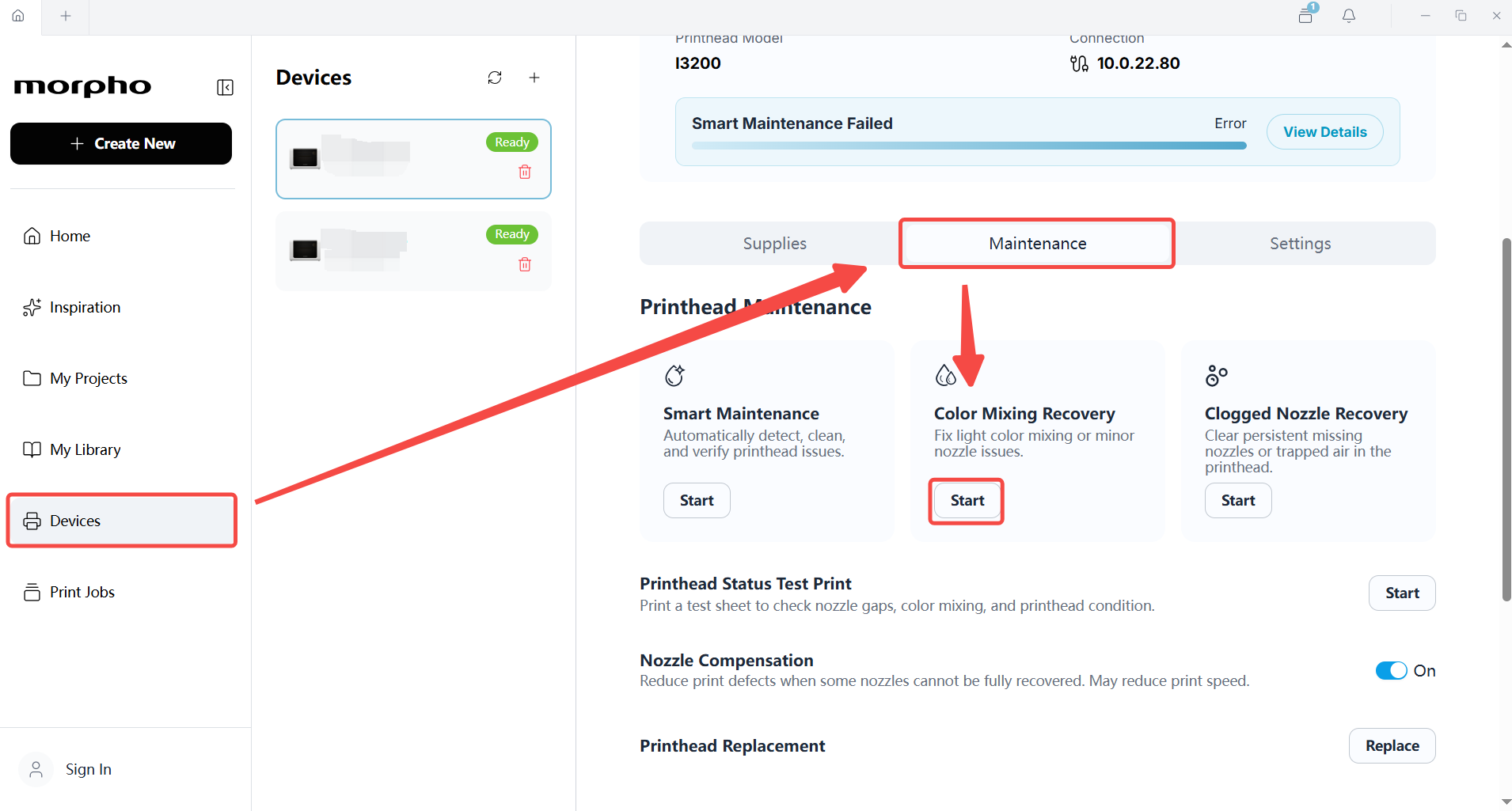 |
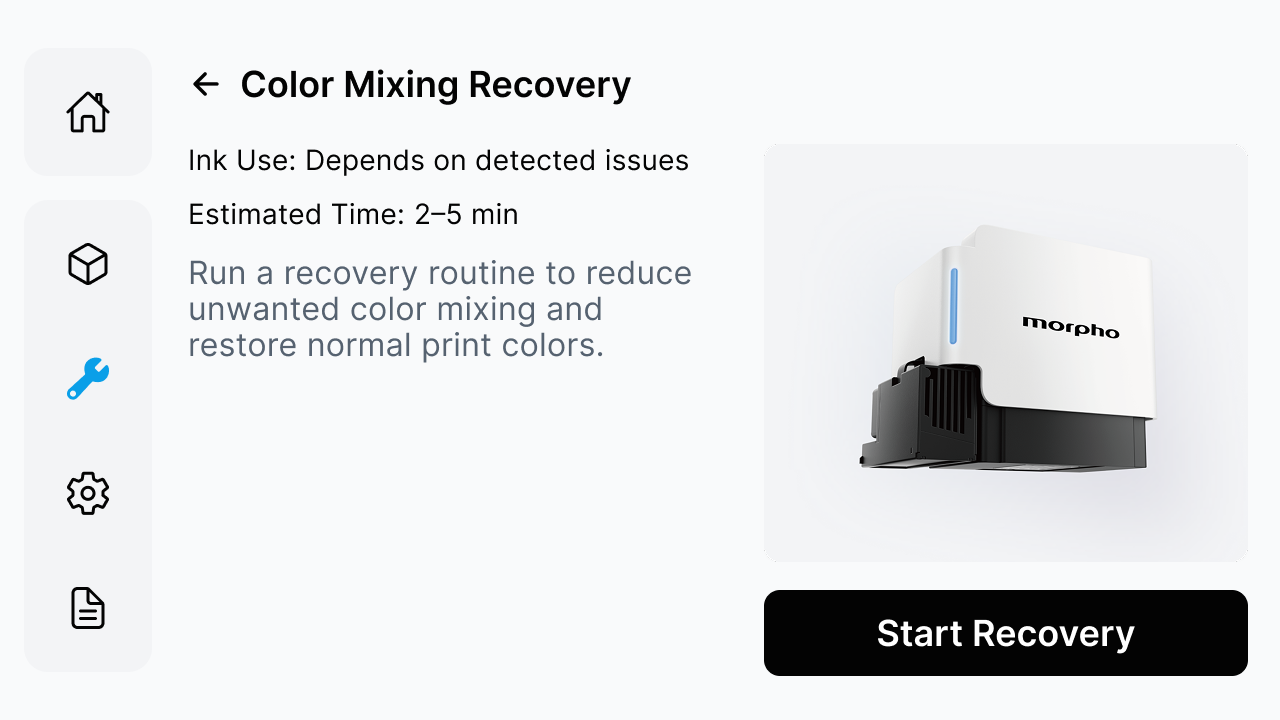 |
Before starting, the screen shows an estimated recovery time of 2–5 minutes. Ink use depends on the detected issue.
¶ Recovery and Test Print
- Start
Color Mixing Recovery. - Wait for the recovery to complete.
- Select
Start Test Printto print a new test pattern. - Check the test pattern to see whether the color mixing has been resolved.
- If color mixing remains, repeat the recovery and test-print cycle, up to four recovery attempts in total.
| Recovery complete | Start the test print |
|---|---|
.png) |
.png) |
The recovery screen may also offer Not Now. If you select it, run a test print later to check the result. If color mixing remains, repeat the recovery and test-print cycle.
If color mixing remains after four recovery attempts, contact Morpho Support.
¶ Messages
If the screen displays Ink level low, replace the cartridge with one containing sufficient ink, then restart the recovery.
.png)
¶ Clogged Nozzle Recovery
Clogged Nozzle Recovery is a printhead maintenance function for clogged or missing nozzles.
¶ When to Use It
Use Clogged Nozzle Recovery when:
- A Printhead Status Test Print shows missing nozzles.
- Printed lines appear broken.
- Light banding appears in prints.
- Smart Maintenance detects clogged or missing nozzles.
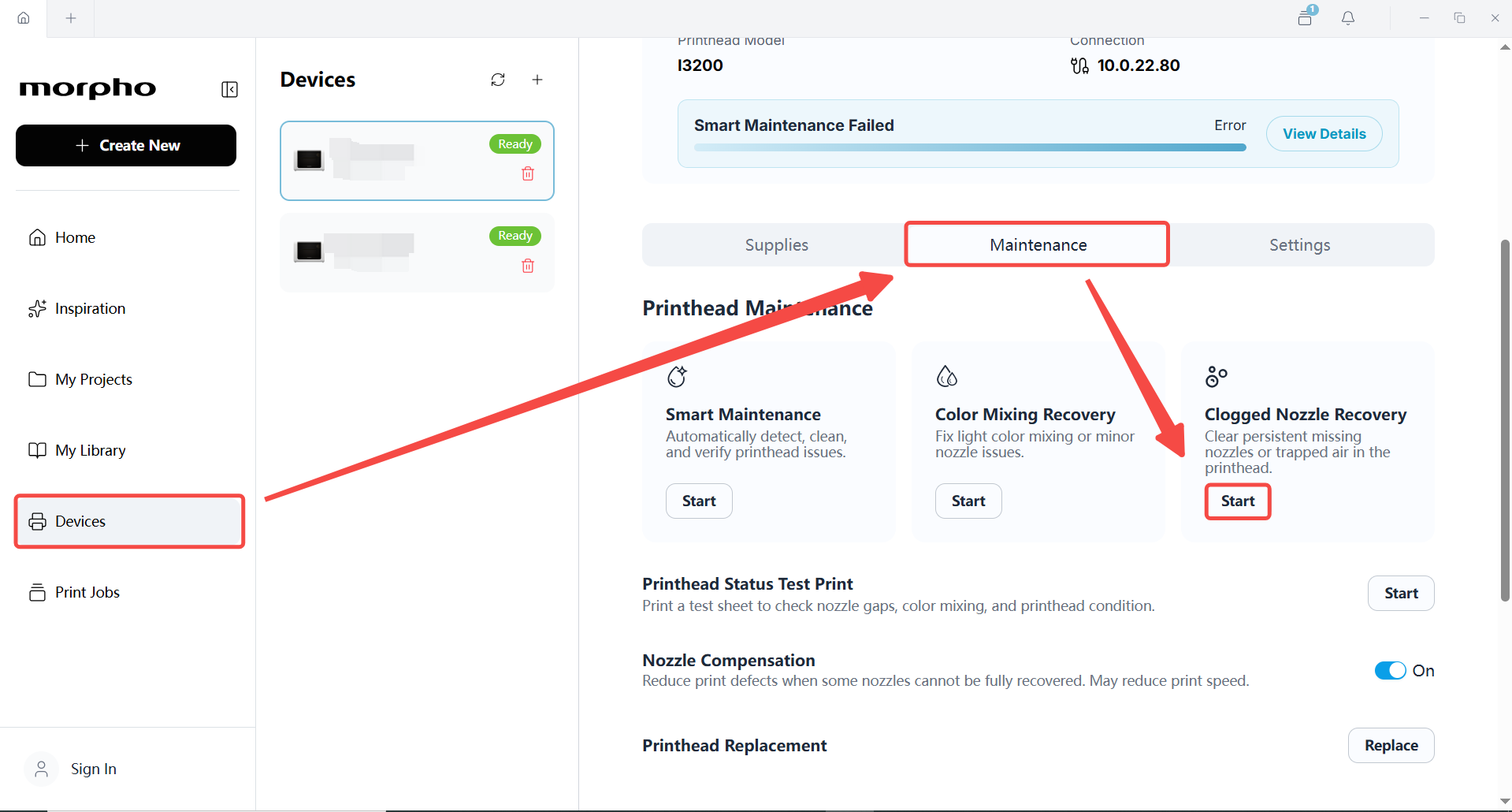
¶ Start Clogged Nozzle Recovery
Start Clogged Nozzle Recovery from the printer's Maintenance page in Morpho Studio or from the printer screen.
| Maintenance page | Recovery information |
|---|---|
 |
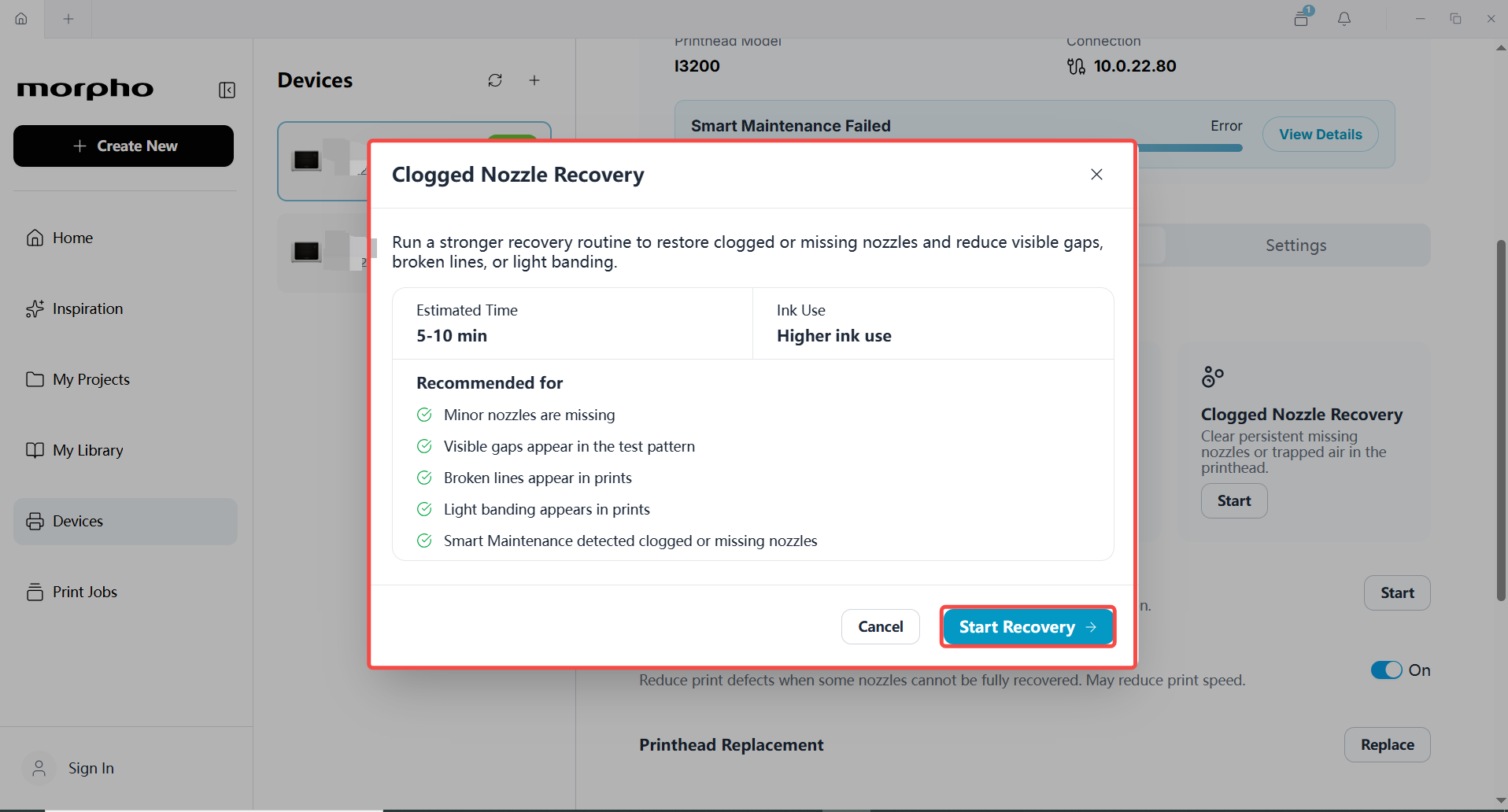 |
The recovery screen shows the following information before you start:
- Estimated time: 5–10 minutes
- Ink use: Higher ink use
Select Start Recovery to begin.
¶ Recovery and Test Print
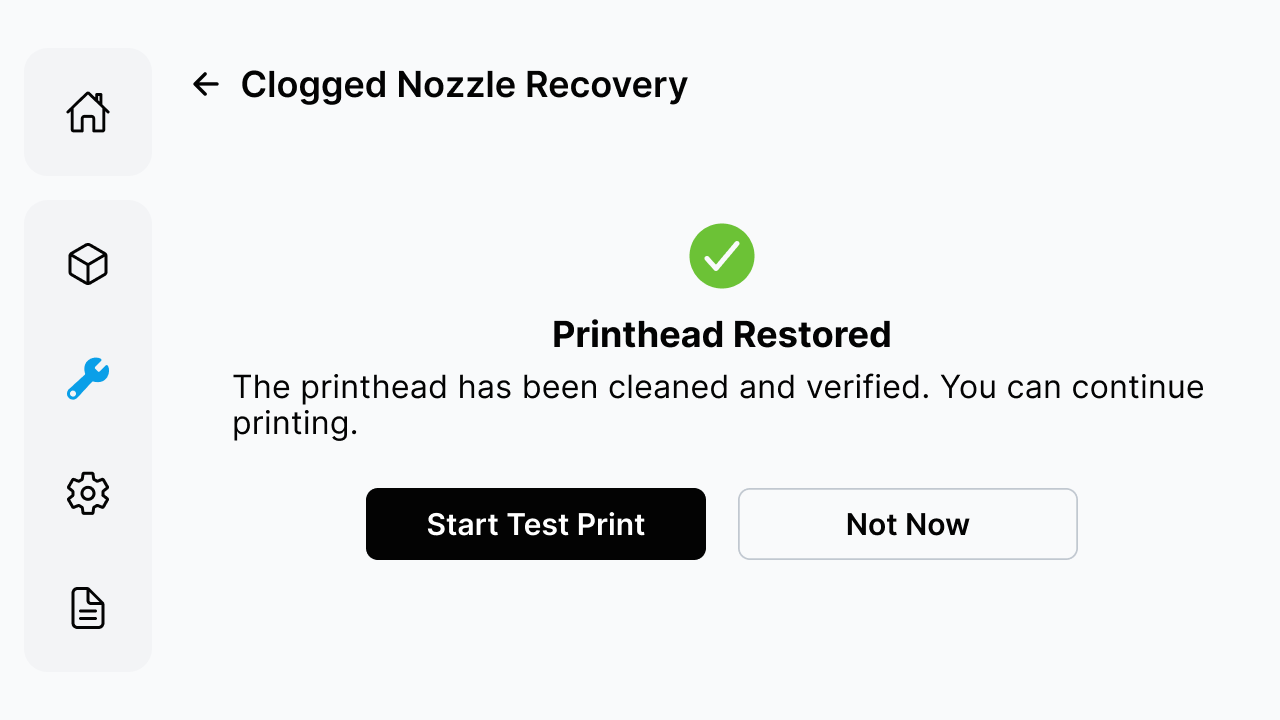
- Start
Clogged Nozzle Recovery. - Wait for the recovery to complete.
- Select
Start Test Printto print a new test pattern. - Check the test pattern to see whether the missing nozzles have been restored.
- If missing nozzles remain, repeat the recovery and test-print cycle, up to four recovery attempts in total.
| Recovery complete | Start the test print |
|---|---|
 |
|
The recovery screen may also offer Not Now. If you select it, run a test print later to check the result. If missing nozzles remain, repeat the recovery and test-print cycle.
If missing nozzles remain after four recovery attempts, contact Morpho Support.
¶ Need More Help?
We hope this guide has been helpful. If you have any questions or need further assistance, our support team is here to help.