This guide introduces the Home screen, Ink System and Maintenance Parts, Maintenance tools, Settings, and Job History on the Morpho UV Printer touchscreen.
Quick navigation: Home · Ink System and Maintenance Parts · Maintenance · Settings · Job History
Maintenance tools: Printhead Maintenance · Calibration · Device Self-Check · Motion Control
Printhead Maintenance: Smart Maintenance · Color Mixing Recovery · Clogged Nozzle Recovery · Printhead Status Test Print · Nozzle Compensation
Calibration: Position Calibration · Print-to-Camera Calibration · Stereo Camera Calibration · Origin Calibration · Position Accuracy Test Print
¶ 1. Home
¶ 1.1 Screen Layout
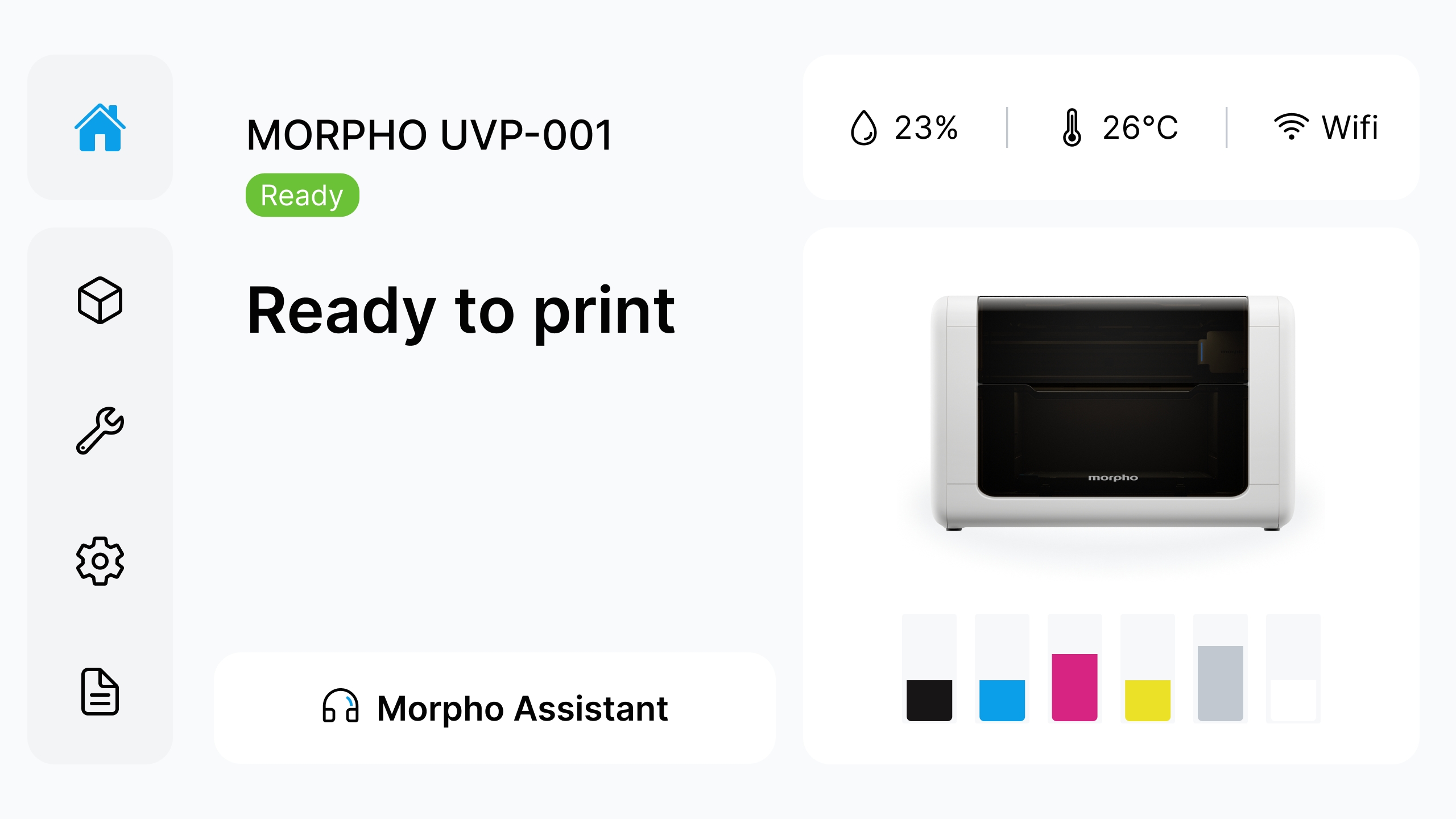
After the printer starts up and completes initialization, it enters the Home screen. Use this page to quickly confirm whether the printer is ready before printing or maintenance.
- On the Home screen, users can view printer status, environmental humidity, environmental temperature, network status, and remaining ink levels for each channel. Before printing, please make sure the ink level is sufficient to support the next print job.
- The left menu bar includes Home, Ink System and Maintenance Parts, Maintenance, Settings, and Job History.
- If assistance is needed, tap Morpho Assistant to contact Morpho Support.
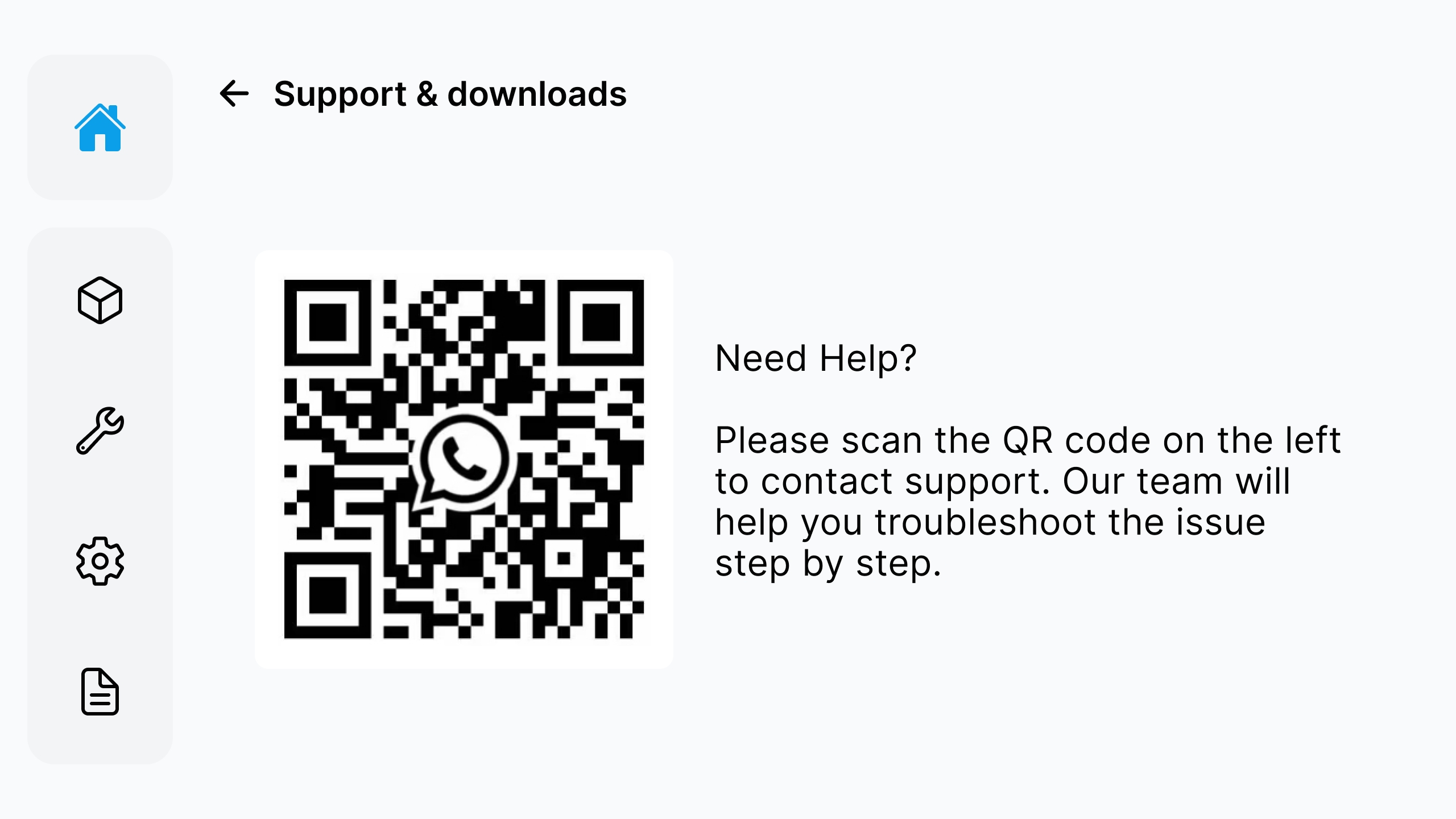
¶ 2. Ink System and Maintenance Parts
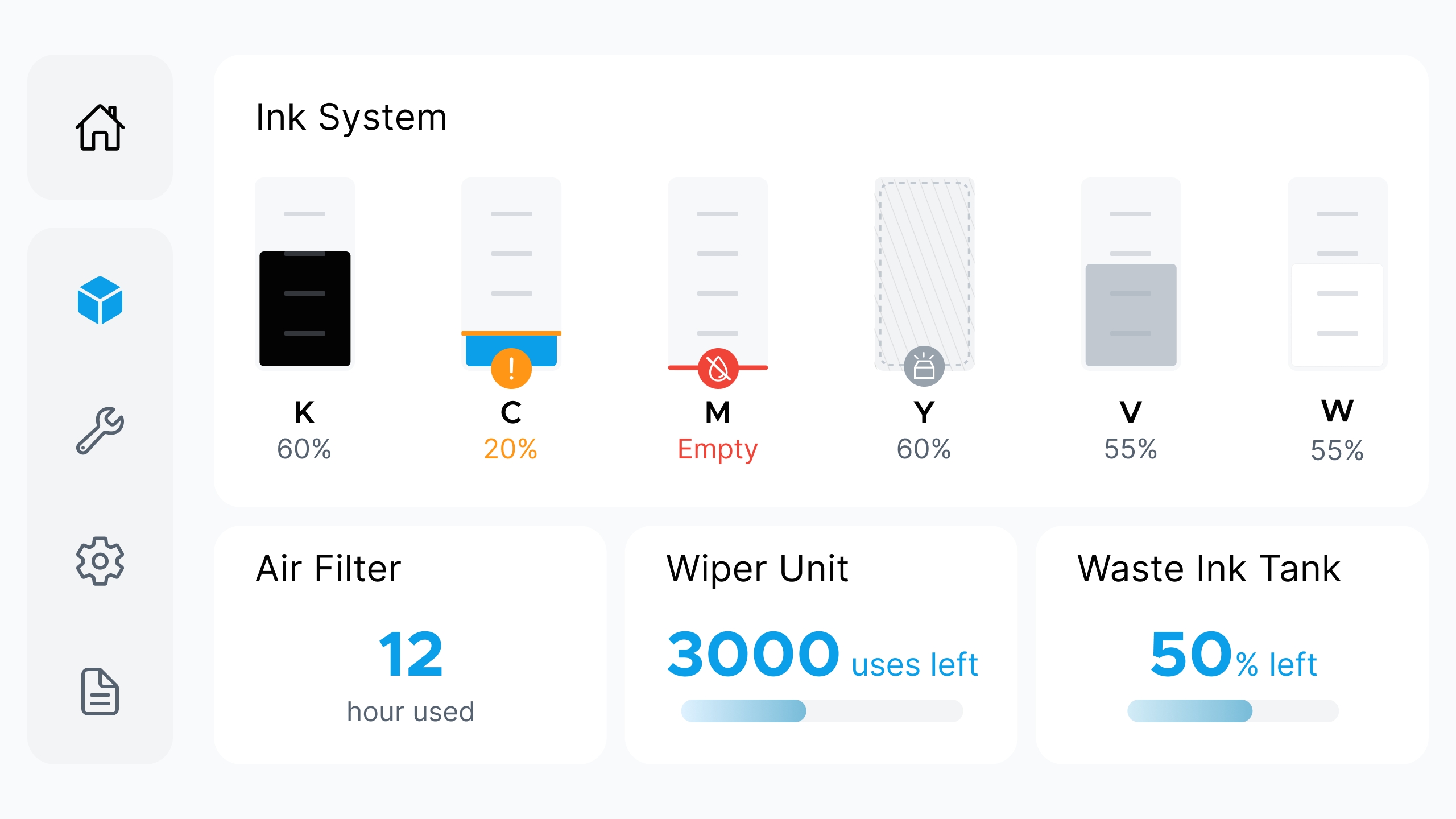
Enter Ink System and Maintenance Parts to view the remaining K, C, M, Y, V, and W ink levels, as well as the status of Air Filter, Wiper Unit, and Waste Ink Tank. After replacing consumables, return to this page to confirm that the status and alerts have been updated.
¶ 3. Maintenance
¶ 3.1 Printhead Maintenance
Use Printhead Maintenance to diagnose printhead condition, run recovery workflows, check nozzle status, and enable nozzle compensation. Available functions include: Smart Maintenance, Color Mixing Recovery, Clogged Nozzle Recovery, Printhead Status Test Print, and Nozzle Compensation.
Further guidance: More detailed articles for Smart Maintenance, Color Mixing Recovery, and Clogged Nozzle Recovery will be added later, with links provided here.
¶ 3.1.1 Smart Maintenance
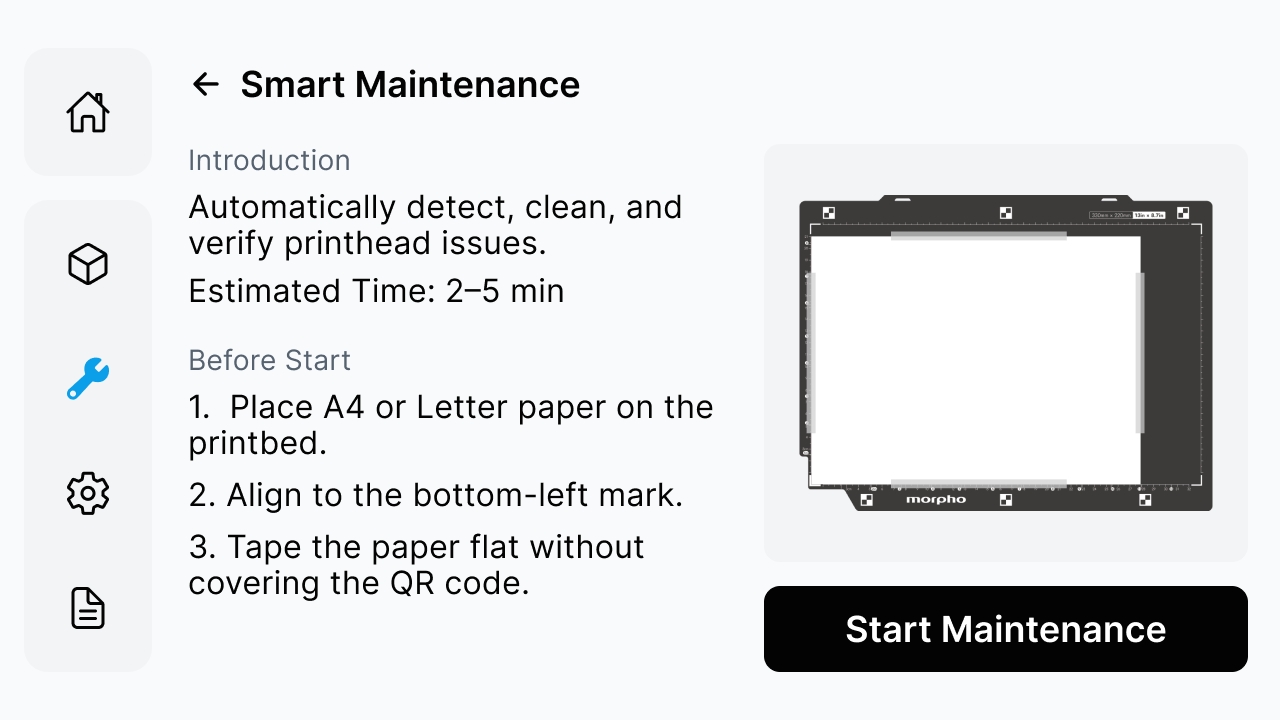
Smart Maintenance is used to automatically maintain and verify the printhead status. The page displays the estimated time and ink consumption. The actual values are subject to the screen display.
¶ Step 1: Start Maintenance
Prepare A4 or Letter paper, place it on the printbed, align it with the bottom-left positioning mark, and secure it flat. The tape must not cover the QR code. Then tap Start Maintenance.
¶ Step 2: Wait for Maintenance to Complete
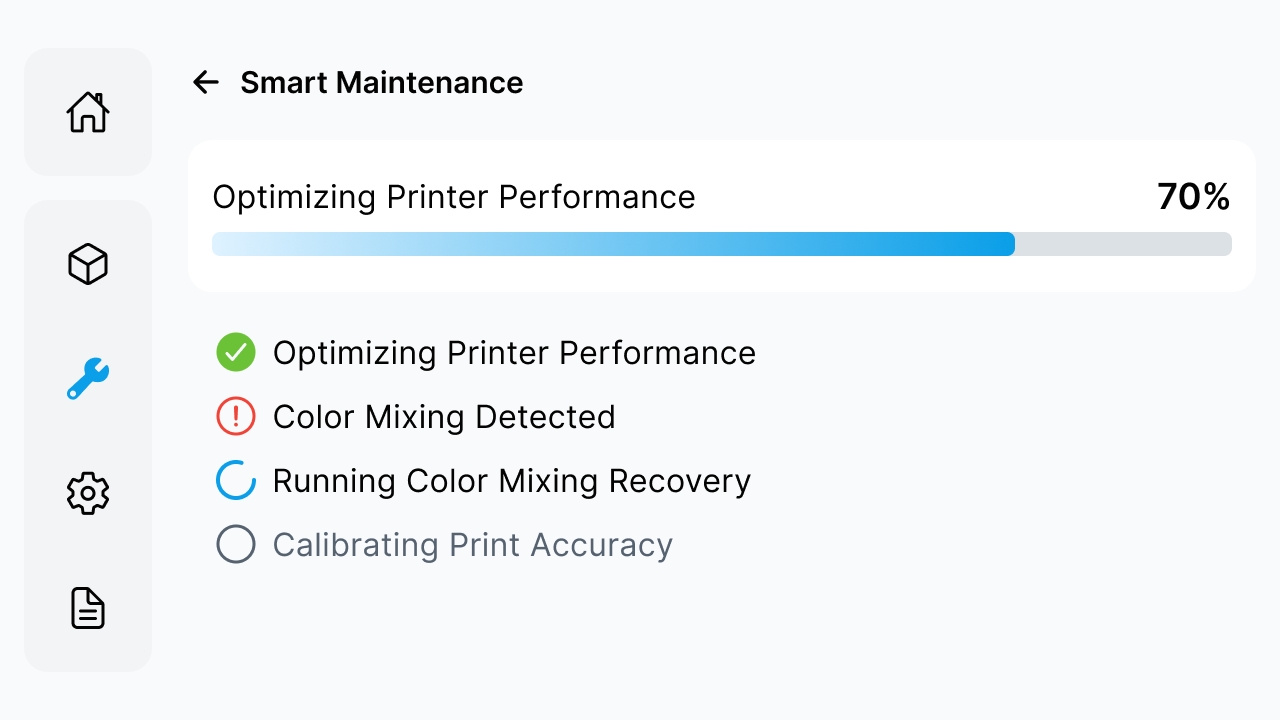
During maintenance, the page displays the current stage, such as Optimizing Printer Performance, Verifying Print Quality, and Calibrating Print Accuracy. Do not cancel, power off, disconnect power, open the lid, or move the paper, printbed, or jig at this time.
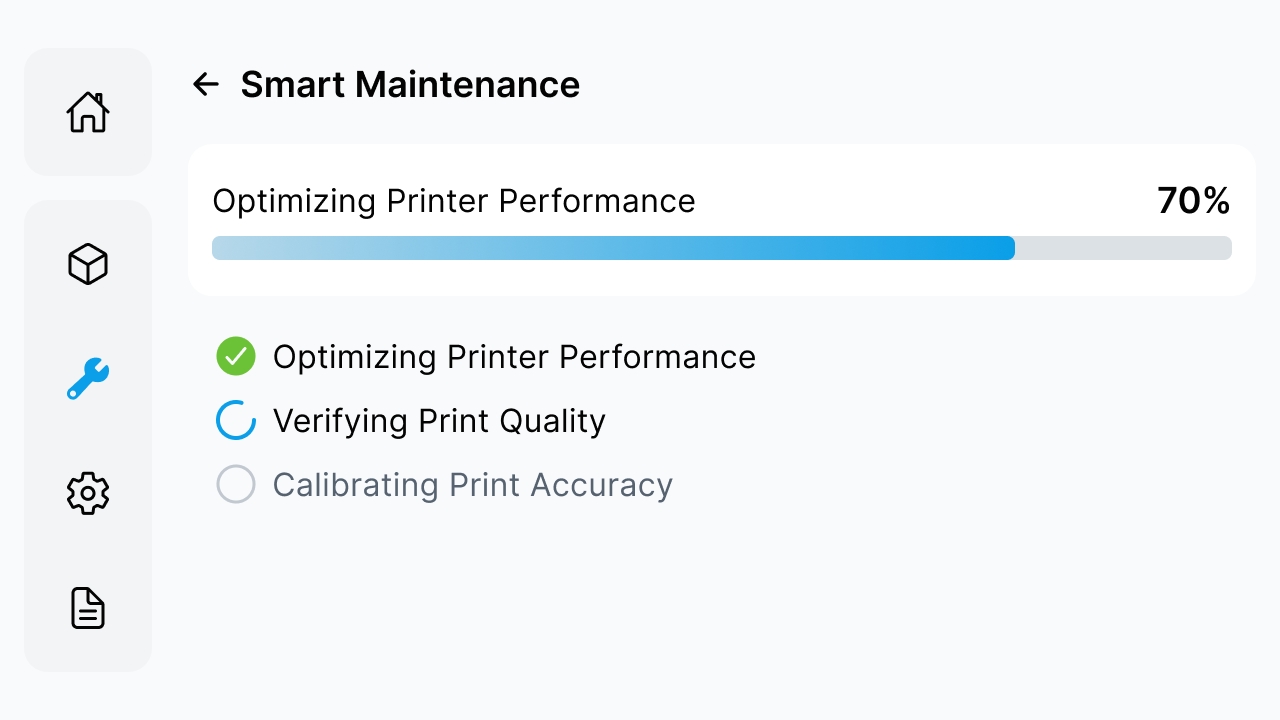
Note: The process may include ink suction, ink discharge, printhead cleaning, and ink path switching. Do not cancel after it starts. Interrupting it midway may leave the process incomplete and increase printhead risk.
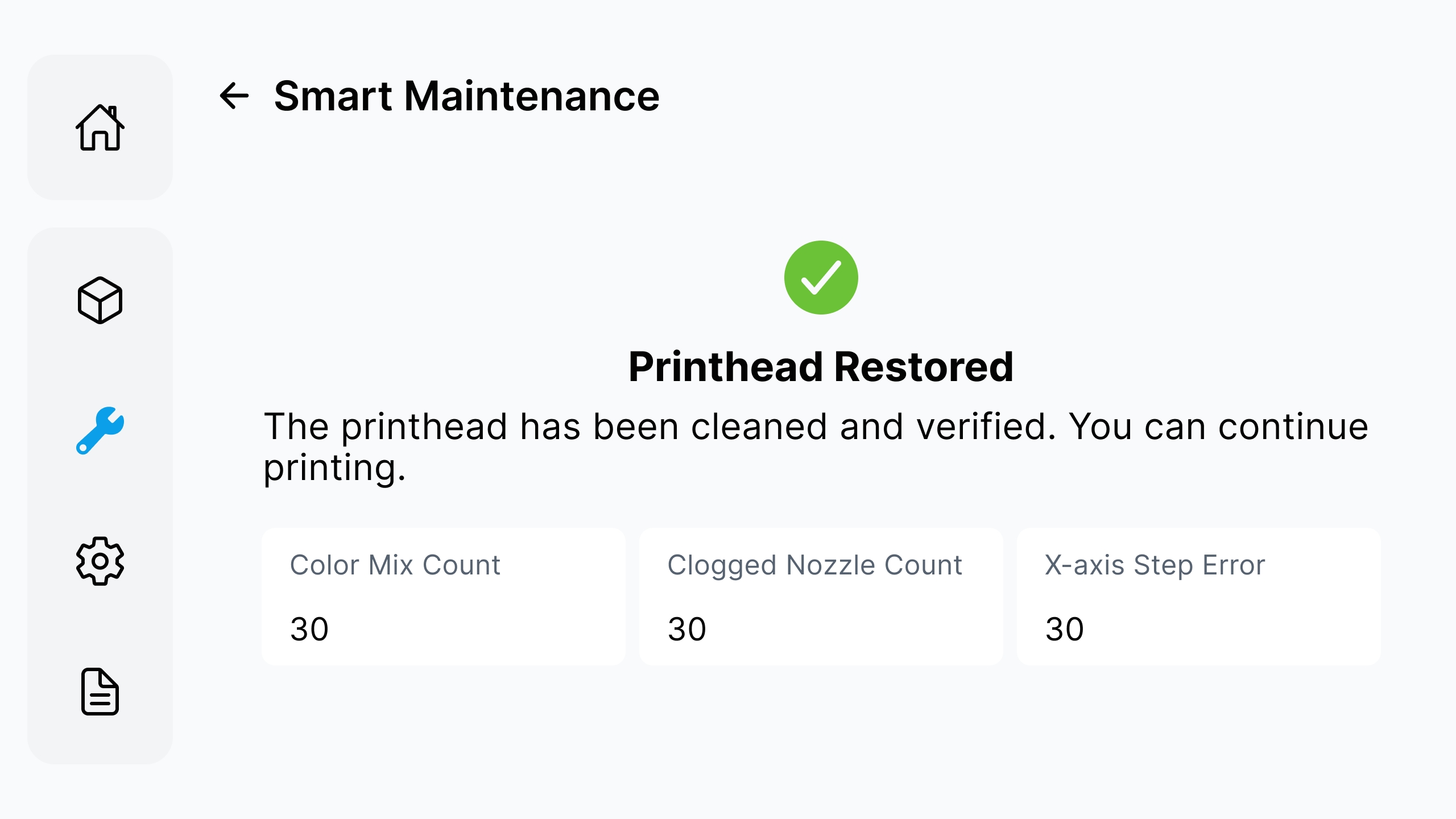
¶ Step 3: Printhead Restored
When Printhead Restored is displayed, you can continue printing.
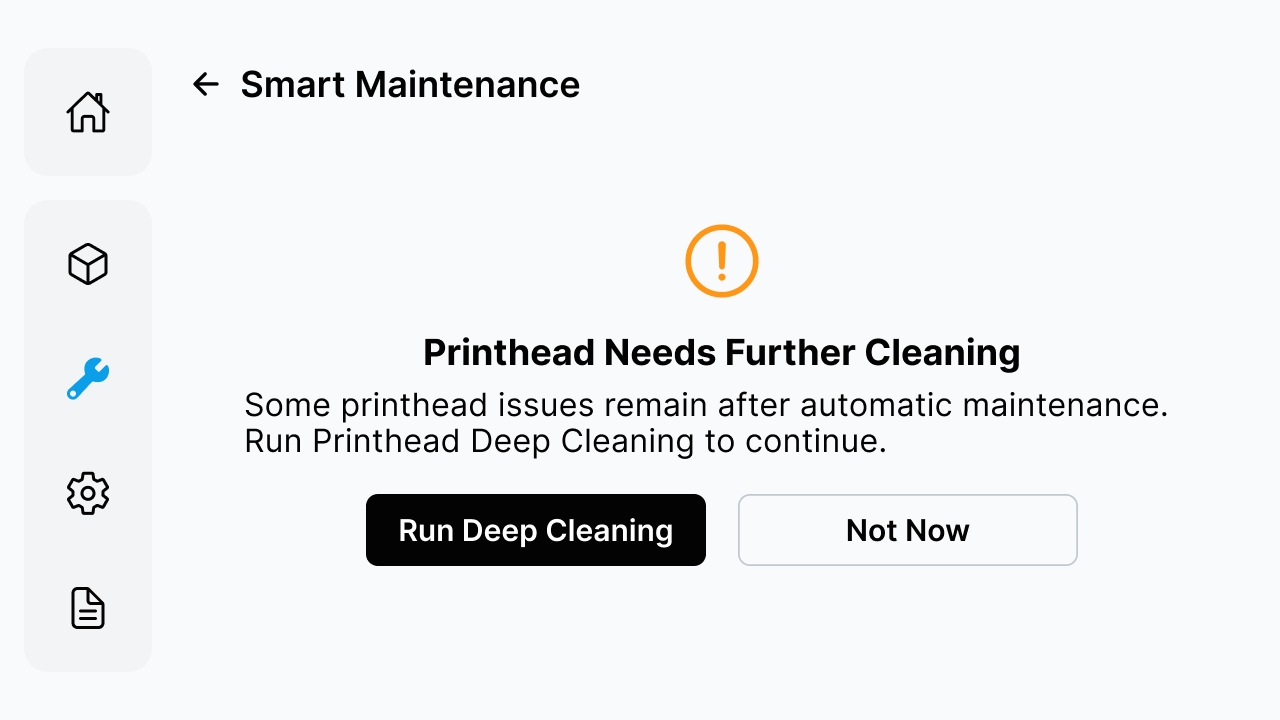
¶ Step 4: Further Cleaning Required
When Printhead Needs Further Cleaning is displayed, tap Run Deep Cleaning.
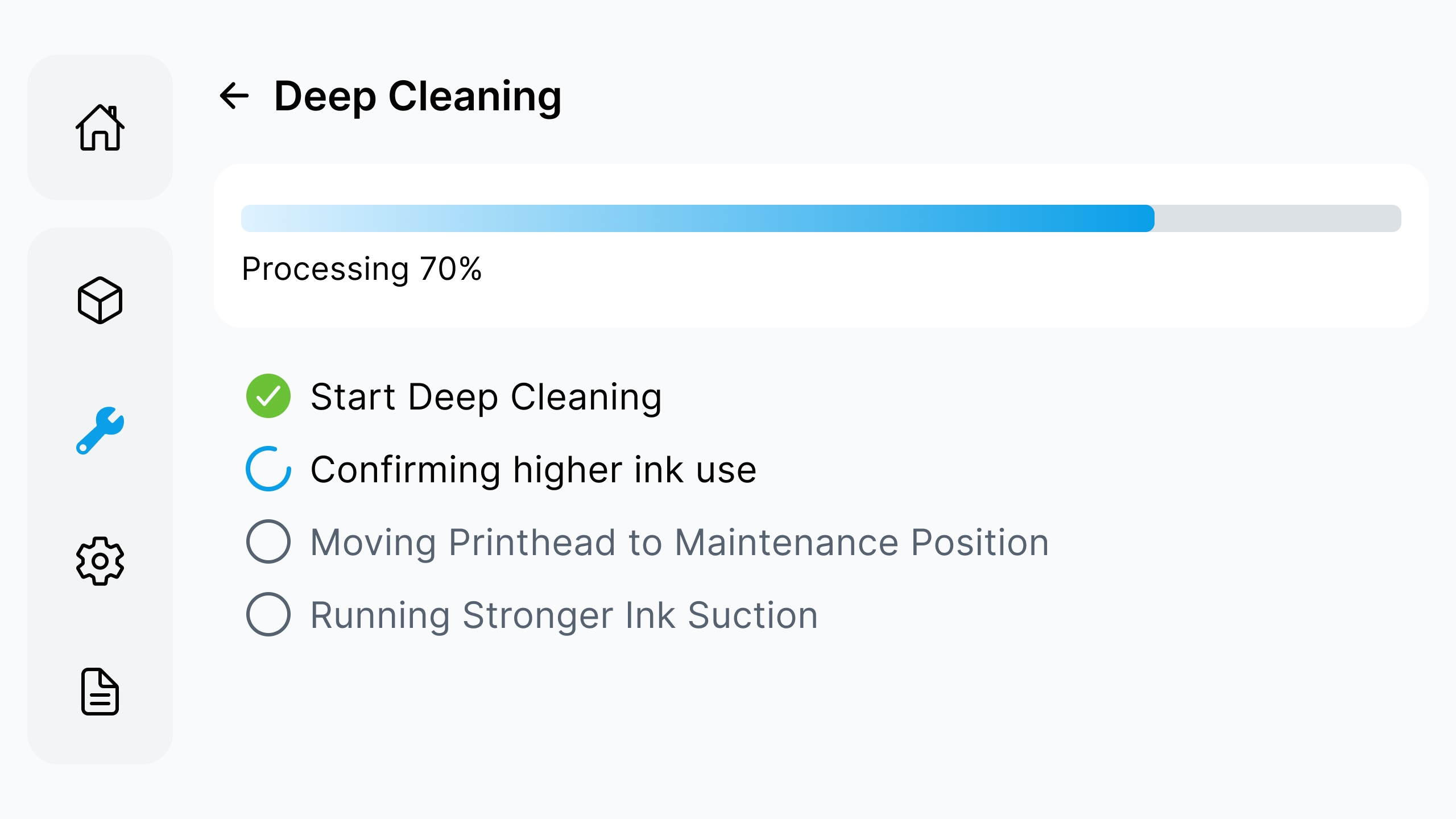
¶ Step 5: Run Deep Cleaning
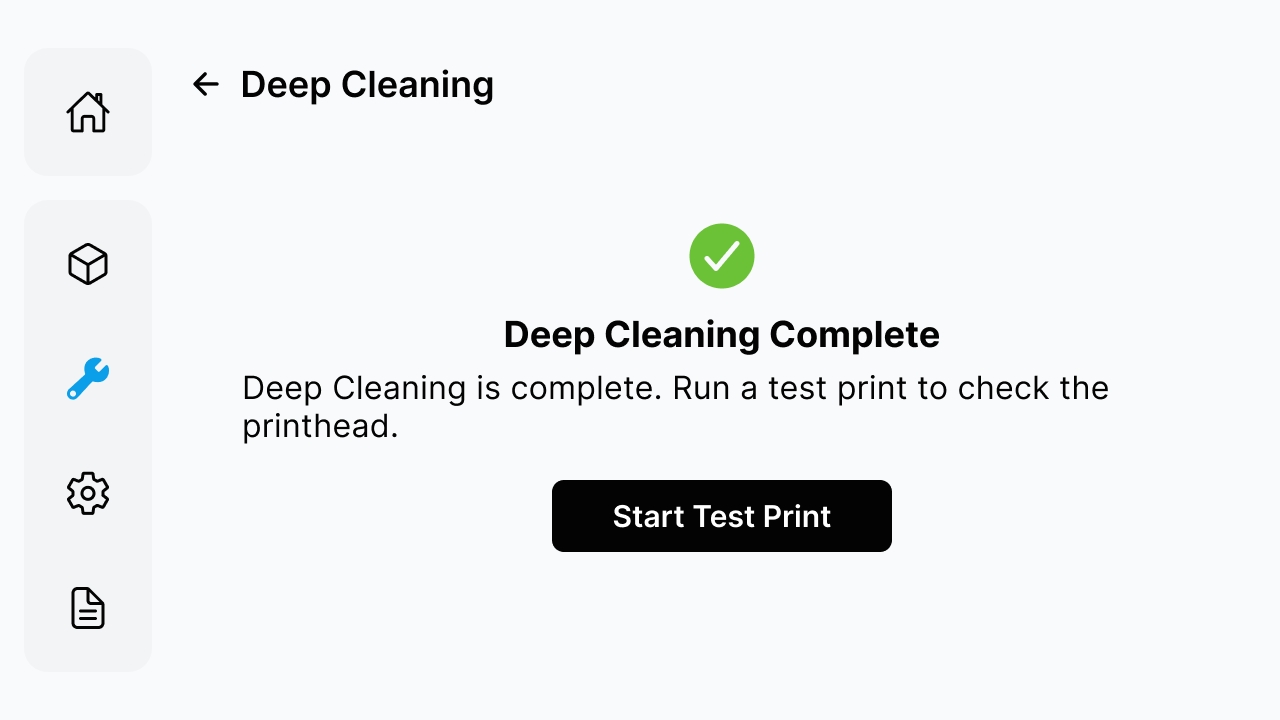
Wait until Moving Printhead to Maintenance Position and Running Stronger Ink Suction are complete. After Deep Cleaning Complete is displayed, tap Start Test Print.
¶ Step 6: Test Print
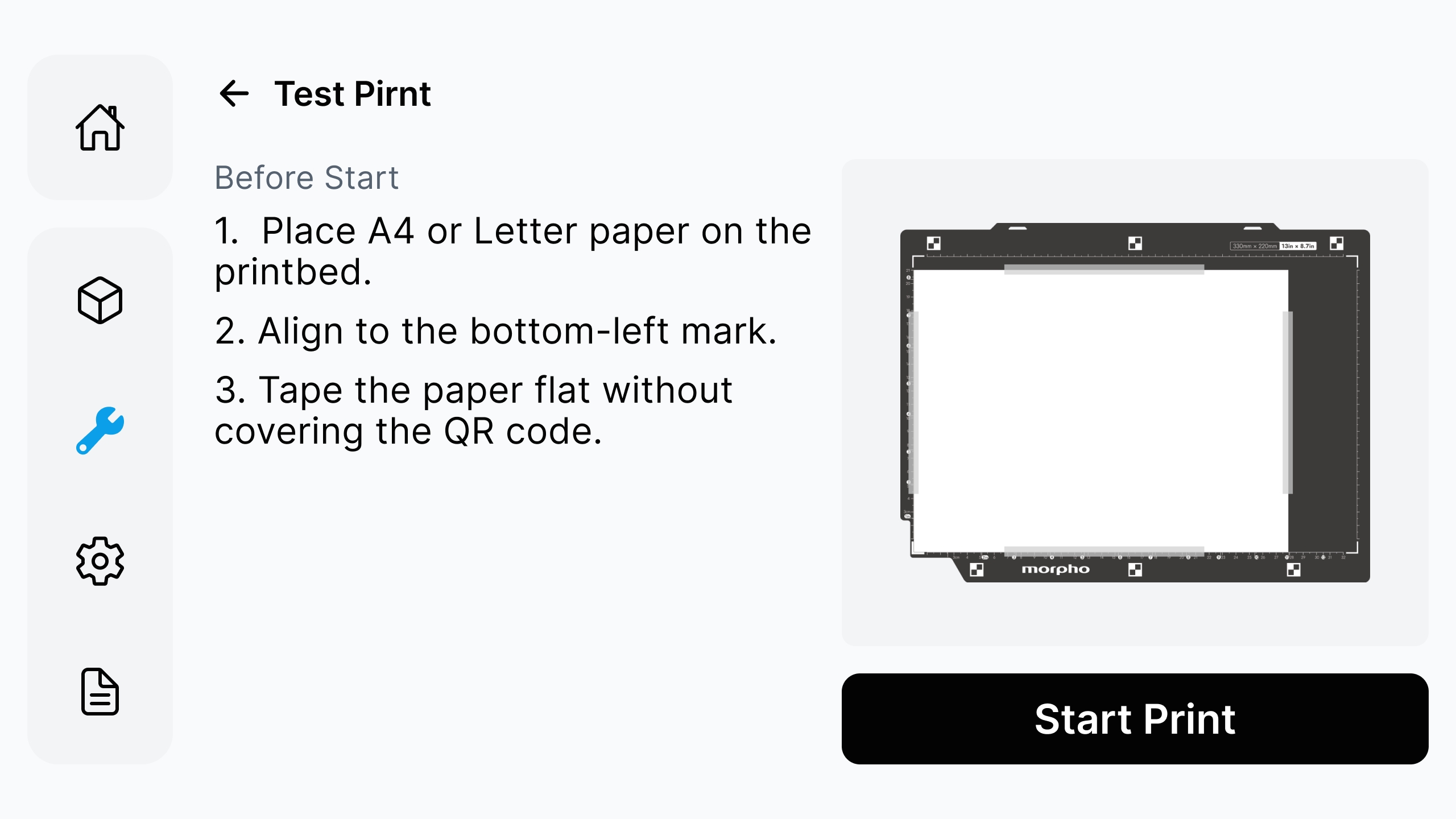
Prepare and secure the paper as required by the page. Do not cover the QR code. Tap Start Print.
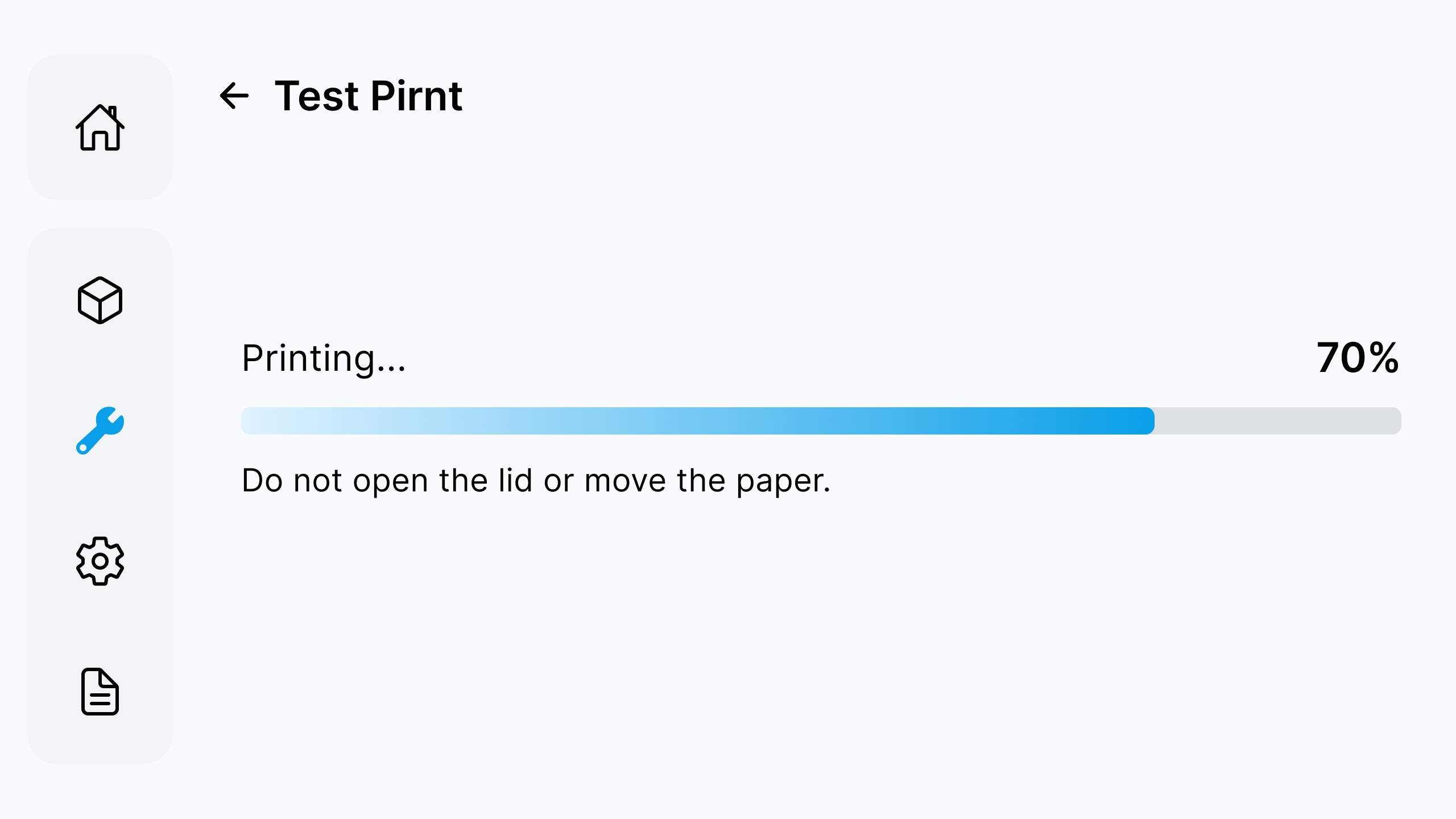
Do not open the lid or move the paper during printing.
¶ Step 7: Enable Nozzle Compensation
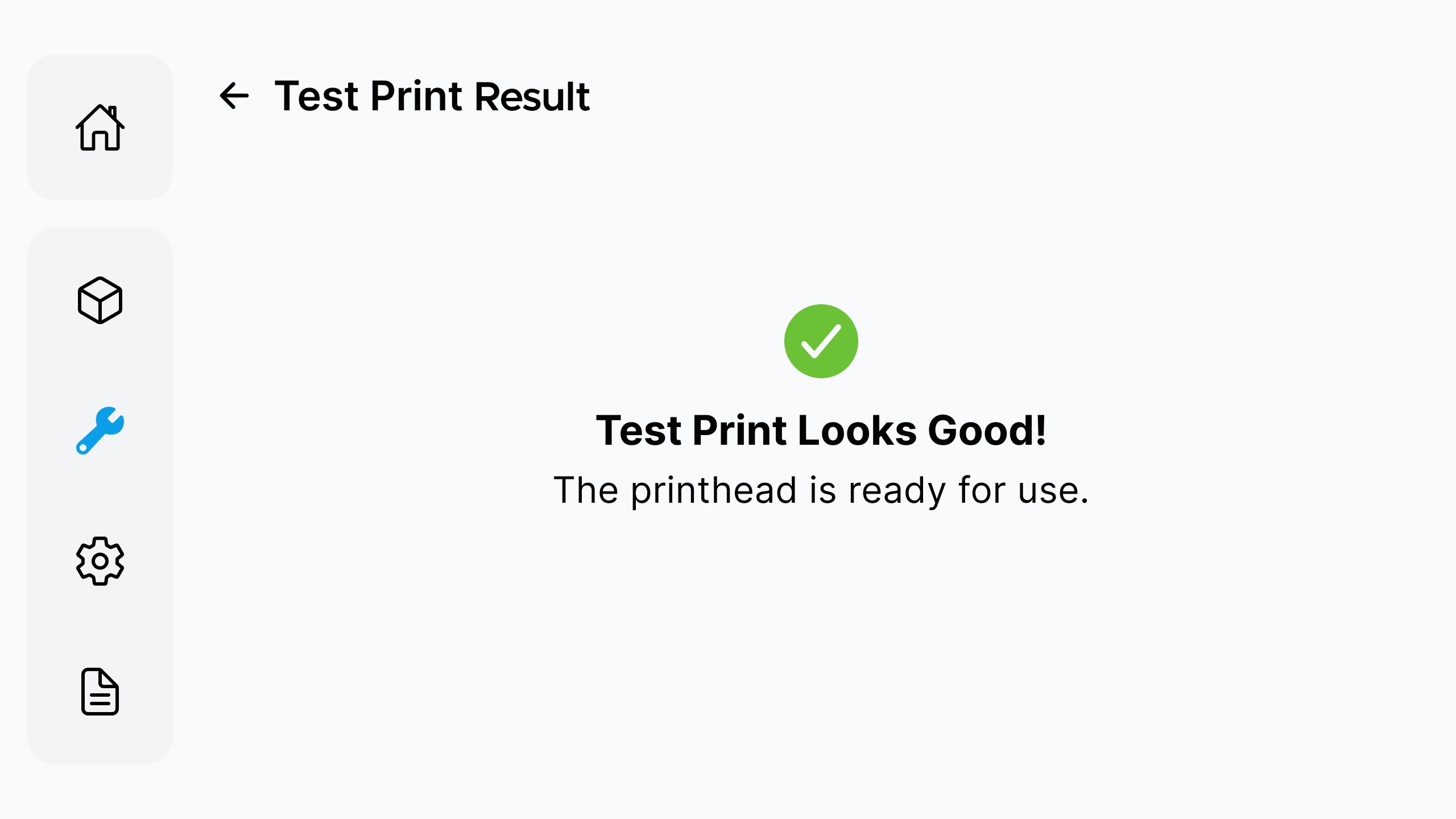
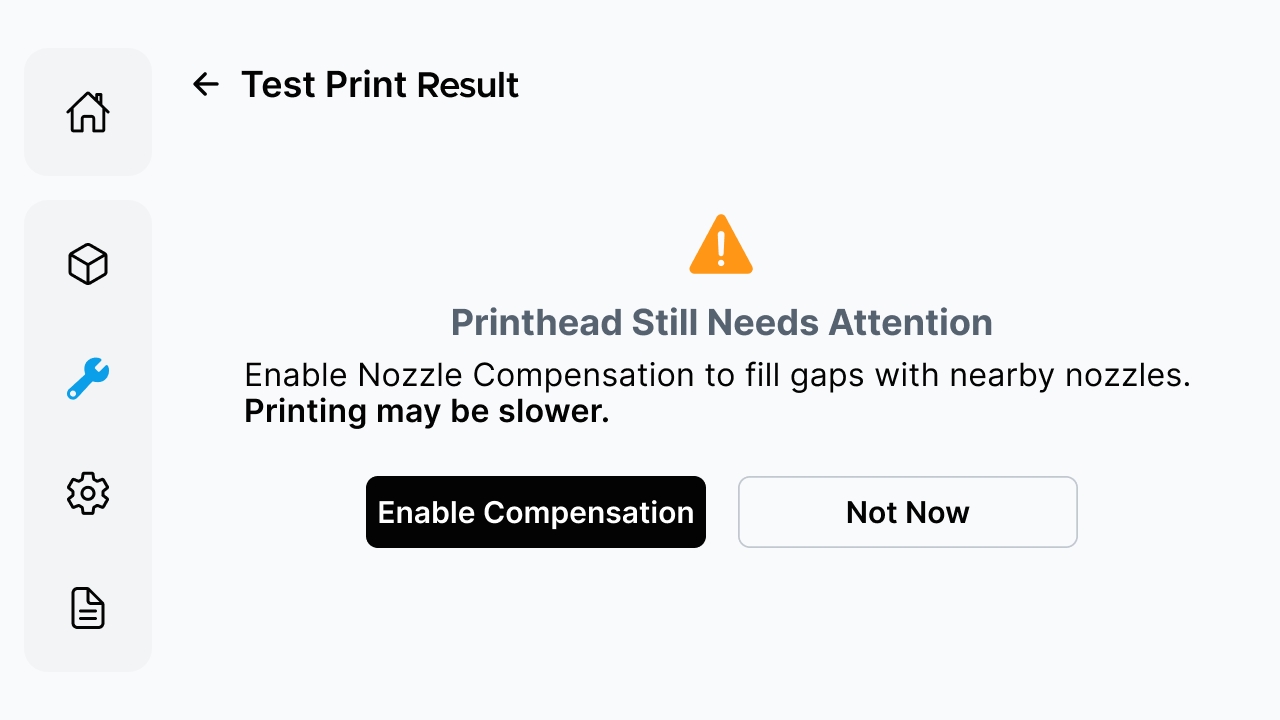
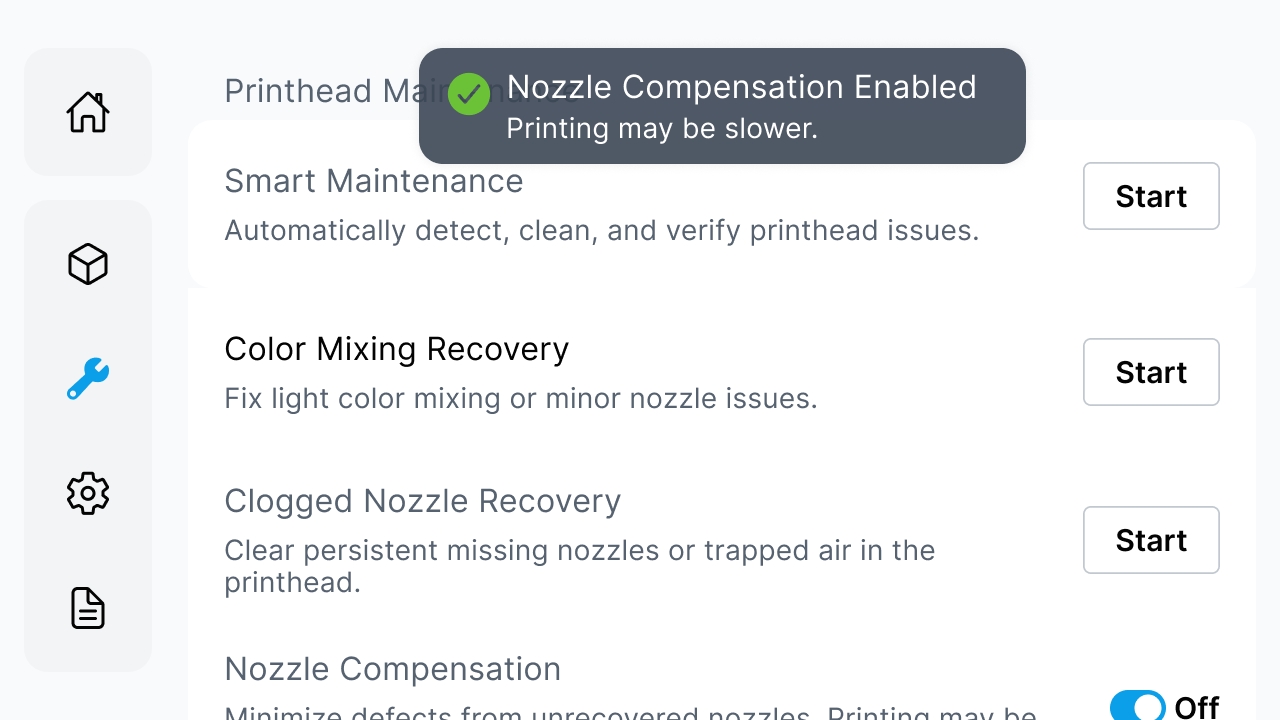
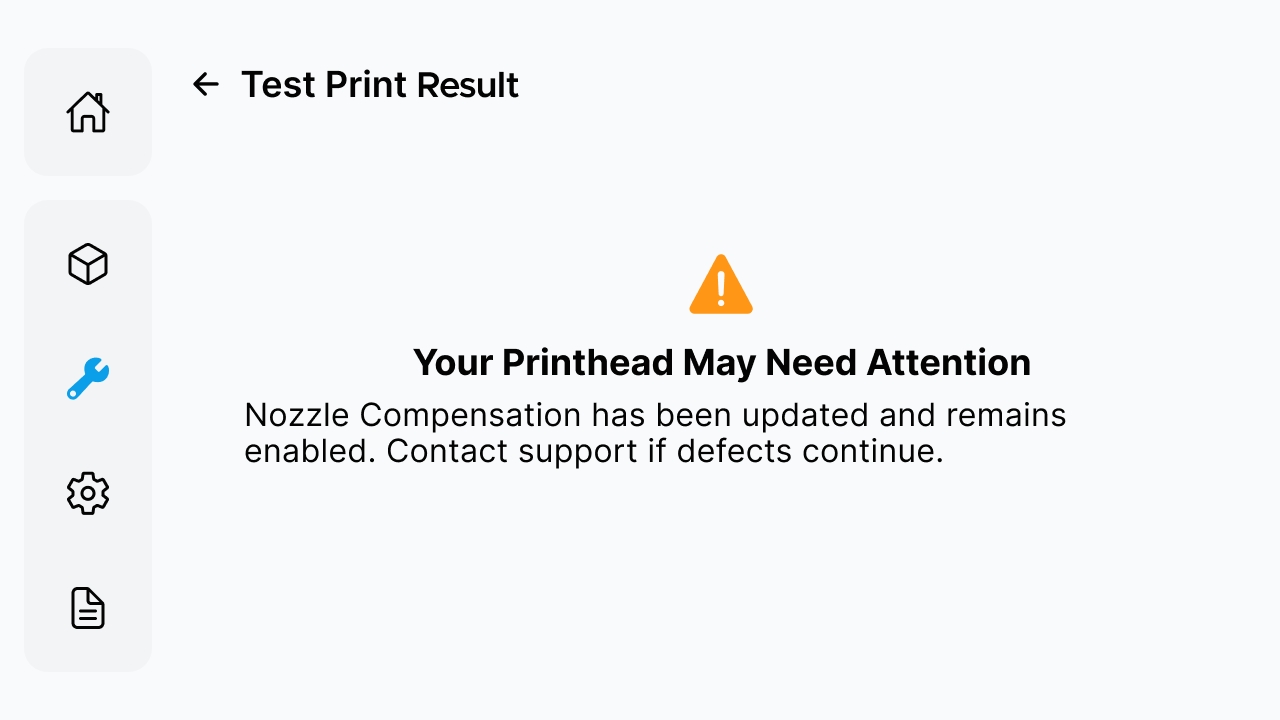
If Printhead Still Needs Attention is displayed, tap Enable Compensation as prompted by the page. Print speed may decrease after it is enabled.
¶ Step 8: Maintenance Failed
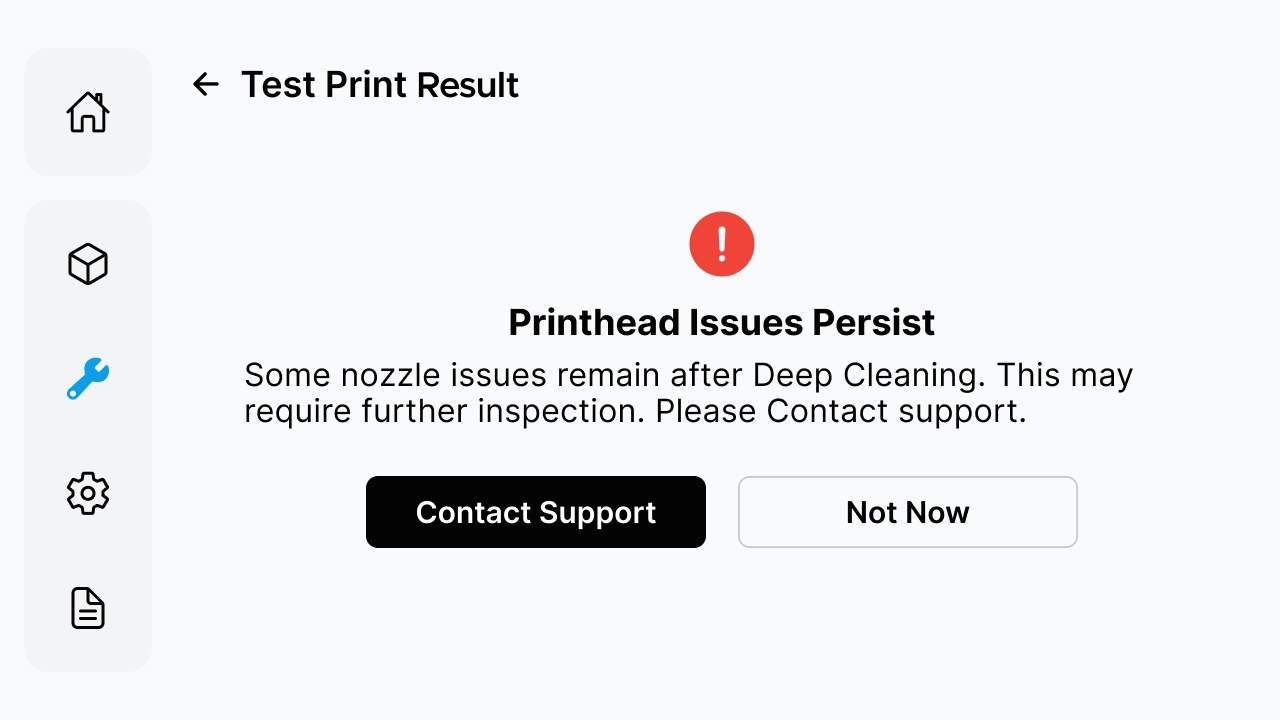
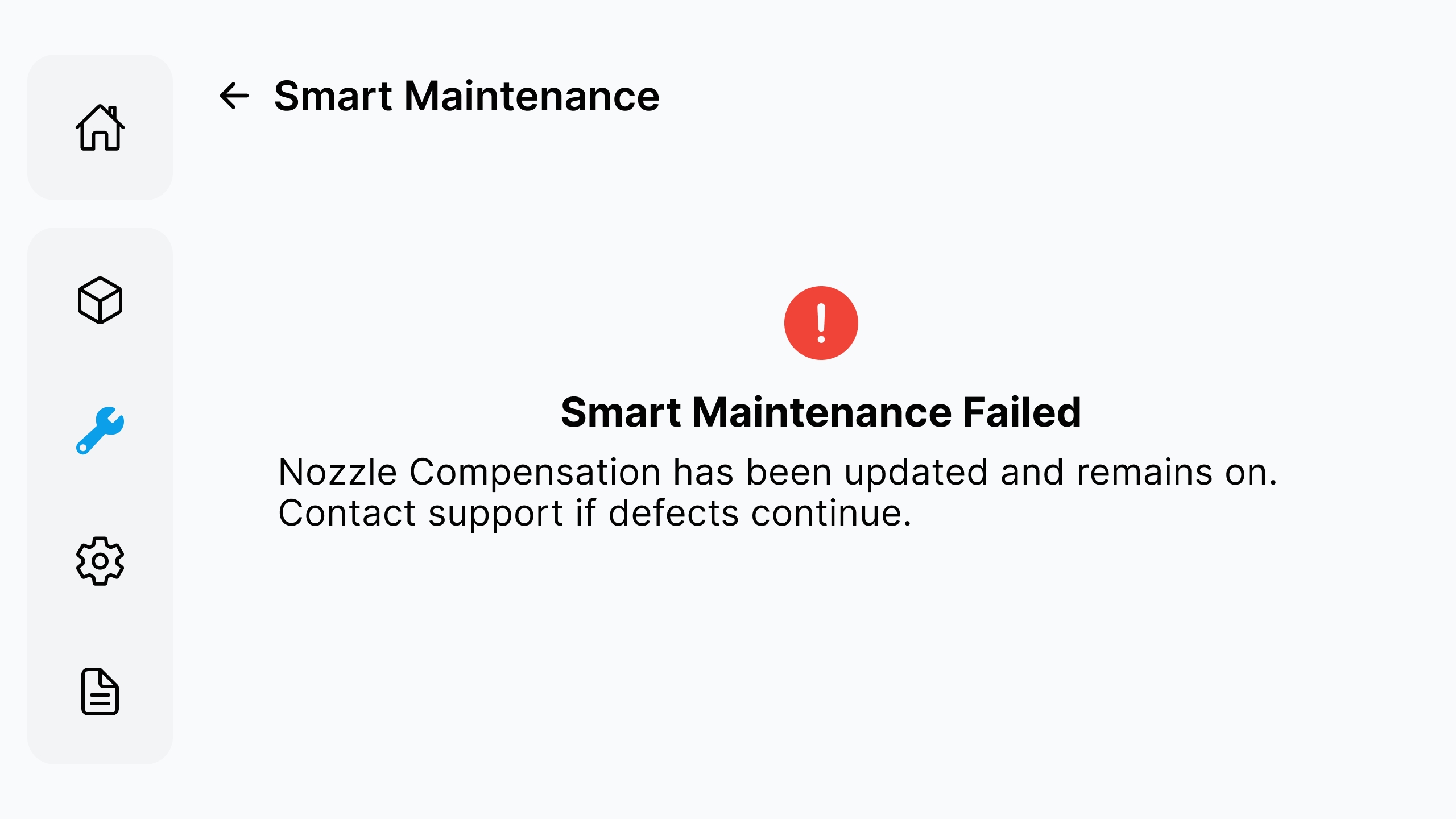
If Smart Maintenance Failed, Printhead Issues Persist, or Nozzle Compensation is already enabled and print defects continue, record the prompt text and contact Morpho Support.
¶ 3.1.2 Color Mixing Recovery
¶ Step 1: Smart Maintenance Detects Color Mixing
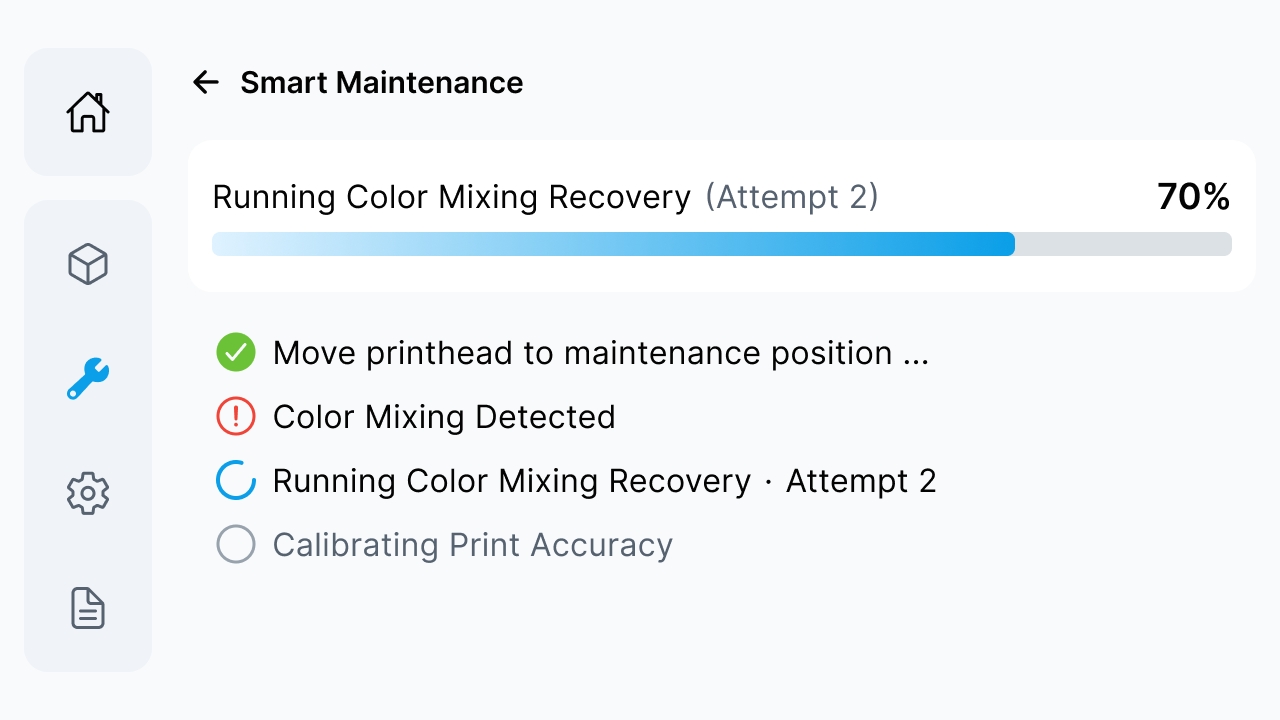
When Color Mixing Detected appears during Smart Maintenance, the printer first attempts automatic recovery. Keep the printer running and wait until the current attempt is complete. Do not return to the menu or restart the recovery process.
¶ Step 2: Start Recovery Manually
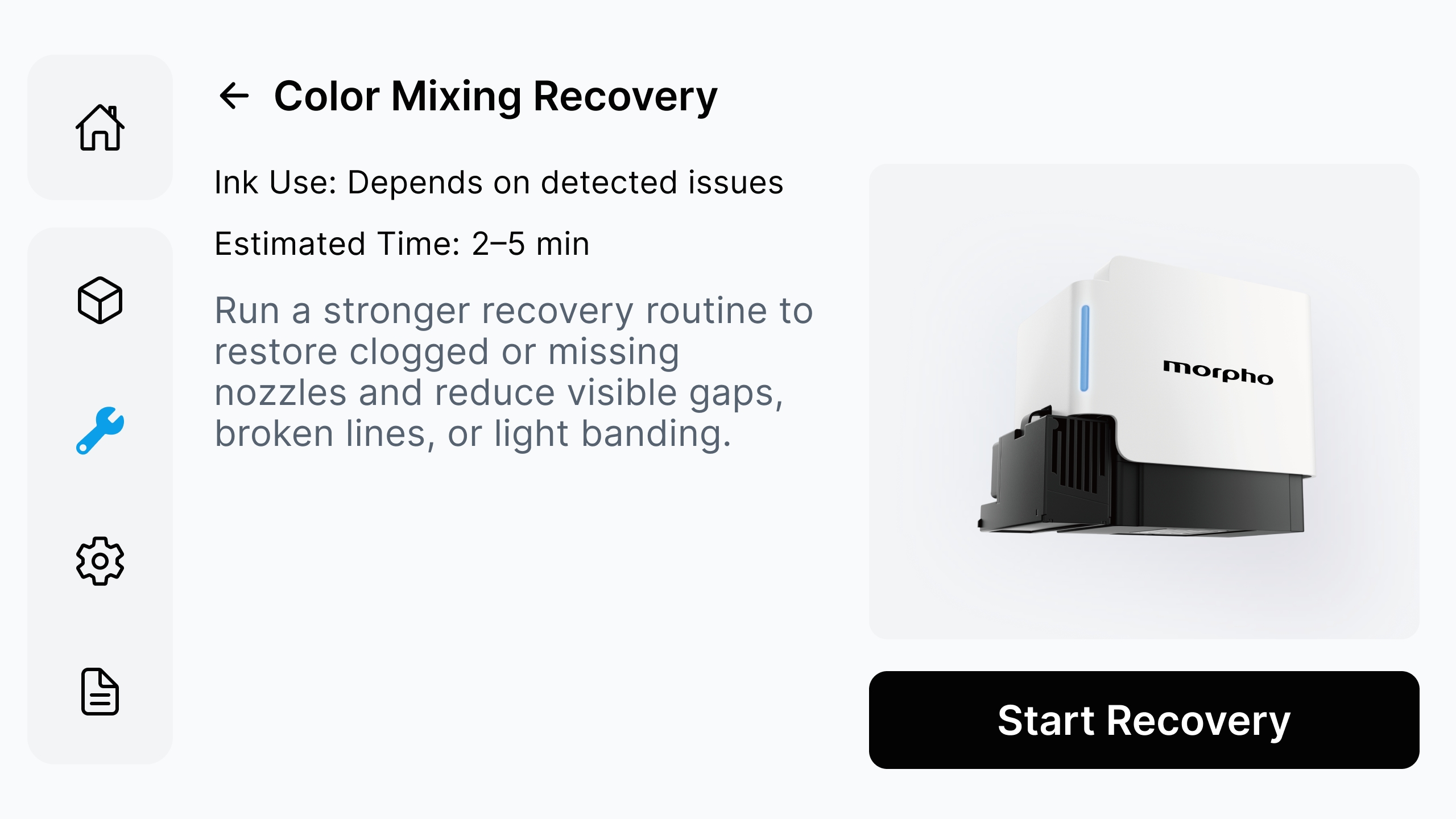
When the system fails to automatically run Color Mixing Recovery, enter Color Mixing Recovery, confirm the estimated time and tap Start Recovery.
¶ Step 3: Wait for Recovery to Complete
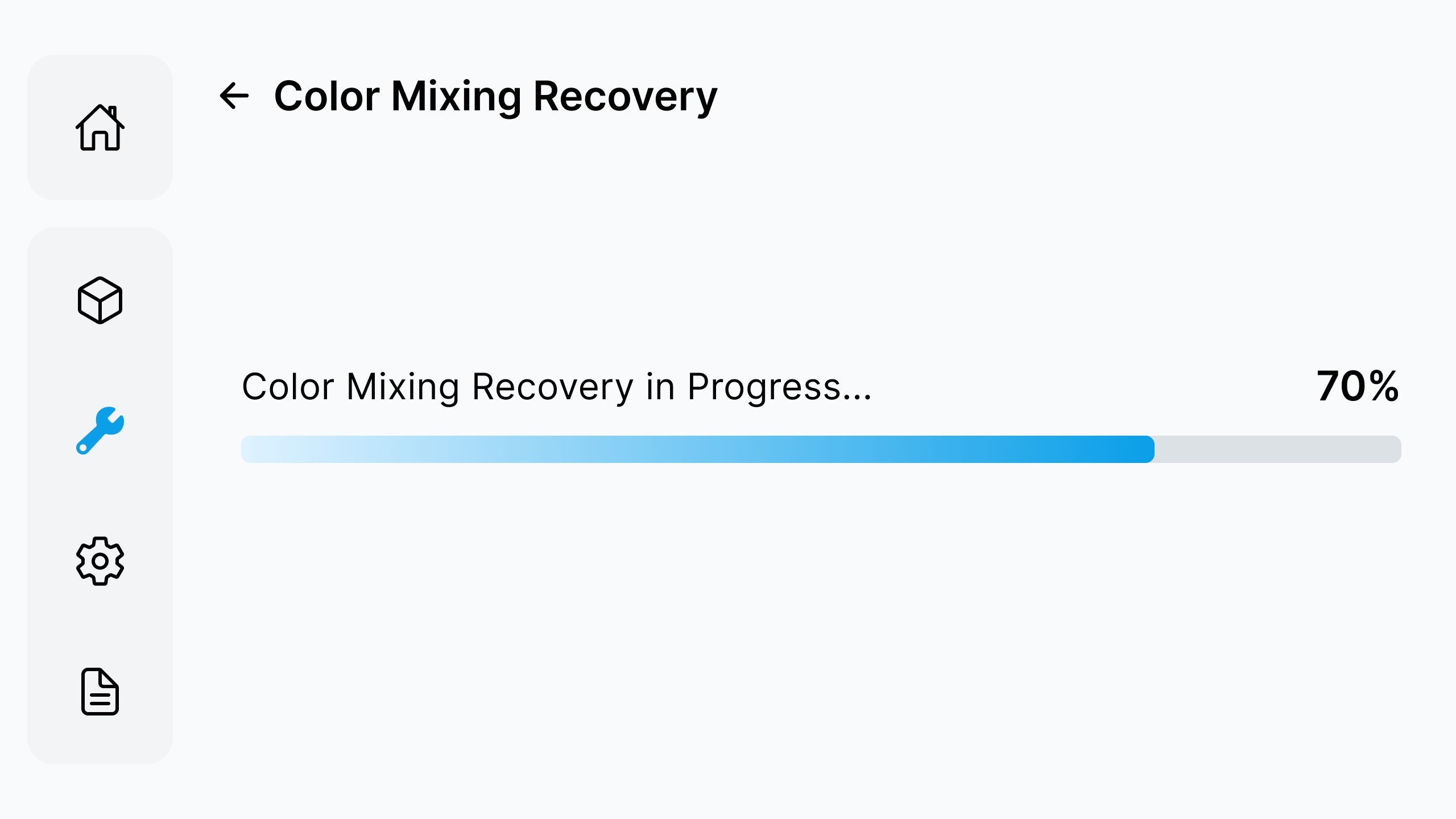
When Color Mixing Recovery in Progress is displayed, do not cancel, power off, disconnect power, open the lid, or move the paper, printbed, or jig.
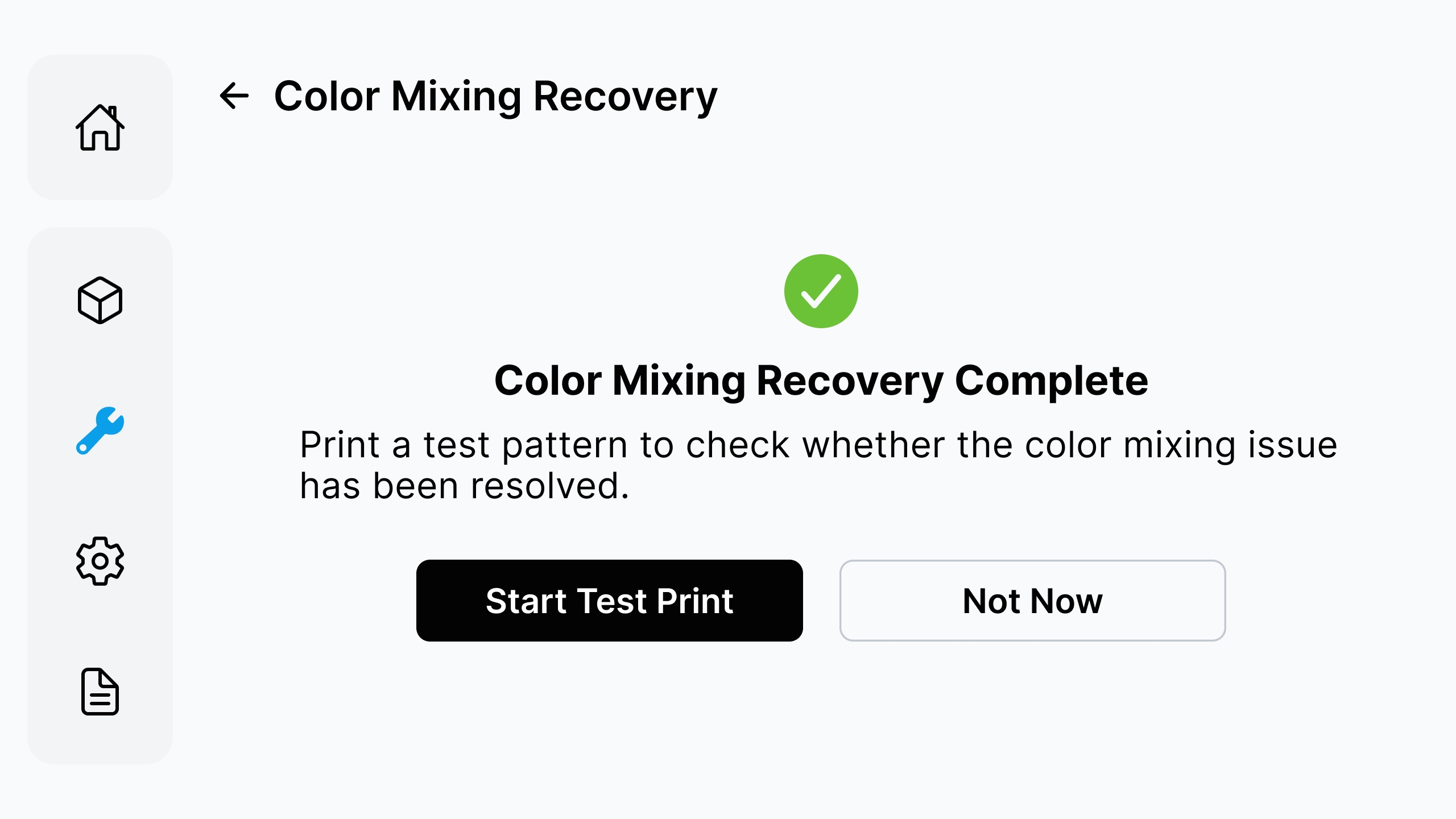
¶ Step 4: Run a Test Print and Check the Result
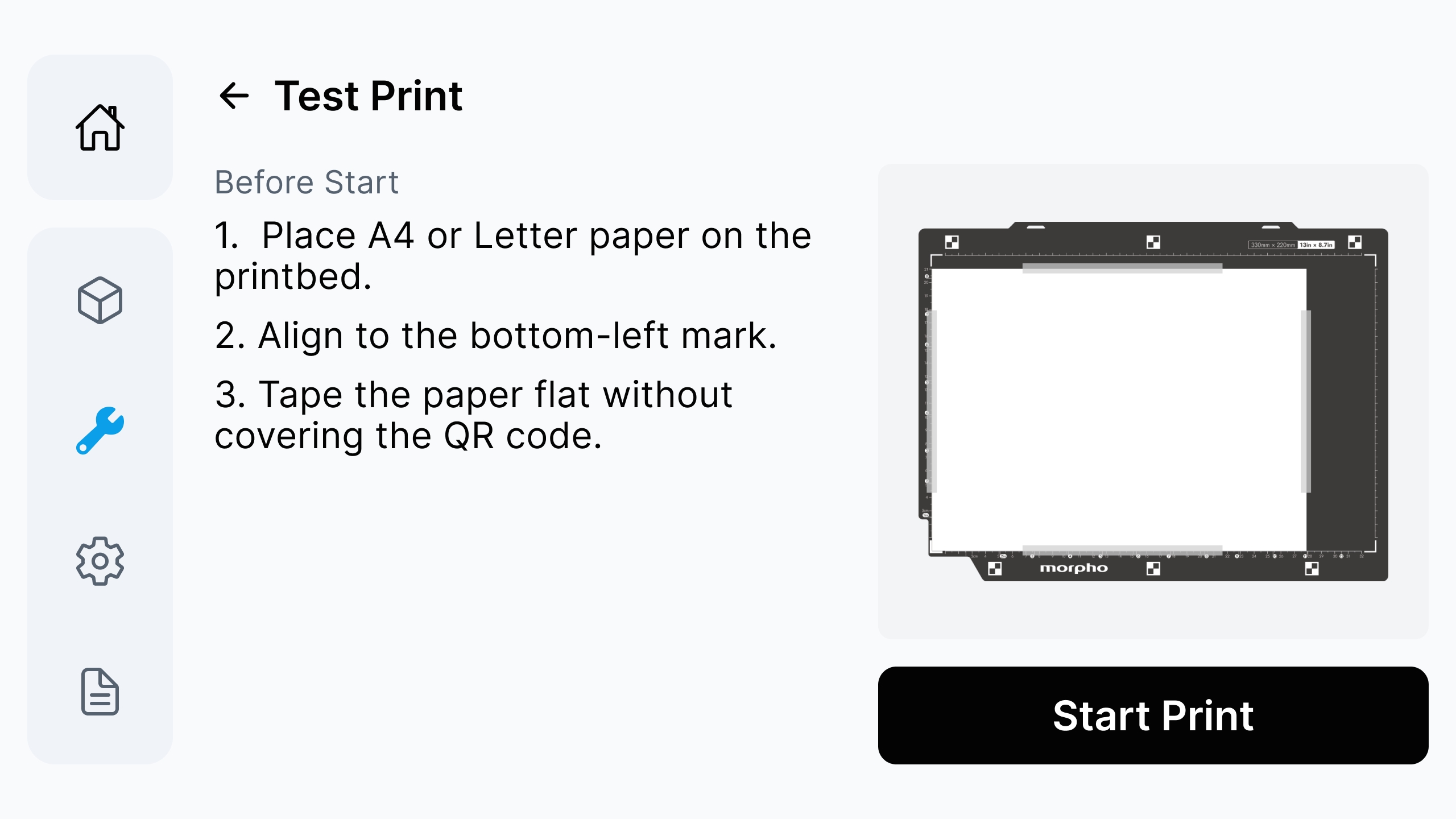
After recovery is complete, prepare and secure the paper as required by the page, and then tap Start Print.
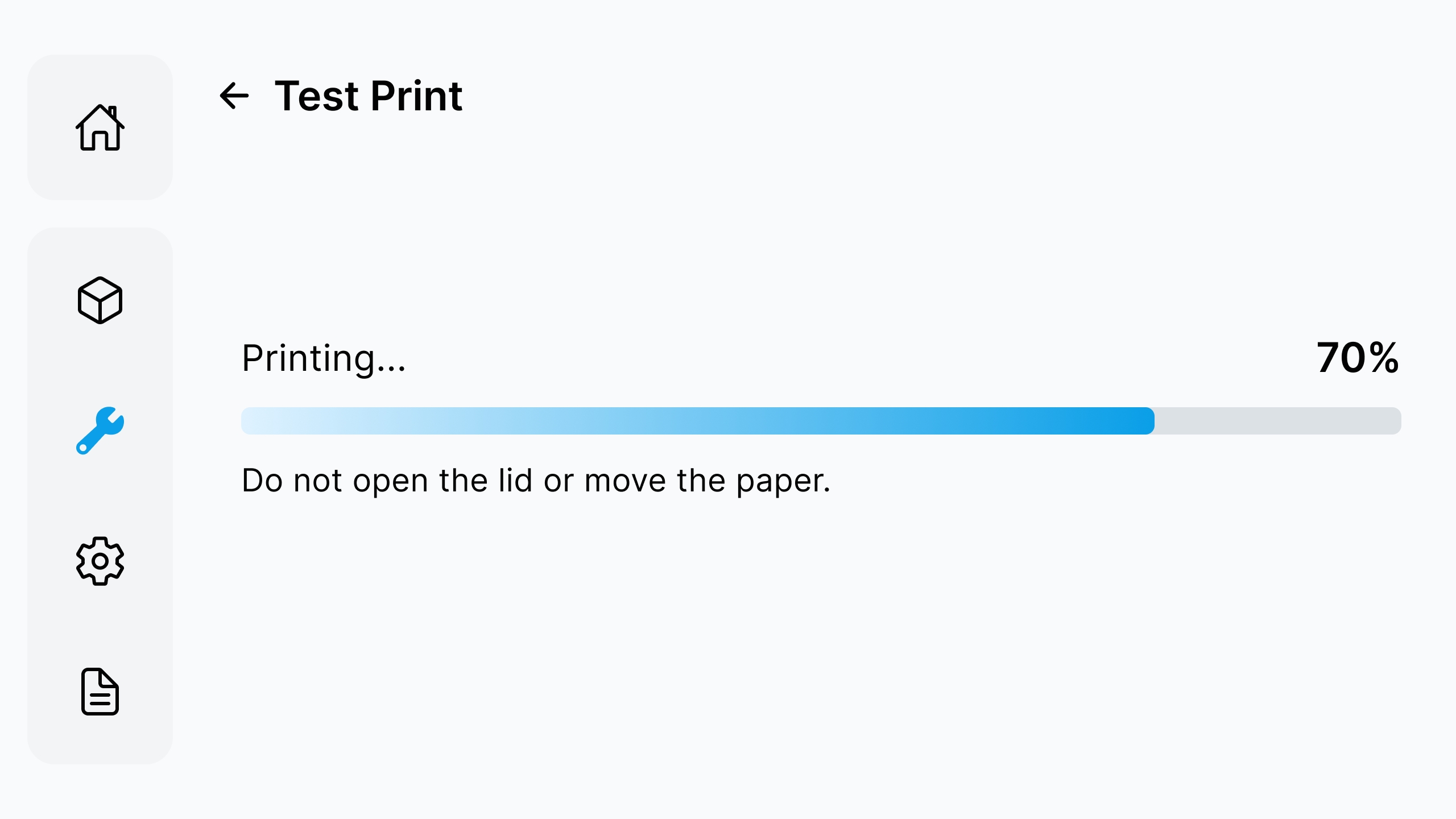
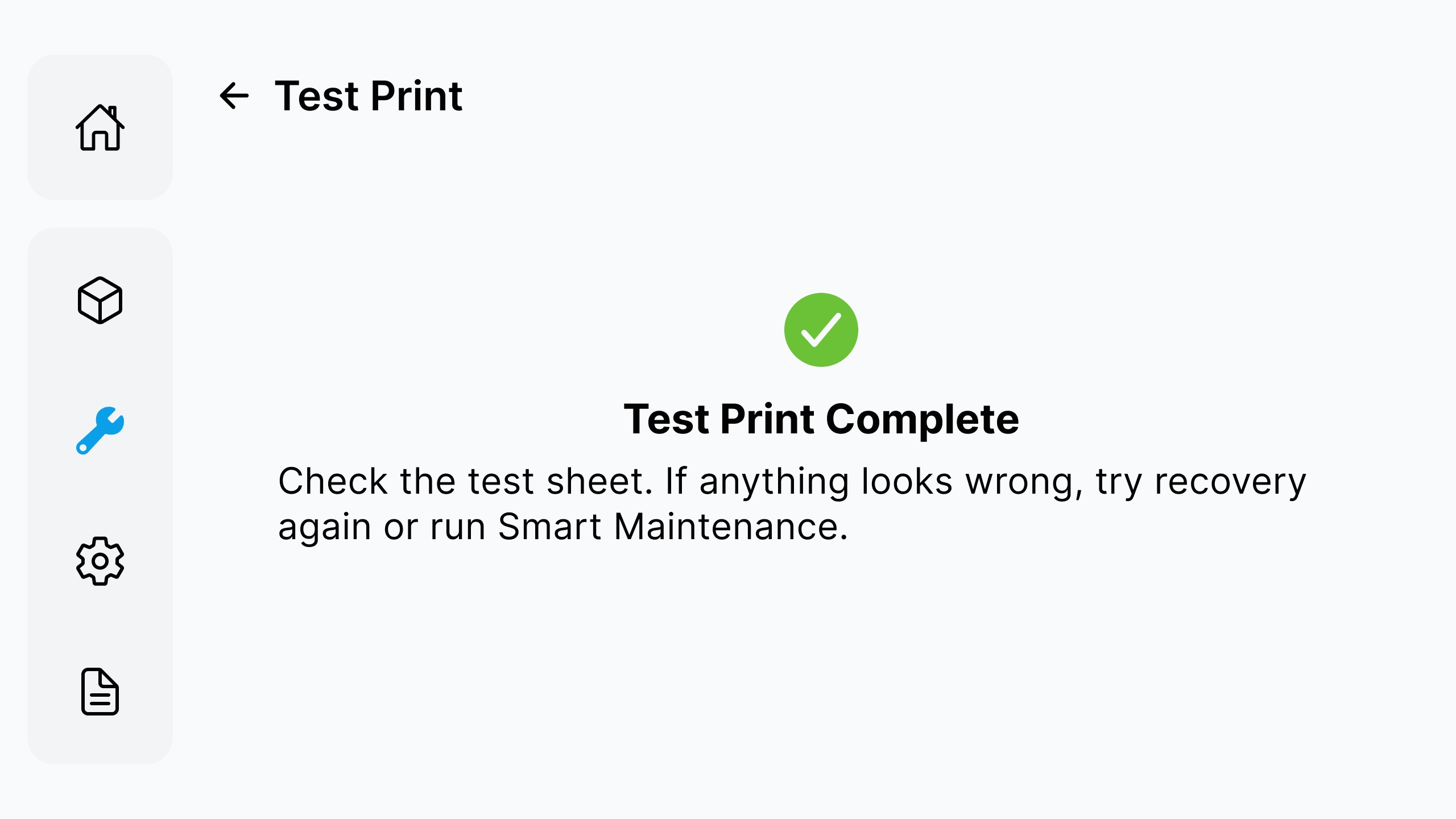
During printing, keep the cover closed and do not move the paper. When Test Print Complete appears, check whether color mixing, missing lines, or banding has disappeared.
¶ Step 5: Handle Failure or Low Ink
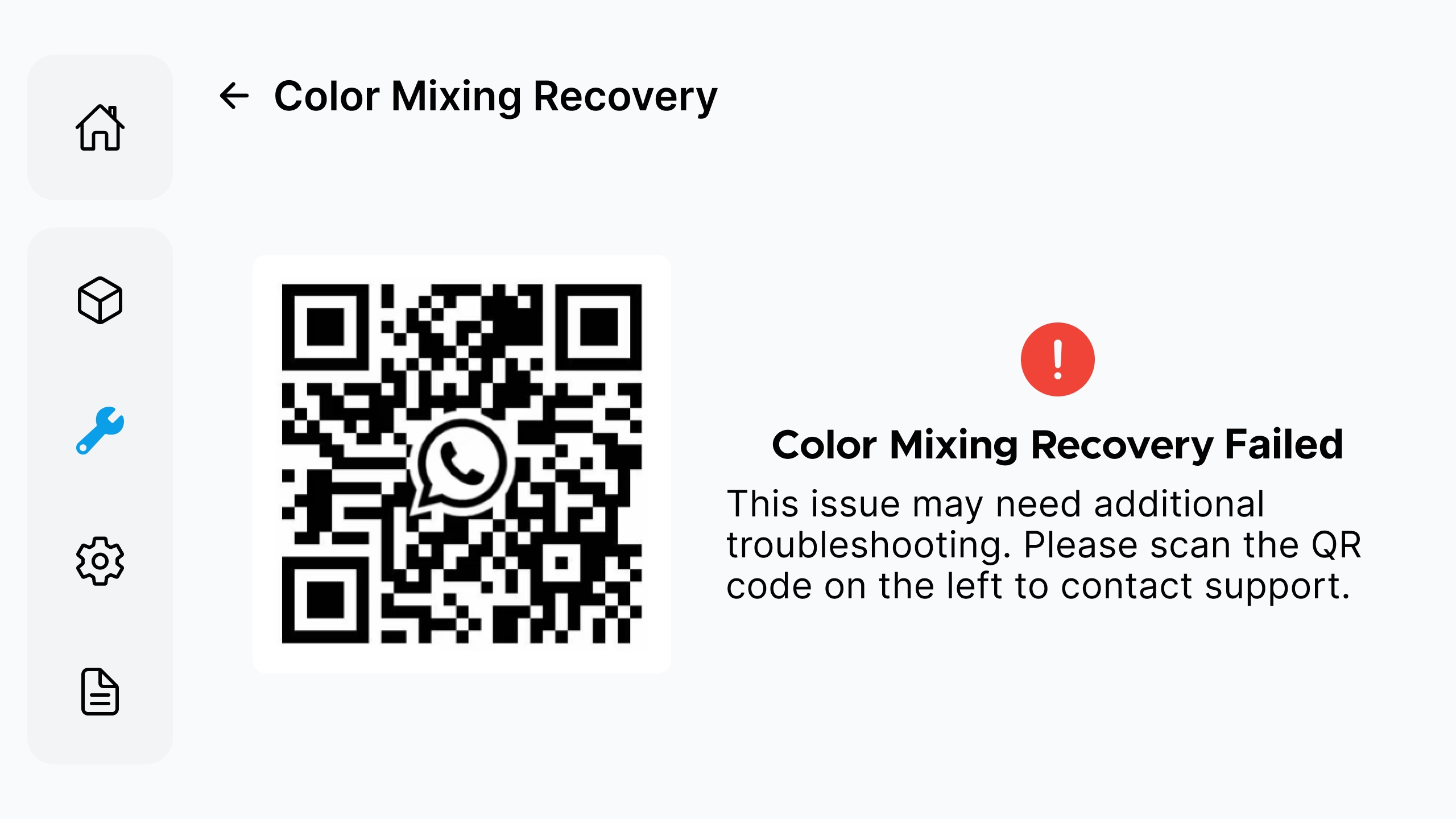
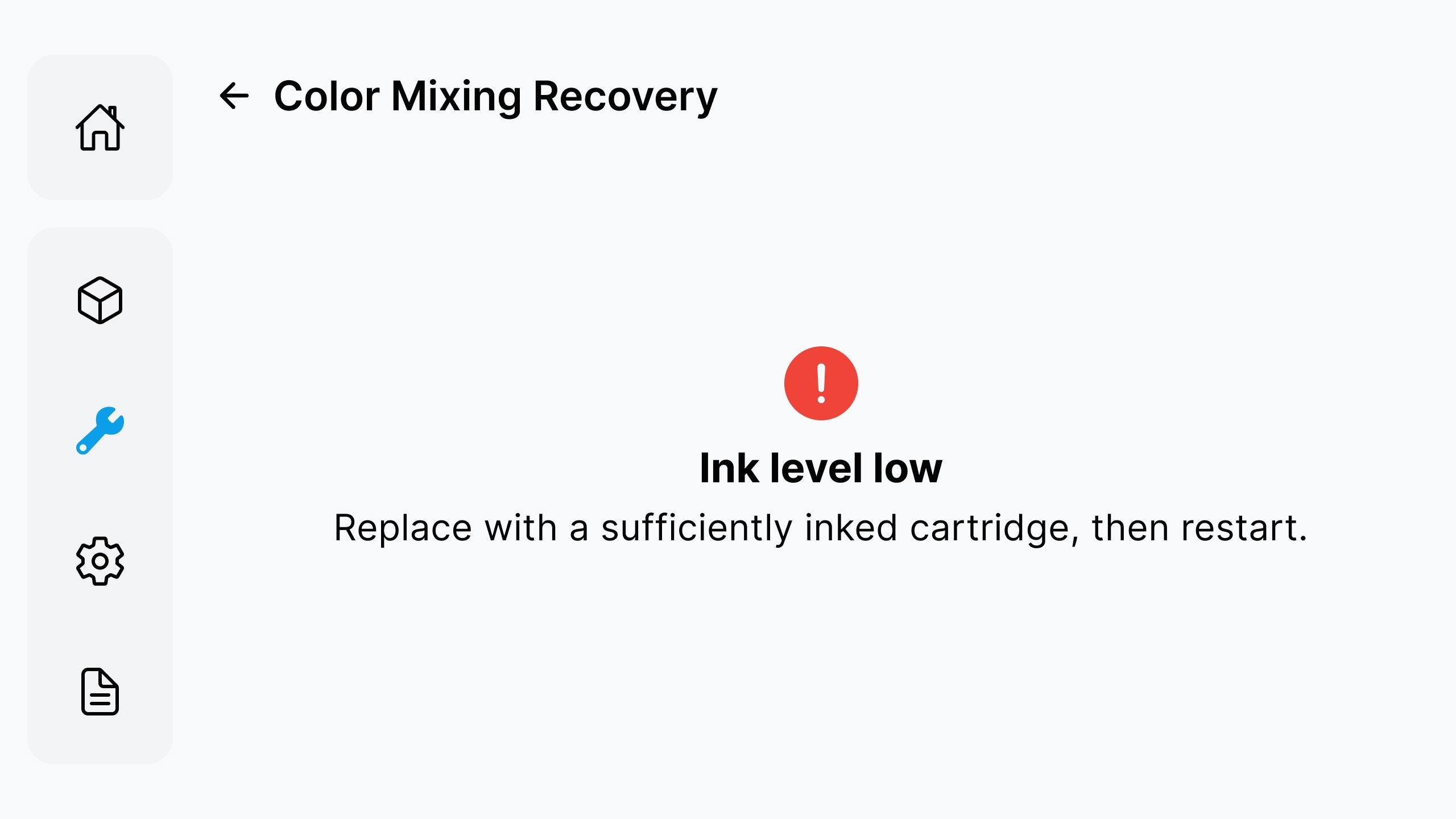
If Color Mixing Recovery Failed appears, scan the QR code on the page to contact Morpho Support. If Ink level low appears, replace the cartridge with sufficient ink, and then restart the recovery as instructed by the page.
¶ 3.1.3 Clogged Nozzle Recovery
When the test pattern shows clogged nozzles, obvious missing areas, or continuous broken lines, enter Clogged Nozzle Recovery.
¶ Step 1: Start Clogged Nozzle Recovery
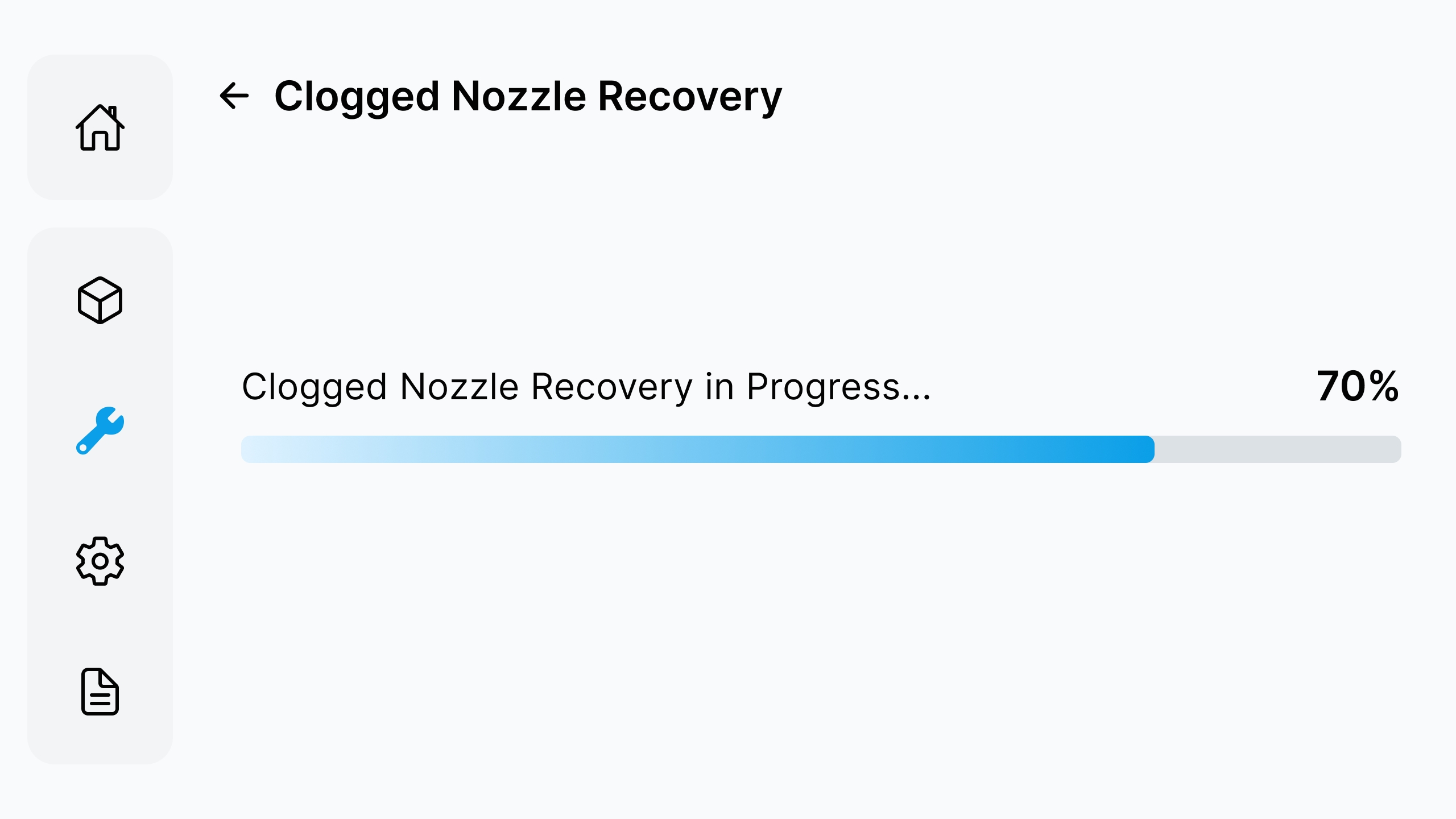
Enter Clogged Nozzle Recovery from Printhead Maintenance. During recovery, do not cancel, power off, disconnect power, open the lid, or move the paper, printbed, or jig. Wait until the screen shows printhead restored.
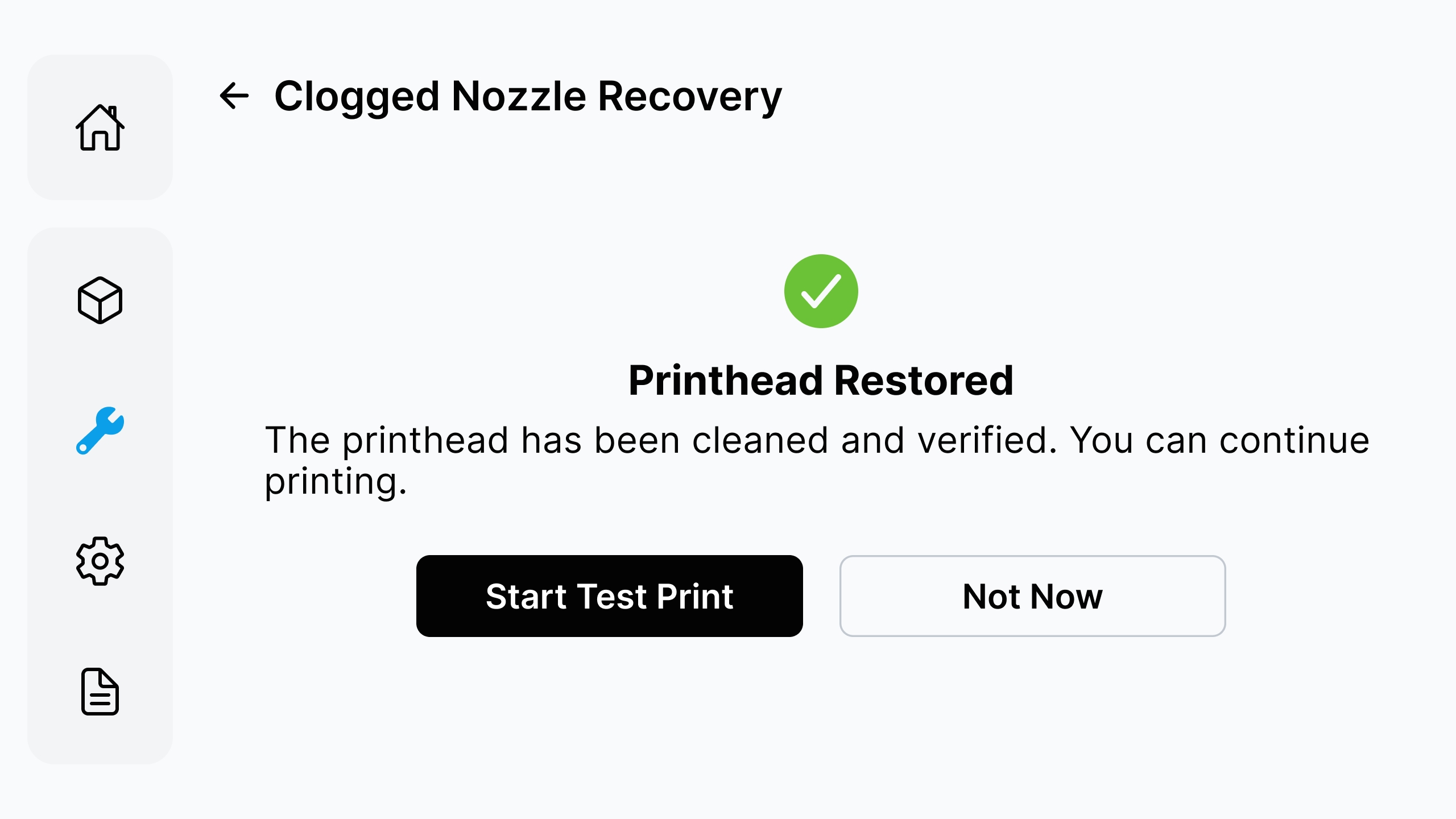
¶ Step 2: Start the Test Print
When Printhead Restored appears, tap Start Test Print. Prepare A4 or Letter paper as instructed by the page, align it with the positioning mark, and keep the QR code visible.
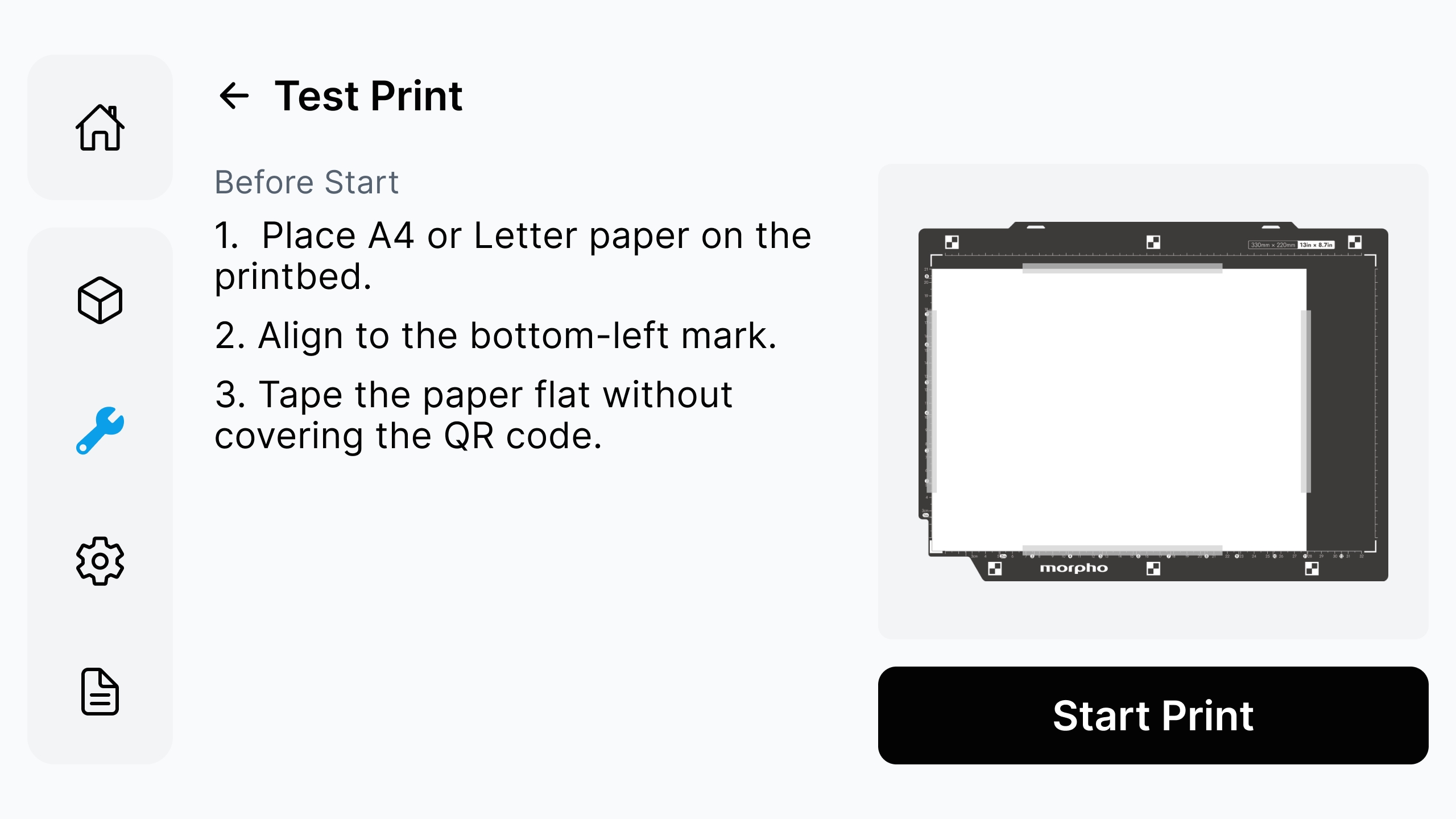
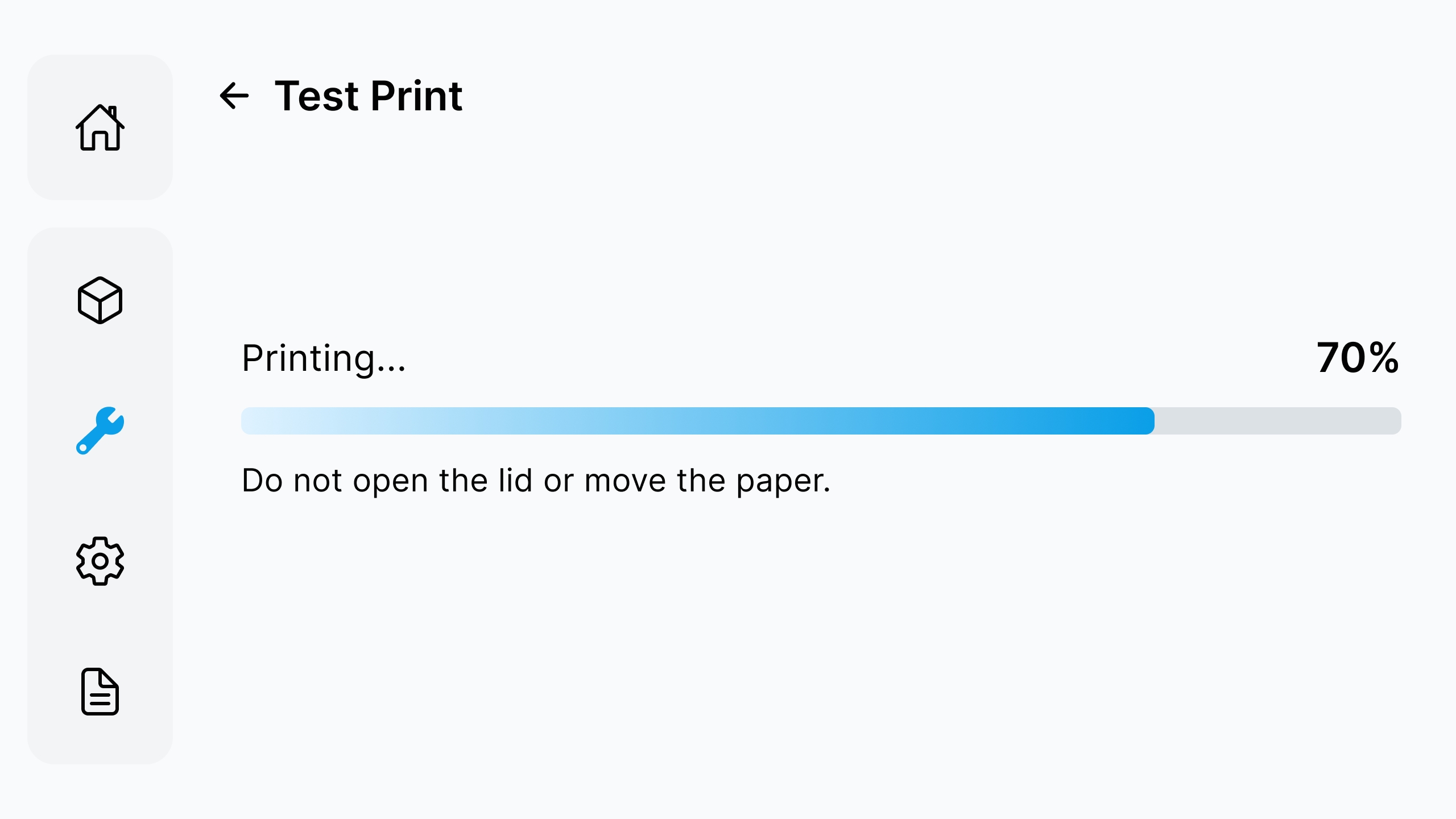
¶ Step 3: Print and Check the Test Pattern
Tap Start Print and wait until the test print is complete. Keep the lid closed and do not move the paper during printing. Check the test pattern for missing lines, clogged nozzles, color mixing, or banding.
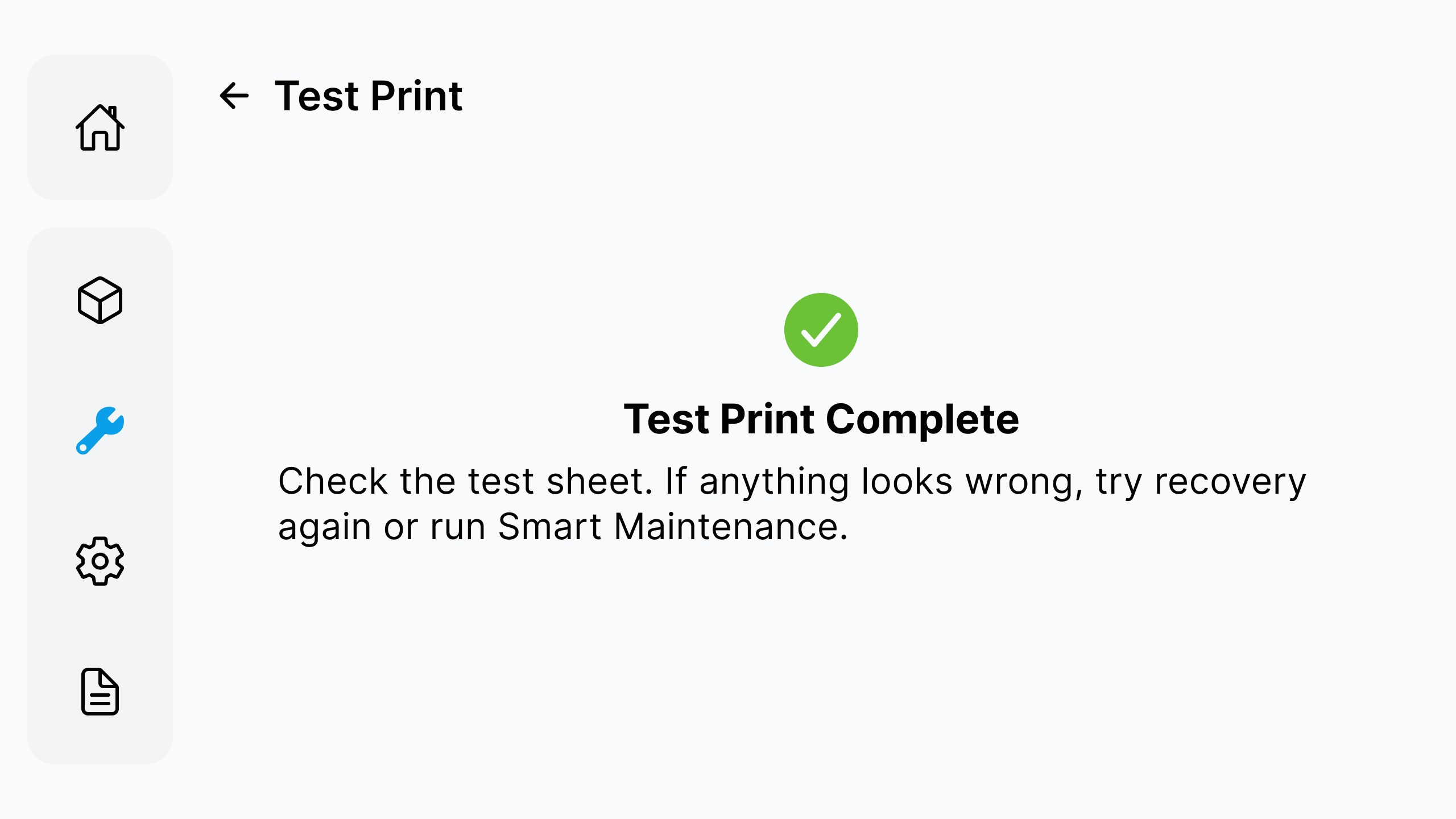
¶ Step 4: Continue or Contact Morpho Support
If the test pattern looks normal, continue using the printer. If clogged nozzles or missing lines remain, do not repeat recovery continuously. Record the test result and contact Morpho Support with the current page, error message, and printer information.
¶ 3.1.4 Printhead Status Test Print
Printhead Status Test Print is used to check nozzle gaps, missing colors, color mixing, broken lines, and banding after maintenance or recovery.
¶ Step 1: Prepare the Test Paper
Prepare A4 or Letter paper. Place it on the printbed, align it with the lower-left positioning mark, and secure it flat. Do not cover the QR code.
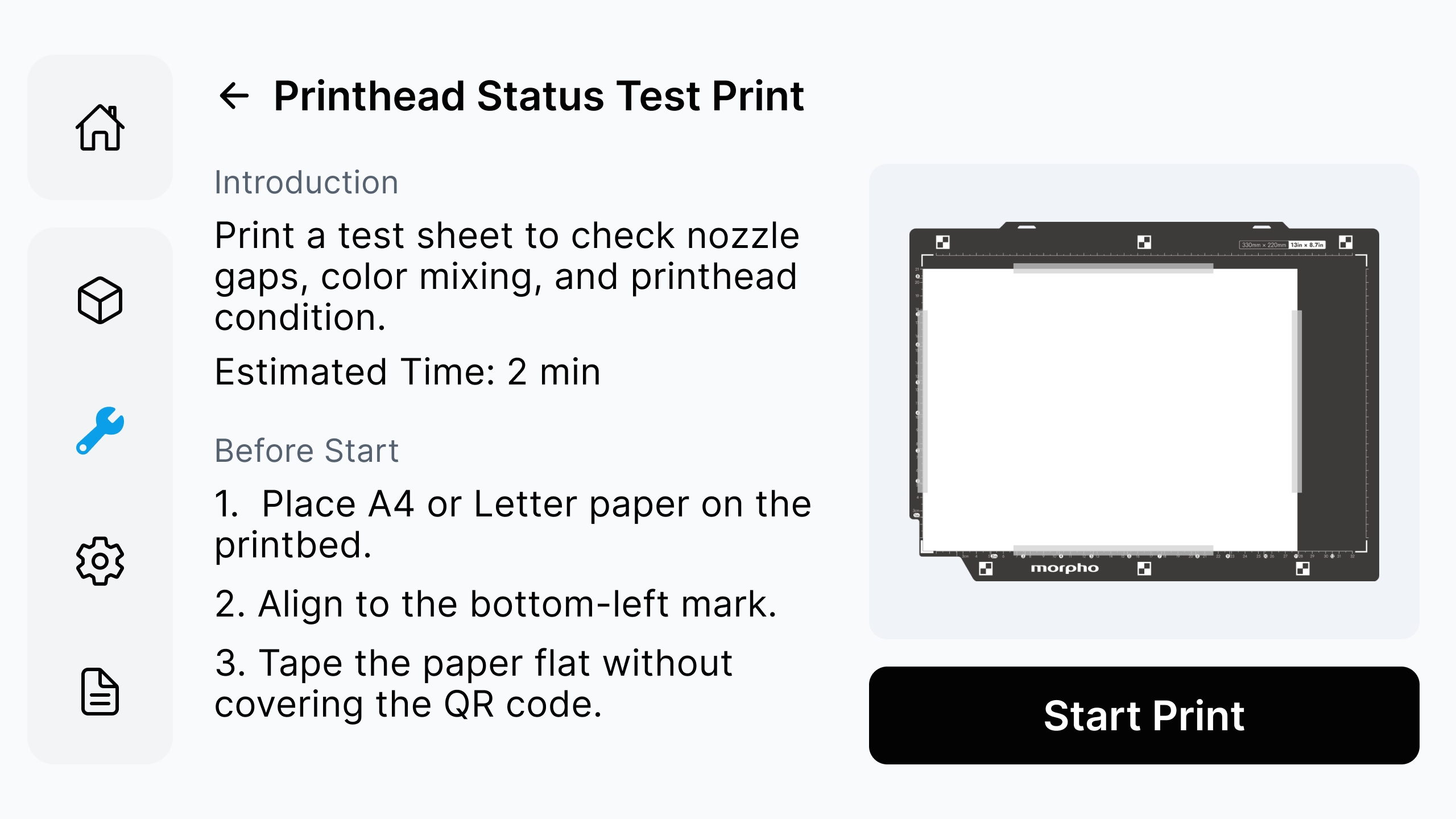
¶ Step 2: Start the Test Print
Tap Start Print. During printing, keep the lid closed and do not move the paper, printbed, or jig.
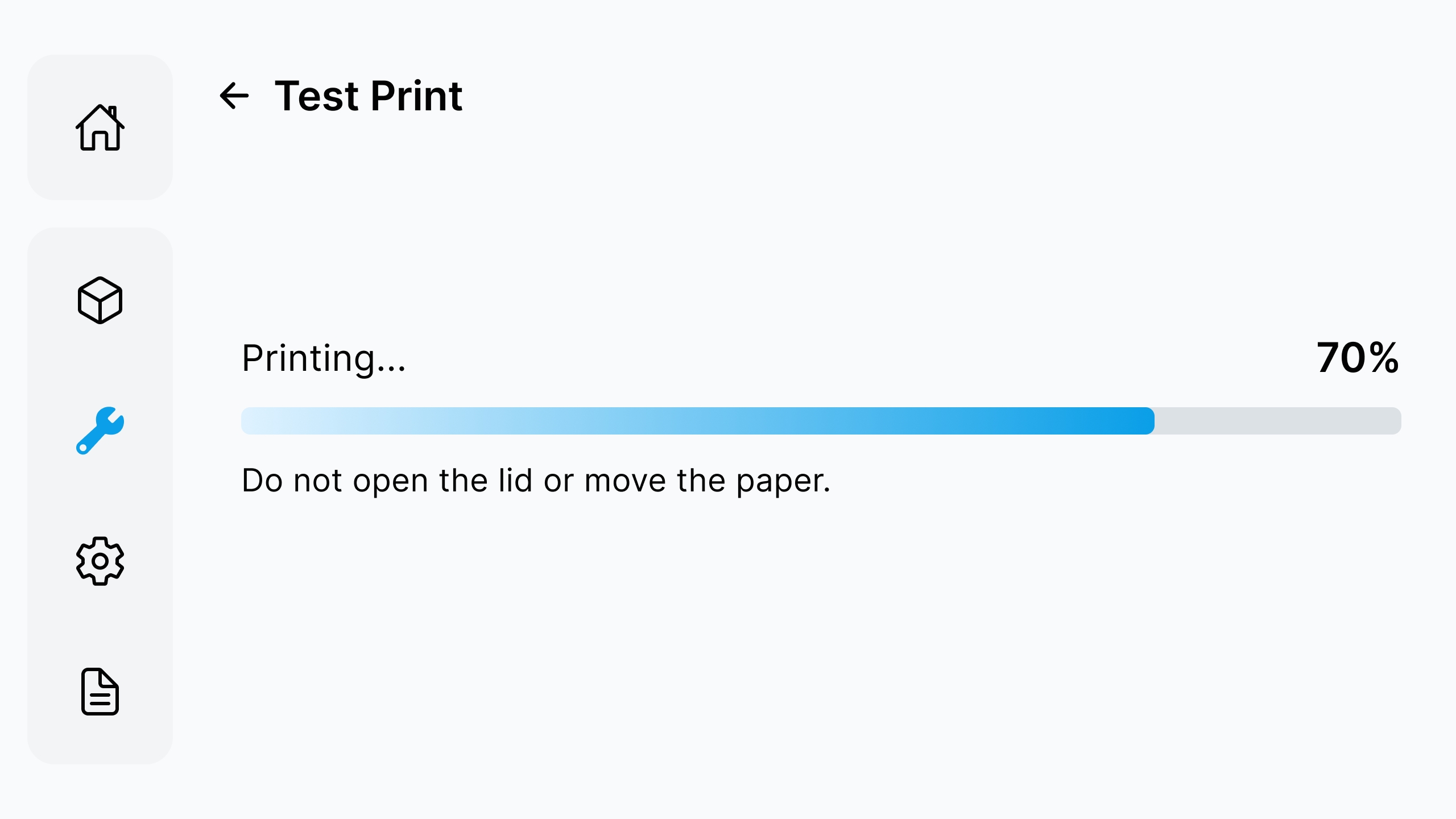
¶ Step 3: Check the Test Pattern
When Test Print Complete appears, check the test pattern. Look for broken lines, missing colors, color mixing, clogged nozzles, and visible banding.
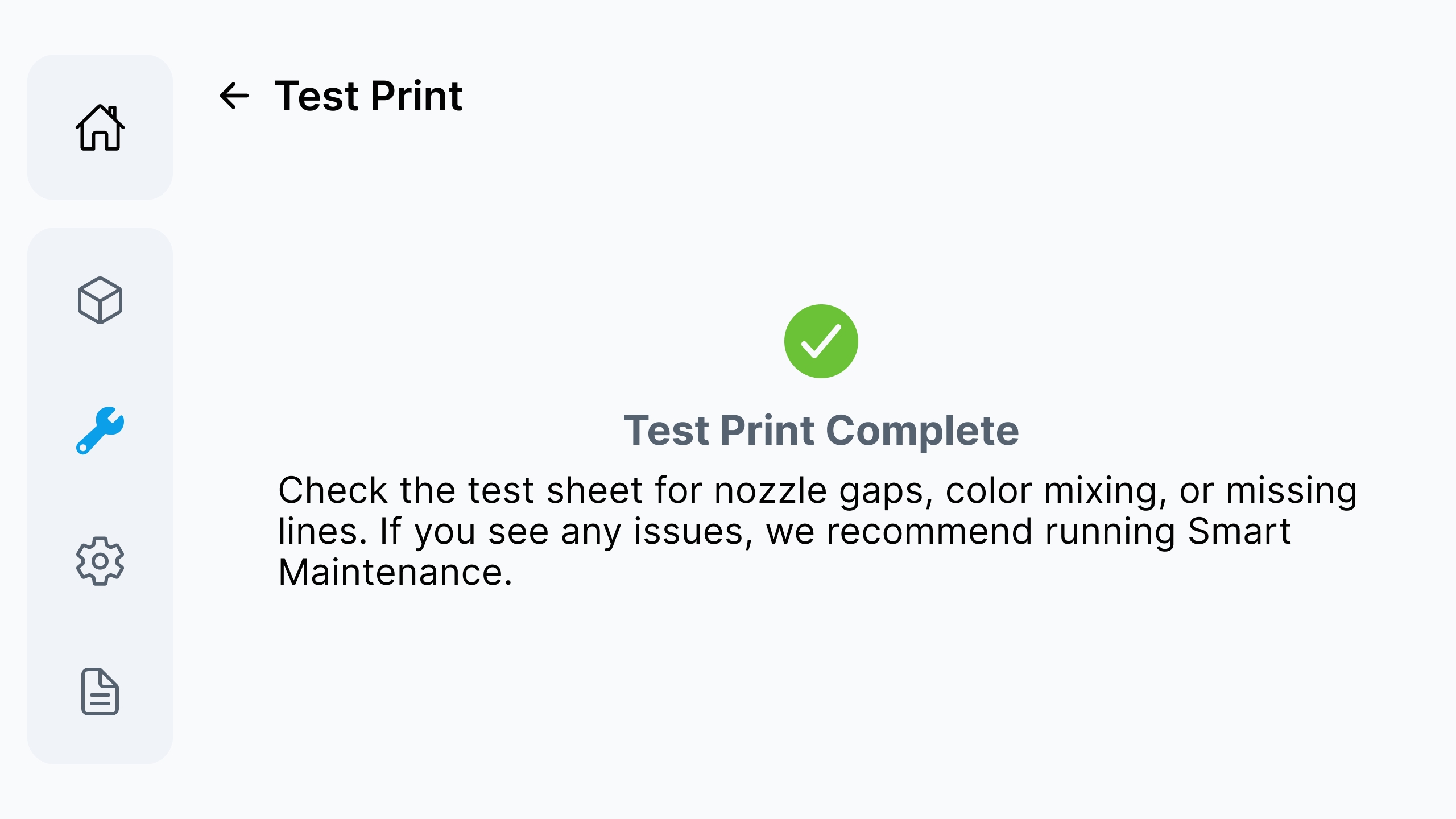
¶ 3.1.5 Nozzle Compensation
If a small number of nozzles cannot be recovered, you can enable compensation as prompted on the page. Compensation may reduce printing speed. After enabling it, reprint the test pattern to confirm the result. It cannot replace the cleaning or recovery process.
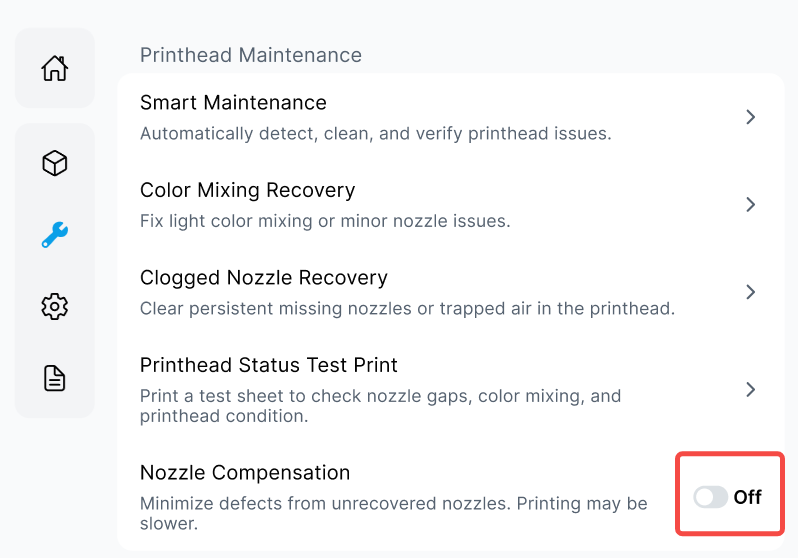
¶ 3.2 Calibration
¶ 3.2.1 Position Calibration
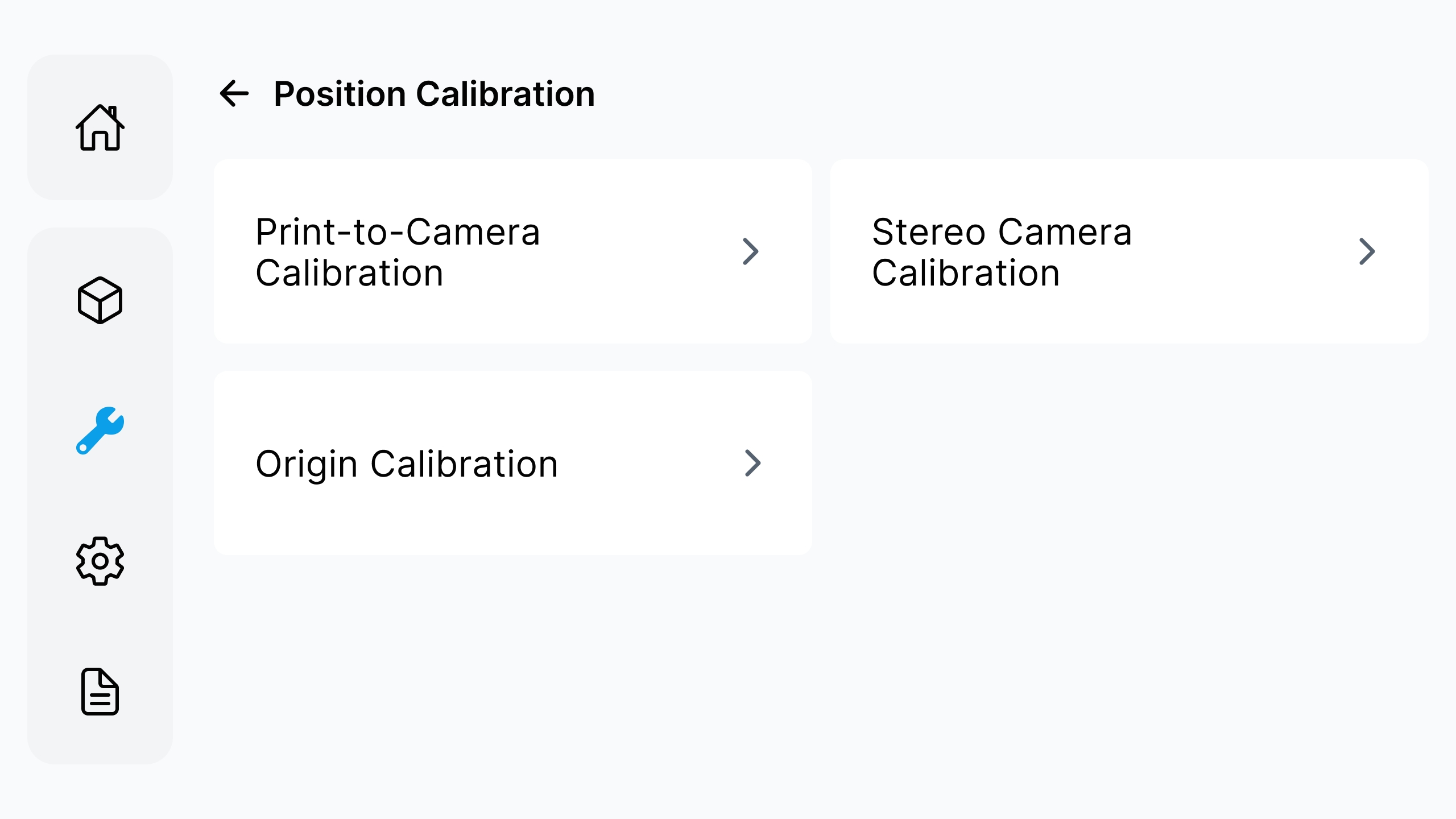
Use calibration functions when the printer prompts for calibration, when camera alignment is abnormal, or when the printed position does not match the expected placement. Select the calibration function according to the screen prompt.
- Use Print-to-Camera Calibration when the print position and camera-recognized position need to be matched again.
- Use Stereo Camera Calibration when the camera alignment is abnormal or when the printer asks you to run stereo camera calibration first.
- Use Origin Calibration when the origin marks cannot be recognized or the origin position needs recalibration.
¶ 3.2.1.1 Print-to-Camera Calibration
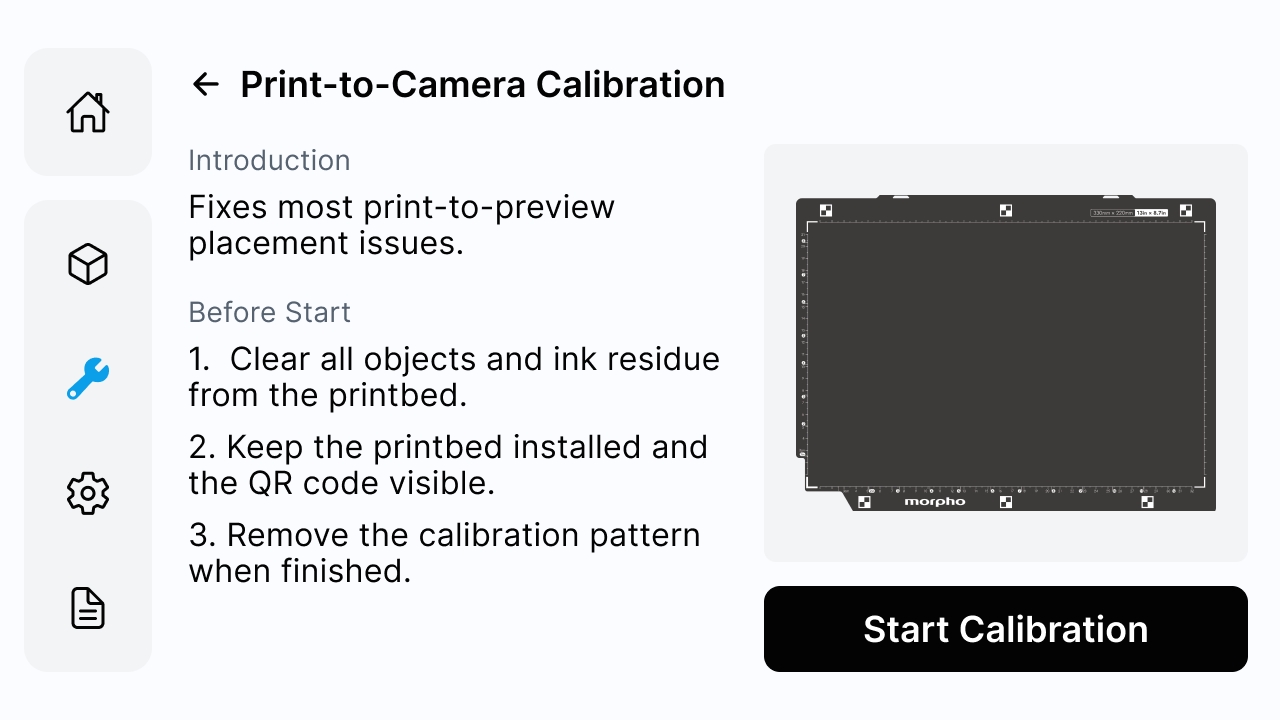
Print-to-Camera Calibration maps the print position to the camera-recognized position.
¶ Step 1: Prepare the Calibration Paper
Place A4 or Letter paper as required by the page. Make sure the positioning mark and QR code are clearly visible. Keep the paper flat and close the lid.
¶ Step 2: Run Calibration
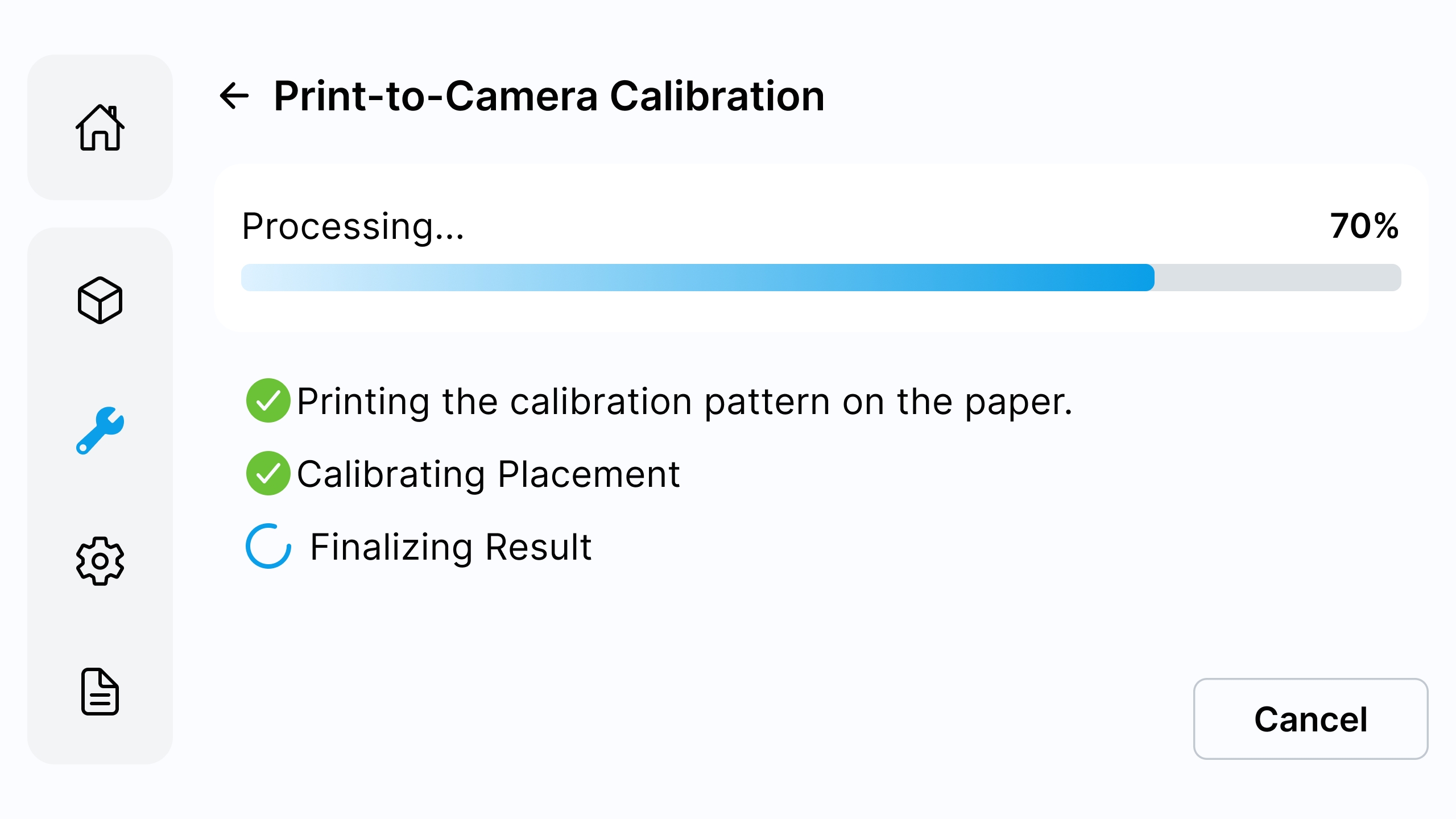
Tap Start Calibration and wait for the process to complete. Do not open the lid or move the paper during calibration.
¶ Step 3: Confirm Completion
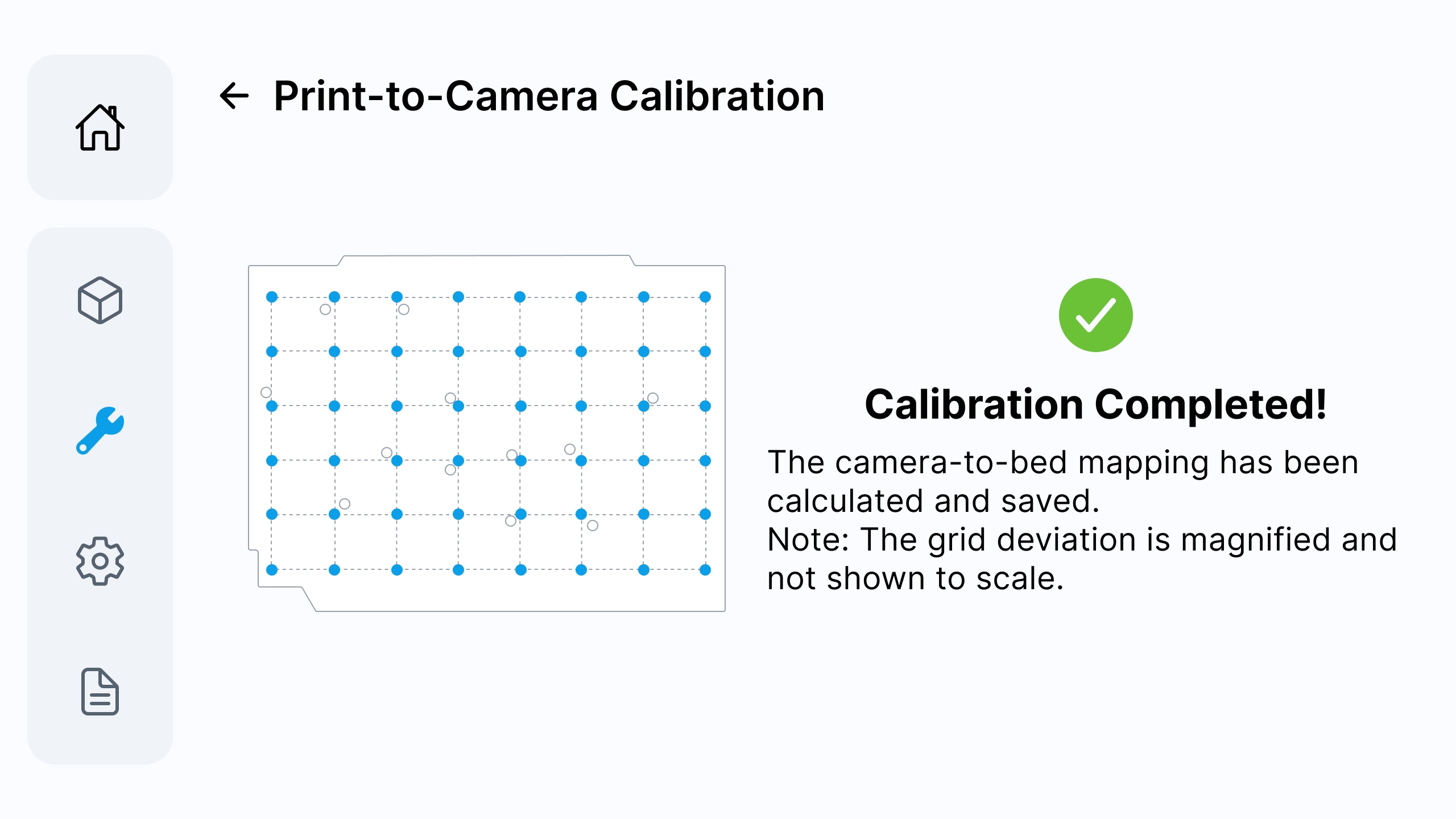
When Calibration Completed! appears, the camera-to-bed mapping has been calculated and saved.
¶ 3.2.1.2 Stereo Camera Calibration
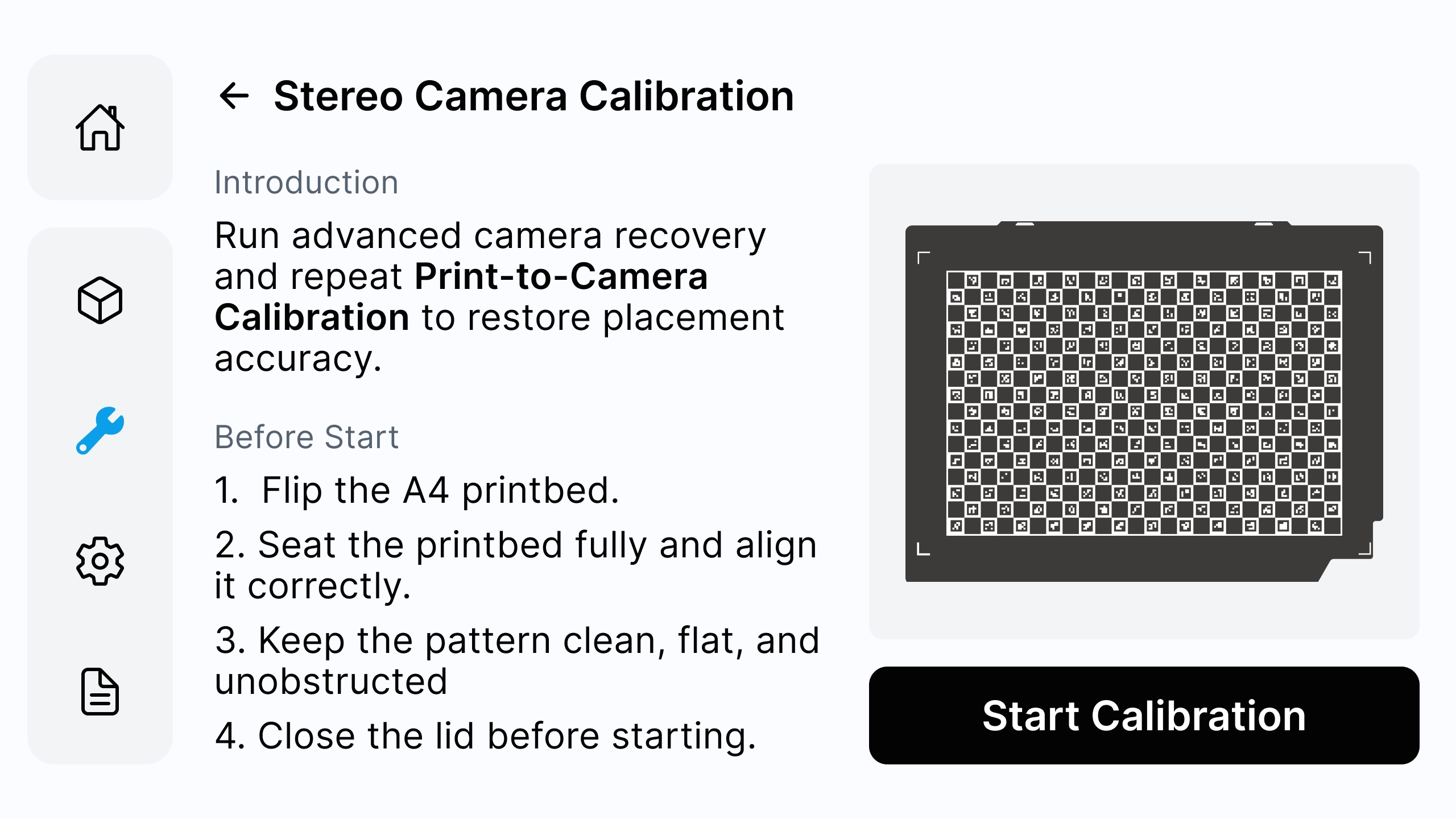
Stereo Camera Calibration is used when the camera alignment is abnormal or when the printer requires stereo camera calibration before Print-to-Camera Calibration.
¶ Step 1: Start Calibration
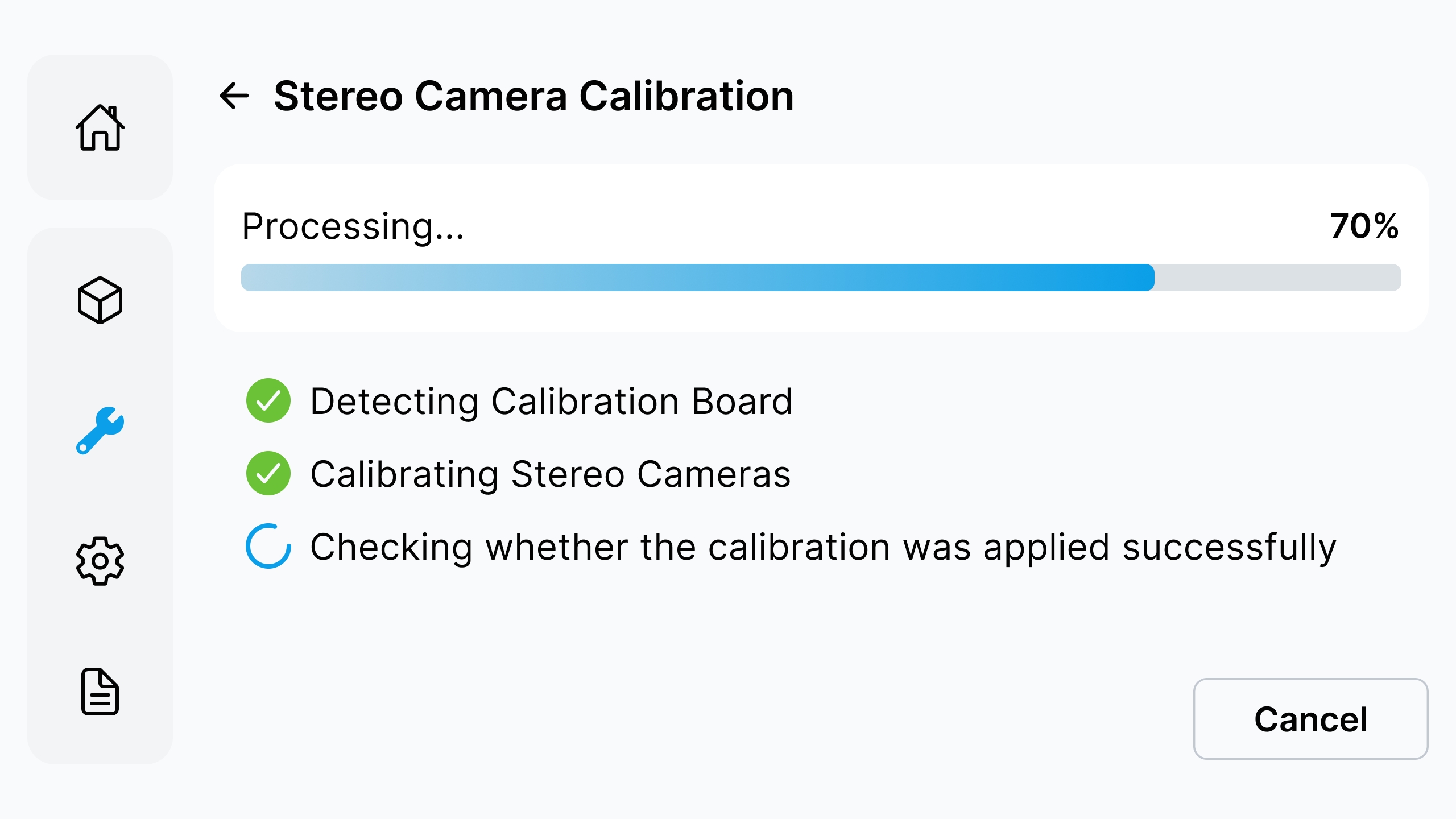
Flip the A4 printbed so that the calibration pattern faces upward. Insert the printbed fully and align it correctly. Keep the pattern clean, flat, and unobstructed. Close the cover and tap Start Calibration. The printer will detect the calibration board and calibrate the stereo cameras.
¶ Step 2: Continue to the Next Step
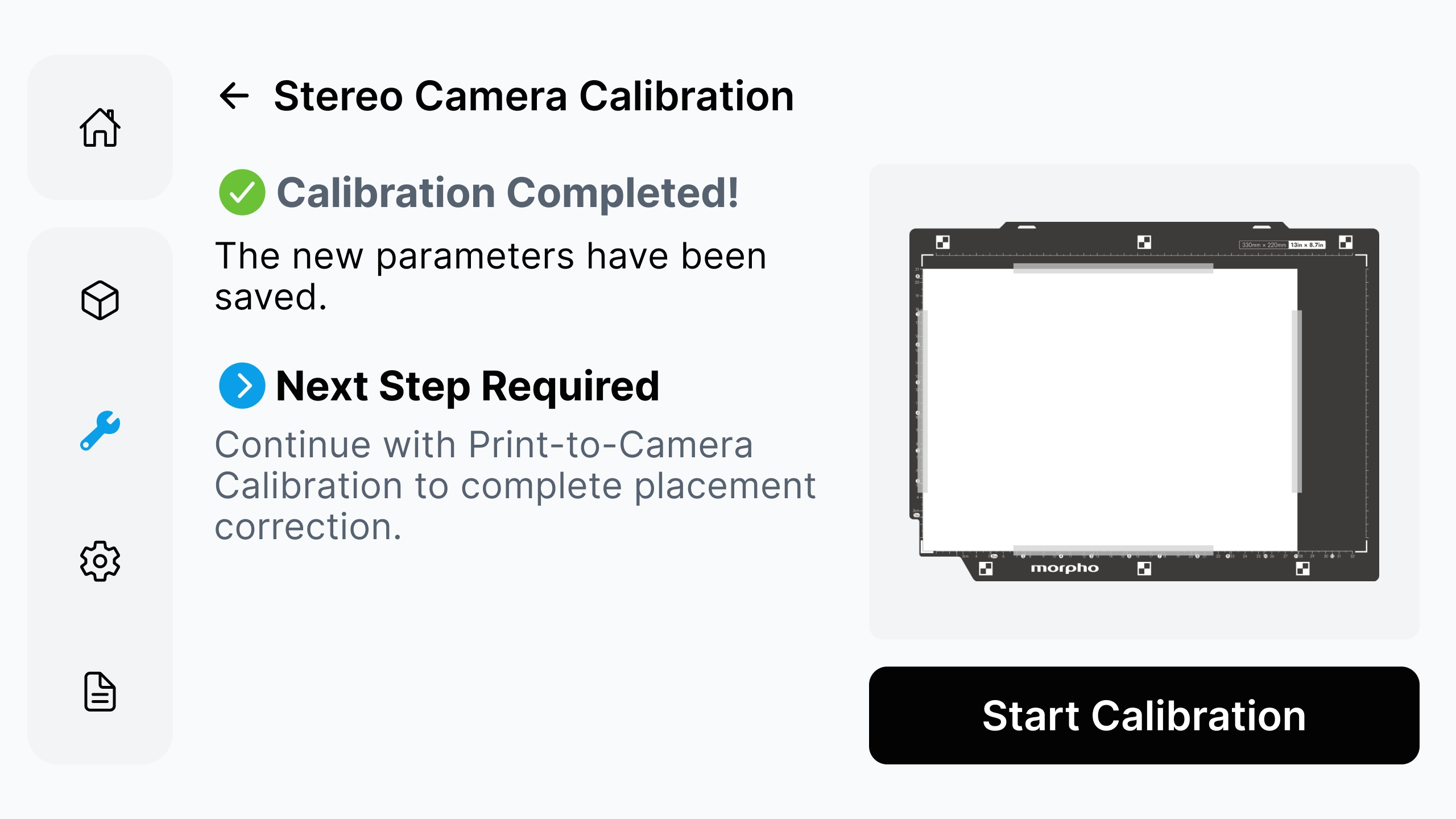
When Calibration Completed! appears, follow the Next Step Required prompt and continue with Print-to-Camera Calibration.
¶ Step 3: Retry if Calibration Fails
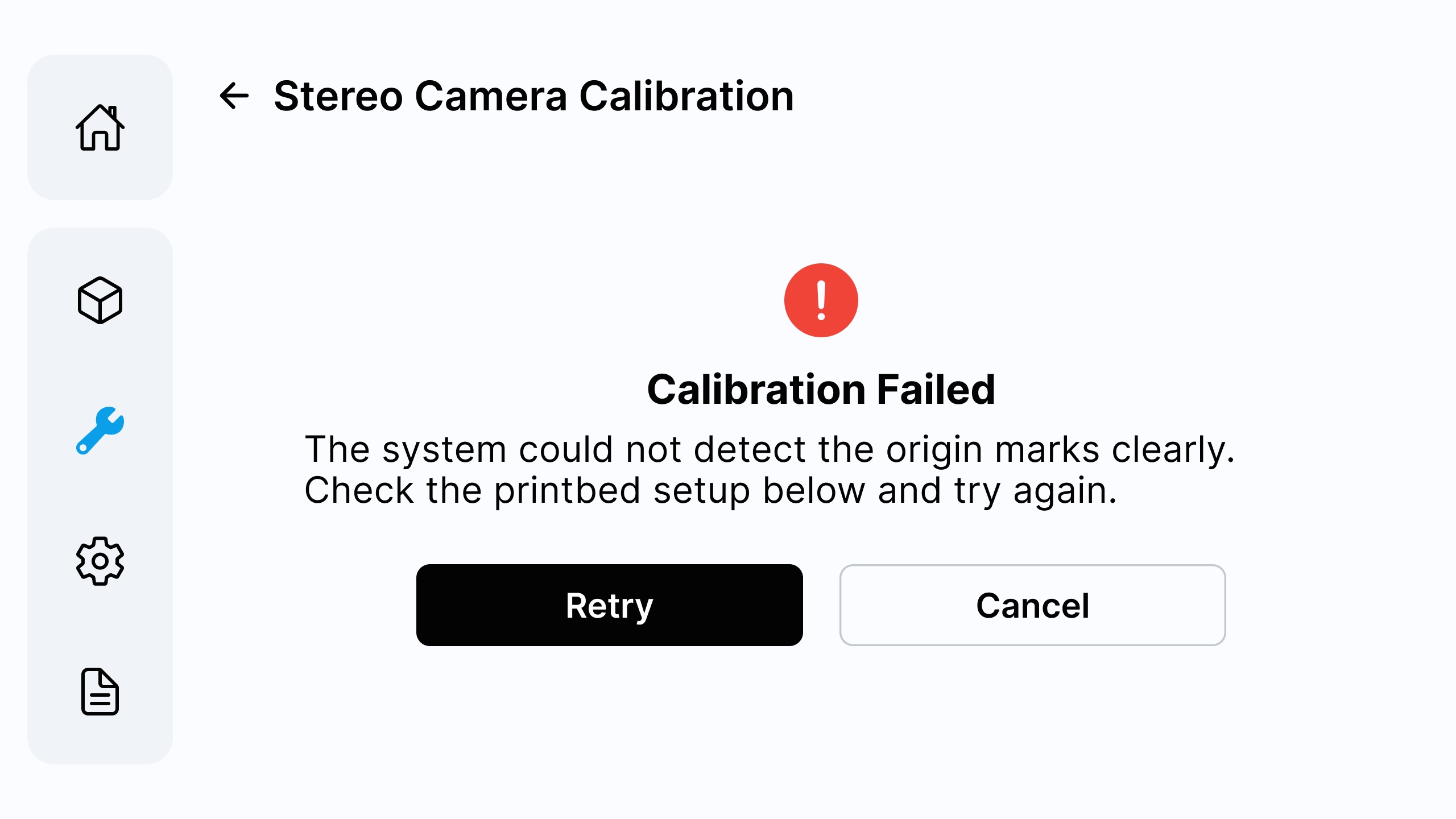
If calibration fails, check the calibration pattern position, cleanliness, and whether anything is blocking the camera. Then tap Retry. Contact Morpho Support if calibration still fails.
¶ 3.2.1.3 Origin Calibration
Origin Calibration is used when the origin marks cannot be recognized or when the origin position needs recalibration.
¶ Step 1: Prepare the Printbed
Clear the printbed and confirm that the four L-shaped origin marks are clean, complete, and clearly visible. Close the lid before starting calibration, and tap Start Calibration.
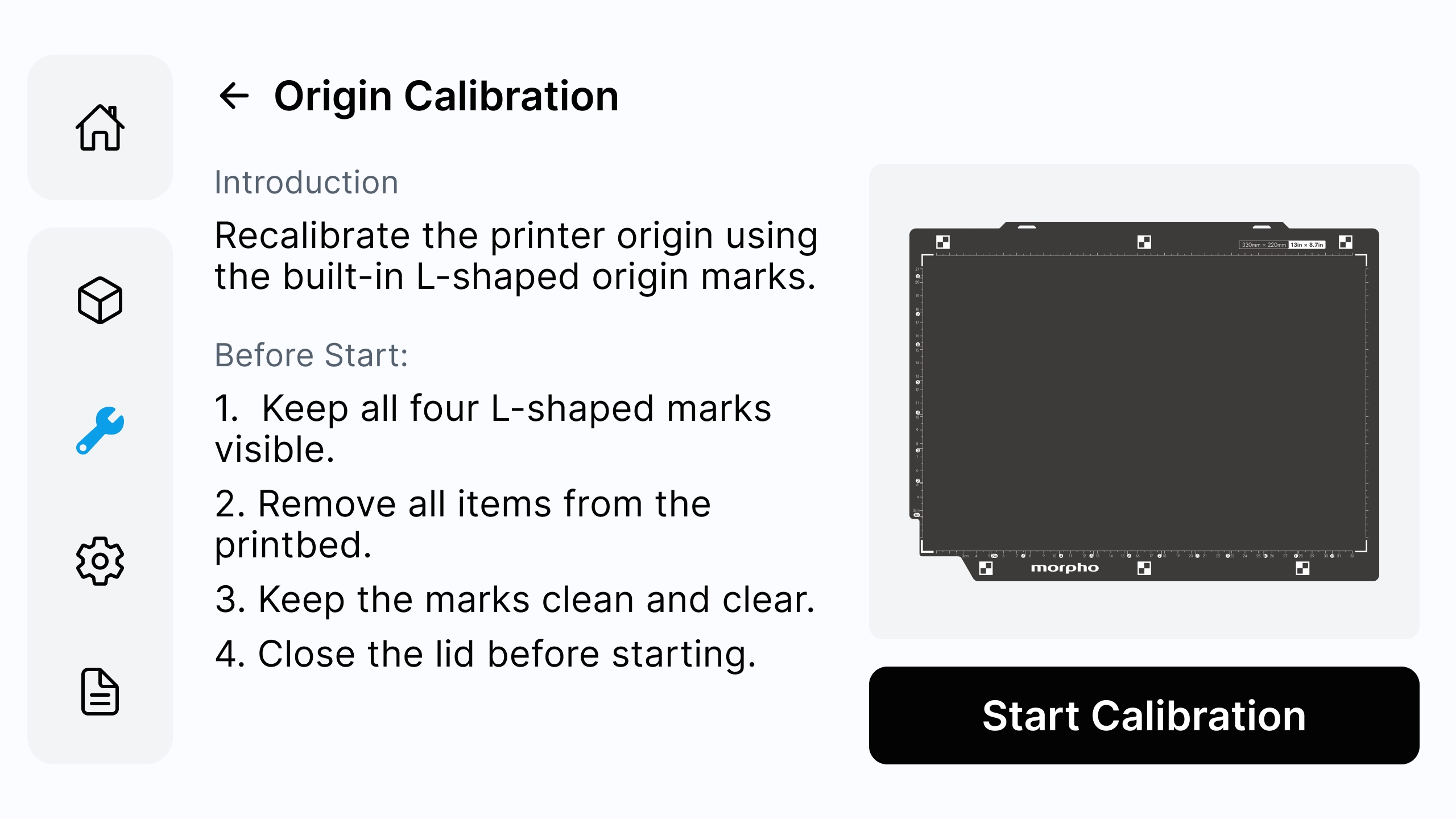
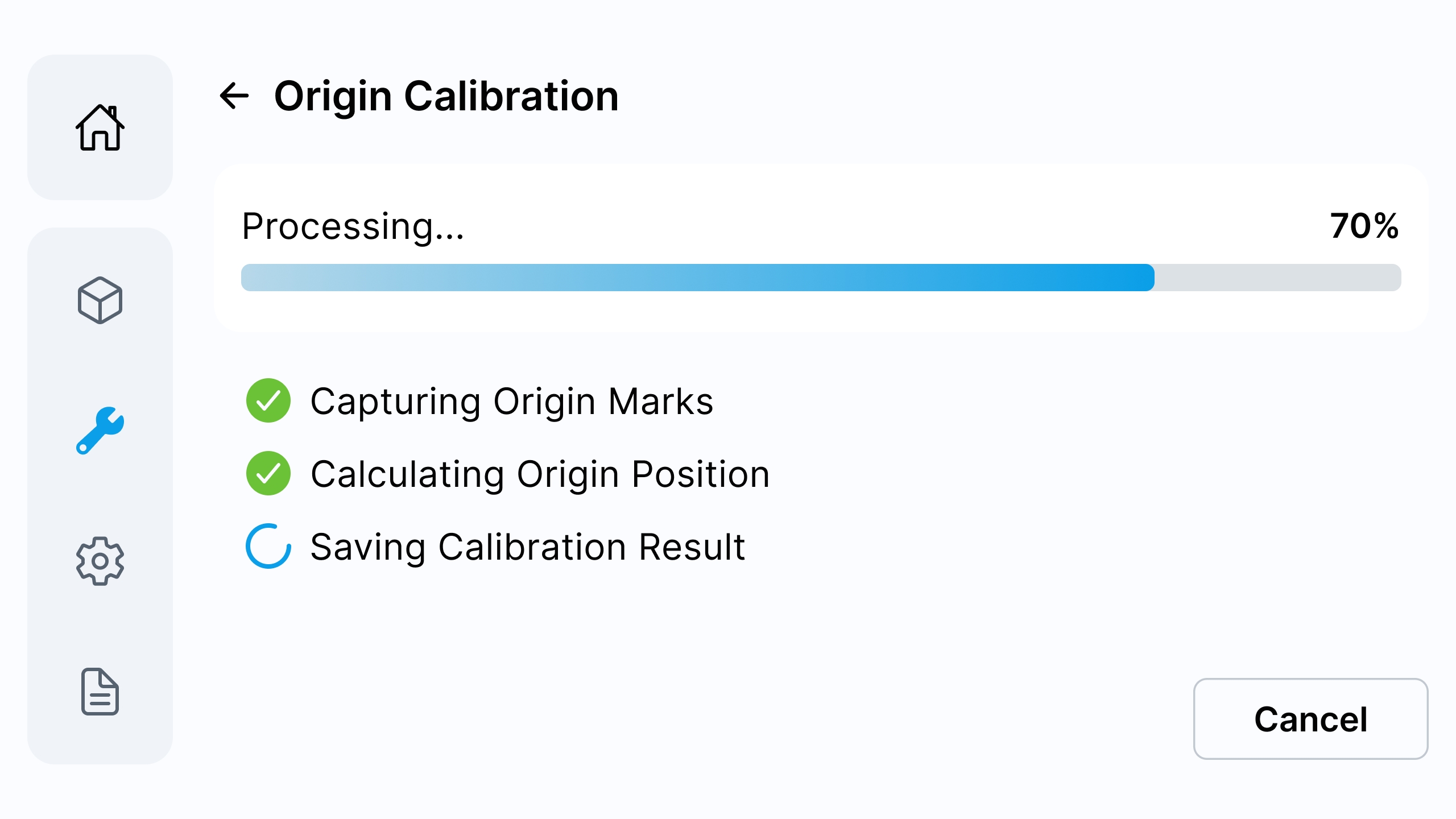
¶ Step 2: Start Origin Calibration
Wait for the process to complete.
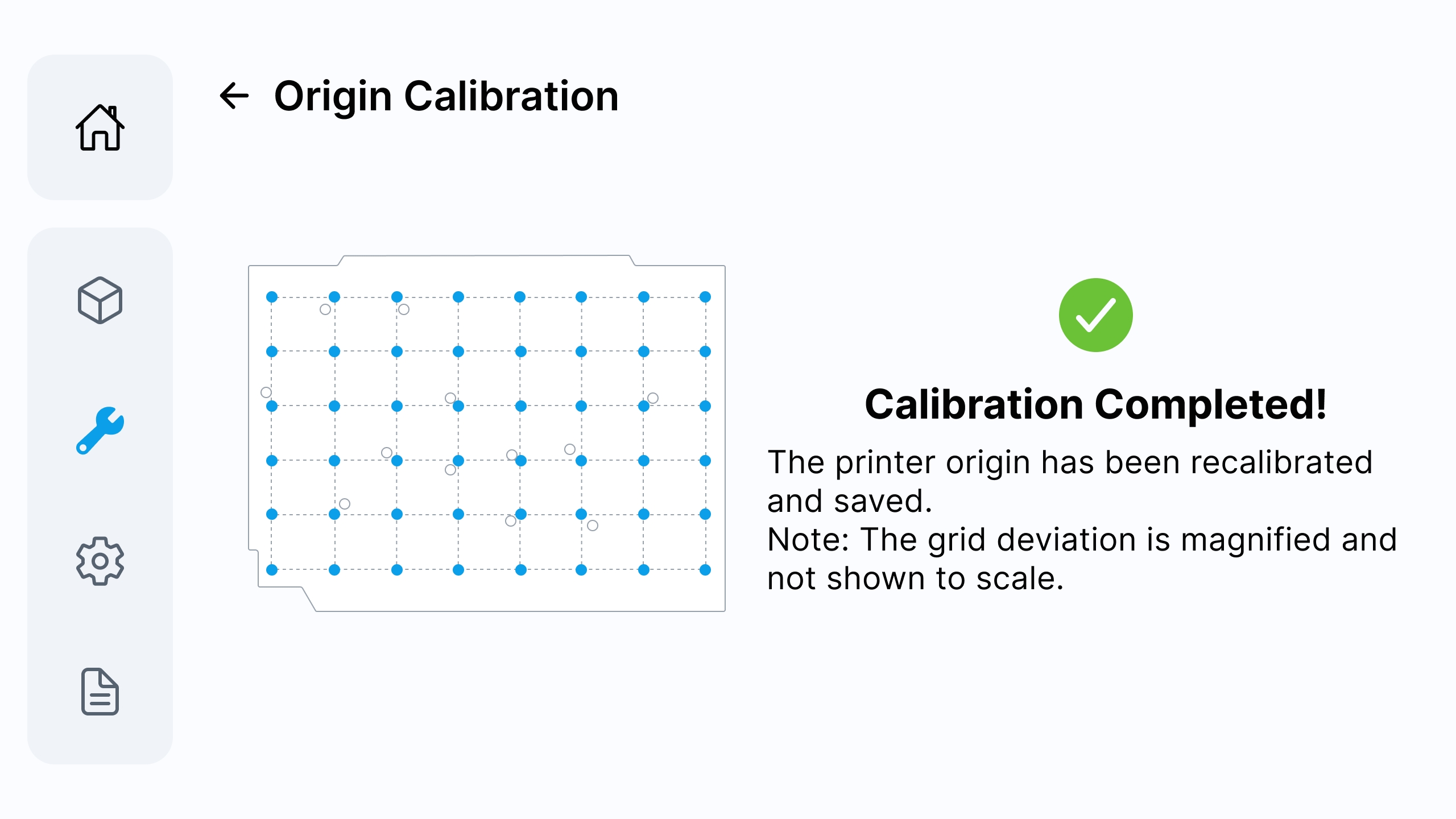
¶ Step 3: Confirm the Calibration Result
When Calibration Completed! appears, the origin has been recalibrated and saved.
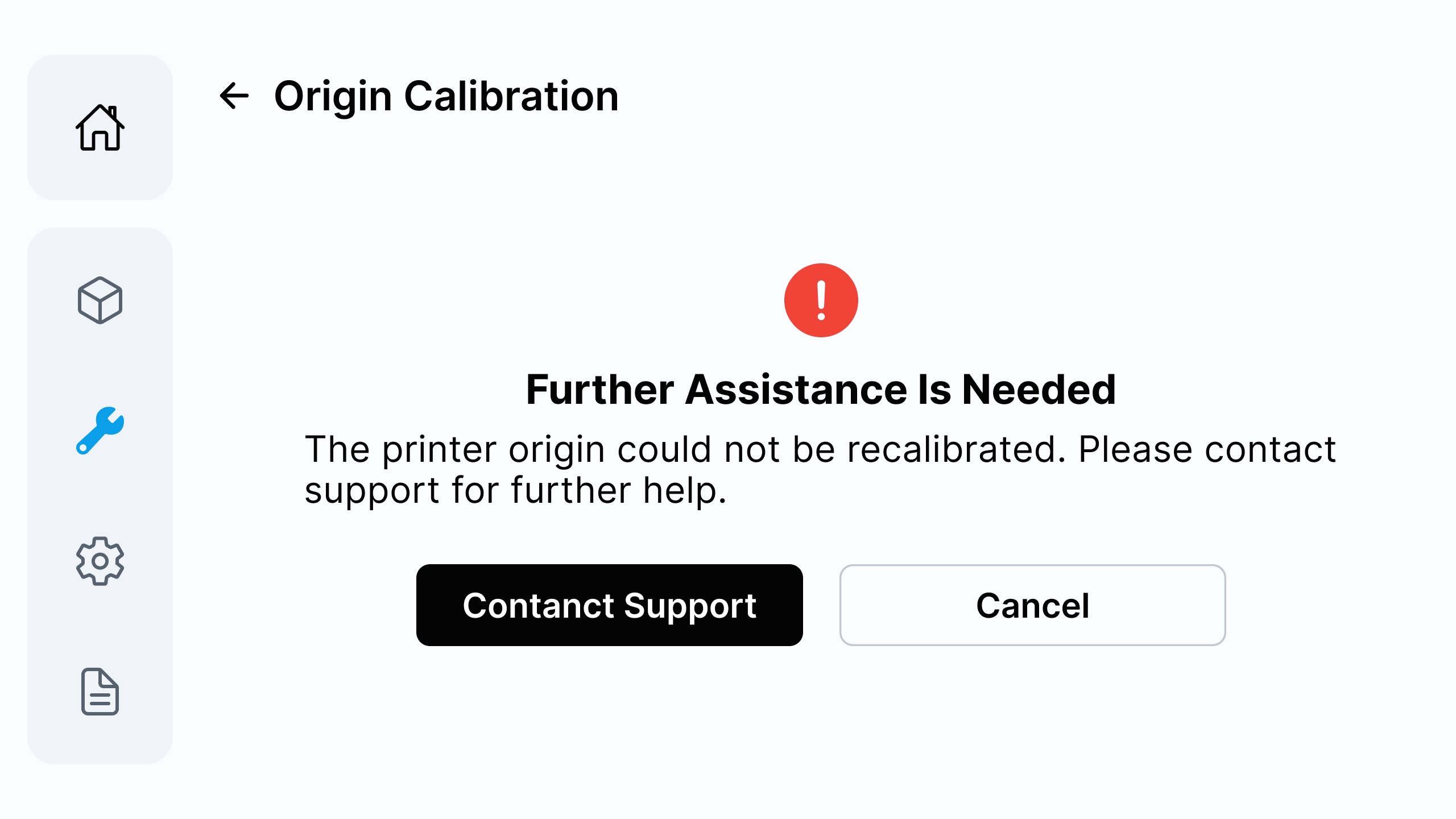
¶ Step 4: Handle Calibration Failure
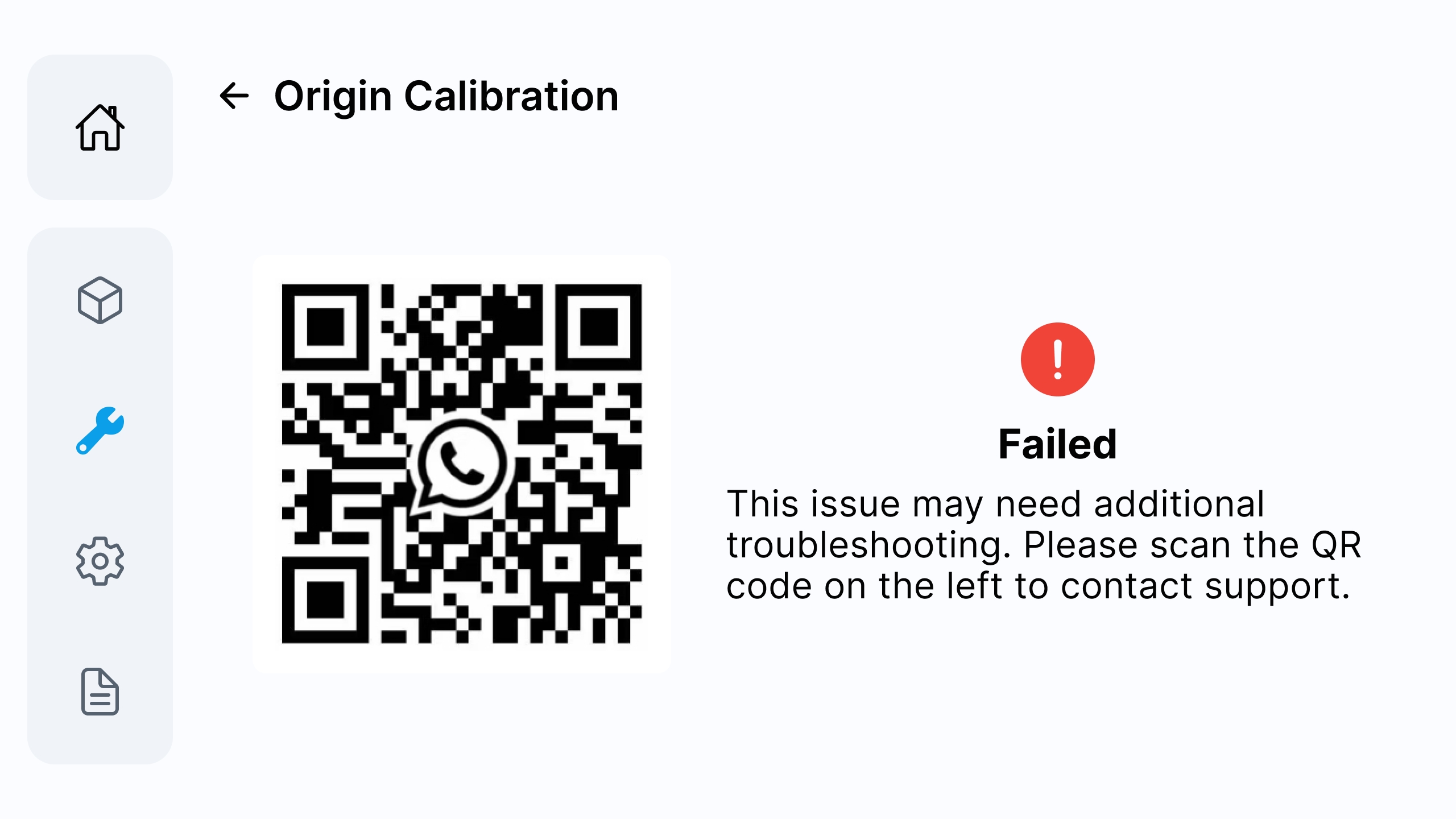
If the page shows calibration failure, clean the origin marks, confirm that the printbed is correctly placed, and tap Retry.
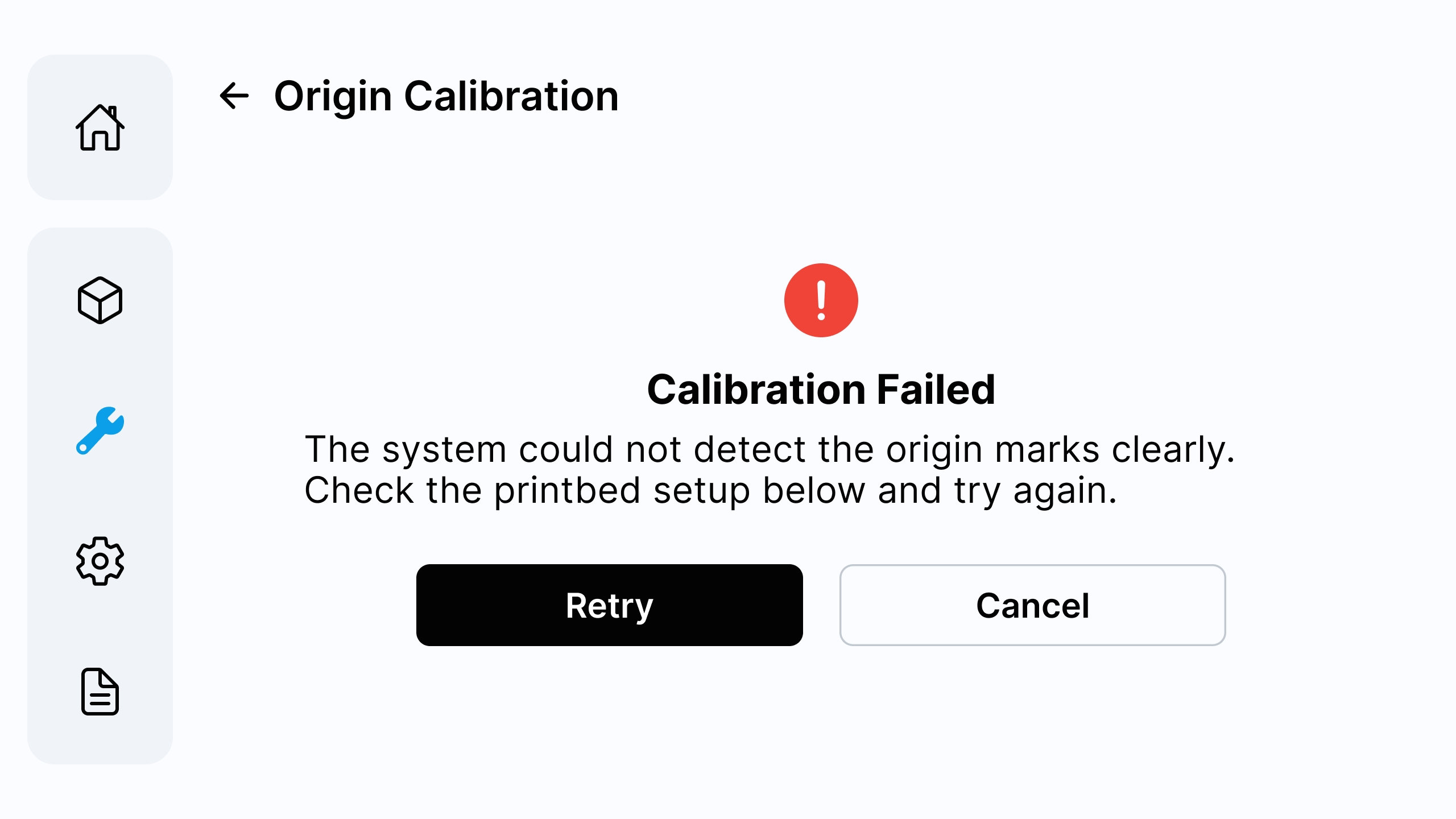
Contact Morpho Support if the printer origin still cannot be recalibrated.
¶ 3.2.2 Position Accuracy Test Print
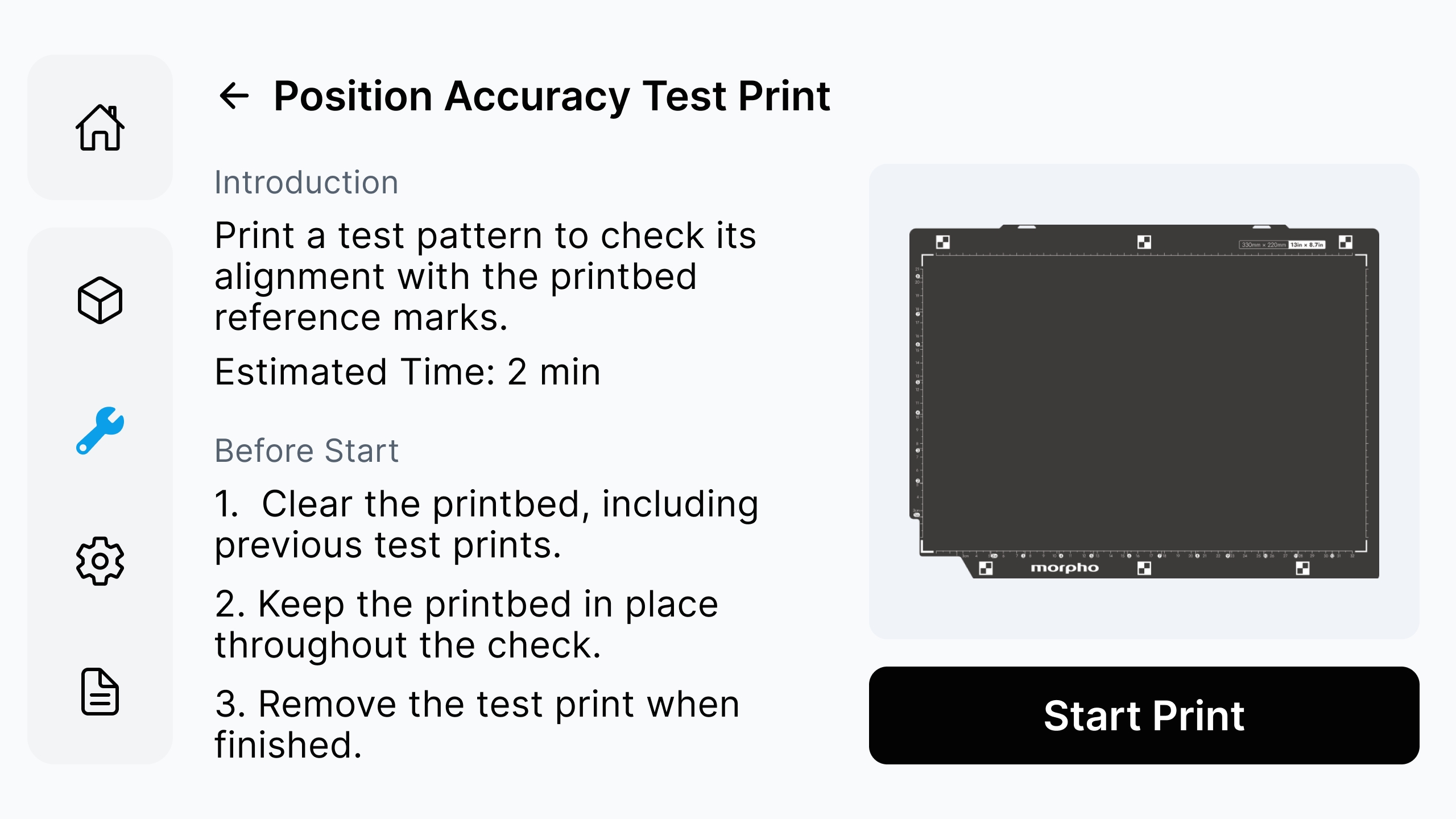
Position Accuracy Test Print is used to check whether the printed lines align with the reference marks on the printbed. Use this function to identify print-position deviations before running Position Calibration.
¶ Step 1: Prepare the Printbed
Clear the printbed, including any previous test prints. Keep the printbed in place throughout the check. Make sure the reference marks are clean, visible, and unobstructed. Review the instructions on the screen, and then tap Start Print.
¶ Step 2: Start the Test Print
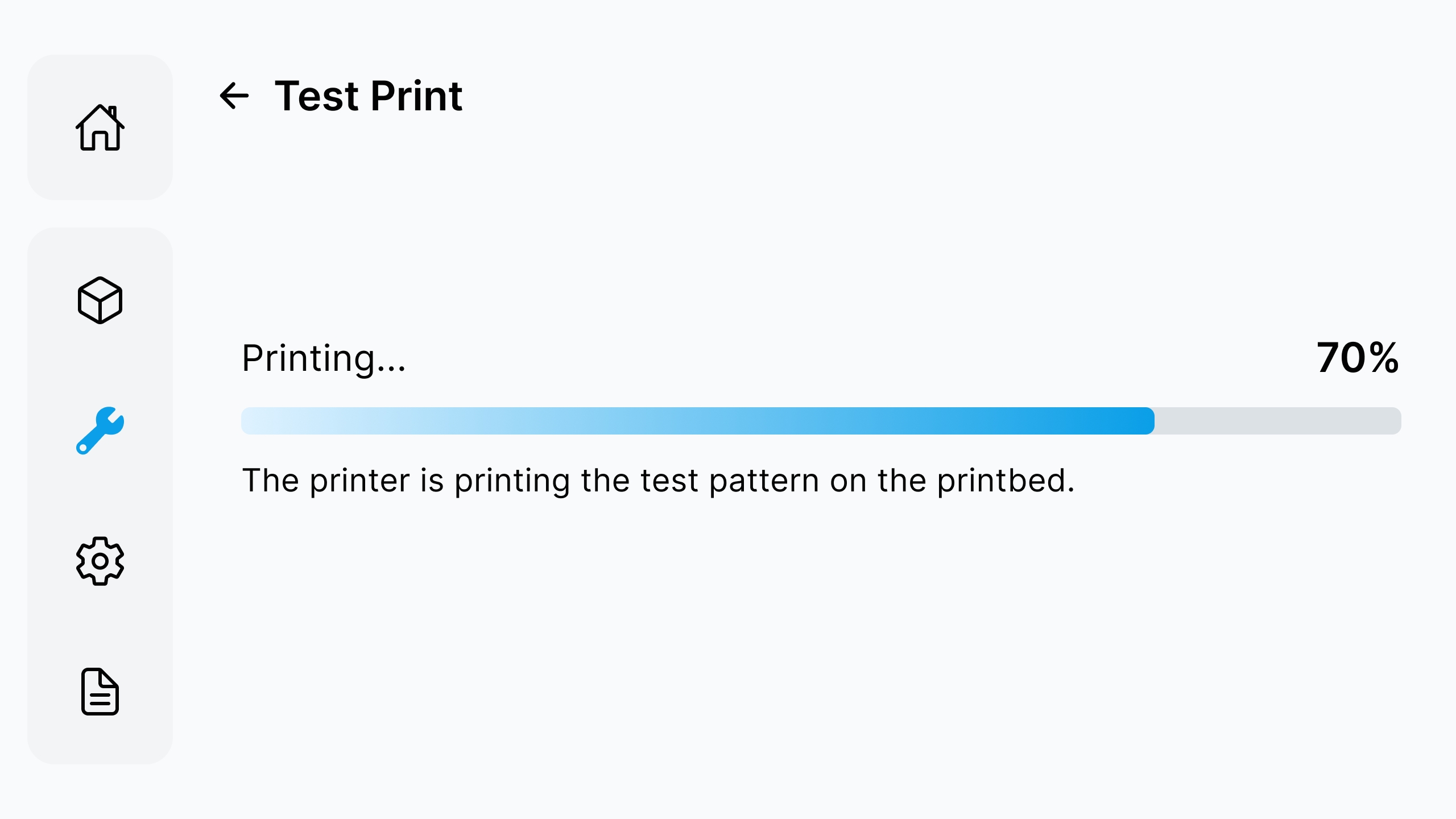
Do not open the lid or move the printbed while the test pattern is printing.
¶ Step 3: Check the Test Print Result
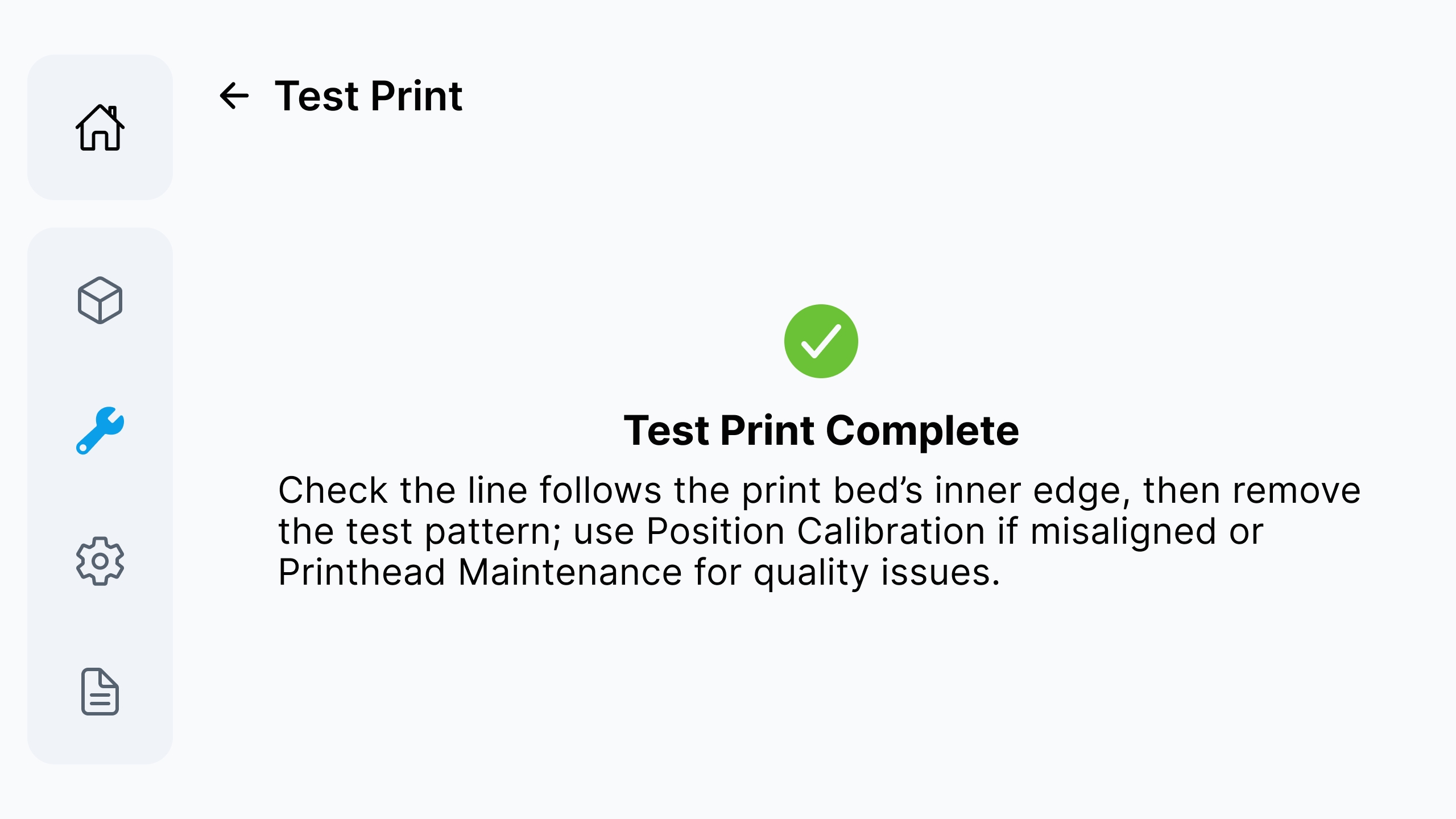
When Test Print Complete is displayed, check whether the printed line follows the printbed's inner edge. Remove the test pattern after checking the result.
¶ 3.3 Device Self-Check
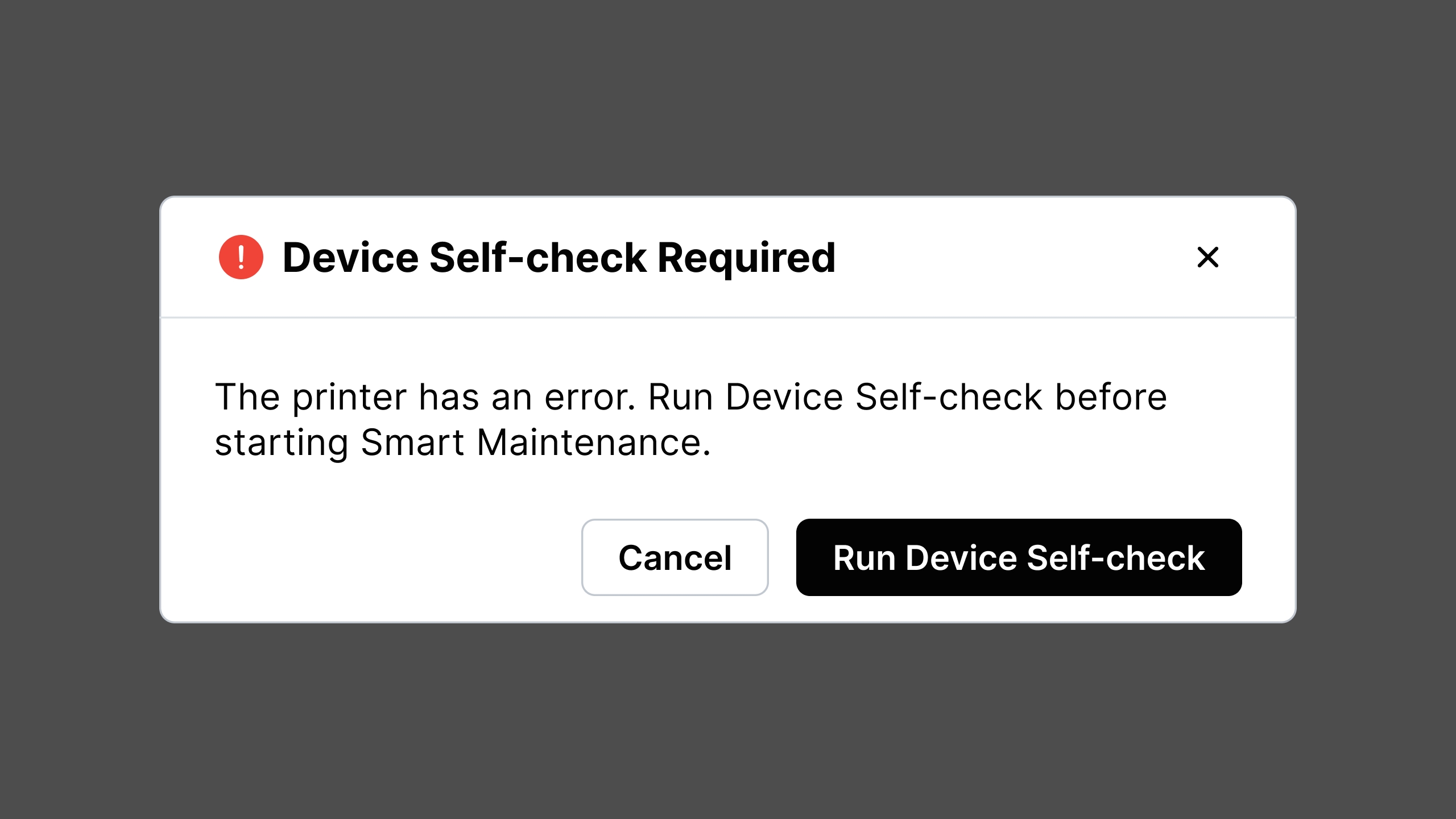
Device Self-Check is used when the printer prompts for a system check, when Smart Maintenance requires a Self-Check, or when you need to confirm whether key printer systems are ready before continuing operation.
¶ Run Device Self-Check
¶ Step 1: Start Device Self-Check
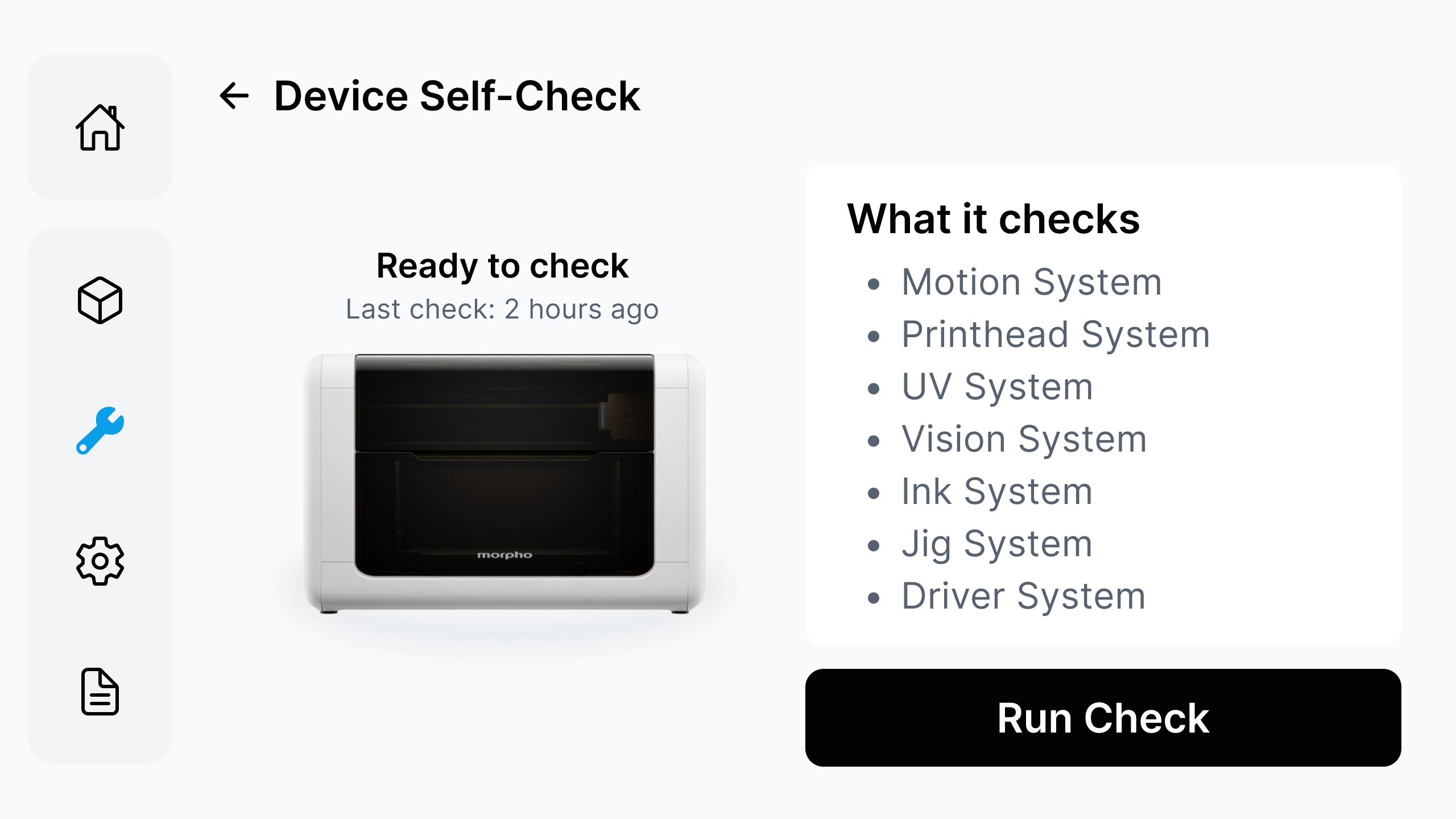
Enter Device Self-Check from the device setup page or from the printer prompt page. Tap Run Check on the screen.
¶ Step 2: Wait for System Checks
The printer may check the Motion System, Printhead System, UV System, Vision System, Ink System, Fixture System, and Driver System. Wait until each item finishes. Do not power off the printer or interrupt the process.
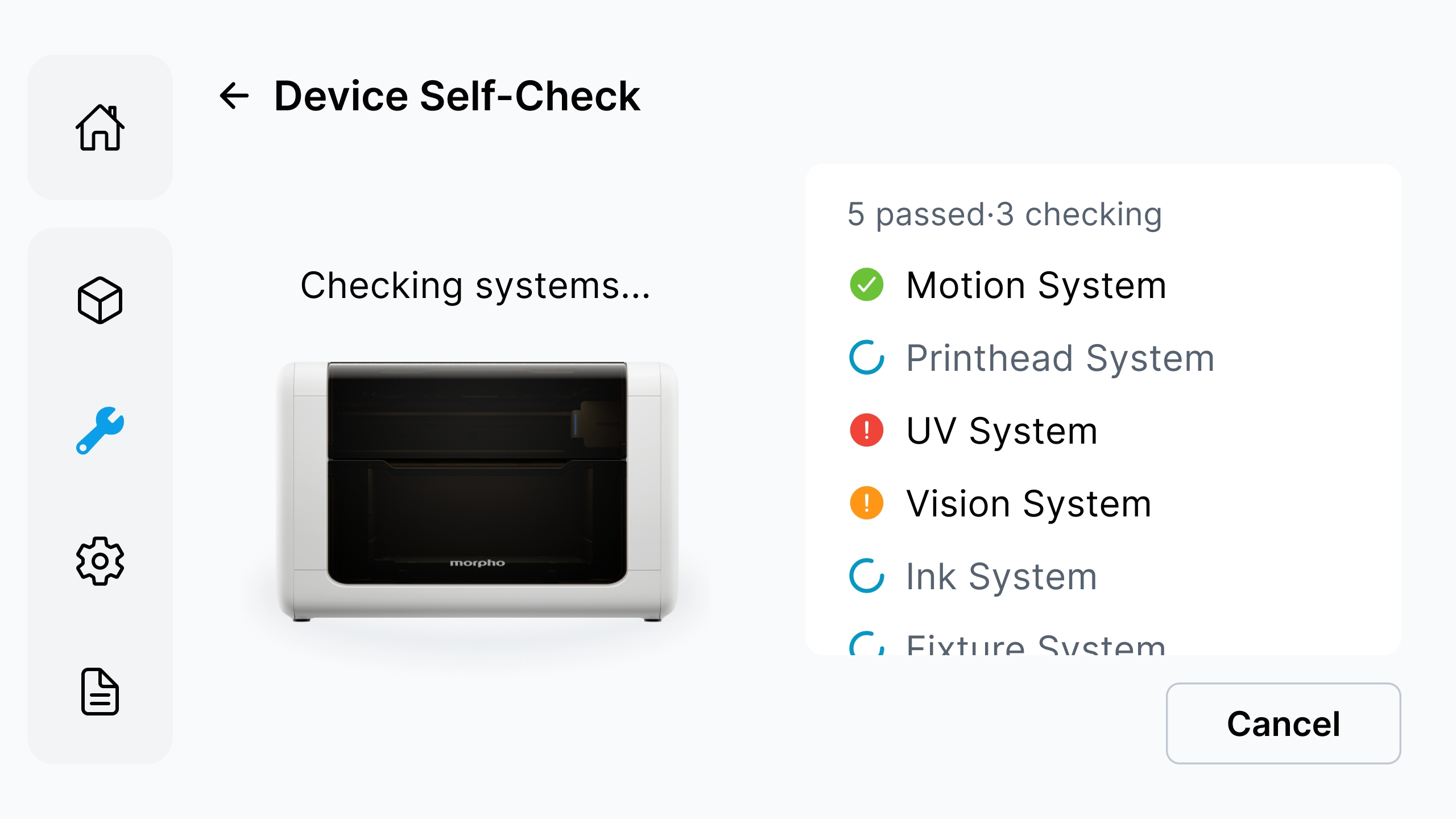
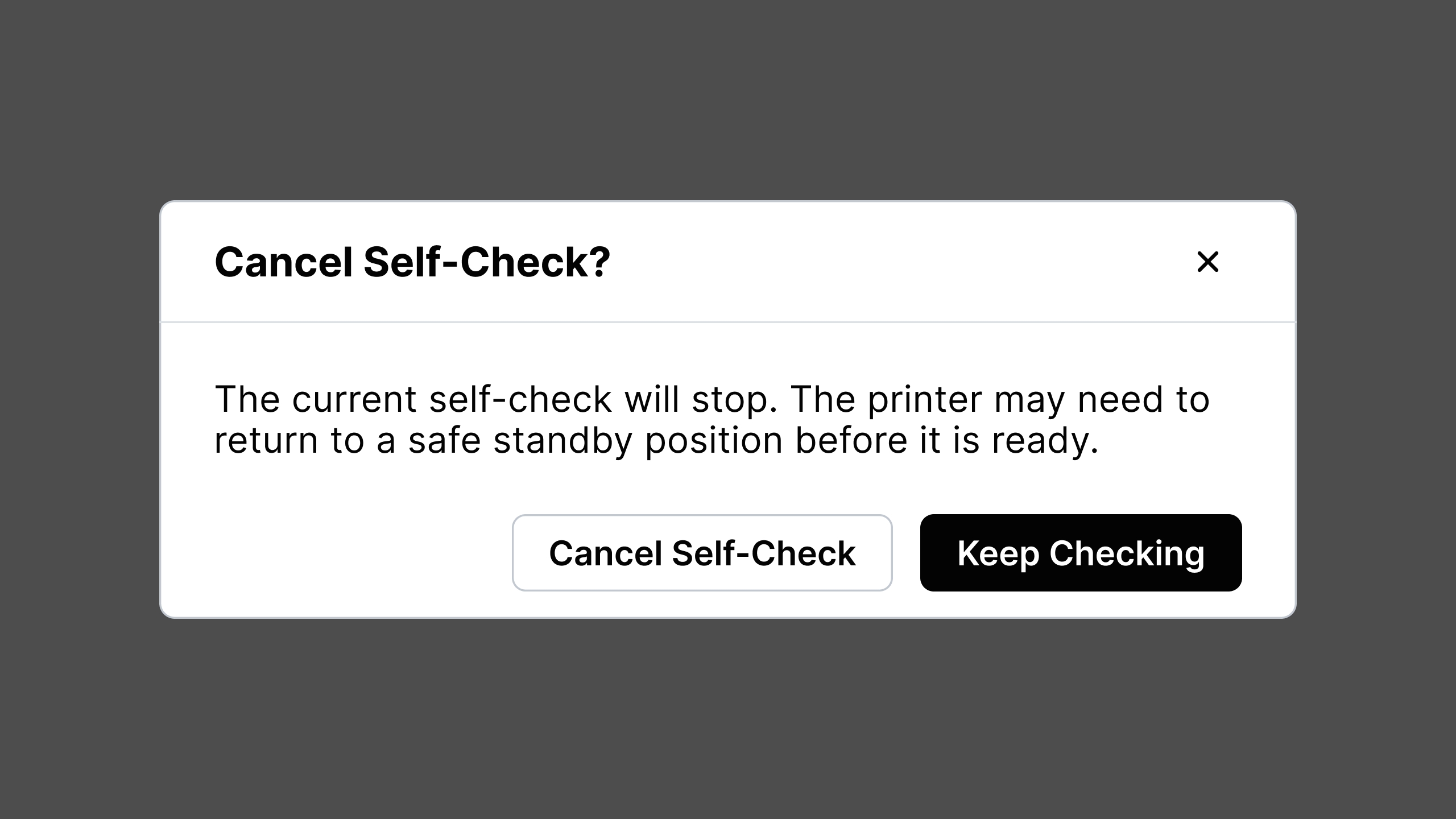
If you tap Cancel, the printer will show "Cancel Self‑Check?". You may select either Cancel Self‑Check or Keep Checking.
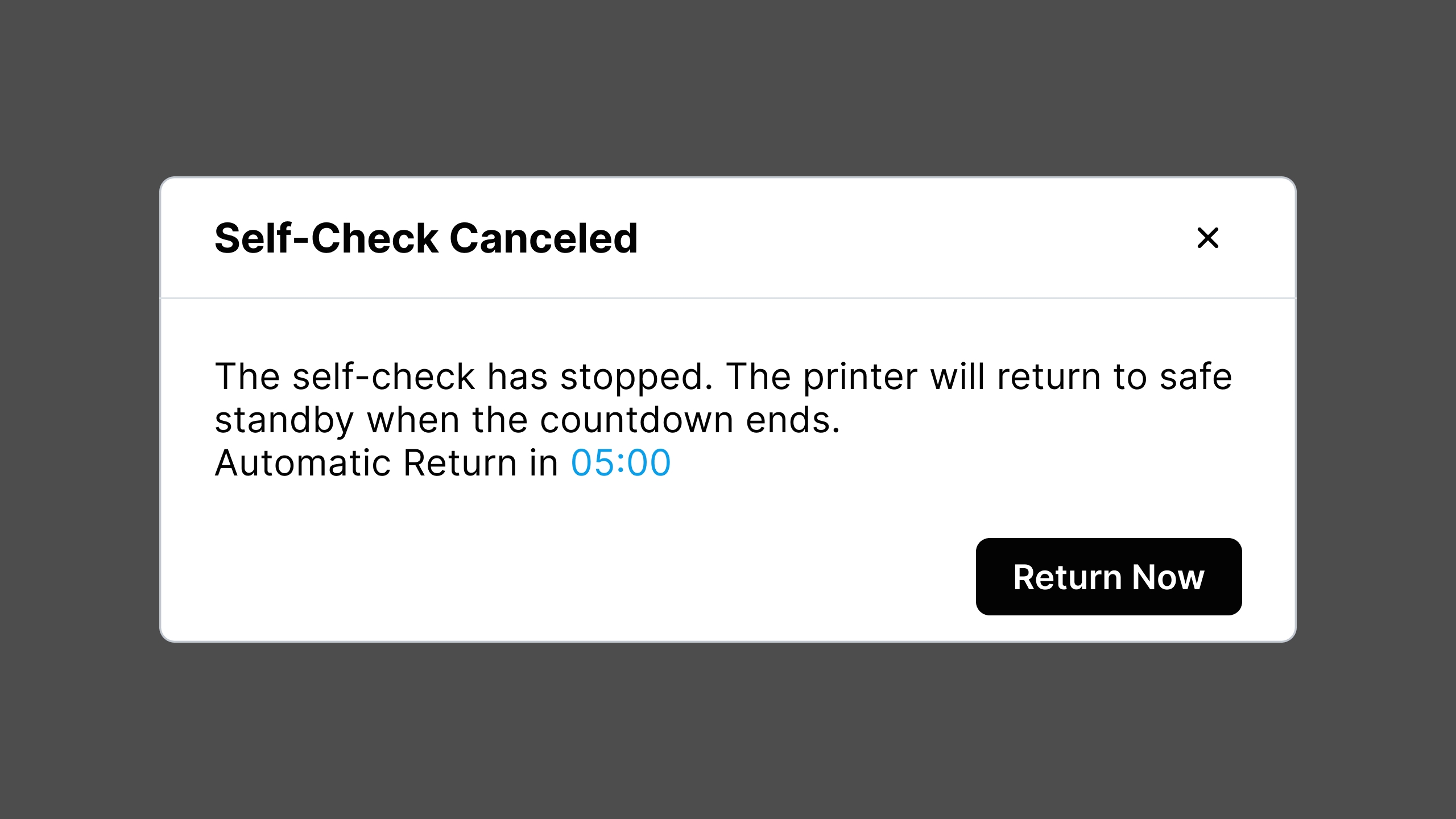
If you select Cancel Self‑Check, the system will display the following prompt.
¶ Step 3: Review the Result
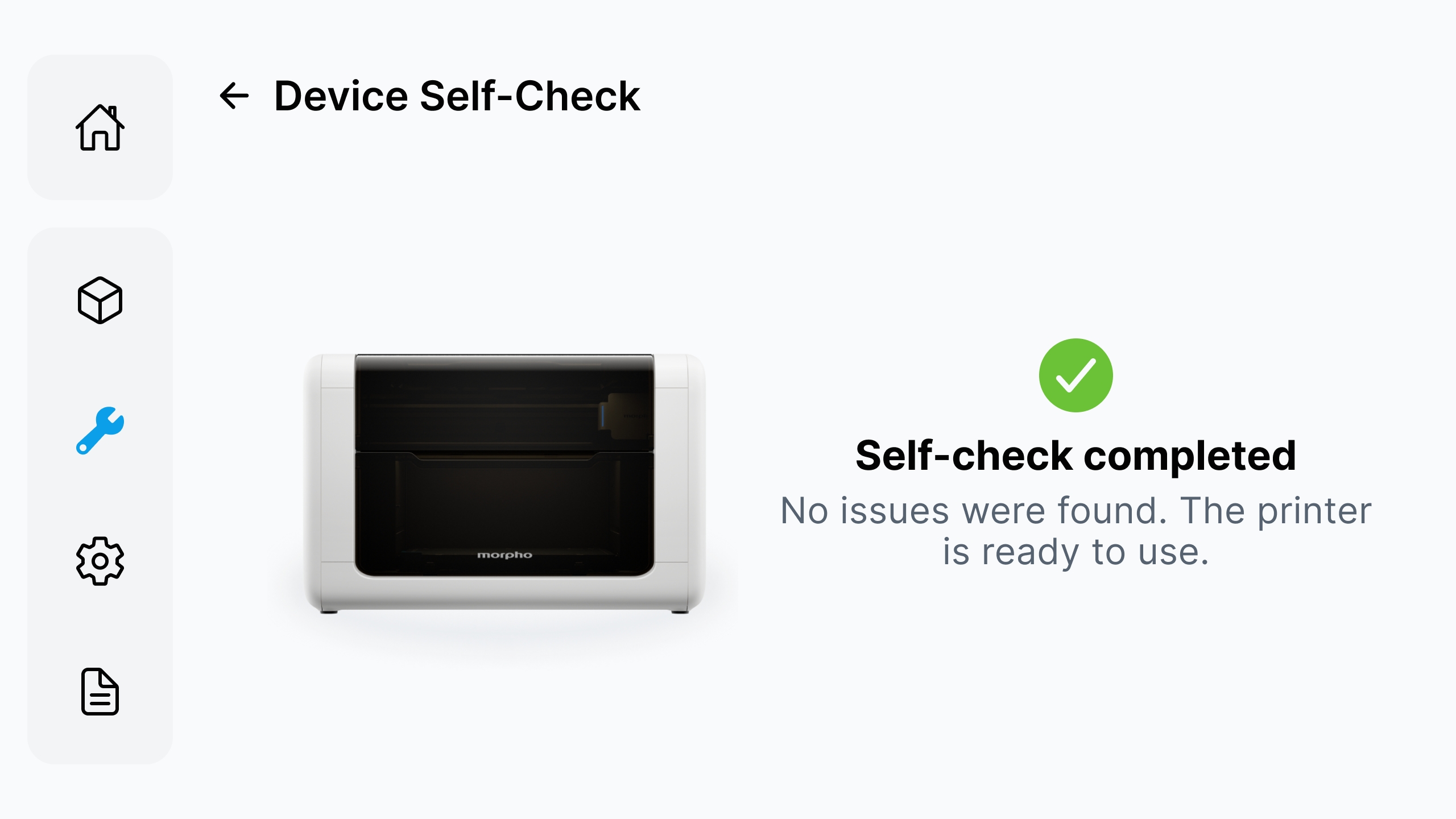
When the check is complete, review the result shown on the screen. If the touchscreen shows Self-Check completed, you can continue printing.
¶ 3.4 Motion Control
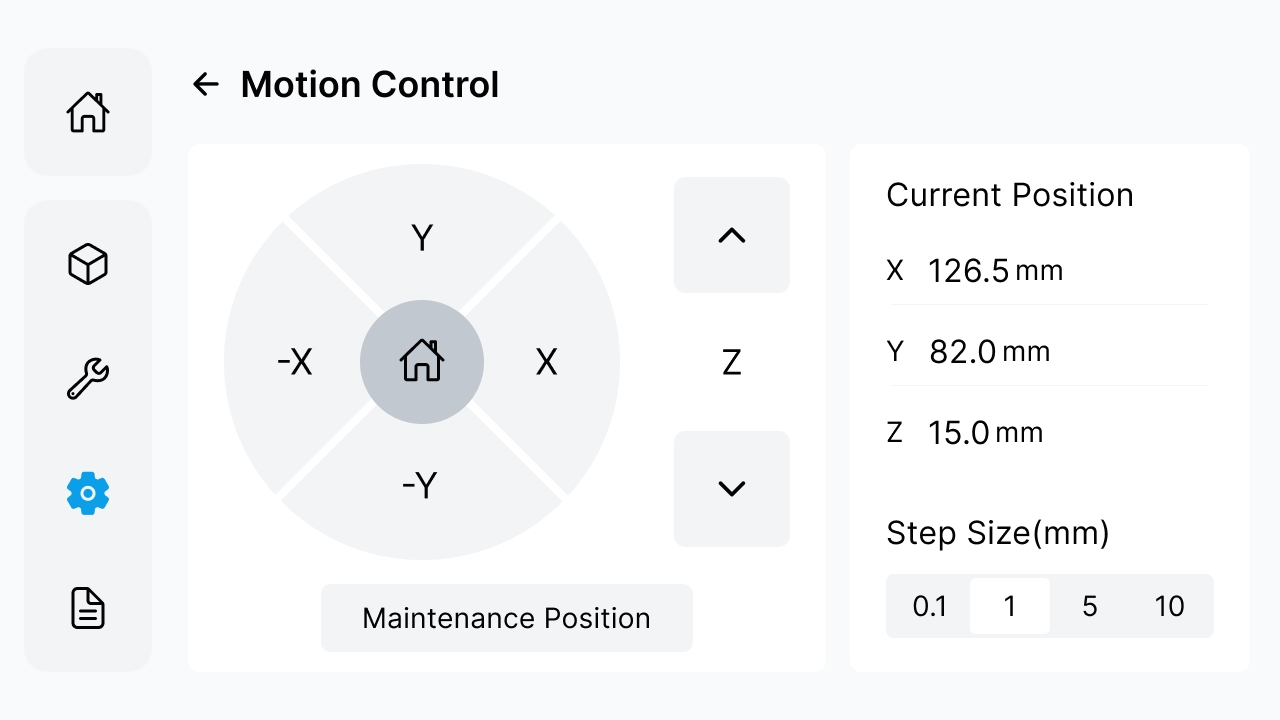
Enter Motion Control to view the X, Y, and Z coordinates. Before moving the printhead or printbed, clear the printbed and confirm that the entire path is unobstructed. Use the on-screen controls as follows:
| Control | Printer movement |
|---|---|
| X | The printhead moves to the left. |
| -X | The printhead moves to the right. |
| Y | The printhead moves forward. |
| -Y | The printhead moves backward. |
| Z upper button | The printbed moves upward. |
| Z lower button | The printbed moves downward. |
| Home button | The printhead and printbed return to the origin. After the movement is complete, Current Position displays X 0.0 mm, Y 200.0 mm, and Z 20.0 mm. |
Select a step distance of 0.1, 1, 5, or 10 mm. Maintenance Position moves the device to the maintenance position. Start with a small step distance when checking movement, and release the button as soon as the intended movement is confirmed.
Stop immediately: For any axis, release the button at once and shut down the printer if you hear a metal impact, observe sudden acceleration or unexpected movement, see movement in the direction opposite to the selected button, hear abnormal noise while the coordinate reading remains unchanged, or find that the axis continues moving after reaching a limit.
¶ 4. Settings
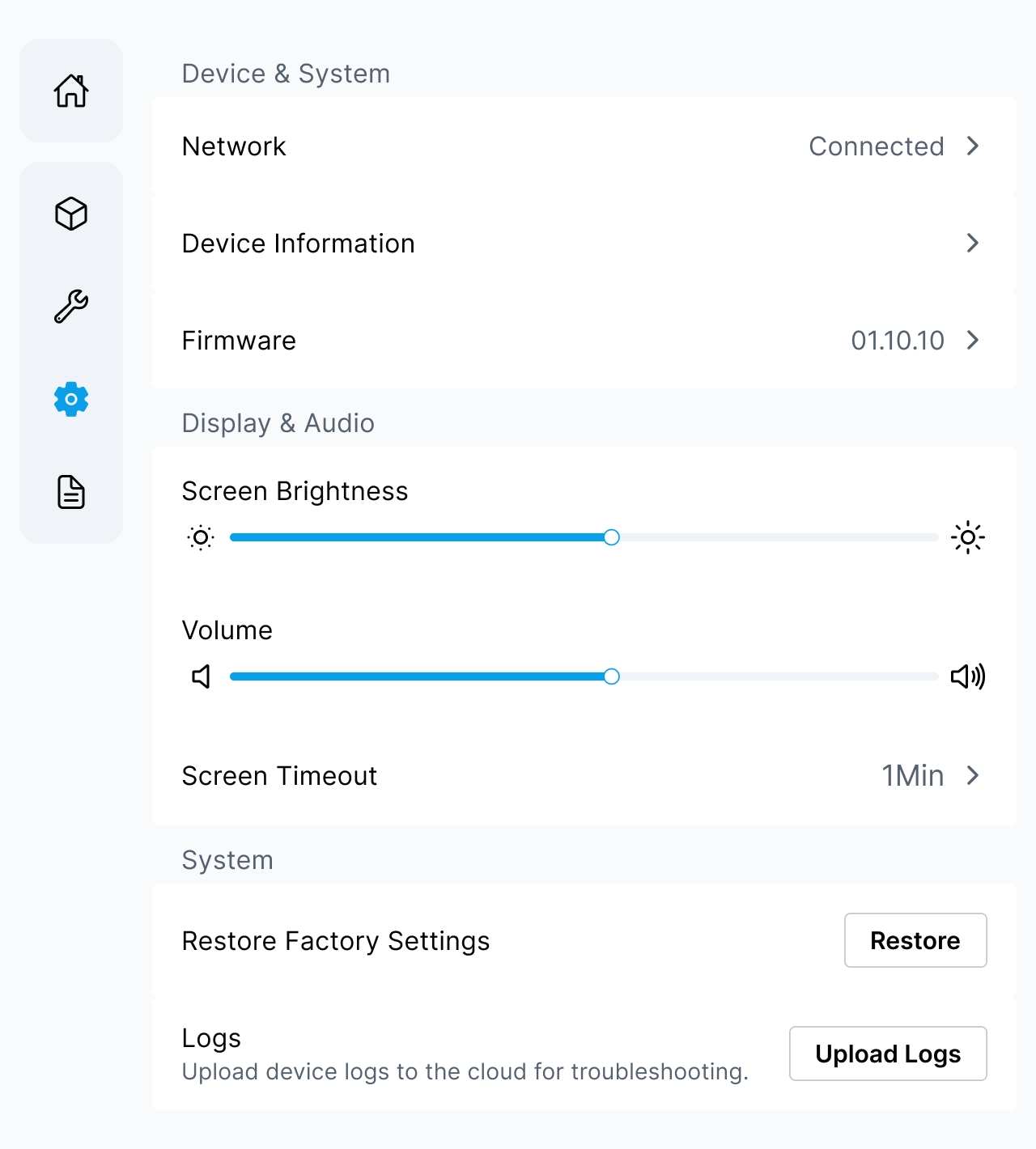
Entering Settings allows you to manage Network, Device Information, Firmware, Screen Brightness and Volume, Screen Timeout, Restore Factory Settings and Logs. Select the required function according to the task. Before performing an operation that changes device data or operating status, confirm its impact.
¶ 4.1 Network
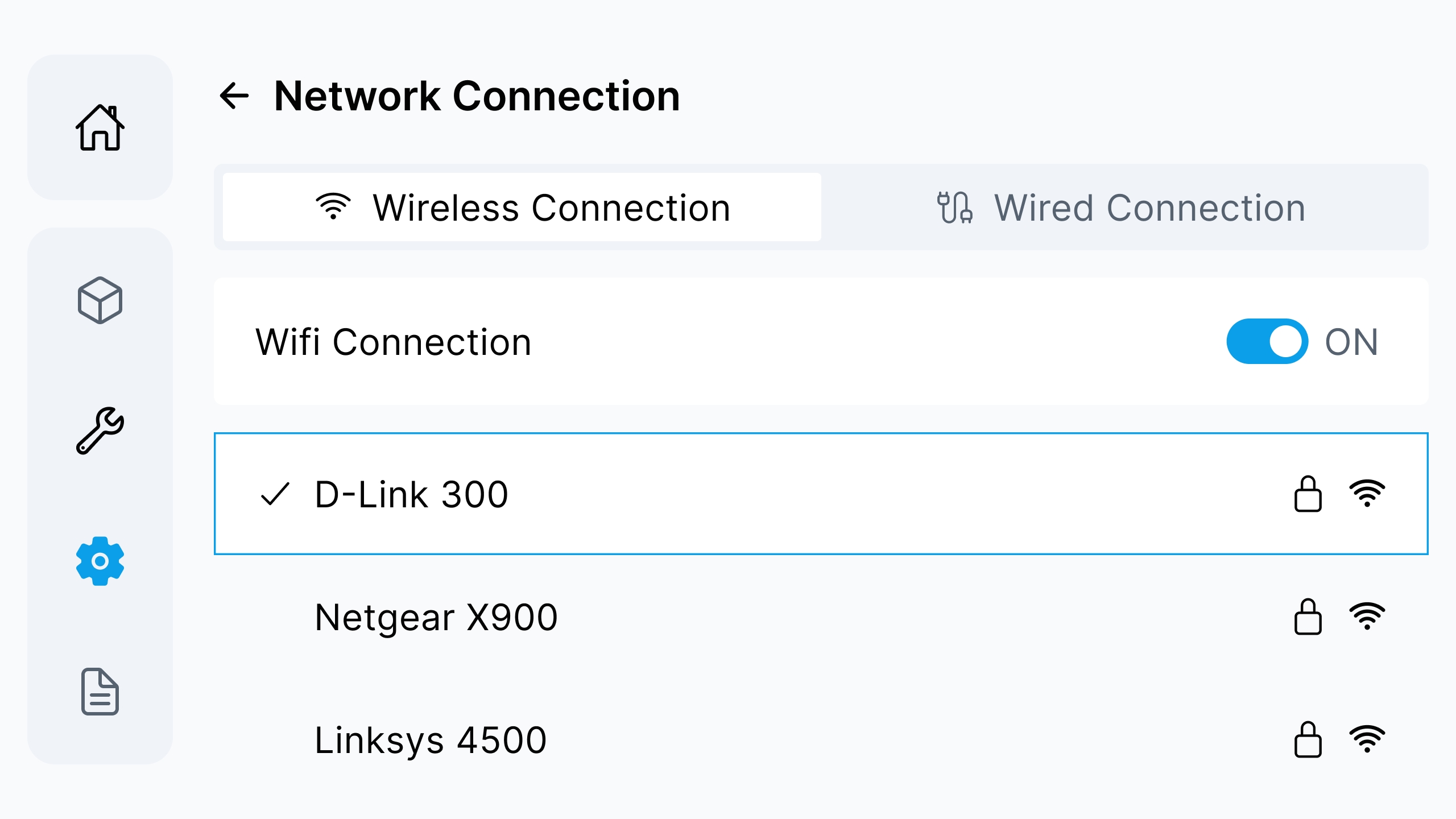
Network supports wireless and wired connections. A network connection is required for firmware updates, log uploads, and other online functions.
¶ Step 1: Connect to a Wireless Network
Enter Network, select Wireless Connection, and turn on Wifi Connection. Select the target network from the list. When a check mark appears to the left of the network name, the network is connected. A protected network requires a password as prompted by the screen.
¶ Step 2: Turn Off the Wireless Network
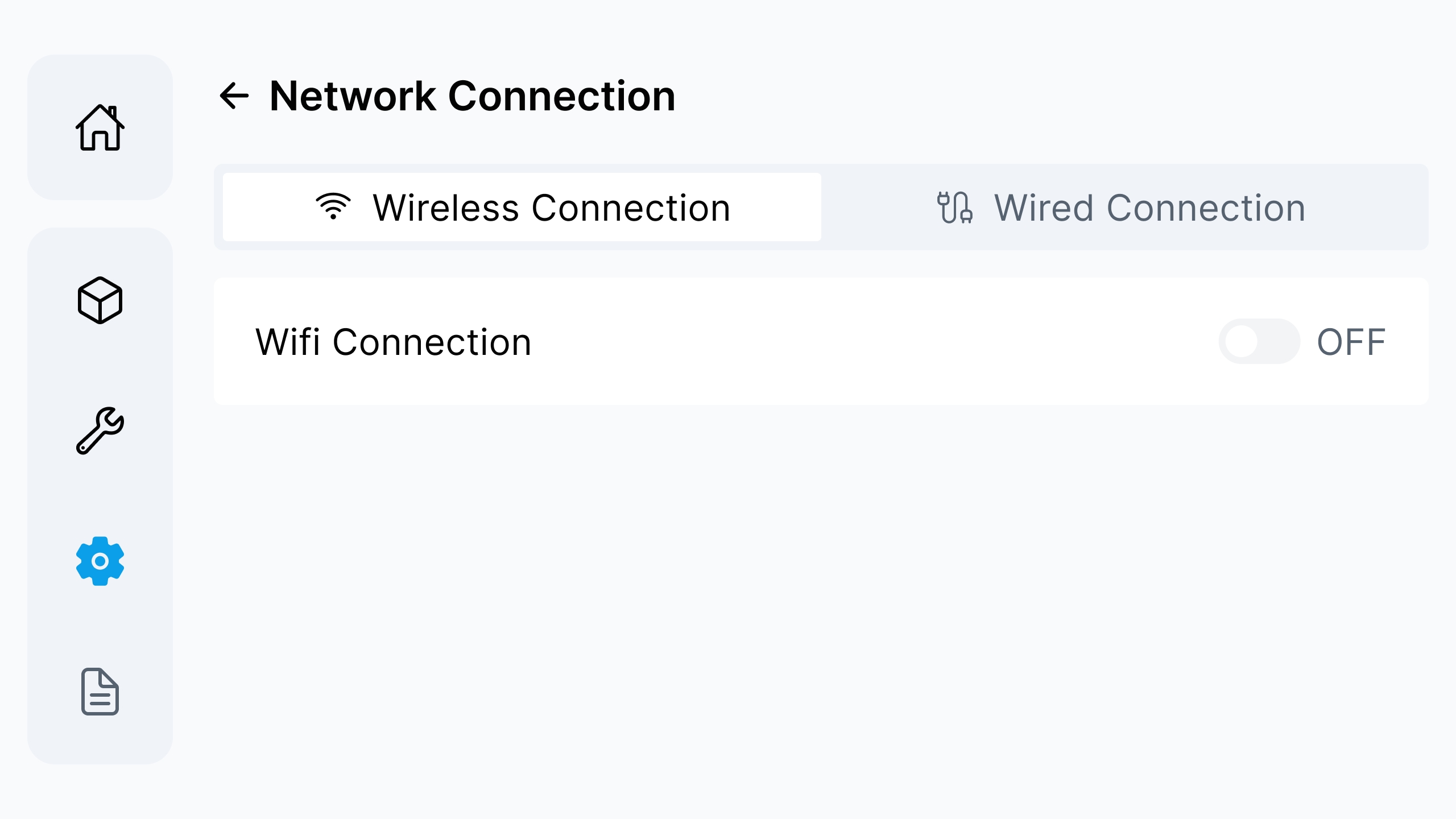
When a wireless network is not required, turn off Wifi Connection. After it is turned off, the network list is hidden and the device disconnects from the current wireless network.
¶ Step 3: Connect to a Wired Network
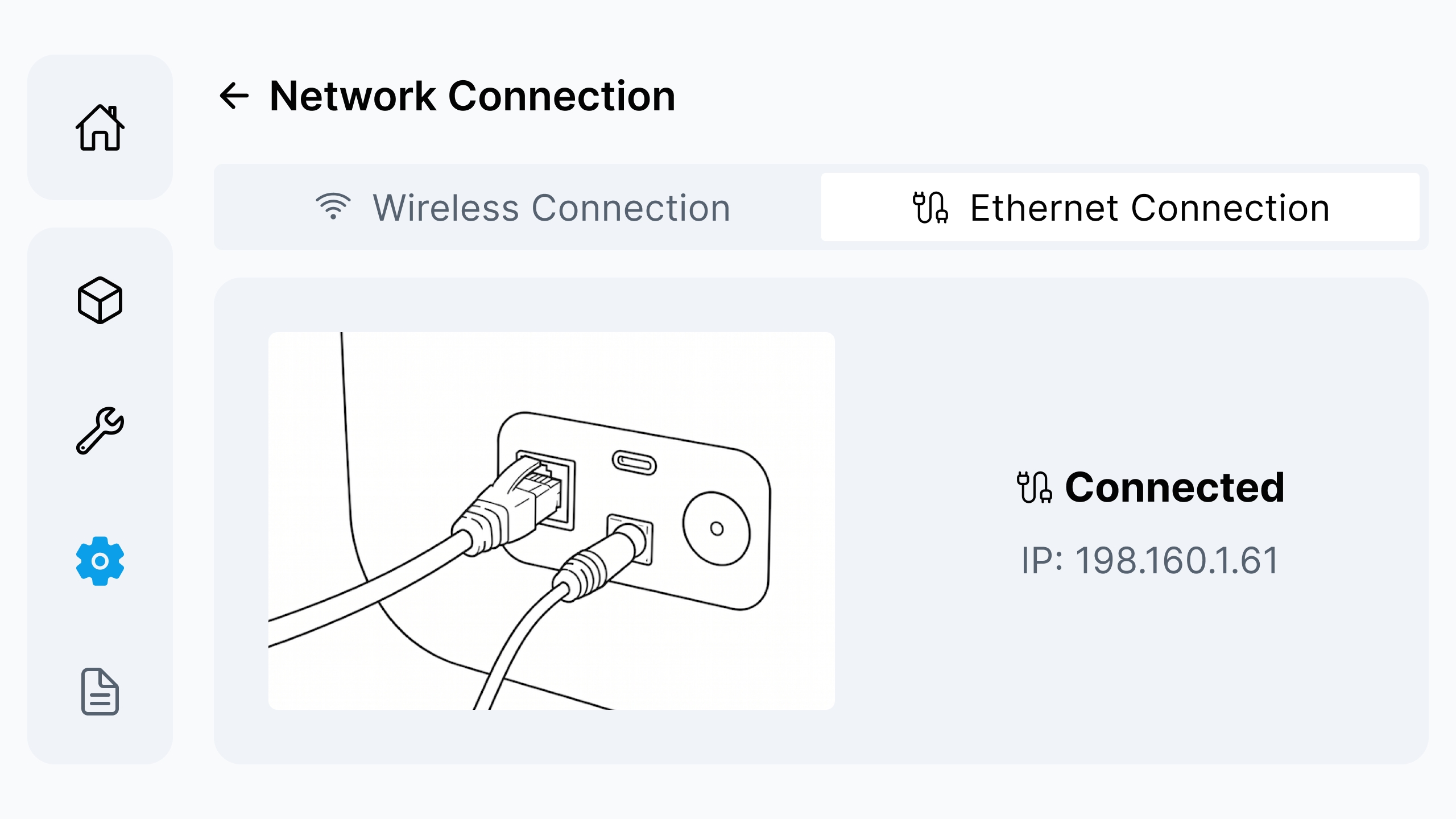
Connect the network cable to the device Ethernet Port, and then select Ethernet Connection. When the page shows Connected and an IP address, the wired network is available.
¶ 4.2 Device Information
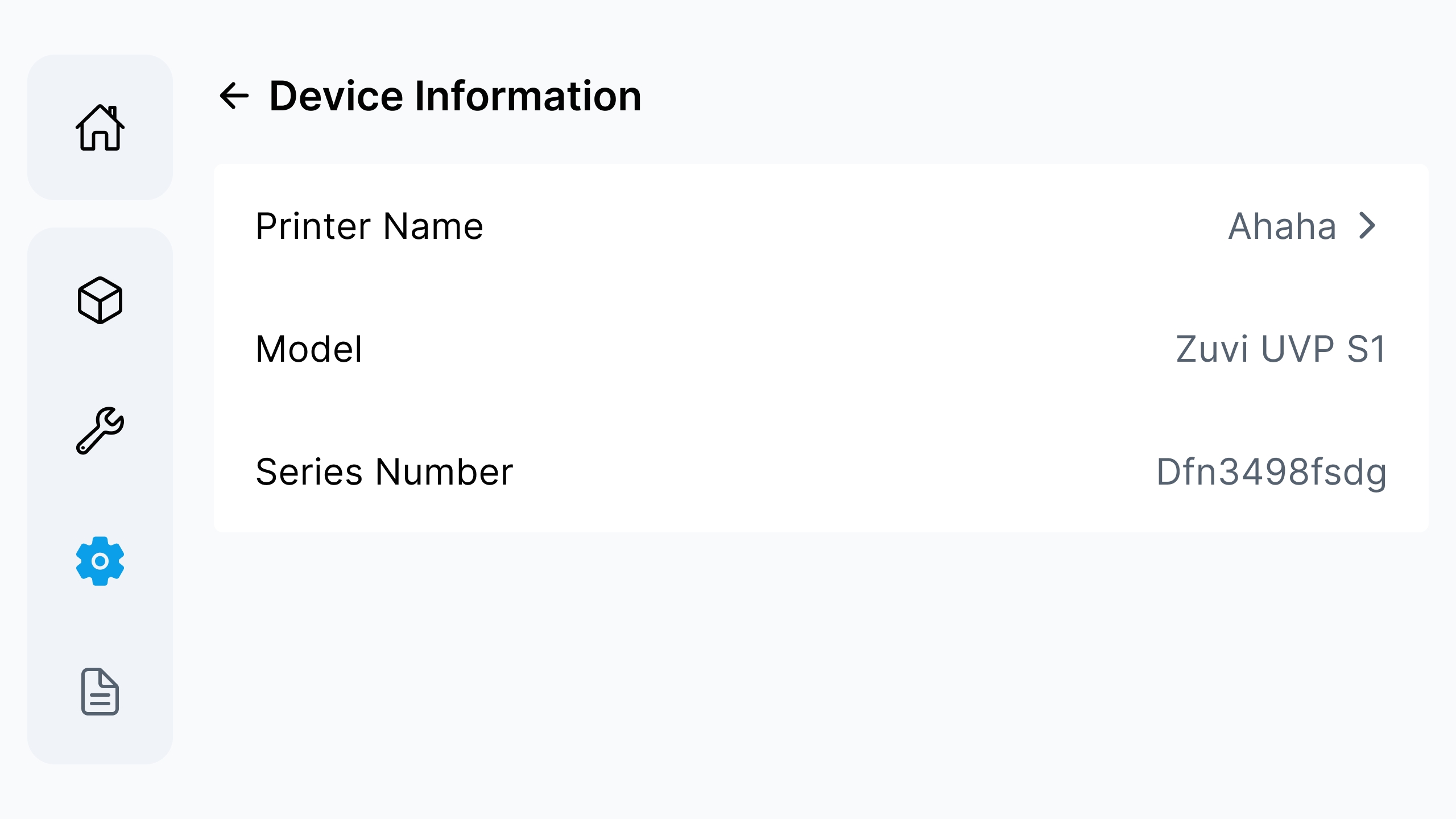
This page is used to view and identify the device. When contacting Morpho Support, you may need to provide the information shown here.
¶ View Device Information
Enter Device Information to view the Printer Name, Model, and Series Number. Printer Name can be changed through the corresponding page option. When providing support information, record the Model and Series Number accurately.
¶ 4.3 Firmware
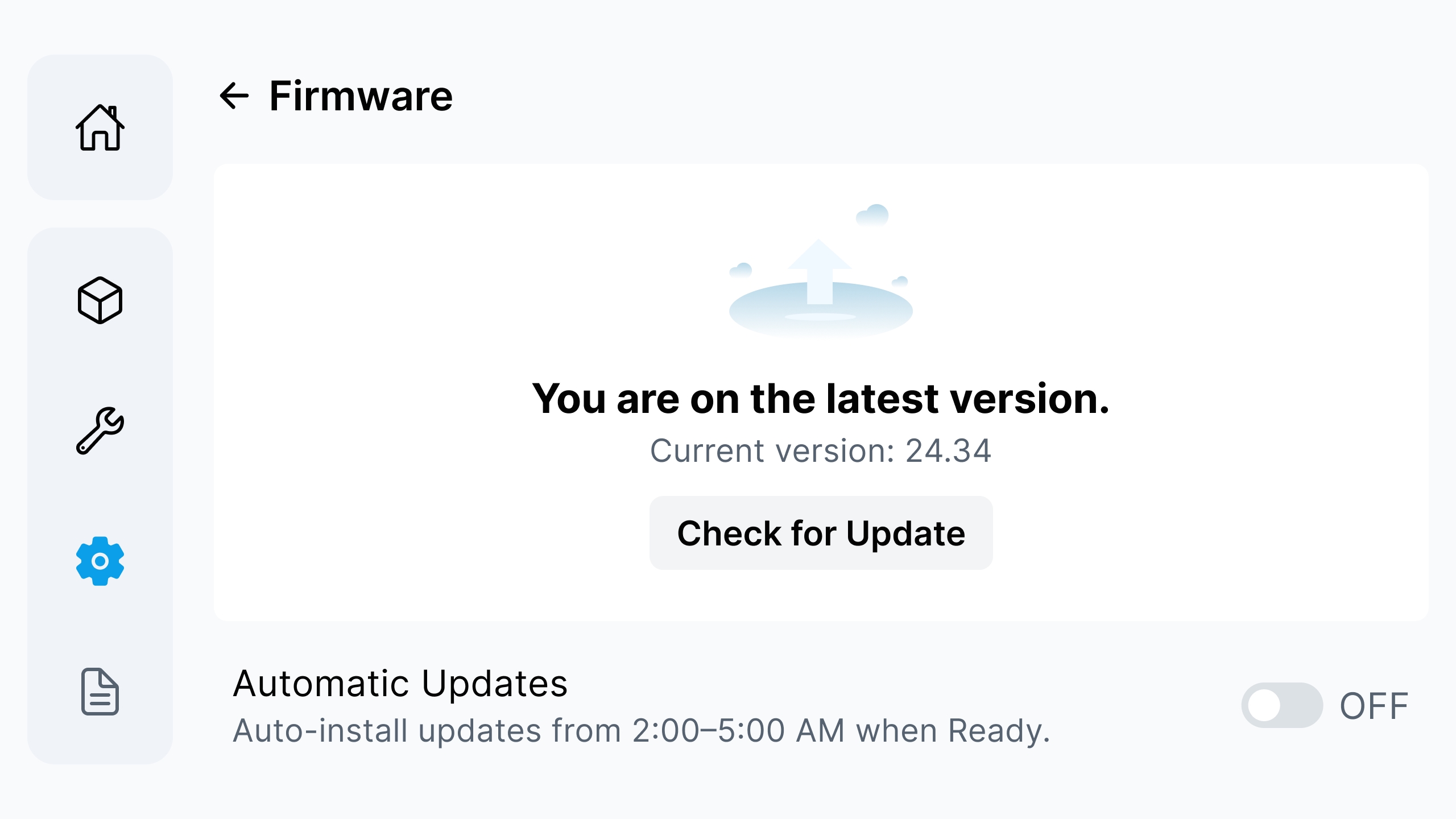
Enter Firmware to view the current firmware version, check for updates, install available updates, and manage automatic updates.
¶ Check for Updates
Make sure the printer is connected to a stable network, and then enter Firmware. If the printer is already on the latest version, the page displays You are on the latest version. Tap Check for Update to check again.
¶ Install an Available Update
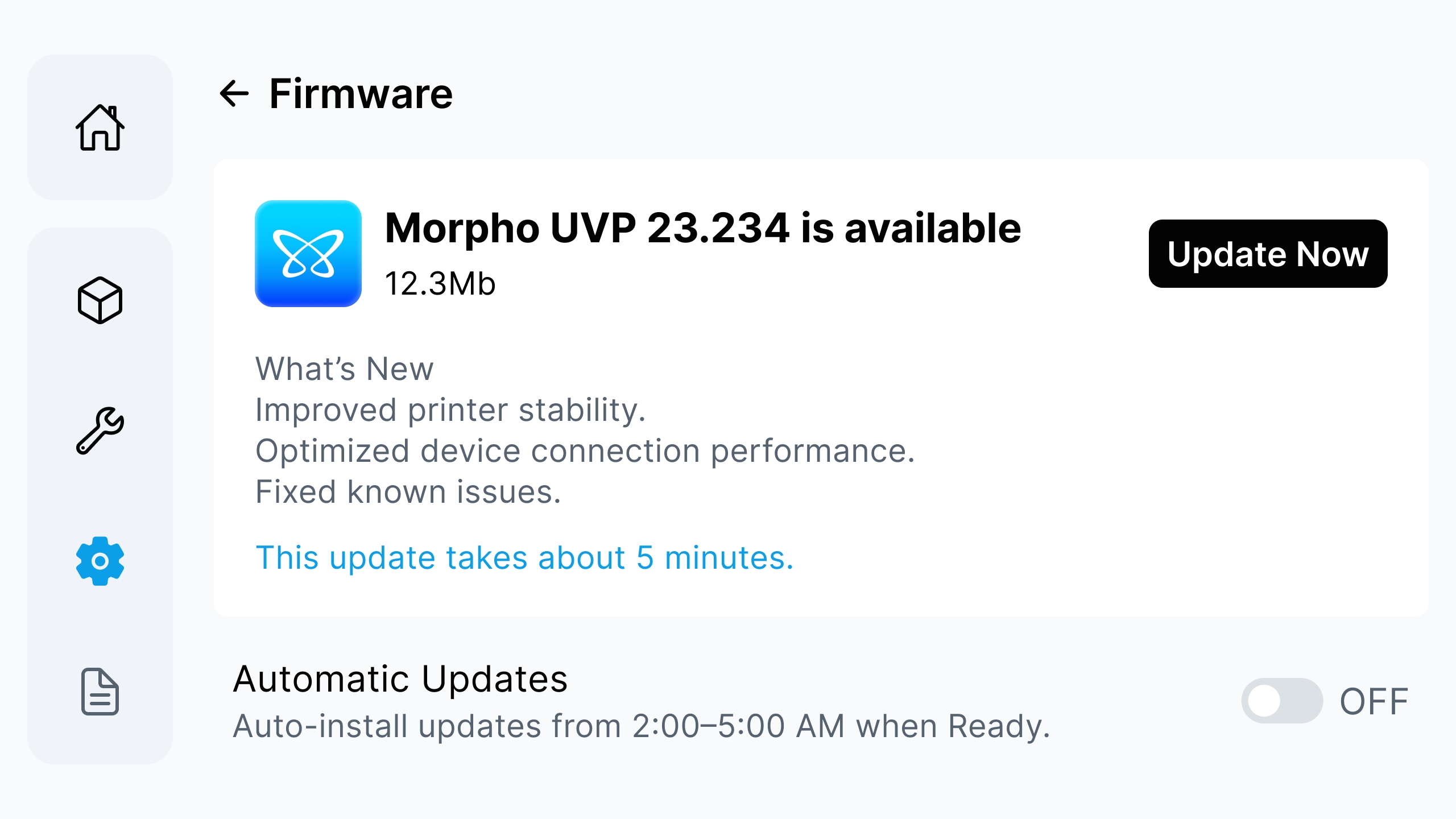
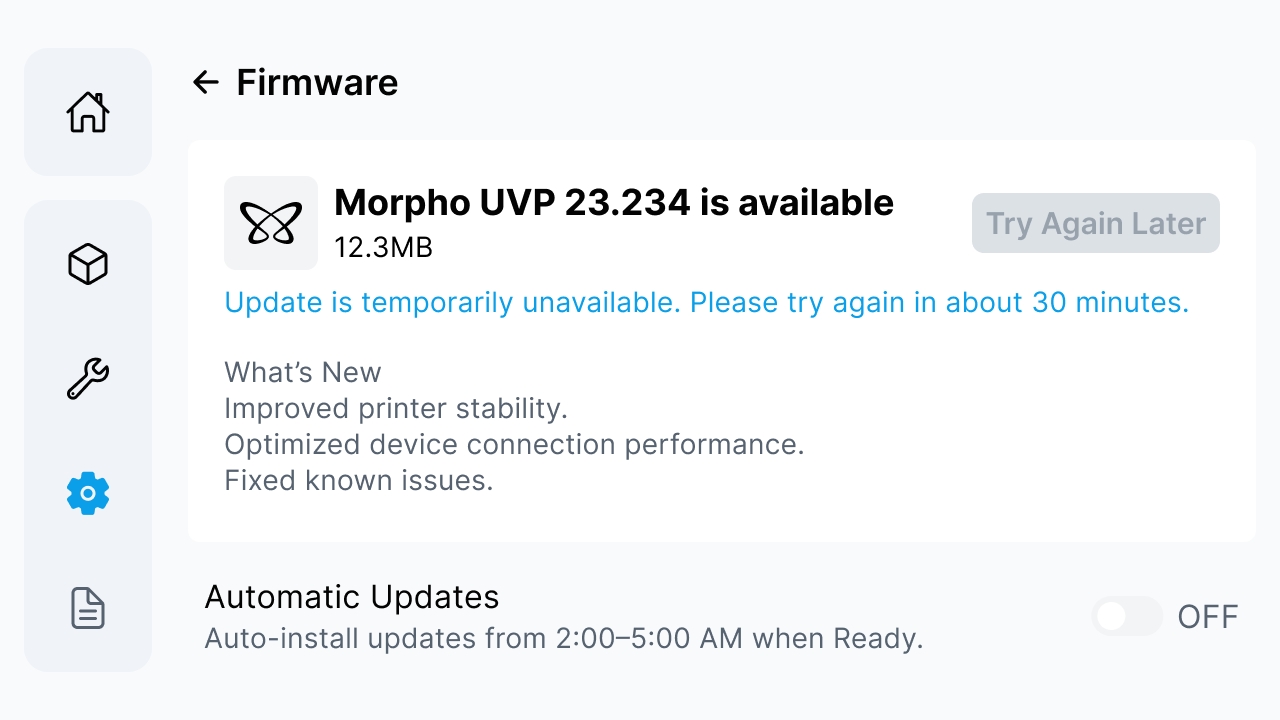
If a new firmware version is available, review the version number, file size, release notes, and estimated update time. Tap Update Now to start the update.
Important:
During the update, keep the printer powered on and connected to the network. Do not power off the printer, disconnect power, disconnect the network, or operate the printer until the update is complete.
¶ Wait for the Update to Complete
After the update starts, the screen displays the update progress. Wait until the progress is complete. The printer may restart during the update.
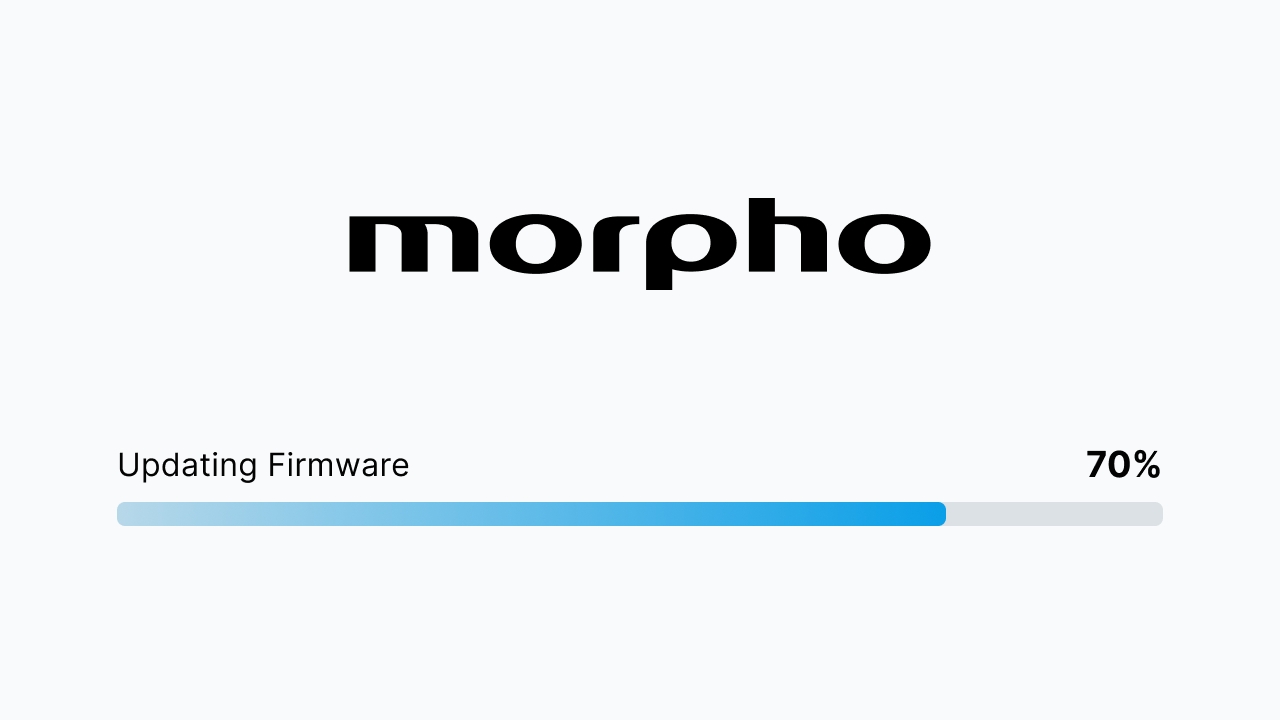
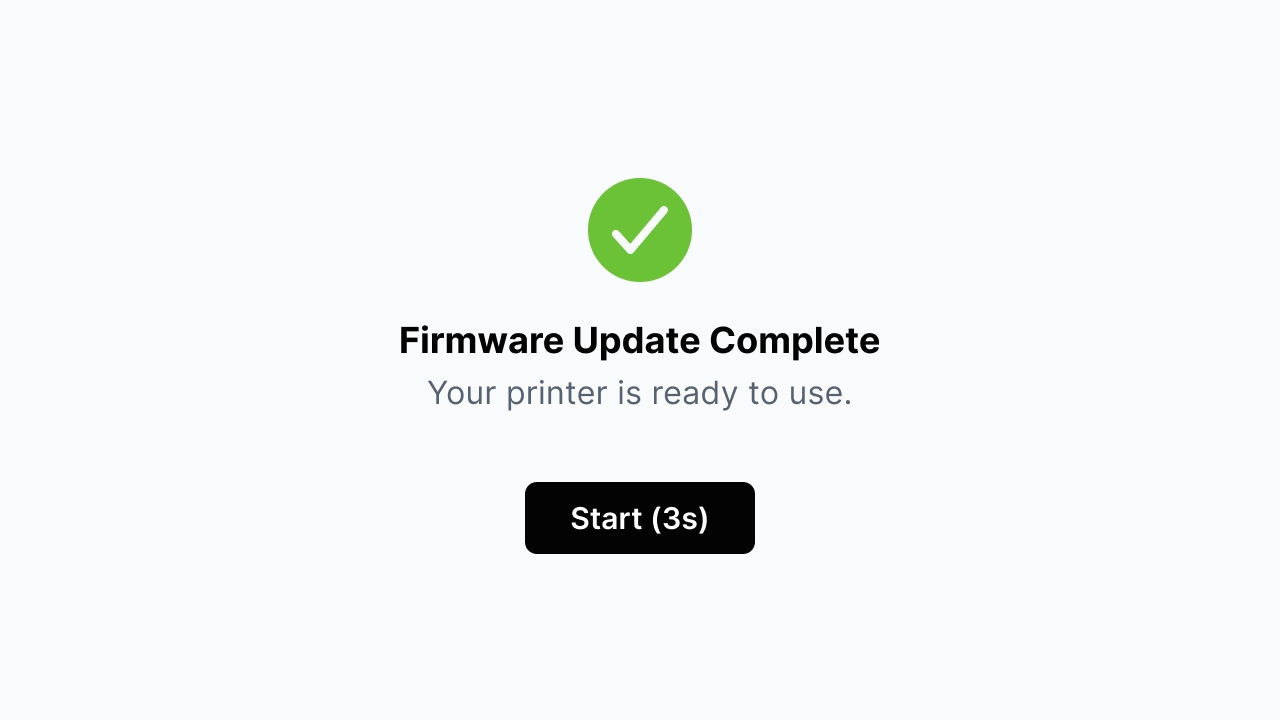
When Firmware Update Complete is displayed, the printer is ready to use. Tap Start, or wait for the countdown to finish.
¶ If the Update Fails
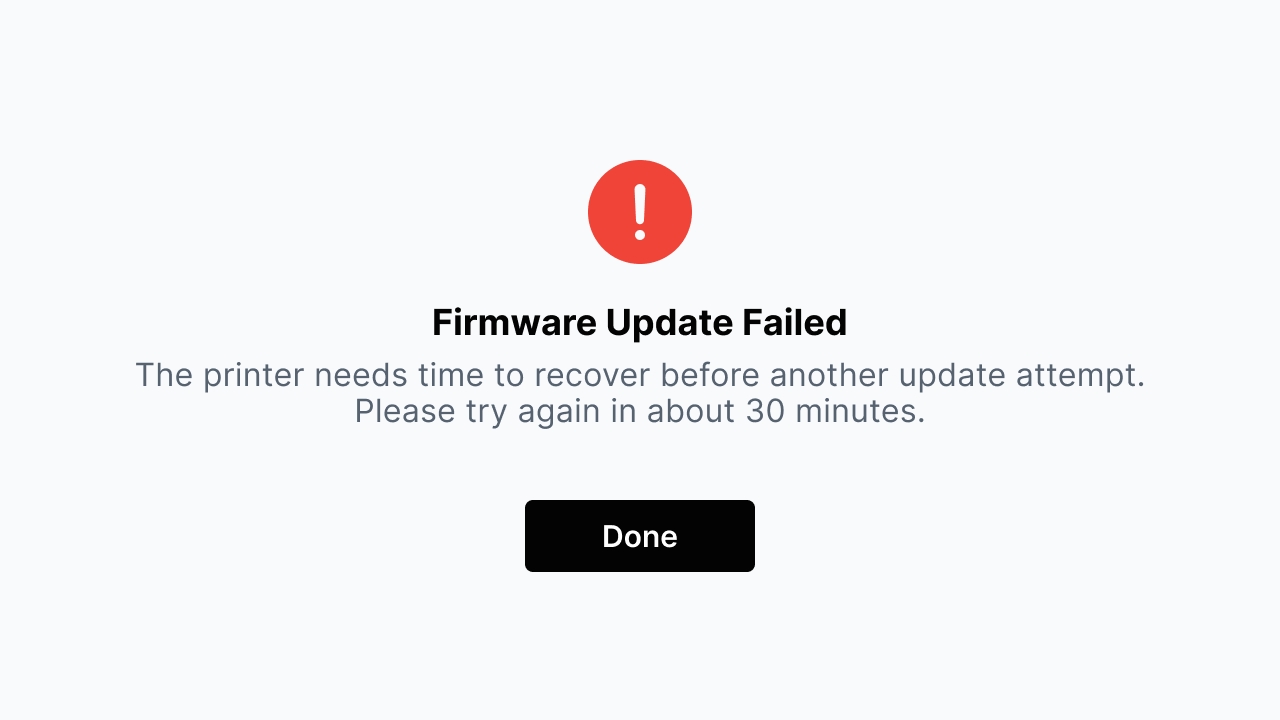
If Firmware Update Failed is displayed, tap Done. The printer needs time to recover before another update attempt. Try again in about 30 minutes.
If the Firmware page shows that the update is temporarily unavailable, wait about 30 minutes and try again later.
¶ Automatic Updates
You can turn on Automatic Updates if you want the printer to install firmware updates automatically. When this option is enabled, the printer can auto-install updates from 2:00-5:00 AM, based on the printer’s local time, when it is ready. If you prefer to install updates manually, keep this option turned off.
¶ 4.4 Display & Audio
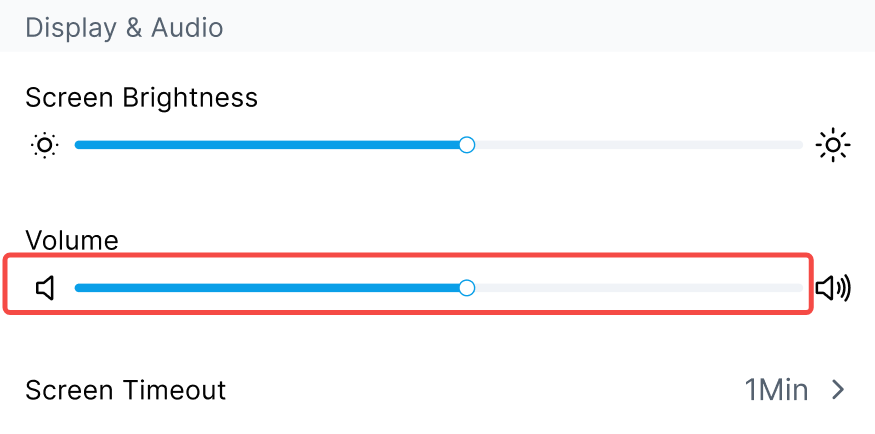
Display & Audio is used to adjust screen brightness, notification volume, and screen timeout.
¶ Adjust Screen Brightness
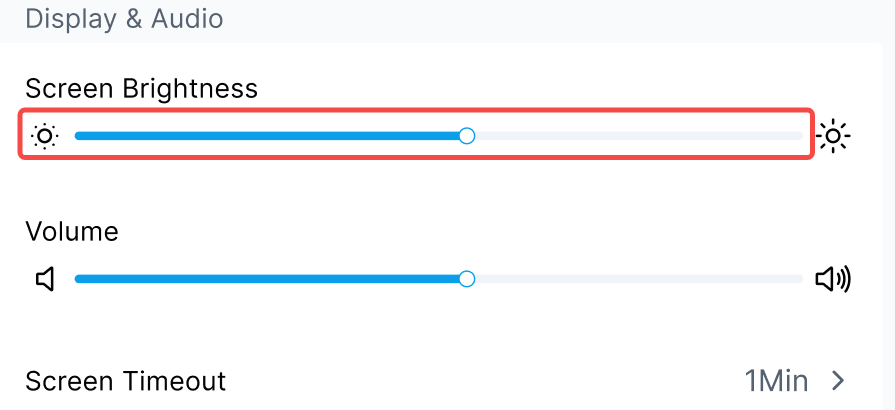
Drag the Screen Brightness slider to the left to reduce brightness or to the right to increase brightness. Adjust it according to the lighting conditions so that the screen is clear and comfortable to view.
¶ Adjust Volume
Drag the Volume slider to the left to reduce the notification volume or to the right to increase it. Keep the volume high enough to hear necessary device prompts.
¶ Set Screen Timeout
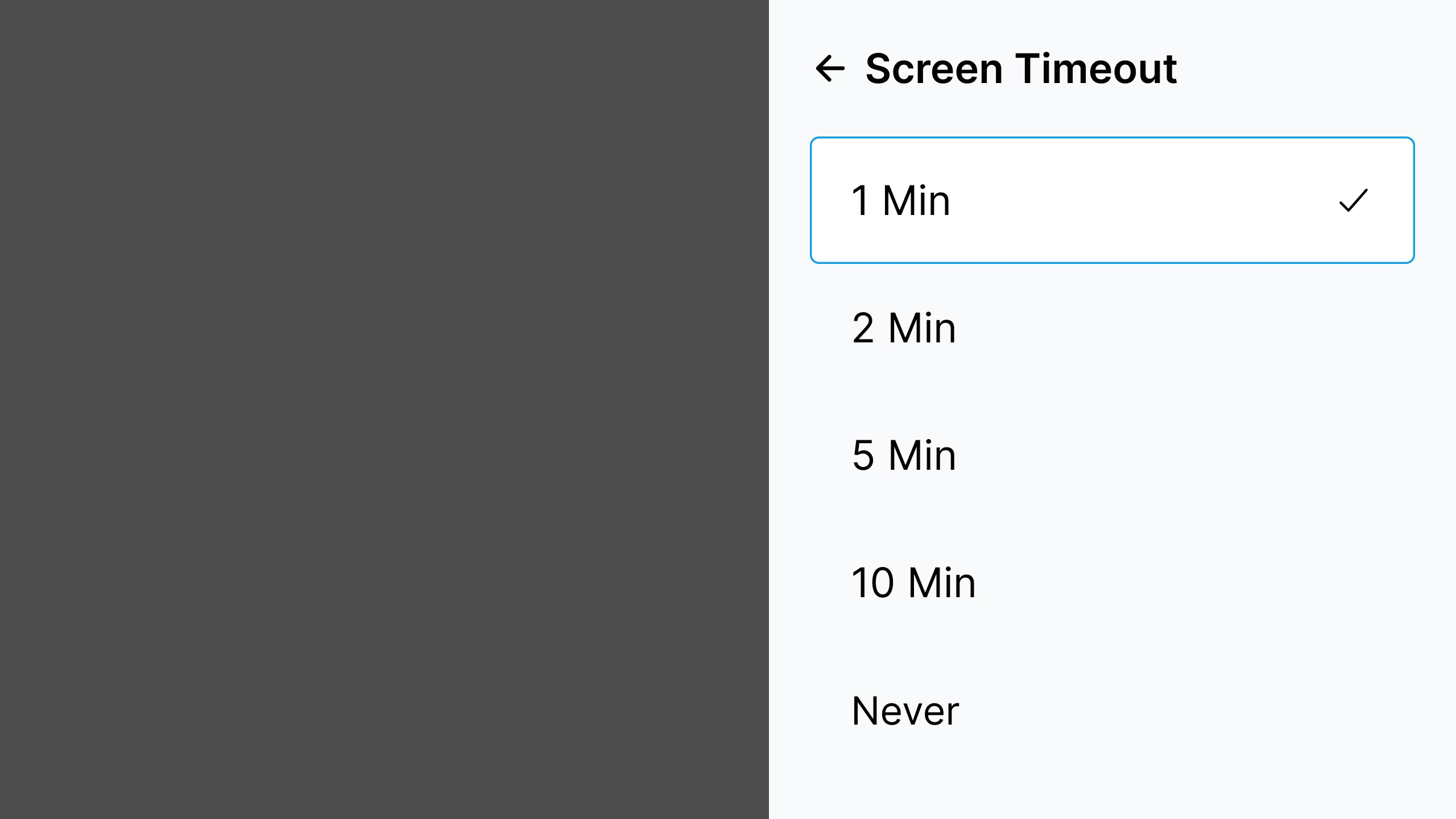
Tap Screen Timeout and select 1 Min, 2 Min, 5 Min, 10 Min, or Never. This setting only affects the automatic screen timeout and does not cancel a print or maintenance task that is already running.
¶ 4.5 Restore Factory Settings
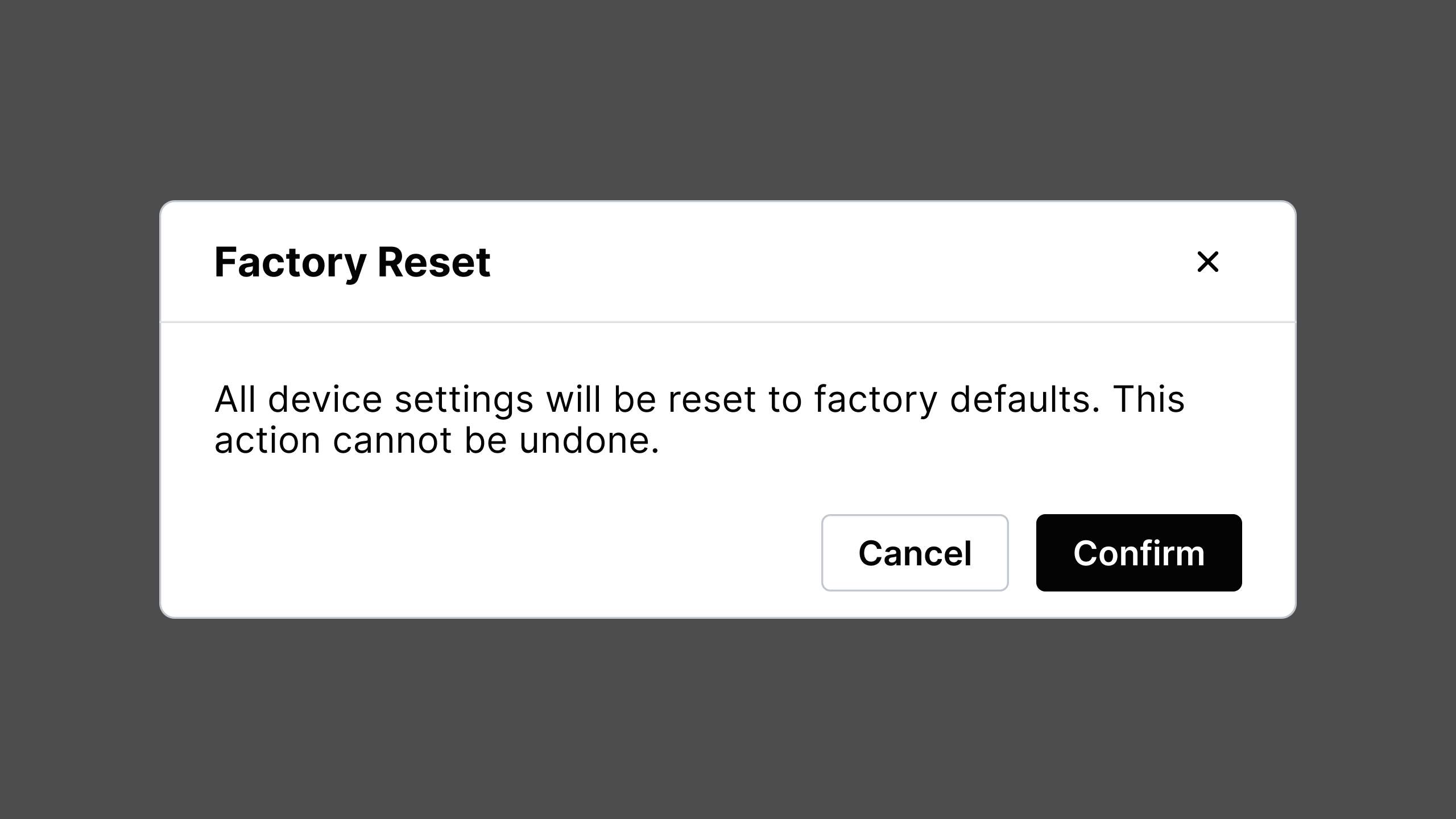
Restore Factory Settings restores the device settings to the factory defaults and cannot be undone. Use this function only when the device needs to be configured again.
¶ Step 1: Confirm Restore Factory Settings
The confirmation window clearly indicates that all device settings will be restored to the factory defaults and cannot be undone. Before proceeding, confirm that you have saved or recorded any information that you need to keep. If you confirm that the current settings should be cleared and the device should be configured again, tap Confirm.
¶ Step 2: Wait for the Device to Reset
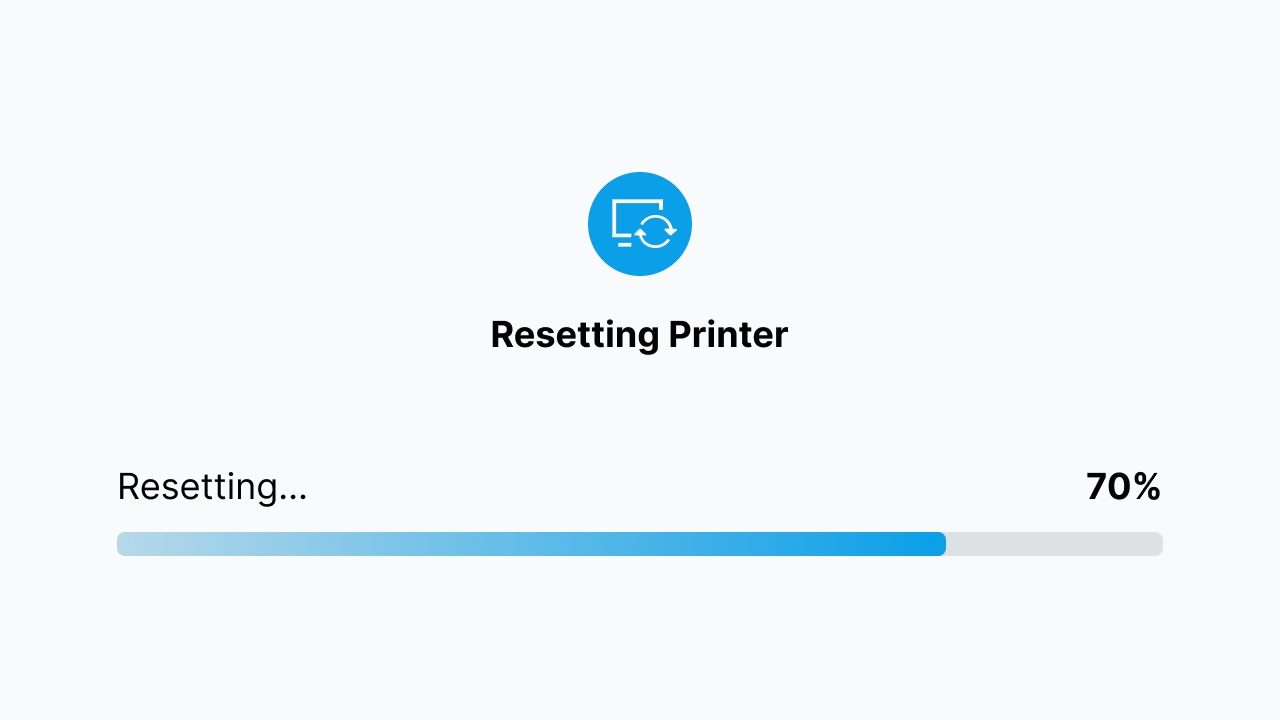
When Resetting Printer is displayed, wait until the progress is complete. Do not power off or disconnect power during the reset.
¶ Step 3: Start the Device Setup Again
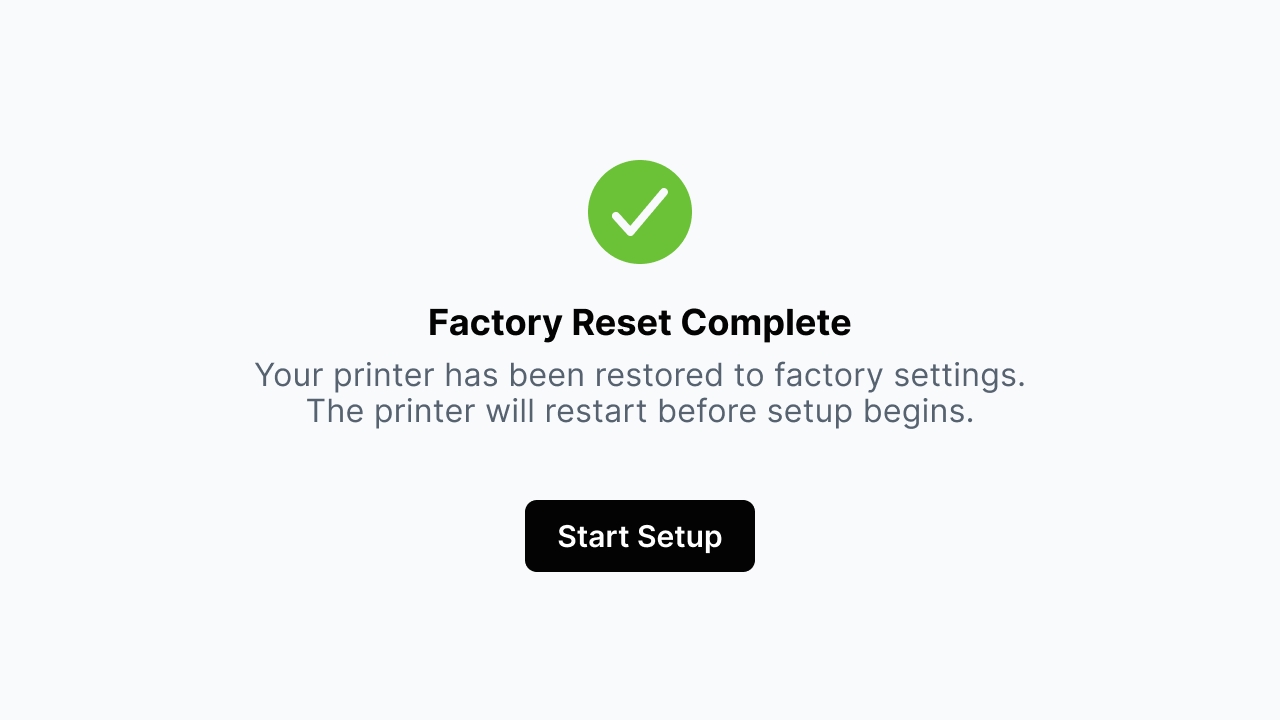
When Factory Reset Complete is displayed, the device restarts before setup begins. Tap Start Setup and complete the initial setup again according to the on-screen instructions.
¶ 4.6 Logs
Diagnostic logs contain device status and error records and are used to help troubleshoot problems. Confirm that the device is connected to the network before uploading logs.
¶ Step 1: Confirm Log Upload
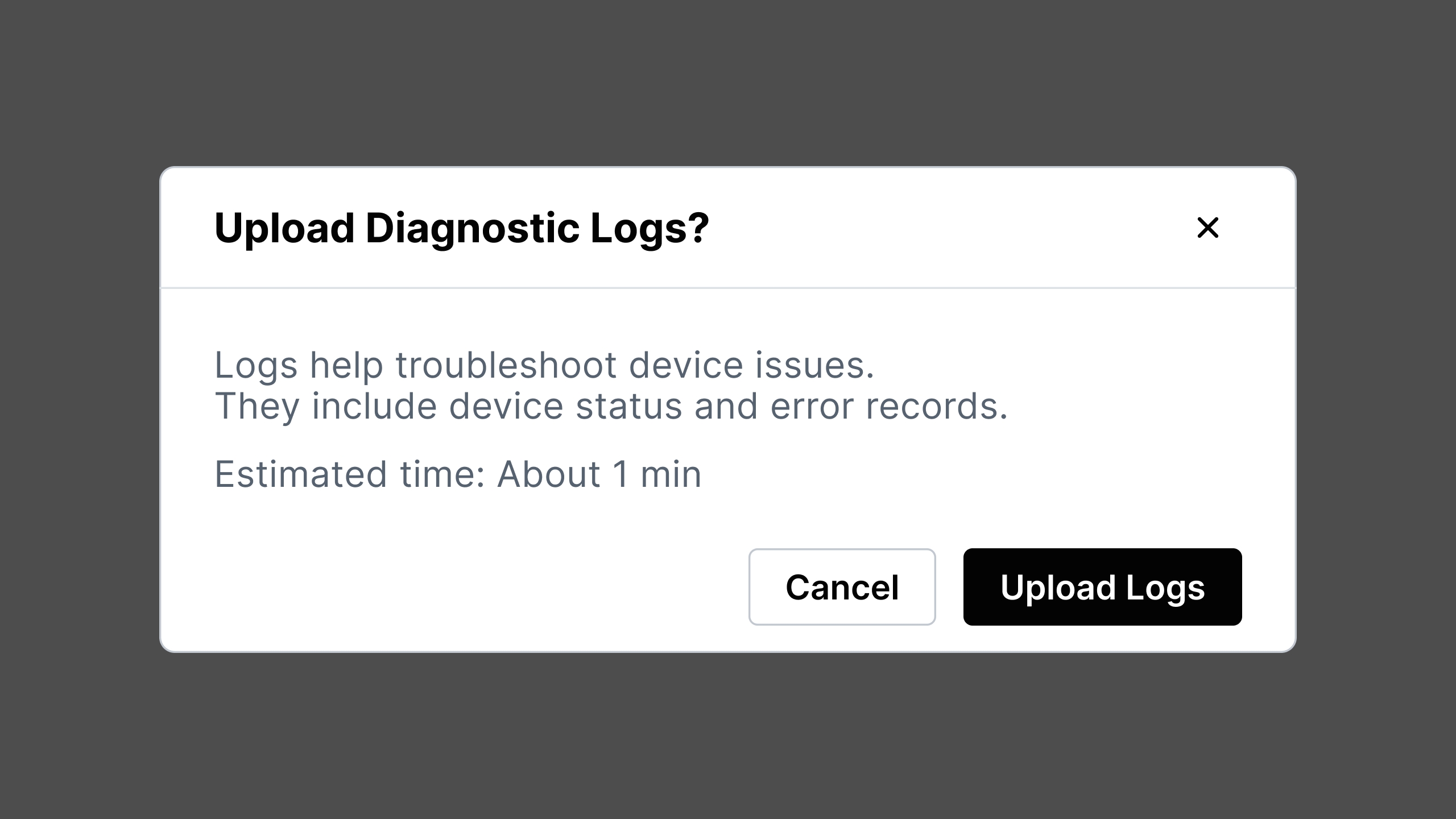
Tap Upload Logs on the Settings page. The confirmation window displays the estimated time. When ready, tap Upload Logs to start the upload.
¶ Step 2: Wait for the Upload to Complete
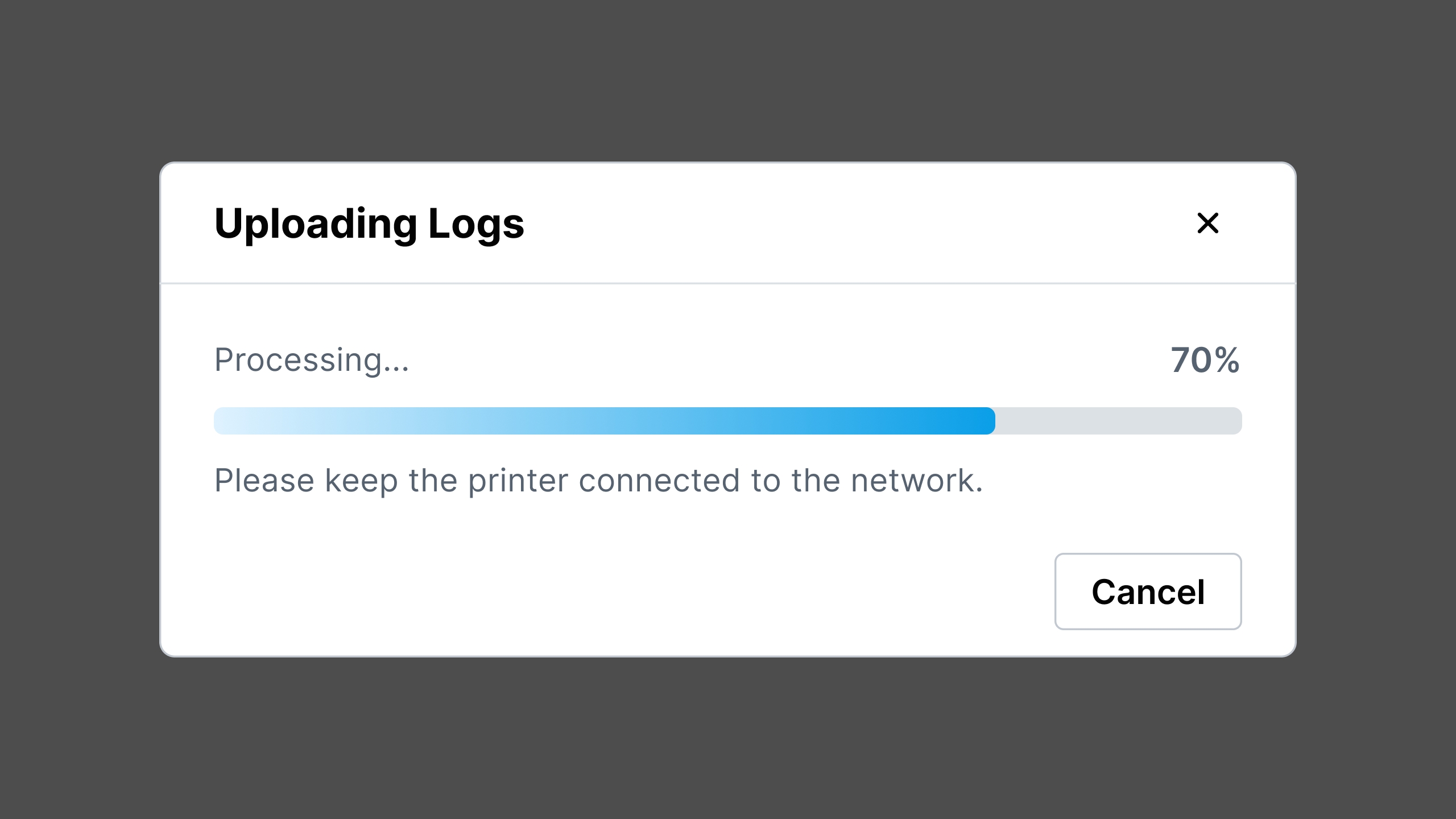
When Uploading Logs is displayed, keep the device connected to the network and wait for the progress to complete. Do not tap Cancel unless it is necessary to stop the process.
¶ Step 3: Record the Support Code
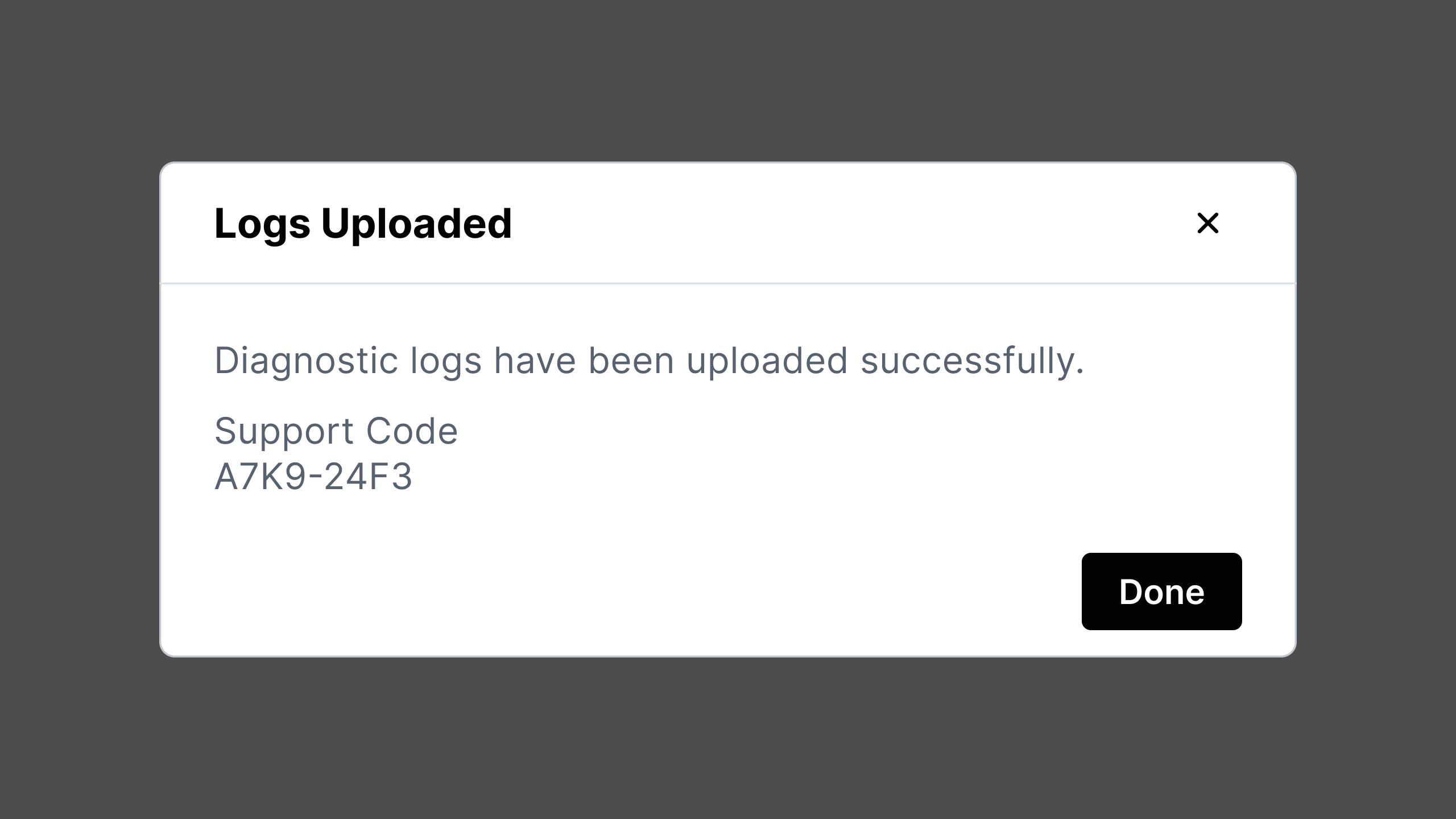
When Logs Uploaded is displayed, record the Support Code shown on the page, provide it to Morpho Support, and then tap Done.
¶ Step 4: Handle an Upload Failure
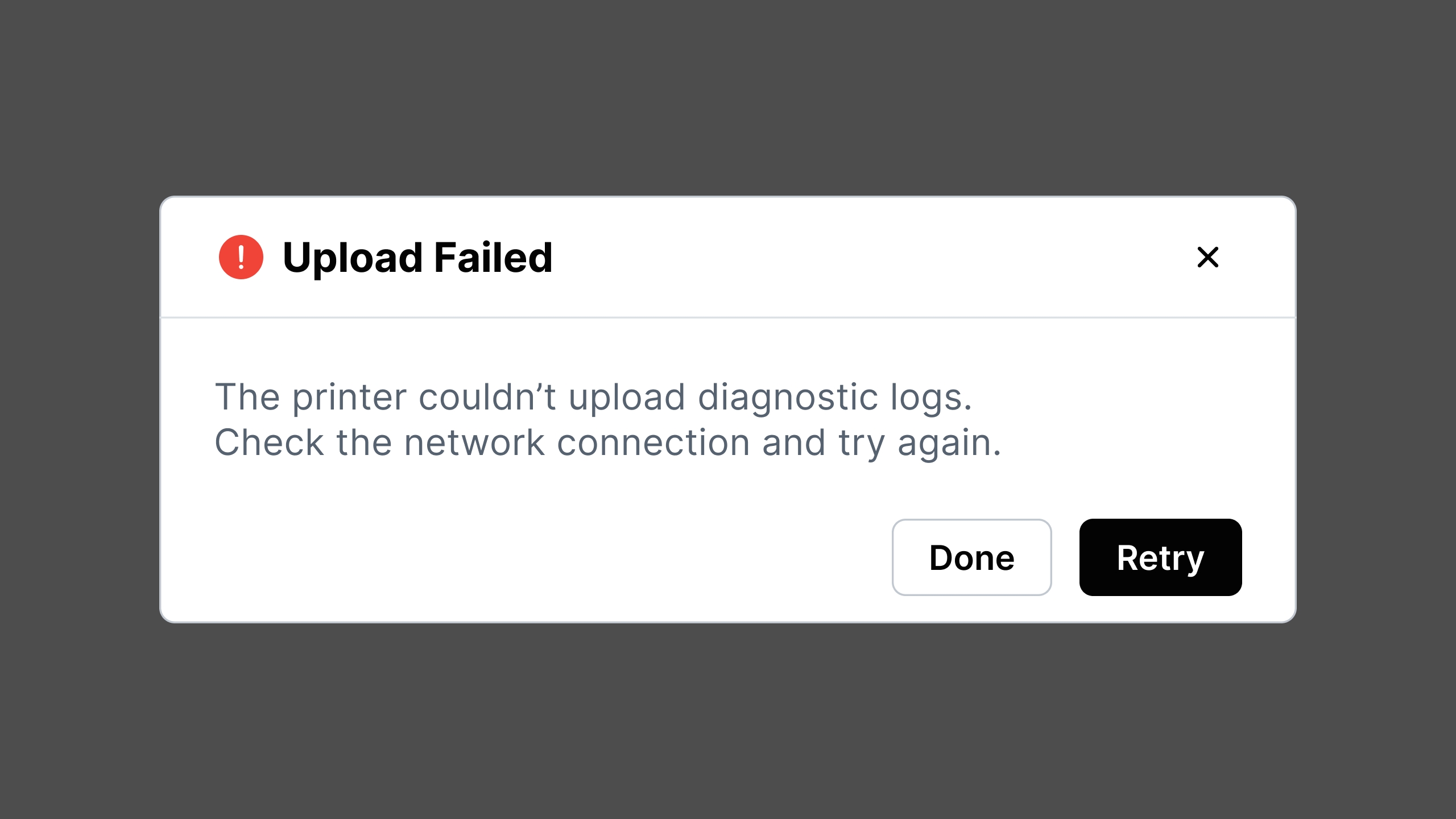
If Upload Failed is displayed, first check the connection status on the Network page. After the network is restored, tap Retry.
¶ 5. Job History
Job History is used to view completed print jobs, reprint the same job, or delete records that are no longer needed. Confirm that the correct job is selected before operating.
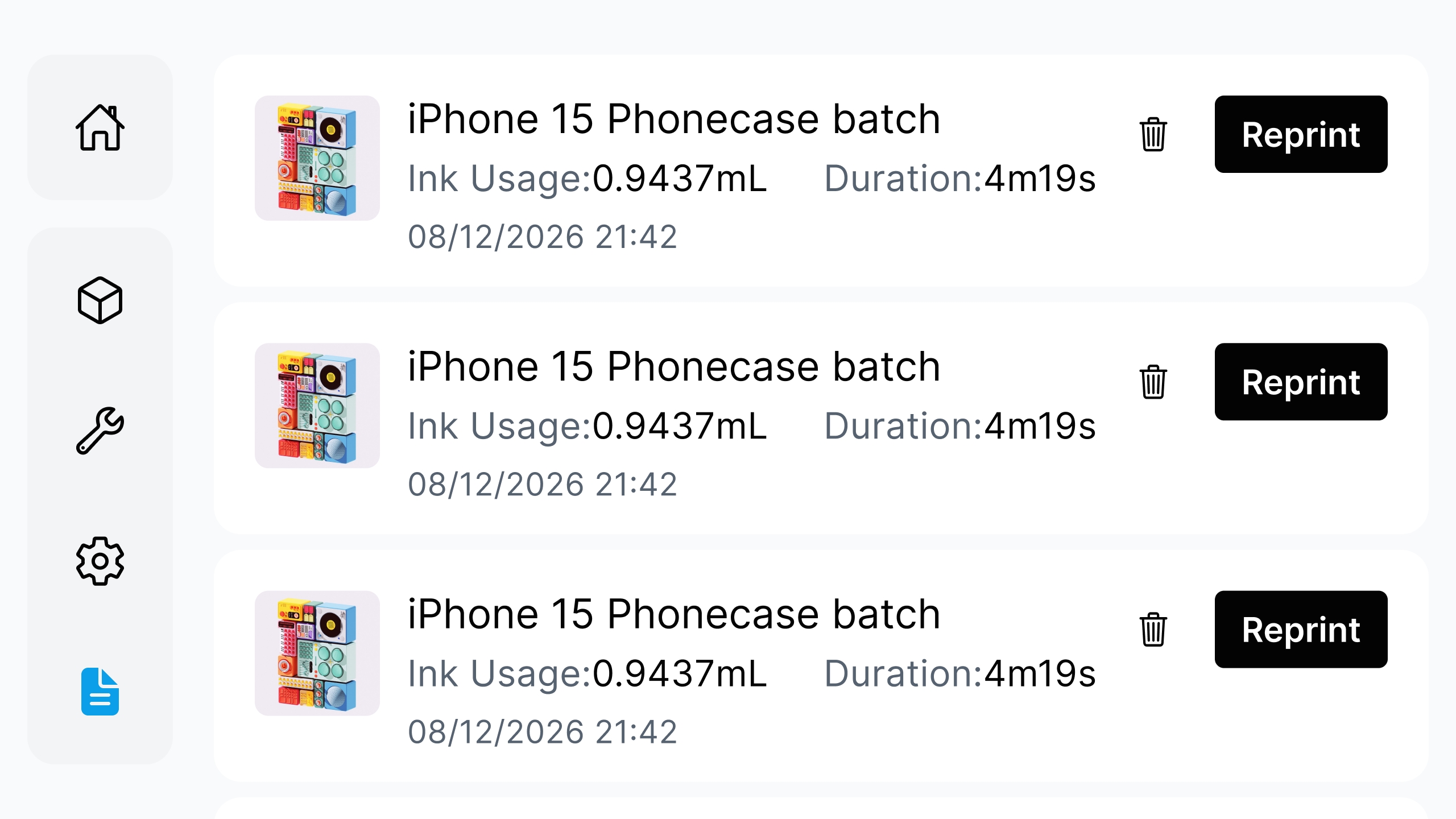
Note: Deleted records cannot be recovered. Before tapping Reprint, confirm that the material, placement, jig, and printbed are consistent with the original job, and confirm that the remaining ink is sufficient for the new print job.